

Two identical clips can behave in completely different ways. One uploads in under a minute and plays back cleanly. The other stalls on the progress screen, throws a vague error, or vanishes into processing and never appears. The difference is rarely luck. It is usually a small mismatch in the app, the file, or the account, and the fastest way to fix Instagram Reels not uploading is to find which of those three areas is at fault before you start changing everything at once.
This guide gives you that order. You will run a two minute diagnosis, work through app fixes first, then file fixes, then account and network fixes, and you will learn what each error message usually means. It also covers the cases that look like upload failures but are not, such as a Reel that actually posted while the app still showed an error, a Reel stuck in processing, and a Reel that posts but looks soft, cropped, or silent. Prices and limits change, so check the official pricing page and checkout before paying for any tool mentioned here. Instagram itself does not charge a fee to upload a Reel.
How to Fix Instagram Reels Not Uploading
The order matters because the cheapest fix is often the right one. Restarting the app, switching networks, or clearing a corrupted cache takes minutes. Re-exporting a video takes longer. Appealing an account restriction can take days. If you jump straight to reinstalling the app, deleting drafts, or changing account types, you can lose work and still miss the real cause. The method below to fix Instagram Reels not uploading protects your draft and your original file while you test each layer in turn.
Keep one rule throughout. Change one thing, test once, and note the result. If you update the app, clear the cache, switch to Wi-Fi, and re-export the file all at once, you will never know which change worked. That matters because the same problem will return next week, and you will have to repeat the whole guessing game. A careful test now gives you a repeatable way to fix Instagram Reels not uploading for the next upload.
Start With a Two Minute Diagnosis
Use this checklist before you change any setting. It takes about two minutes, and it stops the most common waste of time in Reel troubleshooting, which is fixing the file when the network was at fault, or fixing the account when the app cache was at fault. Answer each item honestly, even if you think you already know the answer. Many upload failures are caused by a setting that was changed weeks ago and forgotten.
- Can you load other Reels and open other apps that use video. If no video app loads well, suspect the network first.
- Does the failure happen on Wi-Fi and on mobile data. If it fails on one network only, suspect that network, a VPN, or a data saver setting.
- Is Instagram up to date, and did the problem start right after an update. A new app version can introduce a bug, and an old version can lose compatibility.
- How much free storage is left on the phone. Instagram needs room to process a video before it uploads, and a nearly full phone is a quiet cause of failures.
- Is the file unusually large, unusually long, or exported from a new editor or a new preset. New exports are the most common source of hidden format problems.
- Did you use licensed music, a third party download, a watermark, or a clip from another platform. Copyright and reuse checks can block or mute a Reel after upload.
- Have you posted many Reels in a short period, used many hashtags, or received a warning or action block recently. Account limits can look exactly like a technical failure.
- Does a short, simple test clip upload from the same phone. If a simple clip works and your main clip does not, the file is the problem, not the app or the account.

The Fix Order Table
This table is the core of the guide. Find your symptom in the first column, try the first fix, and only move to the next column if the first fix fails. The table is ordered by speed and by risk. Fast, low risk fixes come first. Slow, high risk fixes, such as deleting the app or changing account type, come last.
| Symptom you see | Try this first | If it still fails, try this next |
|---|---|---|
| Upload stalls at the same percentage | Switch to stable Wi-Fi and turn off any VPN | Re-export at 1080 by 1920, MP4, H.264, 30 frames per second |
| Error appears instantly when you tap Share | Force close the app, update it, and clear the cache on Android or offload on iPhone | Log out, log back in, and test a short clip |
| Reel vanishes after you tap Share | Check your profile and your drafts before you re-upload | Check for an account warning and wait before posting again |
| Reel stuck on processing for hours | Leave it for up to a few hours, then check the profile on another device | Delete the stuck draft only after you have saved the original file |
| Reel posts but looks blurry or cropped | Turn off Data Saver and turn on upload at highest quality | Re-export at the recommended resolution and re-upload |
| Reel posts with no sound or muted music | Check the music licence for your account type and your country | Replace the track with original audio or a track from the commercial library |
| Reel fails only from a scheduling tool | Upload the same file directly from the Instagram app | Reconnect the tool, check its file limits, and re-export a smaller file |
| Reel fails only on mobile data | Turn off the phone data saver and the Instagram data saver | Upload on Wi-Fi and check your mobile plan for throttling or a data cap |

App Fixes First
Update the App and Restart Cleanly
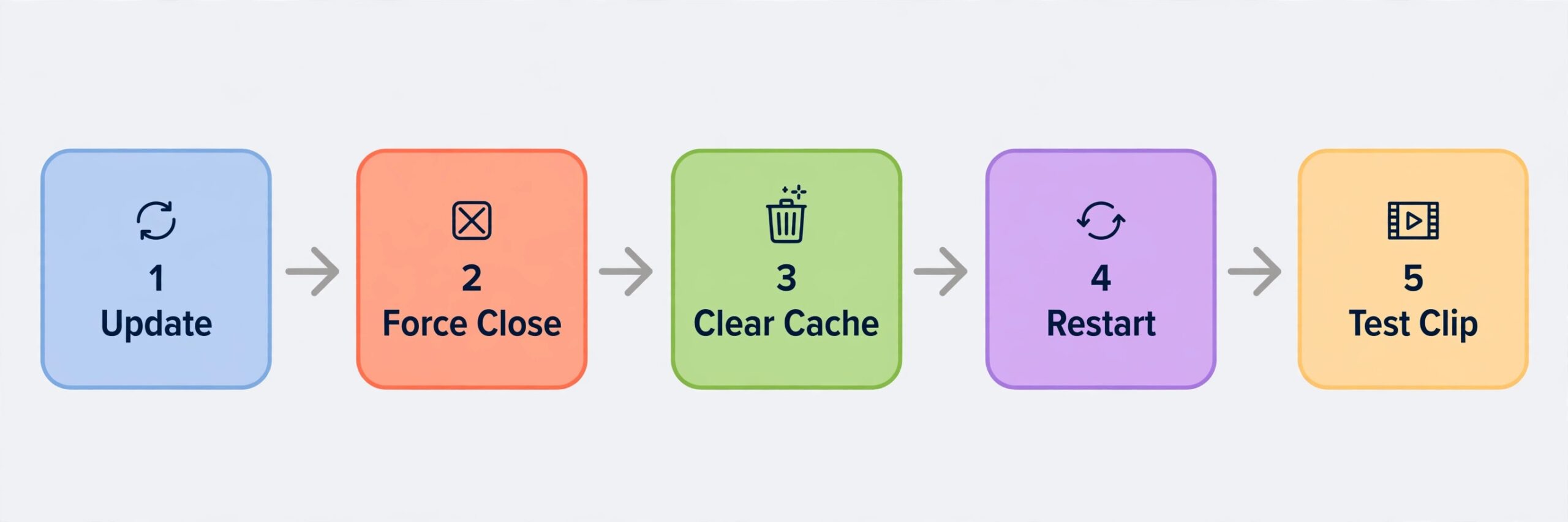
Open your app store and check for an Instagram update, even if automatic updates are turned on. Automatic updates can be delayed by storage, battery settings, or a pending system update, so a manual check is worth thirty seconds. After updating, force close Instagram completely. On iPhone, swipe up from the bottom and swipe the Instagram card away. On Android, open recent apps and swipe it away, or use Force Stop in the app settings if the app is frozen. Then reopen Instagram and try the short test clip before you retry the real Reel.
Clear the Cache Without Losing Your Drafts
On Android, go to Settings, then Apps, then Instagram, then Storage, and tap Clear Cache. Clearing the cache does not delete your login, your drafts, or your saved posts. It removes temporary files that may be corrupted. On iPhone, there is no direct cache button for Instagram. The closest safe option is to offload the app from Settings, then General, then iPhone Storage, then Instagram, and tap Offload App. Offloading removes the app itself but keeps its documents and data, and reinstalling restores them. Do not choose Delete App on iPhone if you want to protect drafts, because deletion removes app data as well.
Free Storage and Check Data Saver Settings
Instagram needs free space to process a video, create a preview, and hold the upload in progress. If your phone reports less than about 1 gigabyte free, treat storage as a suspect, even if other apps still work. Photos and videos are the usual culprits, so move a few large videos to cloud storage or a computer, delete duplicate downloads, and empty the trash folder in your gallery app, because deleted files often sit in trash for 30 days and still count against storage. After freeing space, restart the phone and test again.
File Fixes Next
The Specs That Matter Most
Instagram accepts a wide range of videos in theory, but reliable uploads cluster around a narrow set of specs. Use these as your default export preset for every Reel when you need to fix Instagram Reels not uploading, and only depart from them when you have a specific reason and a test upload to prove the departure works. The recommended frame is 1080 pixels wide by 1920 pixels tall, which is a vertical 9 by 16 frame that fills a phone screen. The recommended container is MP4 with H.264 video and AAC audio.
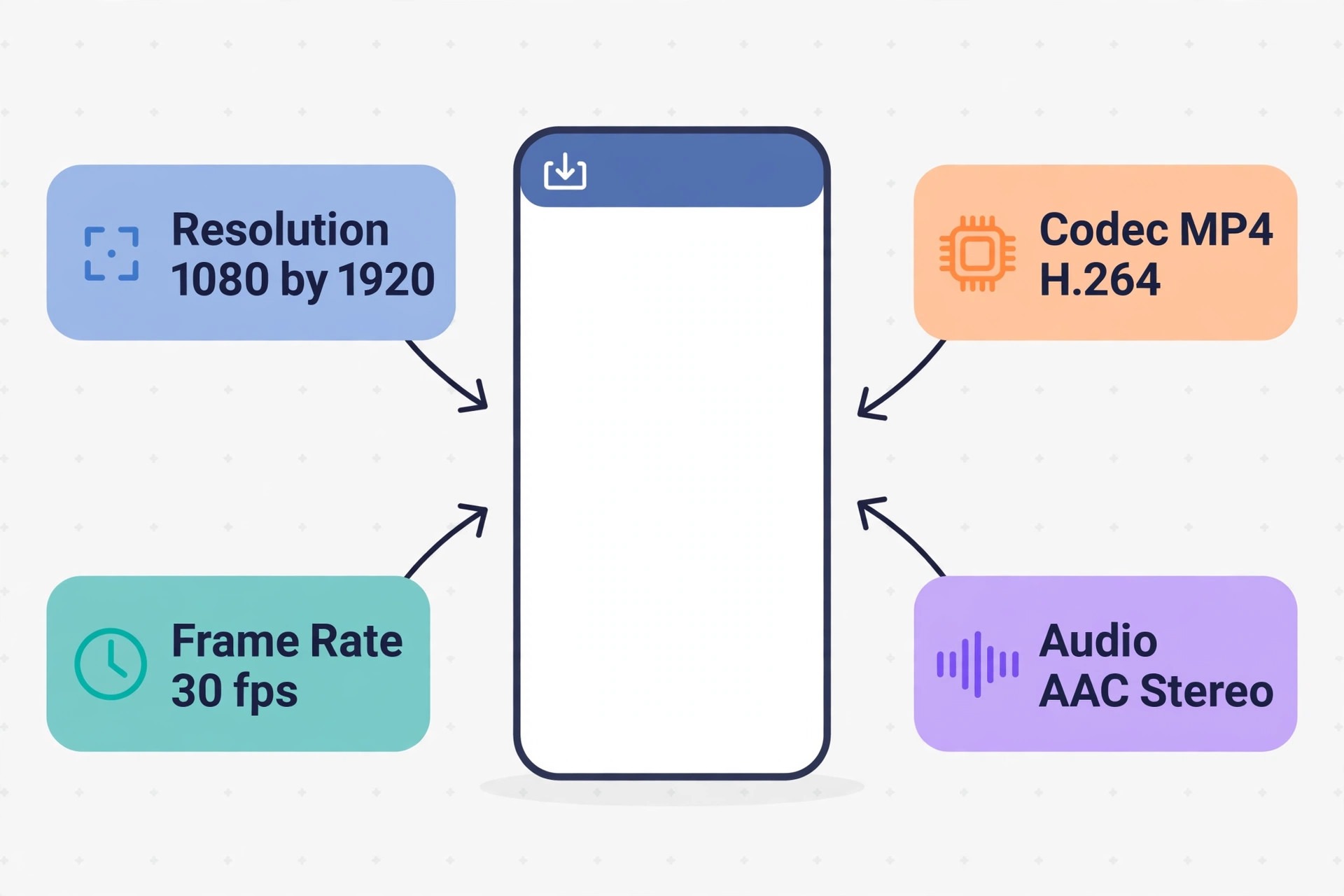
Keep the frame rate at 30 frames per second unless you have a reason to use another standard rate, and keep the audio at 128 kilobits per second or higher in stereo.
| Spec | Reliable default | Why it helps |
|---|---|---|
| Resolution | 1080 by 1920 pixels | Fills the screen without cropping or black bars |
| Aspect | 9 by 16 vertical | Matches the Reels feed and avoids re-framing |
| Container | MP4 | Widely supported and easy for Instagram to process |
| Video codec | H.264 | The most compatible codec for uploads |
| Audio codec | AAC stereo | Avoids silent uploads caused by unusual audio tracks |
| Frame rate | 30 frames per second | Smooth playback without variable rate problems |
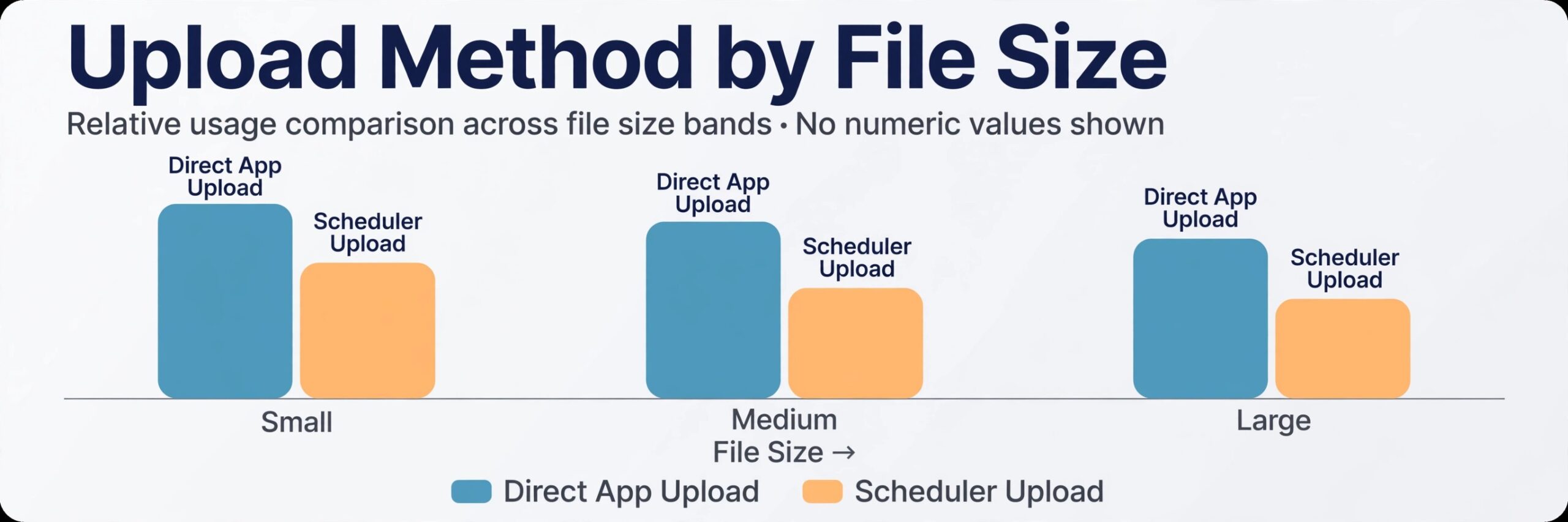
| File size | As small as quality allows, under 100 megabytes for schedulers | Large files fail more often on weak networks |
| Length | Under 3 minutes for most discovery goals | Longer Reels can still upload but reach fewer new viewers |
Re-Export With a Clean Preset
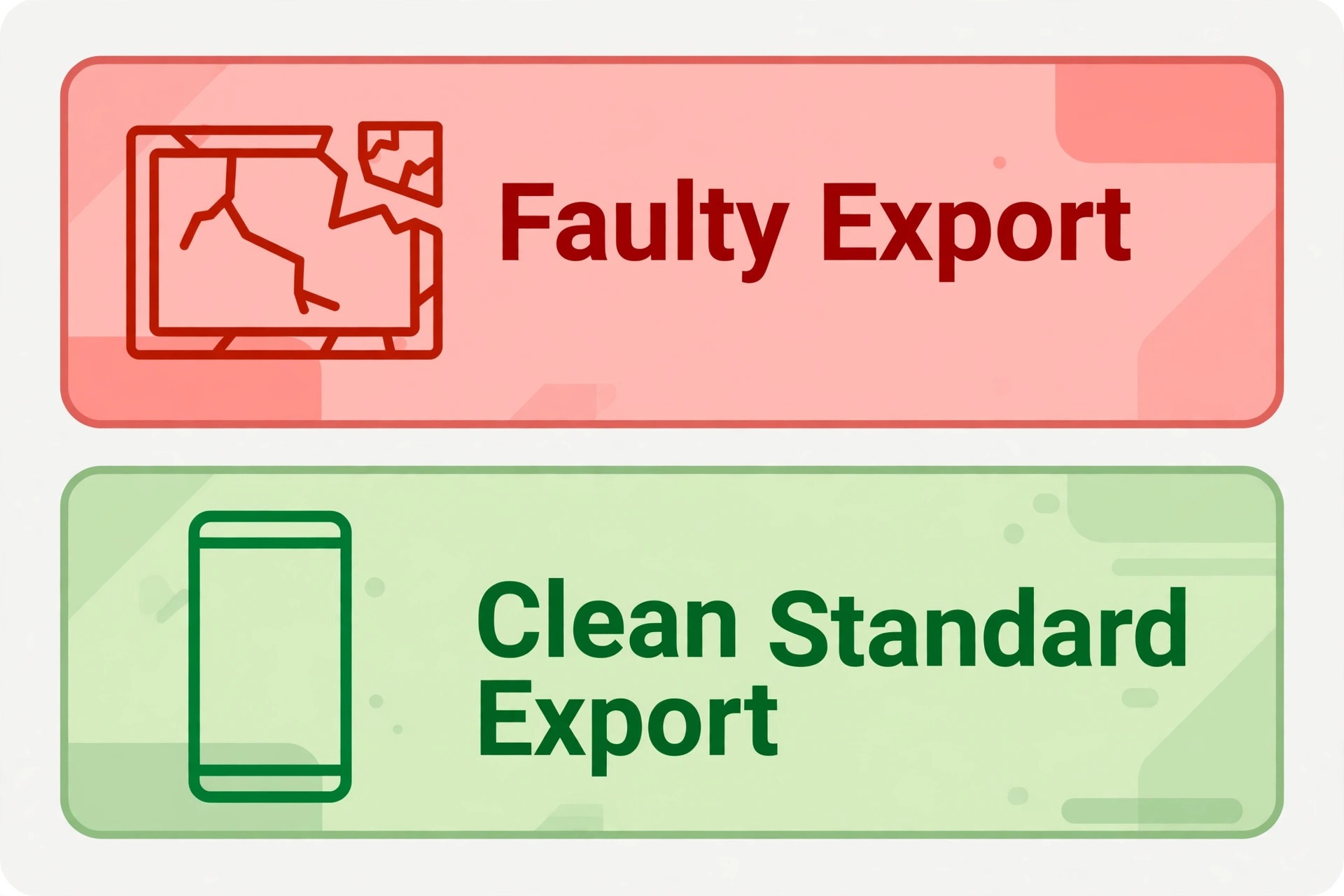
The most reliable file fix is a fresh export from your editor with a standard preset, not a re-save of the same broken file. Open the project in your editor, check that no clip uses a variable frame rate, and export as MP4, H.264, AAC, 1080 by 1920, 30 frames per second. CapCut, InShot, VN, Adobe Premiere Rush, and DaVinci Resolve can all export this preset, and the editor you used matters far less than the preset you chose. If your editor offers a platform preset for Instagram or for vertical video, use it as a starting point, then verify the resolution and codec before you export.
Variable frame rate is a hidden trap, especially for screen recordings and phone footage. Some recording apps vary the frame rate to save space, and the resulting file can play fine locally but stall during Instagram processing. If your Reel contains screen capture, a video call recording, or footage from an unusual source, convert it to a constant frame rate before you edit, or re-export the finished edit with a constant frame rate setting. Free tools such as HandBrake can convert a file to a constant frame rate and to H.264 without a subscription, and they are a good second step when a direct re-export from your editor still fails.
Music, Watermarks, and Other File Traps
Music is the second most common file cause after format. Instagram checks audio against its licensing rules, and the rules differ by account type and by country. A business account has a smaller licensed music library than a personal or creator account, because business use of popular music requires a commercial licence. If you used a popular track as a business account, the Reel may upload and then be muted, blocked in some countries, or removed. The fix is to use original audio, a track from the commercial sound collection, or a royalty free track you have the right to use, and to test the upload before you spend time on captions and hashtags.
Account and Network Fixes
Test the Network Properly
A speed test that shows fast downloads does not prove uploads are stable. Reels need a steady upload connection, and a connection that drops for a few seconds can kill an upload that a download would survive. Switch from mobile data to Wi-Fi, or from Wi-Fi to mobile data, and test the short clip again. If one network works and the other does not, you have isolated the cause when you try to fix Instagram Reels not uploading. Restart the router if Wi-Fi is the failing network, move closer to the router, and avoid uploading during a period when many devices on the same network are streaming video.
Check the date and time settings on the phone. An incorrect clock can break secure connections and login sessions, and it is a classic cause of vague app errors. Set the date and time to automatic, restart the phone, and test again. This fix sounds too simple to matter, and that is exactly why it is worth checking before you move to account appeals. While you are in settings, check for a pending system update, because an old operating system can lose compatibility with a new Instagram version.
Account Restrictions, Warnings, and Limits
Open Settings, then Account Status, and read any warnings or strikes on the account. Instagram lists content that was removed or restricted there, and a recent strike can limit posting even if older posts still appear normal. If you see a warning, read the reason carefully. A copyright strike, a community guideline strike, and a spam style action block are different problems with different recovery paths, and treating them all as a technical bug when you try to fix Instagram Reels not uploading will waste time.
New accounts face a different set of limits. Instagram can restrict features for a new account for its first days, and a brand new account that posts many Reels immediately can look like spam to automated checks. If your account is very new, post less often, complete your profile, verify your email and phone number, and build a small history of normal activity before you scale up. That patience is frustrating when you have content ready, but it is faster than fighting a restriction that was triggered by volume alone.
Business, Creator, and Personal Account Differences
Account type changes what you can upload and what music you can use, so it belongs in the diagnosis, not as a random fix. A personal account has the widest music access for non commercial use. A creator account keeps wide music access while adding creator tools. A business account gains business tools and advertising options but loses access to many popular tracks for commercial reasons. If your Reel fails or loses sound only after you switched to a business account, the account type is a prime suspect, and the fix is to use commercial audio or to switch back to a creator account if your work is personal creator content rather than a registered business presence.
What Each Error Message Usually Means
Instagram error messages are vague by design, because a precise reason could help bad actors evade checks. That vagueness is frustrating, but patterns still help. Use this table as a starting point, not as a guarantee, because the same message can have more than one cause and the only proof is a successful test upload.
| Message or behaviour | Most likely meaning | Best next test |
|---|---|---|
| Could not upload, try again | Temporary app, network, or processing fault | Force close, switch network, test a short clip |
| Stuck on posting with no cancel option | Upload interrupted or processing stalled | Wait, check profile on another device, force close if safe |
| Reel disappears after sharing | Posted but not confirmed, or removed in review | Check profile, drafts, and Account Status before re-uploading |
| Something went wrong, try again later | Server fault, account limit, or session problem | Wait an hour, log out and back in, test a short clip |
| Audio muted or removed after posting | Music licence or copyright match | Replace with original or commercial audio and re-upload |
| Reel visible to you but not to others | Privacy setting, review hold, or distribution limit | Check privacy, Account Status, and a viewer account you trust |
| Scheduling tool reports a failed publish | Tool file limit, expired connection, or API restriction | Upload from the app, reconnect the tool, shrink the file |
When the Reel Posts But Looks Wrong
A Reel that posts is not always a success. Processing problems can make a good upload look bad, and creators often delete a good Reel and start again when a short wait would have fixed it. Instagram processes video after upload, and a Reel can appear soft, low resolution, or incomplete while processing is still running. Give a new Reel time to finish processing before you judge quality, especially for longer files or for uploads on a slow connection. Watch it on a different device or on a desktop browser if you can, because the app preview on your own phone is not always the final quality.
Blurry playback has its own checklist. Turn off Data Saver, turn on Upload at Highest Quality, and re-export at 1080 by 1920 with a moderate bitrate. Avoid uploading a file that was already compressed by another app, because double compression stacks quality loss. If you downloaded your own Reel from Instagram and re-uploaded it, that second upload starts from an already compressed file and will look worse. Always upload from your original export, not from a downloaded copy.
A Safe Re-Upload Routine That Protects Your Drafts
The worst outcome in Reel troubleshooting is not a failed upload. It is a lost draft that you cannot rebuild. Before you reinstall, clear data, or delete a stuck upload, save your work in a way that survives the app. Export the finished video to your camera roll from your editor, not only from Instagram, so you have a clean master file. Save the caption in a notes app, along with hashtags, mentions, location, and cover choice. Screenshot the edit screen if the Reel has complex text or timing that would be hard to rebuild.
For a stuck upload with no cancel option, a safe sequence is to turn off Wi-Fi and mobile data briefly, force close the app, reopen it, and see whether Instagram now offers a discard or retry option. If the app still shows a frozen upload, restart the phone and check again. Only delete the stuck draft after you have confirmed the original file is saved elsewhere. Deleting a draft is permanent, and it is a last step, not a first step. That discipline is the difference between a ten minute fix and a lost afternoon of re-editing.
How to Choose Your Next Fix
When several fixes could apply, choose by evidence, not by habit. This decision guide turns the diagnosis into a single next step, which is useful when you are under time pressure and tempted to try everything at once. It also helps teams, because a team member can follow the same logic without asking the creator to repeat the whole history.
If a short test clip uploads, choose a file fix. Re-export with the standard preset, replace the music if needed, and test the real Reel again. If a short clip fails on one network but works on another, choose a network fix. Switch networks, turn off the VPN, and check data saver settings. If a short clip fails everywhere, on Wi-Fi and on mobile data, choose an app fix. Update, force close, clear the cache, free storage, and restart the phone. If a short clip fails everywhere and the app is clean, choose an account fix. Check Account Status, pause high volume activity, and check for a recent warning or a tool disconnection.
Mistakes That Make the Problem Worse
The first mistake is re-uploading the identical file five times in a row. Repeated identical failures can look like spam behaviour, and they do not give you new information. Change one variable between attempts, and keep a note of what you changed. The second mistake is deleting the app before saving drafts. Deletion is a valid last step, but it should never be a first step, because it can remove local drafts that are not backed up to the cloud.
If you have made one of these mistakes, do not panic. Pause, save your original file, run the two minute diagnosis, and work through the fix order table from the top. Most upload problems are recoverable, and a calm, ordered approach beats a fast, random one every time. That is the core lesson for anyone who needs to fix Instagram Reels not uploading on a deadline.
If Reels are part of a wider content plan, the guides on this site can help you place the fix in context. For tool choices that affect exports and scheduling, see best AI tools for Instagram and best AI video editing tools. For planning a month of posts so a single failed upload does not derail your schedule, see how to plan a month of social media content with AI. For short video ideas that work across platforms, see best AI tools for TikTok and CapCut alternatives.
Frequently Asked Questions
Why is my Reel stuck on uploading for hours?
A Reel can stall during upload or during processing, and the two stalls have different causes. An upload stall usually means a weak or interrupted connection, a very large file, or a corrupted app cache. A processing stall can happen after the upload finishes, especially for long or high bitrate files. Check your profile on another device first, because the Reel may have posted even though the app still shows a progress screen. If it has not posted, switch to stable Wi-Fi, force close the app, and test a short clip. Only delete the stuck draft after you have saved the original file elsewhere.
An instant failure usually points to the app, the session, or the caption, rather than to the video file itself. Force close Instagram, update the app, and log out and back in if needed. Test the same video with a plain caption and no link or hashtag set. If the plain version uploads, add caption elements back one at a time to find the trigger. If the plain version also fails instantly, clear the cache on Android or offload on iPhone, restart the phone, and test a short clip before retrying the real Reel.
Can I fix Instagram Reels not uploading by reinstalling the app?
Reinstalling can help when the app installation itself is corrupted, but it should not be your first step, because it can remove local drafts. Try an update, a force close, a cache clear, and a phone restart first. If you do reinstall, export the Reel to your camera roll, save the caption in a notes app, and screenshot any complex edits before you delete the app. On iPhone, offloading is safer than deleting, because offloading keeps app data while replacing the app itself.
What video format works best for Instagram Reels?
The most reliable format is MP4 with H.264 video and AAC audio, at 1080 pixels wide by 1920 pixels tall, with a vertical 9 by 16 frame and a constant frame rate of 30 frames per second. Keep the file as small as quality allows, and keep scheduler uploads much smaller than direct app uploads unless your tool states a higher limit. Avoid variable frame rate files from screen recordings, avoid 4K delivery files for Reels, and avoid re-uploading a downloaded copy of a Reel that Instagram already compressed.
Why is my Reel muted or blocked after it uploads?
Music licensing is the most common reason. Business accounts have a smaller licensed music library than personal or creator accounts, and popular tracks may be blocked, muted, or restricted by country for business use. A copyright match on a downloaded track or a third party clip can have the same effect. Replace the track with original audio, a track from the commercial sound collection, or a royalty free track you have the right to use, and test the upload before you add a full caption and hashtag set.
Should I switch from a business account to a creator account to fix uploads?
Only switch if you have proven that account type is the cause, for example by testing the same Reel with commercial audio and finding that it uploads cleanly, while the popular track version fails. Switching changes music access, insights, and advertising options, and frequent switching can trigger new checks. If your work is personal creator content, a creator account may fit better. If you run a registered business that advertises, stay on a business account and use commercial audio for Reels.
Get the Reel Live, Then Keep It From Sticking Again
The fix that works once is useful. The routine that prevents the next failure is better. Save one Instagram export preset in your editor, keep at least 1 gigabyte free on your phone, turn off Data Saver for uploads, and keep a clean master file for every Reel outside Instagram. Before an important post, upload a short test clip if you changed editors, networks, or account settings since your last success. That test takes a minute and it tells you whether the app, the file, or the account needs attention before the real post is due.
When a Reel does fail, return to the order in this guide. Diagnose first, fix the app, then fix the file, then check the account and the network. Change one thing at a time, note the result, and protect your draft before any destructive step. Most Reels that refuse to upload are not lost. They are waiting for one small correction, a cleaner export, a stronger network, or a track you actually have the right to use. Find that correction, test it with a short clip, and post the Reel you already made, instead of starting from scratch under pressure.