Bluetooth device shipments were projected to pass 5.3 billion units in 2025, according to the Bluetooth Special Interest Group, which means the average home now has several Bluetooth radios competing for attention in the same small space. That scale explains why pairing failures feel so common. Your headphones are not necessarily broken. They are usually stuck on an old pairing, connected to a different device in another room, or blocked by a setting on the device you are trying to use. This guide will help you fix Bluetooth headphones not pairing on the device in front of you, without a factory reset you did not need and without buying a replacement you did not need either.
Most pairing guides fail because they give one generic list for every device. Phone, laptop and TV Bluetooth behave differently, and the step that fixes an iPhone often does nothing on a TV. The fix table below tells you where to start for each device, the sections after it give the exact steps, and the reset section at the end covers the major headphone brands by family. Work through your device section in order and stop as soon as the headphones connect.
Start With the 90 Second Check
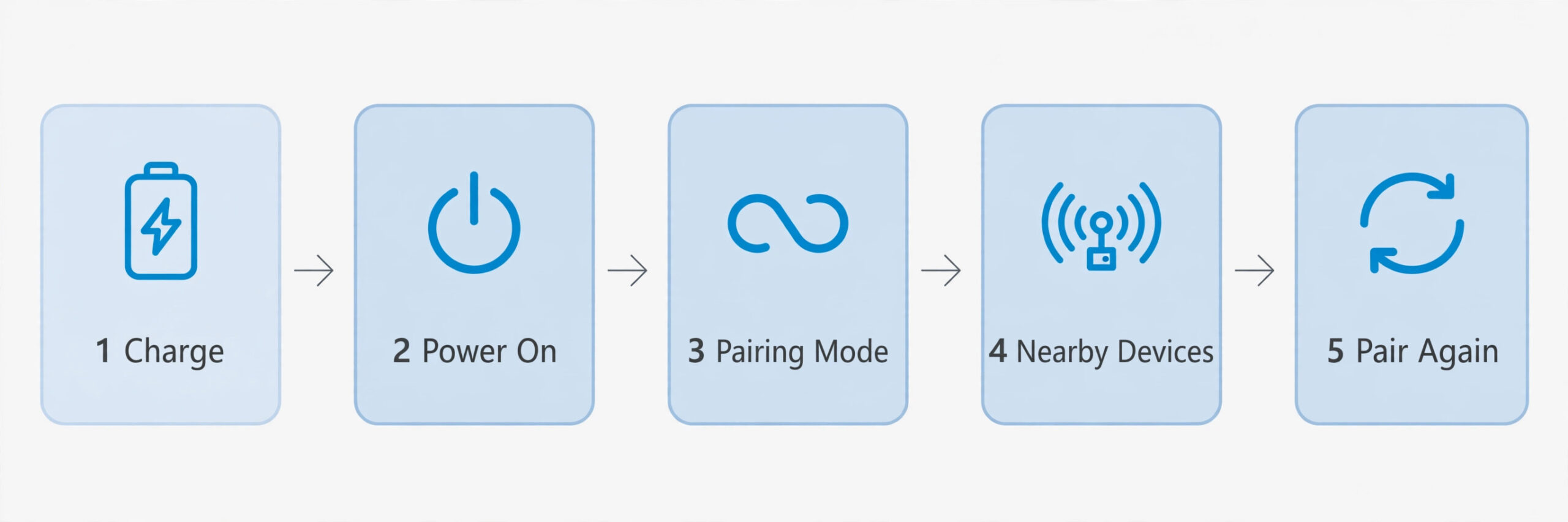
Before you touch settings, run a check that rules out the three causes that waste the most time. First, charge the headphones. A battery below about 20 percent can stop some models entering pairing mode at all, and a pair that turns on for a few seconds and then dies will look like a pairing failure when it is really a power failure. Plug them in for ten minutes even if the light says they have charge.
Second, make sure the headphones are actually in pairing mode, not just switched on. On most over-ear models, switching on and pairing are different actions. Switching on reconnects to the last device. Pairing mode usually means holding the power button or a dedicated Bluetooth button for several seconds until the light flashes in a distinct pattern, often alternating blue and white or flashing rapidly. If the light is solid or slow pulsing, the headphones are probably already connected to something else.
Third, move the headphones within a metre of the device and turn off Bluetooth on the other devices nearby that have paired with them before. A phone in your pocket, a laptop in the next room and a TV in standby can all grab the connection before the device you want gets a chance. Multipoint headphones, which stay connected to two devices at once, are the worst offenders here, because they can look free while holding a silent connection to a device you forgot about.
The Fix Table by Device
Use this table to find your starting point. Most failures clear at step one or step two, so do not jump straight to a reset.
| Device | First thing to try | If that fails | Reset only when |
|---|---|---|---|
| iPhone or iPad | Forget the device, then re-pair in pairing mode | Reset network settings | The headphones fail on a second phone too |
| Android phone | Clear the Bluetooth app cache, forget, then re-pair | Check battery optimisation for the headphone app | The headphones fail on a second phone too |
| Windows laptop | Remove the device, restart Bluetooth services, re-pair | Reinstall the Bluetooth driver | The headphones fail on a phone and a laptop |
| Mac | Remove the device, restart the Mac, re-pair | Delete the Bluetooth preference file | The headphones fail on a phone and a Mac |
| Smart TV | Forget the device on the TV, re-pair with the TV remote | Check the TV audio output setting | The headphones fail on a phone and the TV |
| Streaming stick or box | Restart the stick, forget, then re-pair | Check for a system update on the stick | The headphones fail on a phone and the stick |
On phones, the fix is usually about stored pairing data. On computers, it is usually about drivers or system services. On TVs, it is usually about a stale pairing or the wrong audio output.

How to Fix Bluetooth Headphones Not Pairing on a Phone
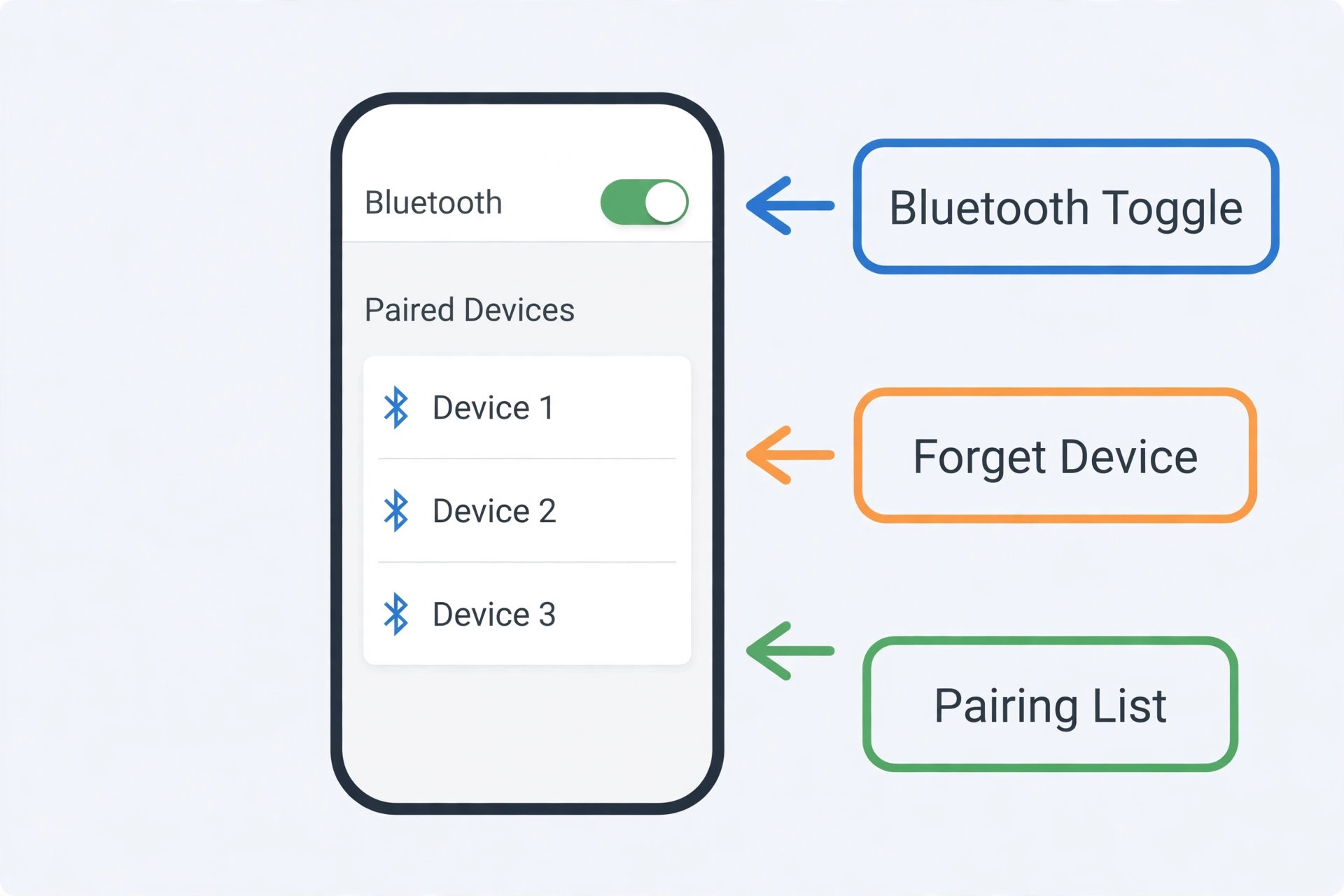
Phones cause the largest share of pairing complaints, and they also have the simplest fix. Start by putting the headphones in pairing mode, then open Bluetooth settings on the phone. If the headphones appear in the list but tapping them does nothing, or if they appear and vanish, the stored pairing is almost certainly corrupt. Forget the device, turn Bluetooth off and back on, and pair again from scratch.
Forget the device on the phone and also clear it from the headphones if the model supports it, using the button hold in the reset section below. Clearing only one side leaves half of the old pairing in place, and the two halves can disagree about the connection.
Fix It on an iPhone or iPad
Open Settings, tap Bluetooth, and find the headphones in the list. Tap the info icon beside the name and choose Forget This Device, then confirm. Turn Bluetooth off, wait ten seconds, and turn it back on. Now put the headphones in pairing mode and wait for the name to appear under Other Devices. Tap it and wait for the status to change to Connected. If the headphones ask for a PIN, try 0000 first, then 1234, because most headphone makers still use one of those two codes.
If the headphones still will not appear, check two iPhone settings that quietly block pairing. The first is Airplane Mode. Turn it on, wait ten seconds, turn it off, and try again, because this forces the radio stack to restart. The second is a pending software update. An iPhone that has not been updated in a long time can carry Bluetooth bugs that Apple fixed months ago, so check Settings, then General, then Software Update before you blame the headphones.
When nothing on the phone side works, the next step on an iPhone is Reset Network Settings. Go to Settings, then General, then Transfer or Reset iPhone, then Reset, then Reset Network Settings. This clears saved Wi-Fi networks and Bluetooth pairings, but it does not delete photos, messages or apps. If the headphones still fail after a network reset, test them on a second phone before you go further.
Fix It on an Android Phone
Android adds one extra layer that iPhones do not have, which is the Bluetooth system app and its cache. Open Settings, then Apps, then See all apps, then tap the three dot menu and choose Show system. Find Bluetooth, tap Storage, and clear the cache. Do not clear data unless the cache clear fails, because clearing data removes all pairings at once. Restart the phone after the cache clear, then forget the headphones in Bluetooth settings and pair again.
Battery optimisation is the second Android trap. Some phones aggressively shut down the companion app for a headphone brand, which can stop the headphones appearing in the scan. Open Settings, then Battery, then Battery optimisation or App battery usage depending on your phone, find the headphone app, and set it to unrestricted or not optimised.
Android phones also vary by maker in where Bluetooth settings live. Samsung puts pairing under Settings, then Connections, then Bluetooth. Pixel phones put it under Settings, then Connected devices, then Pair new device. If you cannot find the setting, search the Settings app for Bluetooth rather than guessing through menus. The steps are the same once you reach the list. Forget, restart, pair fresh, and test with the headphones close to the phone.
Fix It on a Windows Laptop
Windows pairing failures usually sit in one of three places. The first is a stale device entry, the second is a driver that needs reinstalling, and the third is a power setting that turns the Bluetooth radio off to save battery. Work through them in that order.
Start by removing the device. Open Settings, then Bluetooth and devices, then Devices. Find the headphones, open the three dot menu beside the name, and choose Remove device. Restart the laptop, put the headphones in pairing mode, and add them again from the Add device screen, choosing Bluetooth as the device type. If the headphones appear as two entries, one for audio and one for hands-free calling, remove both before re-pairing.
If removal and re-pairing fail, run the built-in Bluetooth troubleshooter. On Windows 11, open Settings, then System, then Troubleshoot, then Other troubleshooters, and run Bluetooth. Microsoft routes some machines through the Get Help app for the same diagnostic, and either path is fine. The troubleshooter restarts services and checks the radio, and it sometimes fixes the fault outright.
When the troubleshooter does not fix it, reinstall the driver. Open Device Manager, expand Bluetooth, right click the adapter, and choose Uninstall device. If the confirmation window offers to delete the driver software, tick that box, then restart the laptop. Windows will reinstall a fresh driver on boot. If Windows cannot find a driver after restart, download the latest Bluetooth driver from the laptop maker or the adapter maker, such as Intel or Realtek, rather than from a third party driver site.
One Windows setting deserves a check before you give up. Open Device Manager, expand Bluetooth, right click the adapter, choose Properties, and open the Power Management tab. If the box that lets the computer turn off the device to save power is ticked, untick it. Laptops that suspend the radio aggressively can drop headphones mid call or refuse to pair after waking from sleep. Untick the box, restart, and pair again. If you want to fix Bluetooth headphones not pairing on a Windows machine that works fine on a phone, this power setting and the driver are the two places to look first.
For the official Microsoft steps in full, see the Microsoft support guide on troubleshooting Bluetooth not connecting in Windows, at https://support.microsoft.com/en-gb/windows/troubleshoot-bluetooth-not-connecting-in-windows-b91d81ec-5b3c-4bcd-be58-d09a91bb163e
Fix It on a Mac
Mac pairing failures are usually simpler than Windows ones, because there is no separate driver to reinstall. The fix is almost always about removing a stale pairing and restarting cleanly. Open System Settings, then Bluetooth, and find the headphones in the list. Click the info icon or right click the name and choose Forget, then confirm. Turn Bluetooth off in the same panel, restart the Mac, turn Bluetooth back on, and pair again with the headphones in pairing mode.
The deeper Mac fix is to delete the Bluetooth preference file. Close System Settings, open Finder, use Go to Folder, and open the Library Preferences folder in your user Library. Find the file named com.apple.Bluetooth.plist and move it to the Trash, then restart the Mac and pair again. The Mac rebuilds the file, and any corrupt pairing data goes with it. To fix Bluetooth headphones not pairing on a Mac after this step still fails, check for a macOS update, because Apple ships Bluetooth fixes in point updates.
Fix It on a TV
TV Bluetooth is the least forgiving of the three, because TVs have small pairing memories, slow menus and no driver tools. Start by removing the headphones from the TV. On most smart TVs, open Settings, then Sound or Remotes and Accessories, then Bluetooth, find the headphones, and choose Forget or Unpair. Restart the TV fully, not just into standby, by unplugging it for thirty seconds or using the restart option if the brand offers one. Then put the headphones in pairing mode and scan again from the TV.
Two TV limits catch people out. The first is the device limit. Some TVs remember only a small number of Bluetooth accessories, and a full list can silently refuse a new pairing without an error message that explains why. Delete old soundbars, controllers and headphones you no longer use before pairing a new pair. The second limit is the audio output setting. After pairing, open the TV sound settings and set the output to Bluetooth audio or the headphone name.
Most TVs mute the internal speakers when Bluetooth headphones connect, so check the TV manual for a dual audio option if you want both at once.
Streaming sticks and boxes follow the same pattern with their own menus. On a Fire TV, open Settings, then Controllers and Bluetooth Devices, then Other Bluetooth Devices, and add the headphones. On an Apple TV, open Settings, then Remotes and Devices, then Bluetooth, and pair from there. Restart the stick before pairing, and keep the headphones close to the stick during the scan, because sticks sit behind TVs where the signal is already weakened by the screen. If you need to fix Bluetooth headphones not pairing on a TV that worked last week and stopped after an update, forget and re-pair first, because TV updates often clear or corrupt the Bluetooth pairing store without telling you.
Reset Steps by Brand Family
A factory reset is the point of no return for a pair of headphones. It wipes all pairings and returns settings to defaults, so use it only after the device sections above have failed and the headphones have failed on a second device. Always check your exact model manual first, because button holds vary within a family.
For Sony over-ear models in the WH-1000X family, turn the headphones off, then hold the power button and the custom button together for about seven seconds until the blue light flashes four times. For Sony true wireless models, put both earbuds in the case, leave the lid open, and hold the case button or the touch sensors for about ten seconds until the lights flash.
For Bose over-ear models, turn the headphones off, then hold the power button and volume down together for about ten seconds until the lights change. For Bose true wireless models, put the earbuds in the case, close the lid for five seconds, open it, and hold the case button until the lights flash white.
For Apple AirPods, put both buds in the case, close the lid for thirty seconds, open it, and hold the setup button on the back of the case for about fifteen seconds until the light flashes amber and then white. Forget the device in iPhone Bluetooth settings before the reset, because Apple stores AirPods pairing in the Apple account.
For Samsung Galaxy Buds, use the reset option in the Galaxy Wearable app under Earbuds settings. If the app cannot reach the buds, put them in the case and hold both touch areas for about seven seconds until the lights change. For Jabra models, put the buds in the case, close the lid, then hold the case button or the bud buttons for about ten seconds. For Sennheiser models, use the reset option in the Smart Control app where available.
For JBL and other budget true wireless models, put both buds in the case, take them out, and hold both buds for several seconds until the lights flash in a reset pattern. After any reset, pair the headphones to one device only and test them before adding a second device. If the reset fixes pairing on a phone but the fault returns when you add a laptop, the problem is multipoint behaviour, not the reset. To fix Bluetooth headphones not pairing after a reset that changed nothing, test the headphones on a second device before you spend money, because a reset that fails on two devices points to hardware.
Connected but No Sound, and Other Half Fixed States
Pairing is only half the job. A pair of headphones can show as connected and still produce no sound, or produce sound only for calls, or sound that is thin and distant. Each of these states has a different cause, and treating them as pairing failures leads to resets that cannot help.
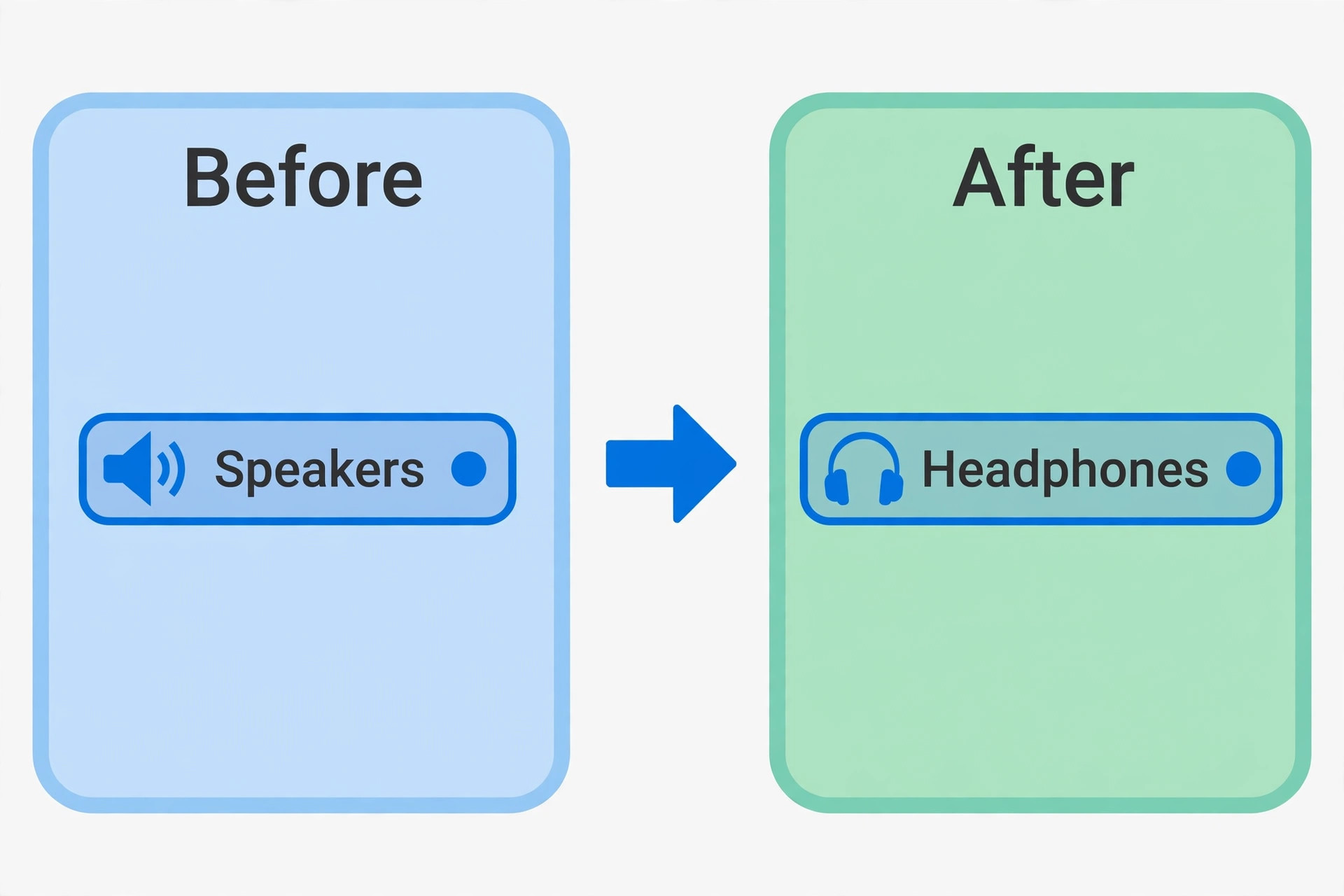
If the headphones connect but no sound plays, check the output device first. On a phone, open the media output panel from the volume controls and select the headphones. On Windows, open Sound settings and set the headphones as the output. On a Mac, open Sound settings and select the headphones as output. On a TV, set the sound output to Bluetooth audio. Output selection is the single most common cause of the connected but silent fault, especially after an update that resets the default output to speakers.
If the headphones play music but calls sound terrible, the cause is usually the hands-free profile. Bluetooth headphones carry two profiles, one for high quality stereo audio and one for calls with a microphone. When a call starts, many systems switch to the call profile, which drops music quality sharply. On Windows, this shows up as a separate Hands-Free device in Sound settings. The fix is to set the stereo profile as the default for music and accept that calls will use the lower quality profile. There is no setting that gives full stereo quality and microphone use at the same time over classic Bluetooth, because the bandwidth is shared.
If only one earbud plays, the cause is usually the earbuds losing sync with each other rather than with the phone. Put both buds in the case, close the lid for ten seconds, take them out together, and let them pair to each other before they pair to the phone. Clean the charging contacts with a dry cloth, because a bud that did not charge will not sync.
When the Problem Is Interference, Range, or Multipoint
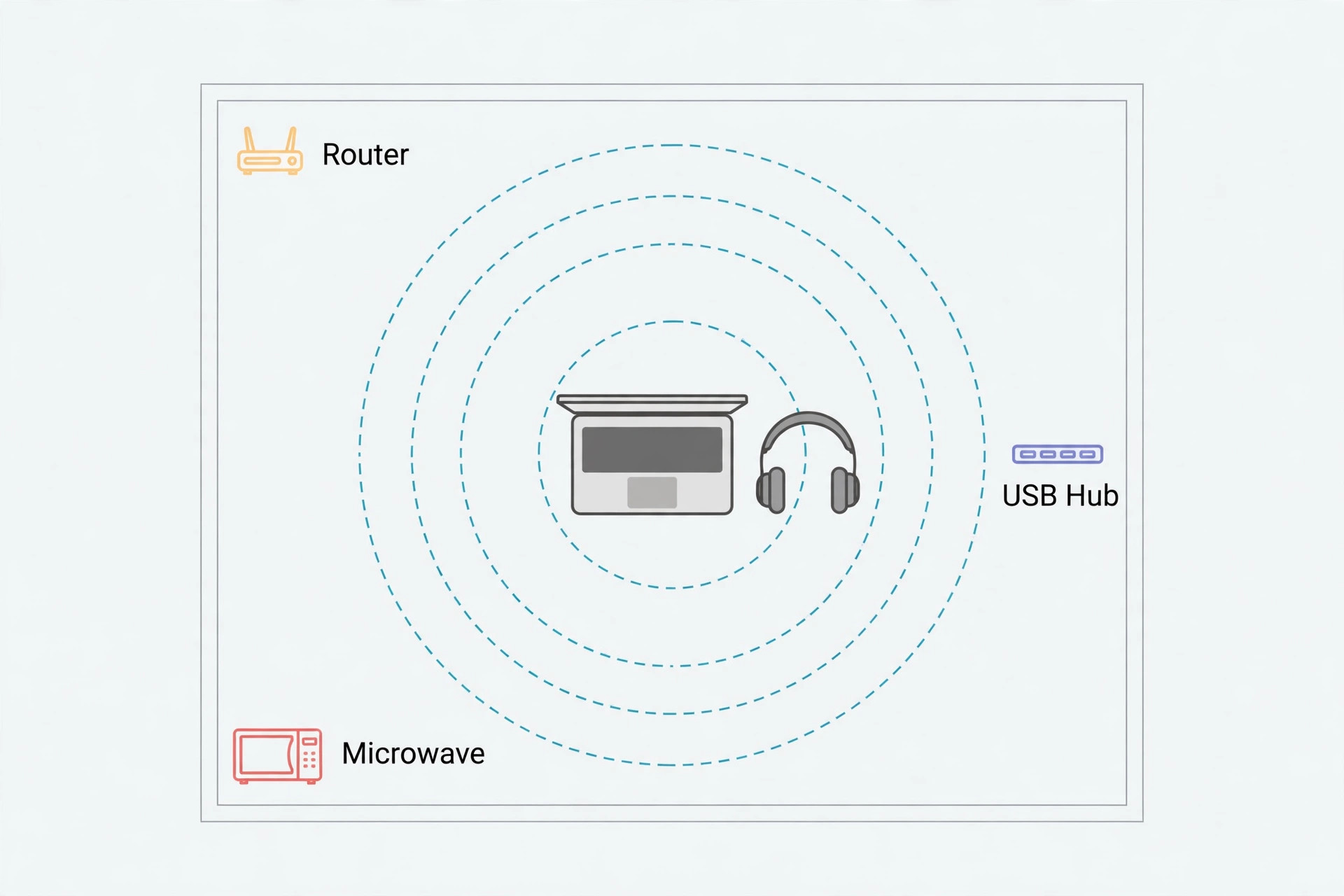
Bluetooth shares the 2.4 GHz band with Wi-Fi, microwaves, USB 3 devices and other Bluetooth accessories, so a crowded room can break a pairing that worked fine in a quiet one. The practical range for reliable pairing is much shorter than the headline figure on the box. Pair within a metre, with no walls between the headphones and the device, and move away from a running microwave or a USB 3 hub during the pairing attempt.
Wi-Fi is the most common interferer, because a router on the 2.4 GHz band sits in the same spectrum. If your headphones drop whenever a large download starts, try moving the device to a 5 GHz Wi-Fi network, or move the router further from the listening position. A laptop with a USB 3 drive or dock beside the Bluetooth antenna can also cause dropouts, because USB 3 emits noise in the 2.4 GHz band. Moving the drive to a port on the other side of the laptop often clears a dropout that looks like a headphone fault.
Multipoint deserves its own check, because it causes failures that look like pairing failures but are really priority fights. A multipoint pair of headphones stays connected to two devices, and when a third device tries to pair, the headphones may refuse because their connection slots are full. Turn Bluetooth off on both connected devices, pair the new device, and then re-enable multipoint in the companion app if you want it. If your headphones keep jumping back to a phone when you want them on a laptop, turn off Bluetooth on the phone rather than fighting the headphones, because the headphones are following the last connected device rule that multipoint is built on.
Mistakes That Make Pairing Worse
The first mistake is resetting before trying forget and re-pair. A factory reset wipes every pairing and every custom setting, including equaliser presets on models that store them in the headphones. Forget and re-pair wipes one pairing and keeps the rest, so it should always come first. The second mistake is pairing in a room full of other Bluetooth devices with Bluetooth left on everywhere. Pair in a quiet radio environment, then return to the normal room once the pairing is established.
The third mistake is updating firmware mid fault without a stable connection. Firmware updates over Bluetooth need a steady link, and a pair that drops during an update can end up in a worse state than before. Fix the pairing first with the steps in your device section, then update firmware once the connection holds for a full listening session. The fourth mistake is buying a USB Bluetooth adapter before checking whether the laptop already has Bluetooth. Many desktops and older laptops have no built-in Bluetooth at all, and in that case an adapter is the correct fix, but on a laptop that already has Bluetooth, adding a second adapter can create a driver conflict.
The fifth mistake is ignoring the battery. A pair of headphones with a failing battery can pair, play for five minutes, and drop, and the owner blames Bluetooth when the real fault is a cell that no longer holds charge. Test the headphones on a second device and watch how long they play. If they drop at the same point on every device, the battery or the hardware is the suspect, not the pairing. The sixth mistake is assuming the headphones are faulty because they fail on one device. A single device failure points at that device. A failure on two unrelated devices points at the headphones.
That two device test is the cheapest diagnostic in this whole guide, and it should come before any purchase or warranty claim. Anyone who wants to fix Bluetooth headphones not pairing without wasting money should run the two device test before ordering anything.
How to Decide Between a Reset, a Driver Fix, and a Replacement
Use this decision path when the device sections have not fixed the fault. First, test the headphones on a second device. If they pair and play on the second device, stop working on the headphones and work on the first device.
Second, if the headphones fail on the second device too, reset them using the brand family steps above, then pair to one device only. If the reset fixes them, add devices back one at a time and test after each addition, because the fault may return only when a particular device or multipoint combination is added. If the reset changes nothing on either device, check the warranty before buying a replacement. Most headphone makers cover pairing and battery faults within the warranty period, and a support ticket with the two device test result gets a faster answer than a vague report of a connection problem.
Third, consider a replacement only when three conditions are true. The headphones fail on two devices, a factory reset changes nothing, and the battery or charging behaviour is also abnormal, such as very short play time or a bud that will not charge. If only pairing fails but the battery and sound are normal, a repair or a warranty claim is the better route. If the headphones are out of warranty and the battery is also weak, replacement makes more sense than repair, because a repair bill for an old pair can approach the price of a new pair with a fresh battery and a newer Bluetooth version.
A USB Bluetooth adapter is a reasonable middle step for a desktop or an older laptop with weak built-in Bluetooth, but it is not a fix for faulty headphones. Buy an adapter only when the headphones work on a phone and fail on one computer, and when a driver reinstall has already failed on that computer. Check that the adapter supports the Bluetooth version your headphones need and that it comes from a known maker, because unbranded adapters can ship with outdated drivers that create new faults.
For related reading, how to start a podcast with AI covers the recording setup where reliable headphone monitoring matters, best AI tools for streamers looks at audio tools for live creators, and best AI video editing tools is useful if you edit the audio you record with those headphones.

Frequently Asked Questions
Why do my headphones show as paired but not connected?
Paired means the two devices remember each other. Connected means they are actively linked right now. If the headphones show as paired but not connected, they are probably connected to another device, out of range, or not in an active state. Turn Bluetooth off on other paired devices, bring the headphones close, and tap the name in the Bluetooth list to connect manually.
Why do my headphones pair with my phone but not my laptop?
A phone and a laptop use different Bluetooth stacks, drivers and profiles. On a laptop, the usual causes are a stale device entry, a driver that needs reinstalling, or a power setting that suspends the radio. Work through the laptop section in order.
Do I need to factory reset my headphones to fix pairing?
No, in most cases you do not. Forget and re-pair on both sides fixes the majority of pairing failures. A factory reset is justified only when forget and re-pair fails on two different devices.
Why do my headphones keep connecting to the wrong device?
Multipoint headphones connect to the last used device or to the device that requests audio first. Turn Bluetooth off on the device you do not want, or disable multipoint in the companion app, and the headphones will stop jumping.
Can Wi-Fi really break Bluetooth pairing?
Yes, because both use the 2.4 GHz band. A busy 2.4 GHz Wi-Fi network, a running microwave, or a USB 3 device near the Bluetooth antenna can all disrupt pairing. Pair close to the device, away from those sources, and move your phone or laptop to a 5 GHz Wi-Fi network if dropouts happen during large downloads.
When should I stop troubleshooting and replace the headphones?
Stop when the headphones fail on two unrelated devices, a factory reset changes nothing, and the battery or charging is also abnormal. At that point the fault is most likely hardware. Before buying, check the warranty.
Your Headphones Are Probably Fine, Your Pairing List Is Not
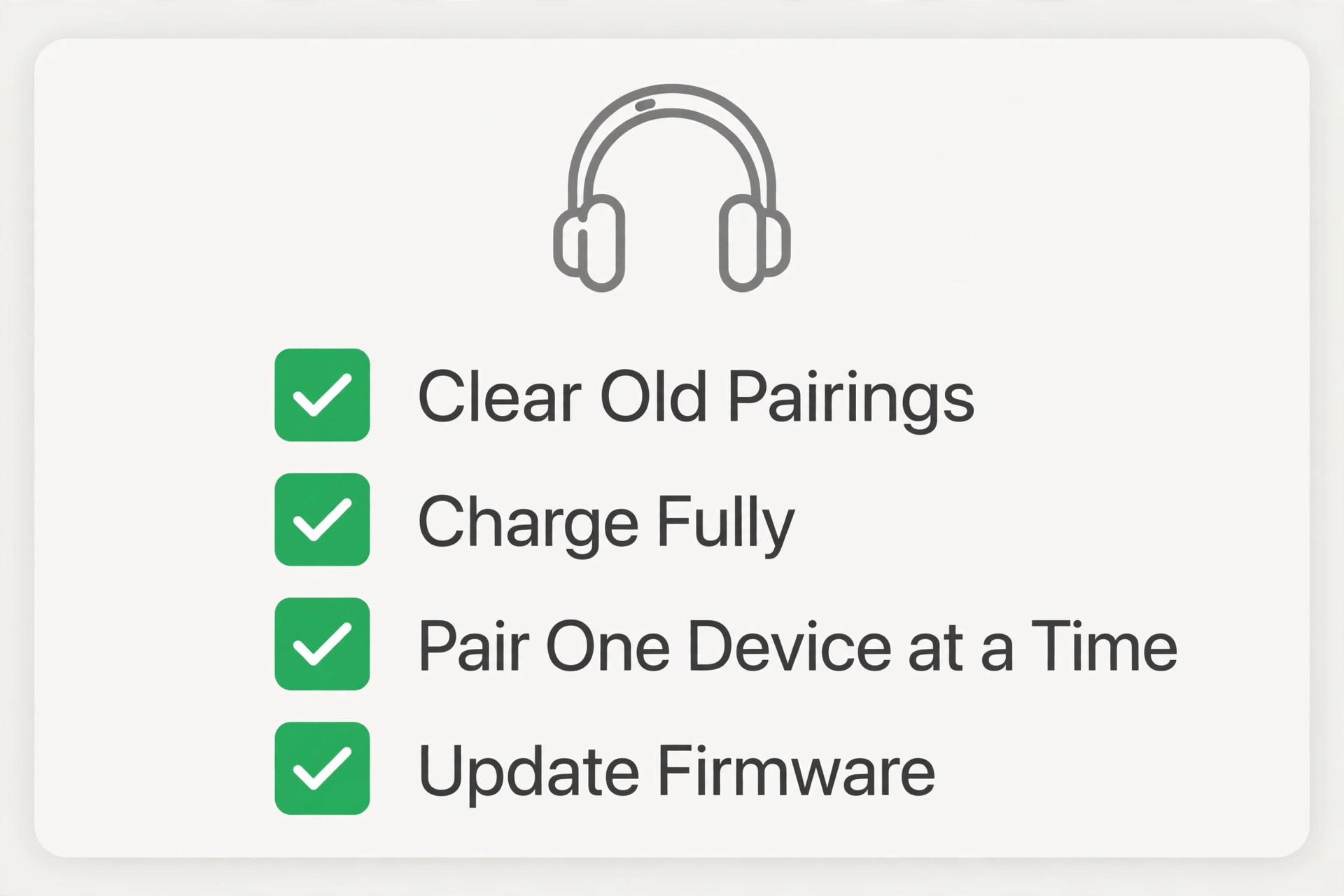
Most pairing failures are not hardware failures. They are stale pairings, a second device grabbing the connection, a driver that needs reinstalling, or a TV holding a pairing it should have forgotten. The two device test tells you which side of the problem you are on before you reset anything. Start with the 90 second check, use the fix table to pick your device section, and only reset when the headphones have failed on two devices.
If your headphones still fail after every step in this guide, keep the notes from your tests. Which devices did they fail on, what did the light do in pairing mode, and did a reset change anything. That record is what support needs to approve a warranty claim quickly. And when you do get them connected, clear out old pairings you no longer use, because a short pairing list is the simplest prevention there is. If you are still stuck, the fastest way to fix Bluetooth headphones not pairing is to work the device section for the device in front of you, not the generic list for every device, and to test on a second device before you spend anything.