
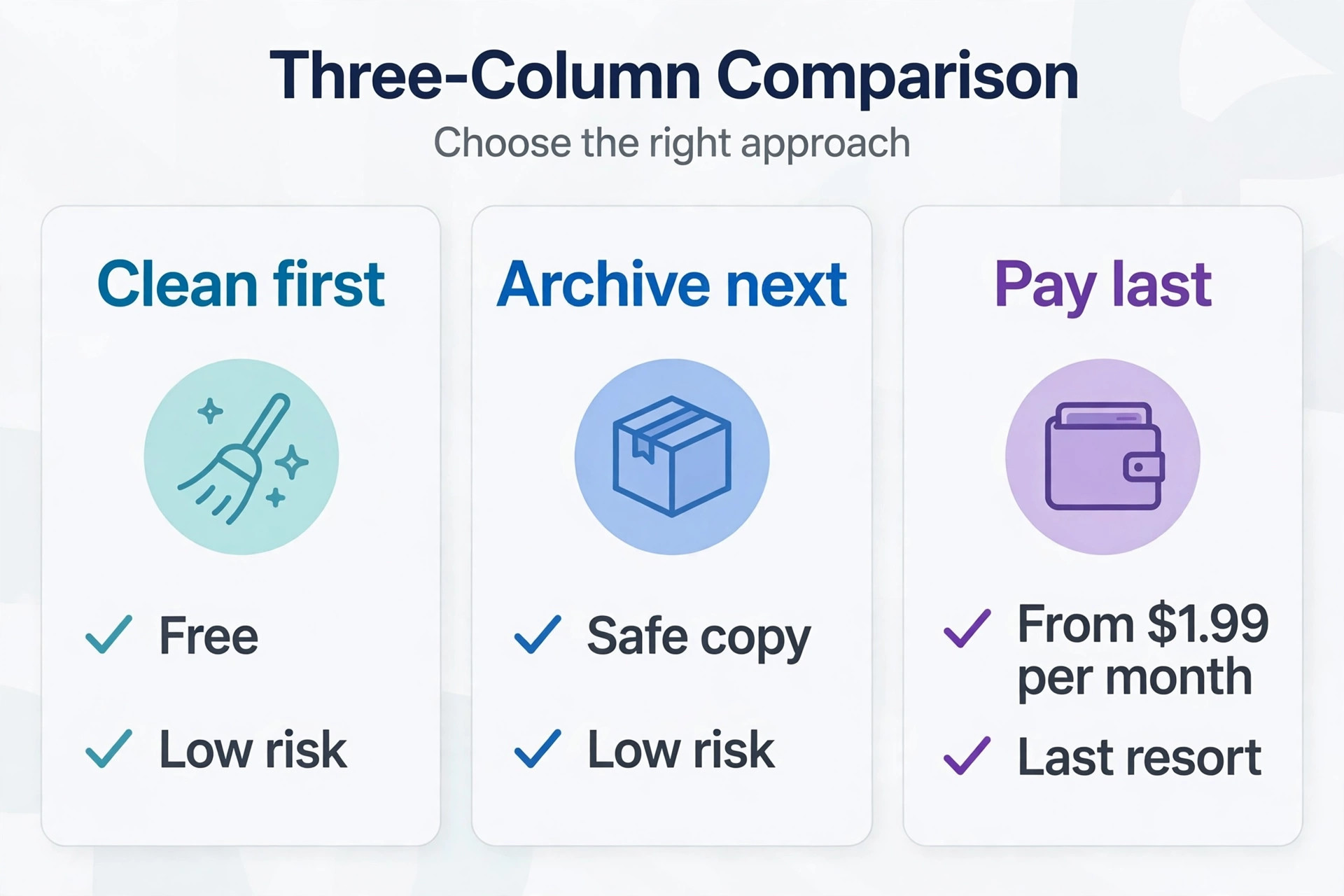
Paying for more storage and deleting files in a panic are the two choices most people reach for when the warning appears, and both can be wrong. Paying solves the symptom for a month and then the same clutter fills the larger allowance. Panic deleting solves the number on the screen and risks the one file you will need next week. A planned cleanup to fix Google Drive storage full sits between those extremes. It finds the few heavy files and folders that cause most of the problem, keeps the work that still matters, archives the rest in a place you can actually retrieve, and leaves a simple routine so the warning does not return.
If you want to fix Google Drive storage full without losing work, start with that comparison in mind, because the goal is not an empty Drive. The goal is a smaller Drive you trust.
This guide gives you a plan you can run in about 90 minutes. First, diagnose where storage really goes, because Drive, Gmail and Google Photos share one allowance, and cleaning only Drive often misses the cause. Then work through a cleanup plan by folder type, clean Gmail and Photos by targeting heavy items first, deal with Trash and old backups, and decide with real numbers whether a paid plan is worth it. Prices change by country, so check the official Google One page before you pay.
How to Fix Google Drive Storage Full Without Losing a Single Important File
The safest cleanup follows one order, and the order matters more than speed. First, measure. Second, back up anything you are unsure about. Third, delete only items you can name, date and replace or live without. Fourth, empty Trash only after that review. Fifth, archive the large files you want to keep but do not need in the cloud every day. People who skip the first two steps usually delete by file size alone, and file size alone is a poor guide to value. A two gigabyte video of a finished client project may be worthless after delivery, while a 40 kilobyte contract scan may be the only copy of an agreement that protects you.
Set a target before you open any folder. A useful target is to free at least 20 percent more than the shortfall shown on your storage page. If you are 2 GB over, aim to free 2.5 GB. That buffer covers the files that will arrive this week, the photos your phone will back up tonight, and the small delay before storage totals update after a large deletion. Totals can take hours to refresh, so do not judge the result by the meter alone in the first hour. Judge it by the list of items you removed and the archive you made.
Work on a computer for the main cleanup. The web version lets you sort by size, filter by type and date, and see folder paths the phone app hides. Keep a simple note with three columns, deleted, archived and kept for review. That note becomes your proof if someone asks where a file went.
Start With the Diagnosis, Not the Warning
Open Drive on the web and open Storage in the left menu. That view lists the files you own, largest first, and it is the fastest way to see whether one or two items explain the whole problem. A single unedited video, a phone backup or a folder of raw photos can account for half an allowance. To fix Google Drive storage full in the shortest time, start there, because if the top ten files already cover your shortfall, your cleanup will be short.
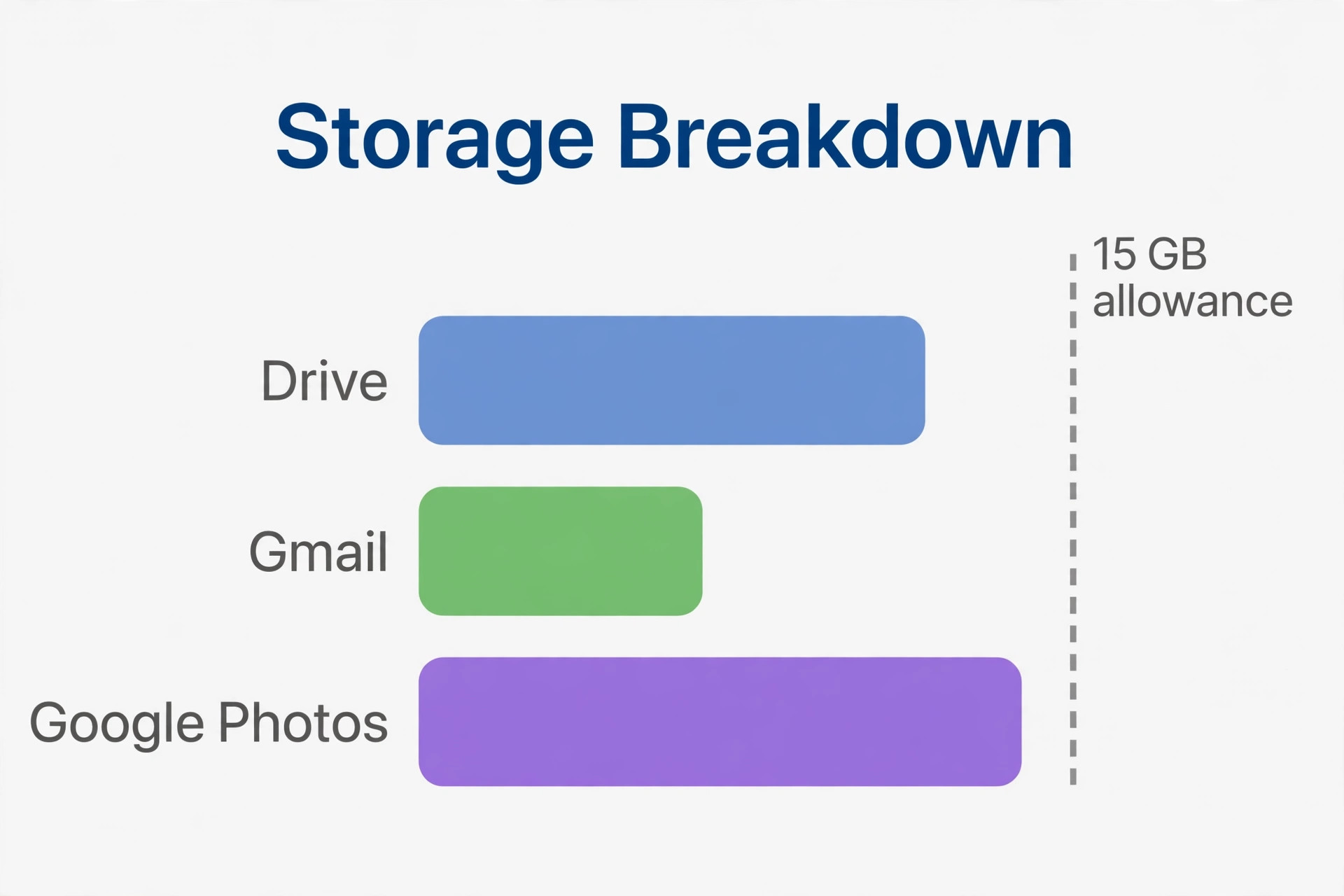
Next, check the split across services. In your Google account storage view you will see separate totals for Drive, Gmail and Google Photos. Write those three numbers down. Many people discover that Drive itself is not the main user of space. Gmail attachments from years of newsletters, invoices and shared decks can quietly pass Drive, and Photos in original quality can pass both. Cleaning the wrong service wastes an hour and leaves the warning in place, while cleaning the largest service first often frees enough room in 20 minutes.
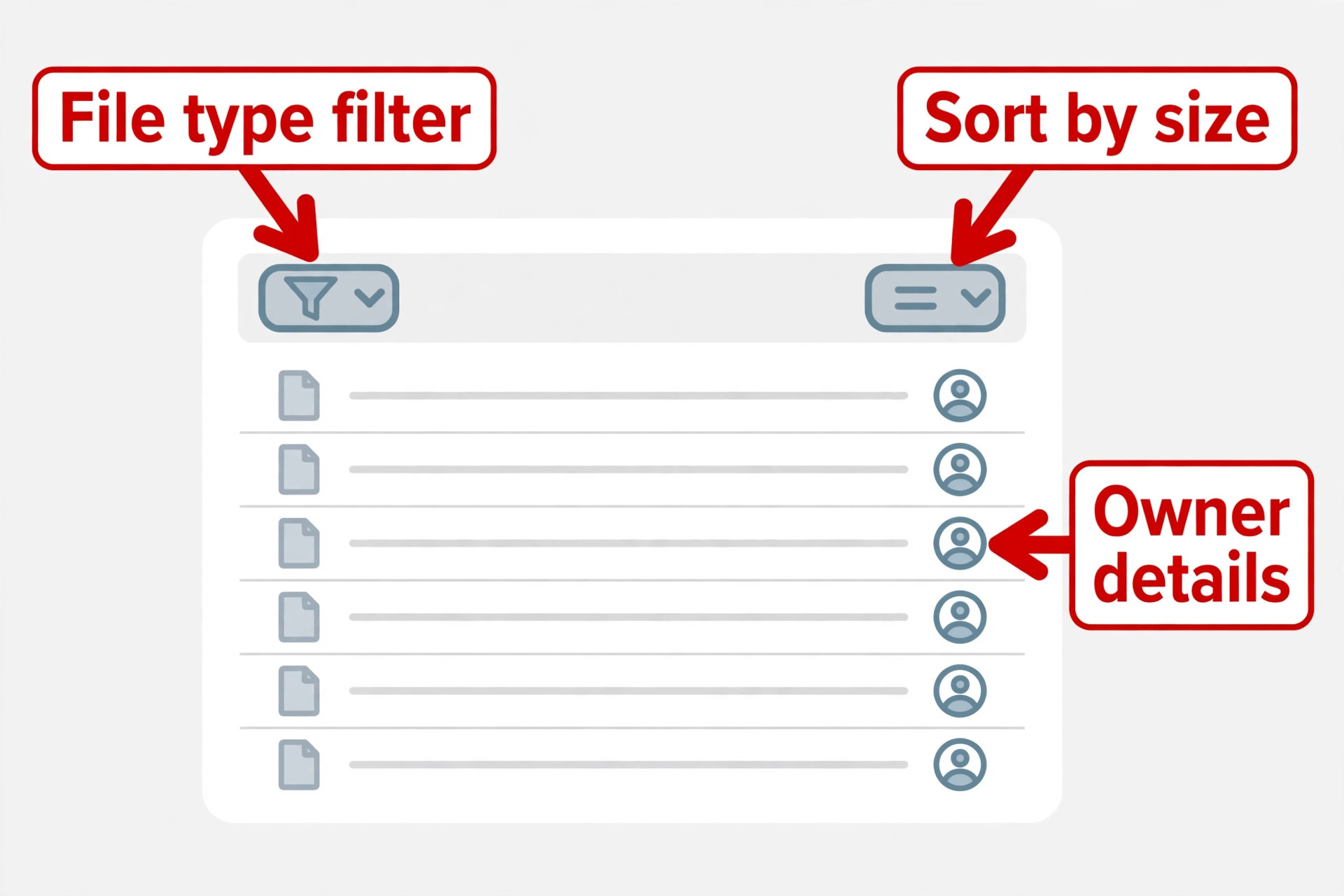
Also check ownership before you delete anything shared. Files in Shared with me that someone else owns usually do not count toward your allowance, while copies you made do count. If a shared folder is large, confirm who owns it. If you own it, warn collaborators before you move it to Trash. If someone else owns it, leave it alone.
What Counts Toward Your Allowance
On a personal account, the free allowance is 15 GB shared across Drive, Gmail and Google Photos. Uploaded files, PDFs, images, videos, Office files and ZIP archives count. Gmail messages and attachments count, including mail in Spam and Trash until those folders are emptied. Photos and videos backed up in original quality count in full, while photos saved in Storage saver quality use less space because Google compresses them. Native Docs, Sheets and Slides files are usually small compared with uploads, but they still form part of the total, so do not assume a folder of documents is free.
Workspace accounts are different, because storage depends on the plan your organisation bought. Files in a shared drive count toward pooled organisation storage rather than your personal allowance. Clean personal and work accounts as separate problems, and do not move personal files into a work account without checking company policy.
The Three Numbers That Decide Your Plan
Write down total allowance, total used and the amount over the limit. Then write down the three service totals. Those six figures turn a vague warning into a plan. If Photos uses 9 GB, Drive uses 4 GB and Gmail uses 2 GB on a 15 GB account, Photos is the project. If Gmail uses 8 GB, start with large attachments. If Drive uses 11 GB, start with the Storage list sorted by size. If no single service dominates, work through the folder plan below in order and stop when you pass your target plus buffer. You do not need to clean everything. You need to clean enough, safely.
The 90 Minute Cleanup Plan by Folder Type
This is the core of the plan, and it works because different folders fail for different reasons. Video folders fail on size. Download folders fail on duplicates and installers. Old project folders fail on exports kept just in case. Photo folders fail on bursts and screenshots. To fix Google Drive storage full safely, use the folder rules below instead of one blanket rule, work in 15 minute blocks, and empty Trash only at the end.

| Folder type | First check | Usual action | Keep or archive first |
|---|---|---|---|
| Videos and raw footage | Sort by size, open the largest five | Archive finished work, delete test clips and duplicates | Final exports and client deliverables |
| Photos and phone backups | Sort by date, look for bursts and screenshots | Delete blurry shots and duplicates, compress or archive the rest | Family photos, travel photos, work evidence |
| Downloads and installers | Sort by date, oldest first | Delete installers, old PDFs and repeated downloads | Tax forms, contracts, licence keys |
| Old project folders | Sort by last modified, oldest first | Archive completed projects, delete exports and drafts | Final files, contracts, source files you still own |
| Shared folders you own | Check collaborators and last use | Archive or hand ownership to the active owner | Any file others still open |
| App and device backups | Open Backups in Drive storage | Delete backups for phones you no longer use | The current phone backup |
| Scans and documents | Search for duplicate names | Keep one clear copy, delete blurry scans | Identity, tax, legal and medical records |
Videos and Raw Footage First
Video is the fastest win in most full accounts. Open Storage, filter by video if that option is available, and open the largest five files before you delete anything. A final exported video is often far smaller than the raw footage, project files and test renders that sit beside it. Keep the final export in Drive if you share it often. Archive raw footage and project files to an external drive or a second archive location if you might need to re edit, and delete test renders, failed exports and duplicate copies. Label the archive with the project name and date, so you can find it without reopening Drive.
Photos, Screenshots and Bursts
Phone backup folders grow in bursts, not steadily. A holiday, a house move, a new baby, a product shoot or a long event can add hundreds of photos in a day, including bursts where ten near identical frames were taken to get one good shot. Sort by date and look for those bursts. Keep the best frame or two, delete the blurry frames and the accidental pocket shots, and move screenshots into their own review folder instead of leaving them mixed with photos. Screenshots of tickets, receipts and directions are useful for a week and then become clutter, so review them monthly and keep only the ones tied to an open booking, claim or project.
In Drive, focus on photo folders you uploaded manually, such as camera uploads and event folders. Rename a folder before you archive it, with a year and a short description, because a folder named New Folder will be impossible to find later.
Downloads, Installers and Repeated Files
The Downloads folder is where good intentions go to fill storage. Installers for software you already installed, PDFs downloaded three times from the same email, ZIP files already extracted, and forms you filled in and submitted all sit there long after their job is done. Sort by oldest first and by name, and look for repeats. Delete installers for current software, because you can download the current version again from the vendor when you need it. Keep licence keys, purchase receipts and installers for old hardware or software that is no longer available, and move those keepers into a named Licences folder.
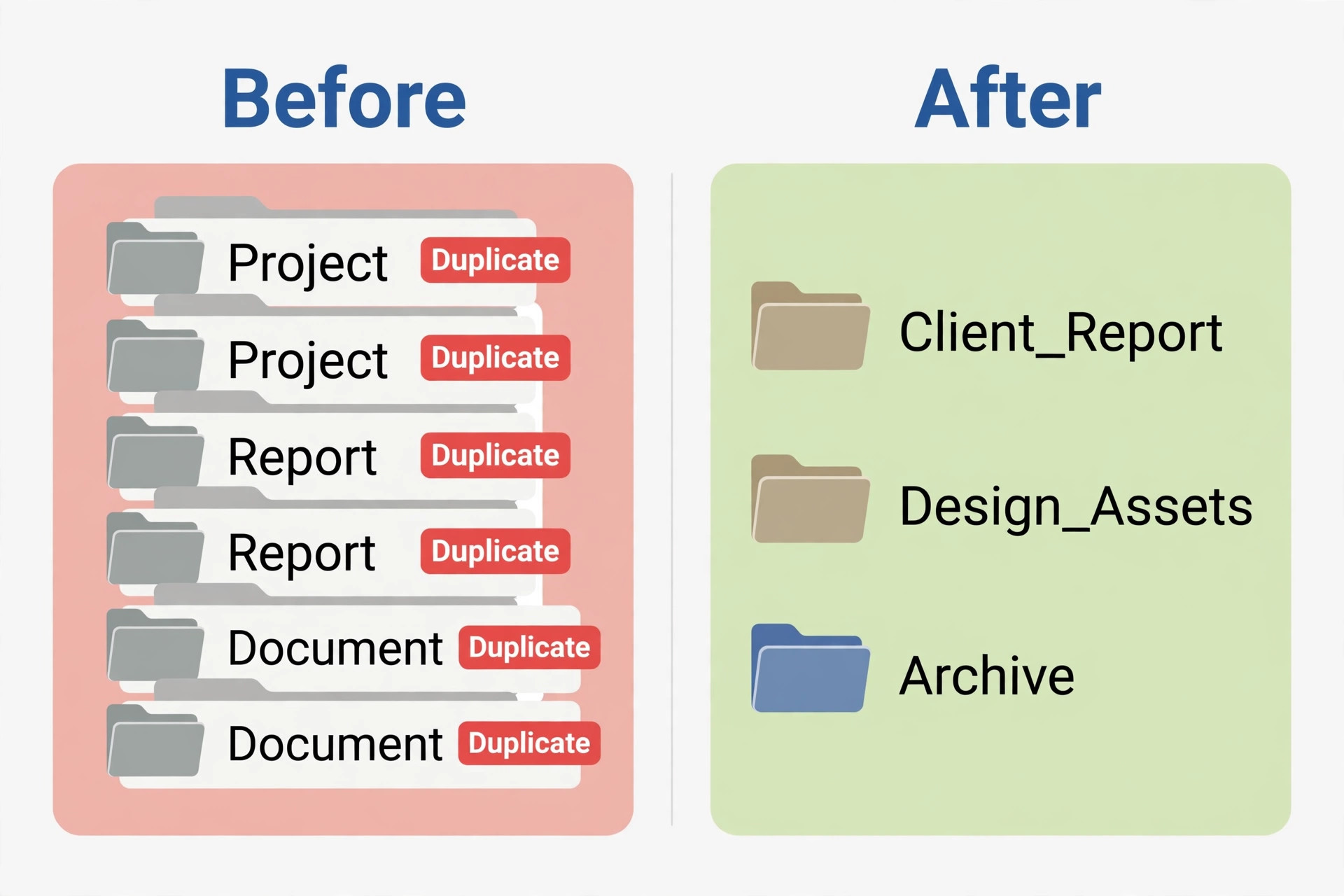
Repeated files deserve a careful pass. Search for a common file name and compare dates and sizes before you delete a copy. The newest copy is not always the best copy. Open both versions, keep the one with the latest edits, and delete the other only when the same final file exists in a folder you will keep.
Old Projects, Exports and Drafts
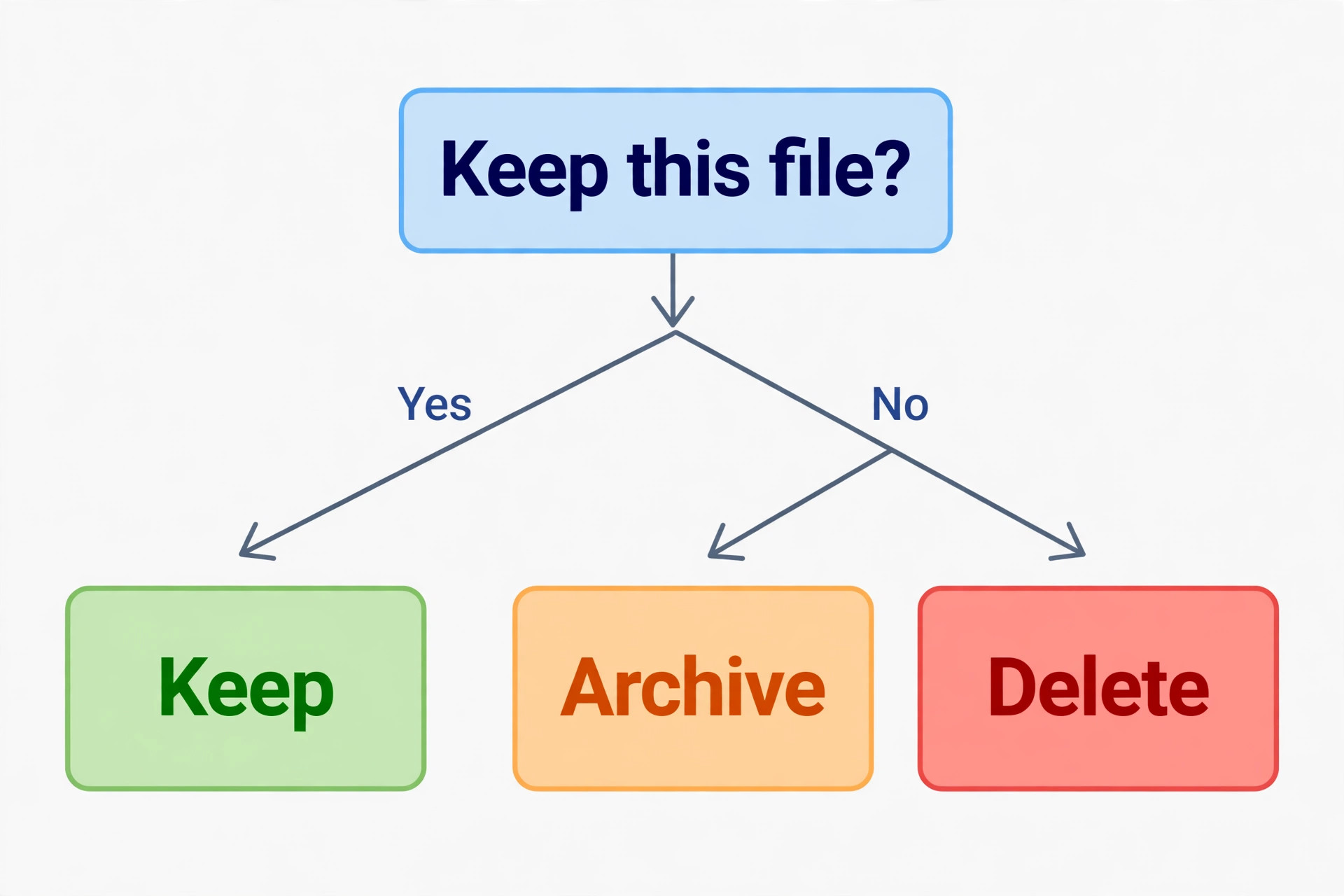
Old project folders contain the most emotional clutter, because every file once felt important. Use last modified date as your guide. If a folder has not been opened in more than a year, and the project is finished, archive it rather than deleting it outright. An archive gives you a safety net without paying cloud prices for daily access. If a folder contains exports in several formats, keep the final export and the source file if you own it, and delete intermediate exports, preview files and old drafts that were replaced by the final version.
For work projects, check contracts before you archive or delete. Some clients require you to keep files for a set period, and some require deletion after delivery. If you are unsure, archive first and set a review date. Archiving is reversible. Permanent deletion is not.
Shared folders need a message before a deletion. If you own a folder that colleagues, clients or family members still use, tell them you plan to archive it, give a date, and ask if anyone needs a copy. Move the folder to an archive location only after that notice period, or transfer ownership to the person who now leads the work. Transferring ownership also moves the storage burden to the new owner in many cases, which can solve a personal account problem without deleting shared work. Check the sharing settings after a transfer to confirm the change took effect.
| Item | Safe to delete now | Archive first | Never delete without a backup |
|---|---|---|---|
| Test renders and duplicate exports | Yes, after checking the final file exists | No | No |
| Installers for current software | Yes | No | No |
| Screenshots older than 90 days with no open use | Yes, after a quick review | No | No |
| Old newsletters and promotions with attachments | Yes, after saving any receipt or ticket | No | No |
| Finished project raw footage | No, archive first | Yes | No |
| Family photos and travel photos | No | Yes, keep a second copy | No |
| Contracts, tax forms and identity scans | No | Yes, keep a second copy | Yes |
| The only copy of a client deliverable | No | Yes, keep a second copy | Yes |
| Files others still open or edit | No, warn collaborators first | Yes, after notice | No |
Clean Gmail Without Losing Mail You Need
Gmail often hides the largest easy win, because attachments accumulate for years while the inbox looks normal. To fix Google Drive storage full from the Gmail side, search for has attachment larger 10M to find messages over 10 MB, then add older than 2y to focus on old mail. Save any attachment you still need, then delete the message. Repeat with larger 25M for video and large decks, in batches of 20 so you do not delete in a rush.
Promotions, social updates and automated notices are the next layer. Search for category promotions older than 1y and review the results in bulk, keeping only messages with receipts, tickets, warranties or account changes. Search for from noreply older than 2y for automated mail you will never reread. For newsletters you still value, keep the latest issue and delete older issues, because the content is usually available on the sender website. After any Gmail deletion, empty Gmail Trash and Spam, because mail in those folders still counts toward your allowance until it is permanently removed. The same rule applies to Drive Trash, which is covered below.
Do not delete mail by sender without opening attachments. A message from a bank, a client or a travel company may contain the only copy of a receipt or itinerary. Save the attachment first, rename it with a date, and then delete the message.
For related reading on inbox systems, see AI tools for Gmail power users for tools that help with search, triage and follow up, and best AI tools for Excel and Google Sheets if you track storage, budgets or project files in Sheets. If shared project folders are part of your problem, best AI tools for project managers covers tools that help teams agree on folder ownership and archiving rules.
Clean Google Photos Without Losing Memories
Photos needs a different mindset, because the value is emotional and the risk of regret is high. To fix Google Drive storage full from the Photos side, start with videos, because a few long videos often use more space than thousands of photos. Keep family milestones and travel highlights. Archive full length event recordings to an external drive, and delete accidental recordings and duplicate clips.
Next, review screenshots and blurry photos. Screenshots of maps, menus, chats and temporary codes can be deleted after the trip, booking or project ends. Blurry photos, accidental bursts and near duplicates can be reduced to the best one or two frames. Use the Photos search for screenshots to gather them in one view, rather than scrolling through years of images. If you are unsure about a photo, star it or move it to an album named Review, and decide at the end of the session. A review album prevents the two bad outcomes, which are deleting a good photo in haste and keeping everything because you cannot decide.
Then check your backup quality setting. Storage saver compresses photos and videos for future uploads, but changing the setting does not always compress photos already backed up in original quality. Test any download, delete and re upload workflow with ten photos first, and keep original quality for a small set of best photos.
Trash is the trap that makes many cleanups look like failures, and it is a step people skip when they try to fix Google Drive storage full in a hurry. Files moved to Drive Trash still count until Trash is emptied, and Drive removes Trash items automatically after 30 days. If the meter did not move after a large deletion, check all three Trash folders first. Review each one, restore anything valuable, and only then empty it, because emptying Trash is permanent.
Old device backups are the next hidden trap. Open Drive, open Storage, then open Backups, and look for phones, tablets or computers you no longer use. A backup for a phone you replaced three years ago can hold several gigabytes of app data and media, and deleting it frees space without touching your current files. Keep the backup for your current device, and keep a backup for a recent previous device only if you still need to restore chats or settings from it. WhatsApp backups stored in Drive can also grow large, especially in media heavy chats. Check the size, decide whether old chat media still matters, and delete or replace an old backup before it becomes the next warning.
Archive What You Keep, Then Prove You Can Find It Again
Archiving only helps if you can retrieve the archive. Use a simple naming system with year, project and content type, such as 2024 Client Projects Final Exports. To fix Google Drive storage full for good, keep one index note in Drive with the archive name, its location and the date you made it.
Google Takeout is a useful tool for a full archive before a large deletion. Takeout lets you export Drive, Photos, Gmail and other Google data in downloadable archives, which you can store on an external drive. Export in batches by service rather than everything at once, because a single huge export can fail or become hard to verify. After each download, open the archive, check that key folders and files are present, and only then delete the cloud copies. A download you never opened is not a backup, and a backup you never tested is a hope, not a plan.
For files you need occasionally, a second storage location is usually cleaner than a second Google account used to dodge the limit, because a second account also splits search, sharing and ownership. If you do use a second account for a specific purpose, document that purpose in your index note.
When Paying Is the Right Call
Paying is not a failure, and for some accounts it is the correct decision. If you have cleaned thoroughly, archived what you can, and the files you still need exceed 15 GB by a clear margin, a paid plan buys time and safety for a small monthly cost. The comparison that matters is not free versus paid in general. It is the cost of the plan versus the cost of your time, the risk of deleting work, and the value of having files available on every device without an external drive routine.
Google One storage plans in the United States are commonly listed at about $1.99 per month or $19.99 per year for 100 GB, about $2.99 per month or $29.99 per year for 200 GB, and about $9.99 per month or $99.99 per year for 2 TB in the storage only family. Google also sells AI plans that bundle Gemini features with larger storage, and plan names in that family have changed during 2026, so check what storage total an AI plan actually includes before you buy it for storage alone. The 15 GB free allowance is included in the plan total, not added on top of it.
If you still need to fix Google Drive storage full after cleaning, view current plans on the official Google One plans page and read Google guidance on the Google One help page.
Choose the smallest plan that covers your cleaned total plus at least 30 percent headroom. If your cleaned total is 40 GB, 100 GB gives you room to grow without paying for 2 TB you will not use. If your cleaned total is 180 GB, 200 GB leaves almost no headroom, and the next tier may be cheaper than a second cleanup in three months. Family sharing can change the maths, because some plans let you share storage with up to five other people, but each member still has private files, and sharing does not fix a single member who fills the shared pool alone.
Set a calendar reminder to review the plan after six months, and downgrade if your archive routine has brought usage back down.
How to Choose Your Next Step
Use your diagnosis numbers to choose, not a generic recommendation. If one service dominates, clean that service first and stop when you pass your target. If videos dominate, archive video and keep documents in Drive. If Gmail dominates, clean attachments and set a monthly inbox rule. If Photos dominates, review videos and screenshots, then decide on backup quality for future uploads. If no service dominates, run the folder plan in order, archive completed projects, and empty Trash at the end. The right next step is the one that frees the most space with the lowest risk, not the one that looks most thorough on paper.
Ask three questions before you pay. First, have you emptied all three Trash folders and deleted old device backups. Second, have you archived finished projects to a location you tested. Third, does your cleaned total still exceed your free allowance by more than a few gigabytes. If the first two answers are no, clean first. To fix Google Drive storage full by paying, the answer to all three should be yes, and a small monthly cost can then be cheaper than hours lost to repeated warnings.
Mistakes That Make a Full Drive Worse
The first mistake is deleting by size without opening the file. A large file can be a final deliverable, a legal scan or a family video, and a small file can be junk. Open the largest five files before you delete any of them, and check the folder path. The second mistake is emptying Trash before reviewing it. Trash often contains files moved by accident during a bulk selection, and emptying it removes the safety net that bulk work needs. Review Trash, restore anything familiar, and only then empty it.
The third mistake is cleaning only Drive when Gmail or Photos is the cause. That mistake wastes the whole session and leaves the warning unchanged. Always check the service split first. The fourth mistake is deleting shared files you own without warning collaborators. That mistake breaks access for other people and can damage a work relationship, while a short notice message would have solved it. The fifth mistake is treating a second account or a new folder as a fix. Moving files without an index note creates a second mess, and organising folders without deleting or archiving anything does not free space at all.
The sixth mistake is buying the largest plan at once. A 2 TB plan for a 40 GB problem pays for unused space, so the same clutter returns at a larger scale. The seventh mistake is skipping the backup test. A Takeout file that was never opened may be incomplete, and discovering that after deletion is too late.
Frequently Asked Questions
Why does my Drive say it is full when I have few files in Drive?
Because storage is shared across Drive, Gmail and Google Photos on a personal account. Gmail attachments and Photos backups can fill the allowance even when Drive folders look small. Check the service split in your storage view, clean the largest service first, and empty Trash in all three services before you judge the result.
Only if you own the file. Files shared with you by someone else usually count toward the owner allowance, not yours, so removing them from your view may not free space. Files you own do count toward your allowance, and deleting them can remove access for collaborators, so warn people before you delete shared work you own.
Does emptying Trash really matter?
Yes, because files in Drive Trash still count toward your allowance until Trash is emptied, and Drive removes Trash items automatically after 30 days. Gmail Trash and Spam also count until emptied. Review Trash first, restore anything valuable, and then empty it to see the full benefit of your cleanup.
Will deleting Gmail attachments delete the whole email thread?
Deleting a message removes that message and its attachments from your account, while other messages in a thread may remain if they are separate messages. Save any attachment you still need before deletion, and empty Gmail Trash after, because the space is not freed until that step is complete.
Is it safe to switch Google Photos to Storage saver quality?
Storage saver reduces the size of future photo and video backups by compressing them, which saves space over time. It can involve a quality trade off compared with original quality, and changing the setting does not always compress photos already backed up. Test the workflow with a small set first, verify the results, and keep original quality for a small set of best photos if quality matters most for those images.
Should I pay for Google One or keep cleaning for free?
Pay if you have cleaned thoroughly, archived finished work, emptied all Trash folders and deleted old backups, and your remaining files still exceed the free allowance by a clear margin. Choose the smallest plan that covers your cleaned total plus at least 30 percent headroom, and review the plan after six months. If a cleanup frees enough room, stay free and set a monthly review to stop the problem returning.
A Smaller Drive You Can Actually Trust
A clean Drive is not an empty Drive, and it is not a Drive you bought your way out of for a month. It is a Drive where you know what lives in each folder, where large files have a reason to be there, where finished work sits in a tested archive, and where Gmail and Photos no longer surprise you with hidden totals. Run the diagnosis first, work through the folder plan in order, clean Gmail and Photos by size and date, empty Trash only after review, and decide on a paid plan with your cleaned numbers in hand. That sequence protects work, frees real space and gives you a routine you can repeat.
Start with the next 15 minutes. Open Storage, sort by size, open the largest five files, and decide on each one with the safe delete table beside you. Then set a monthly reminder for the same check, with Trash, screenshots and old backups on the list. A Drive that stays under its limit means files arrive without warnings, mail keeps flowing, and photos keep backing up.