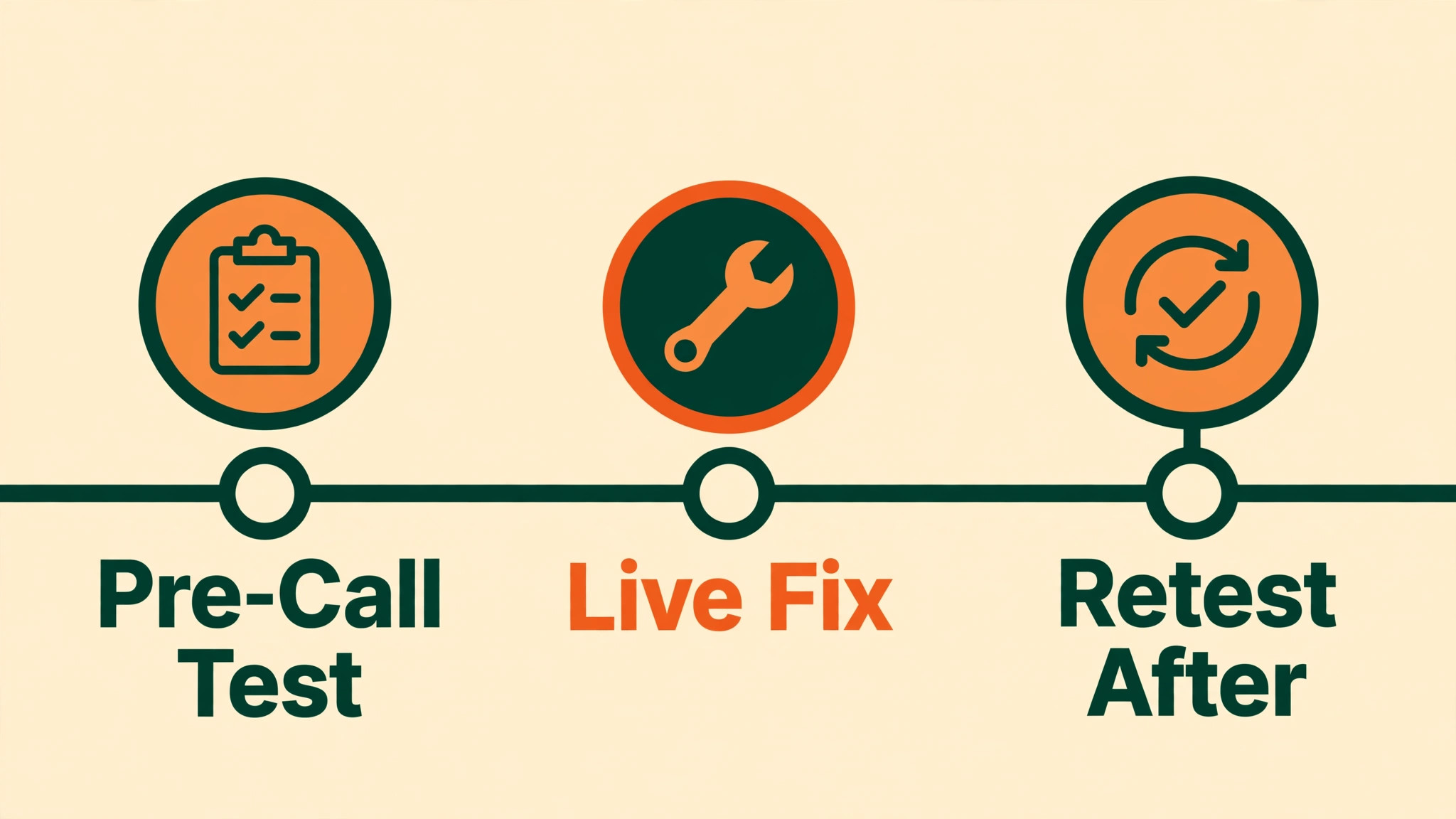
The verdict comes first, because nobody wants a lecture while a meeting waits. The quickest way to fix Teams microphone not working is to work in order, not to try everything at once. Check the mute button, then the device Teams is actually using, then the permission your system gave Teams, then the app itself. Most failures sit in one of those four places. Reinstalling Teams, buying a new headset, or asking IT to rebuild your laptop should come last, after the cheap checks have ruled out the simple causes.
This guide separates host fixes from guest fixes, because the two roles fail in different ways. A host can mute a whole room or start with the wrong audio device and never notice, since the host can still hear everyone else. A guest usually faces a permission block, a dismissed browser prompt, or a headset paired to a phone instead of a laptop. Follow the diagnosis table first, then the ordered checklist, then the section that matches your role and device. Teams plan prices near the end are flagged for a check at checkout, since Microsoft adjusts prices during the year.
The Verdict First. What to Try in the First Two Minutes
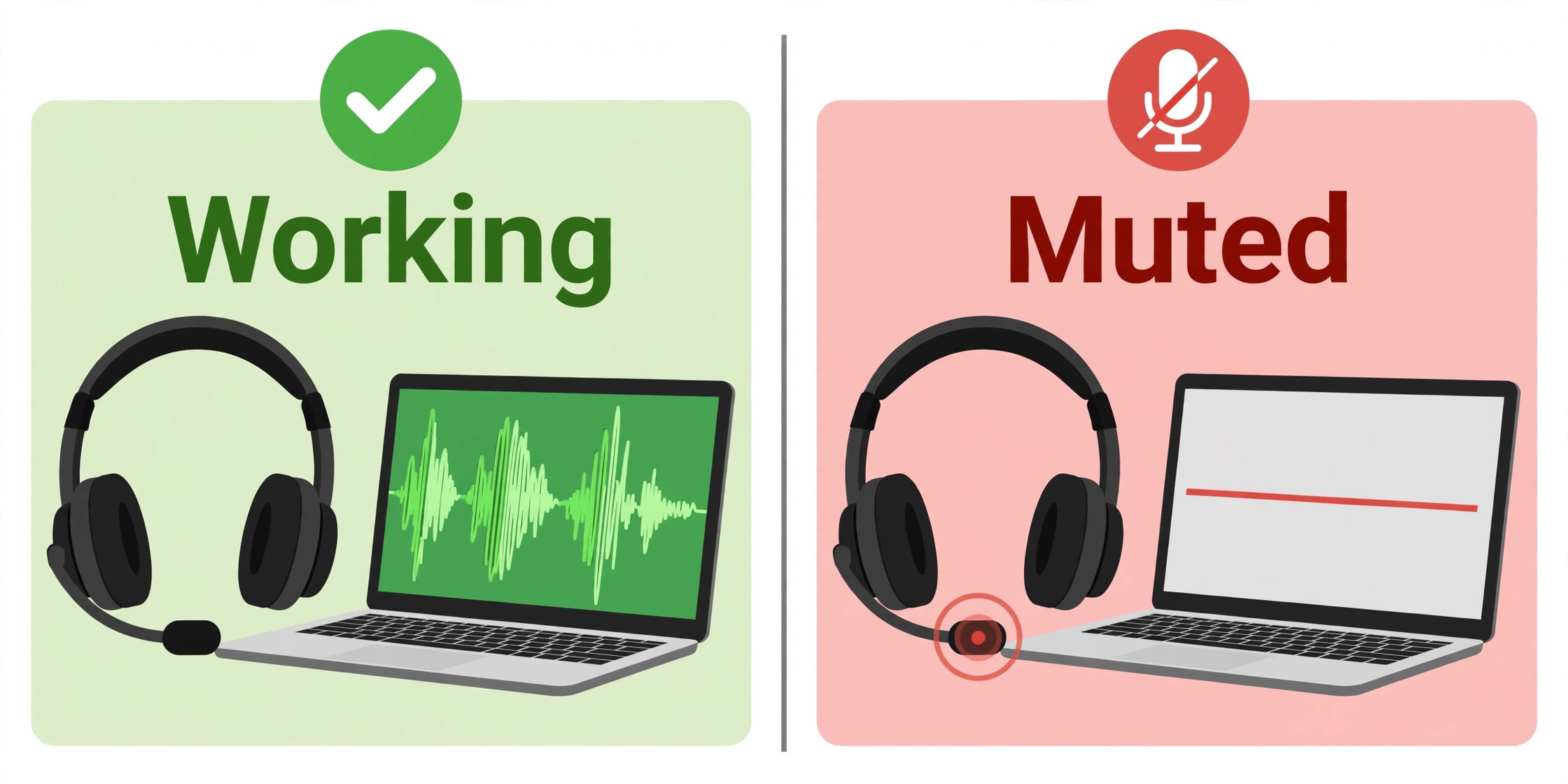
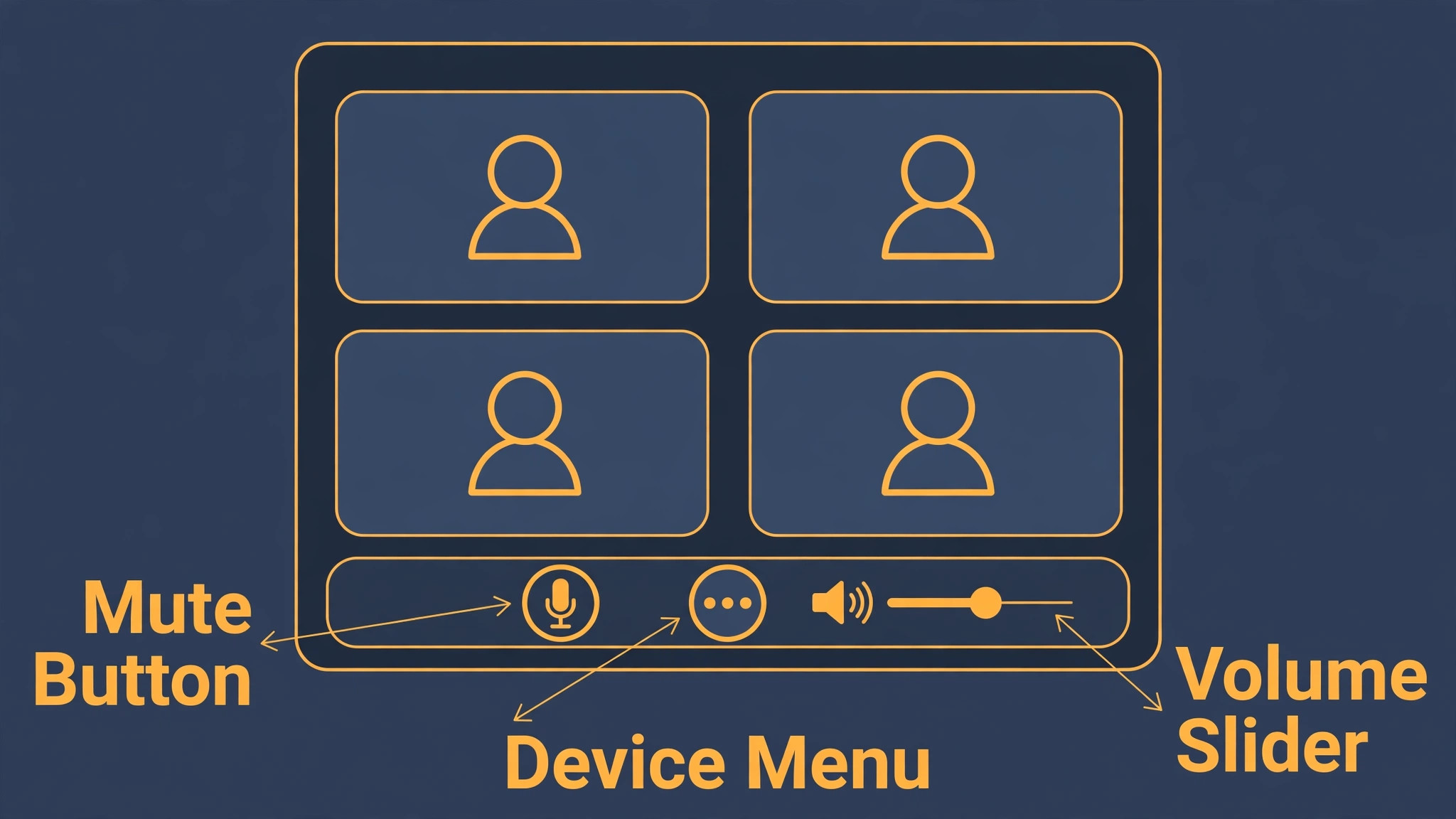
Start inside the live meeting, not in a settings menu. Look at the mic icon in the meeting controls. If it shows a line through it, click it once and speak. Check the physical mute button on your headset or laptop as well, since Teams and your headset can disagree about mute state. Say a test sentence and watch for a reaction in chat. That live check beats any settings page, because it tests the exact path your voice must travel.
Next, open the mic menu beside the mic icon and confirm Teams is using the device you think it is. Laptops often list a built-in array, a headset mic, a webcam mic, and a monitor mic, and Teams may have picked the quietest one after an update or a dock change. Switch to the mic you are speaking into, then speak again. If the level meter moves, you have found the fault. If it moves for no device, the fault sits deeper, in permissions, drivers, or the app.
If you are the host and every guest reports the same problem, stop fixing your own mic. The fault is probably a meeting setting, a lobby hold, or a room device, covered in the host section below. If only you cannot be heard, keep working through the guest and device sections.
Diagnose Before You Change Settings
Guessing wastes more time than diagnosing. A mic that works in a recorder but not in Teams points at Teams settings or permissions. A mic that works nowhere points at hardware, cable, battery, or driver. A mic that worked yesterday and stopped after an update points at a device or permission reset. A mic that fails only in a browser points at a browser prompt, not your headset. Answer those questions first, and the table turns each answer into a starting point.
| What you observe | Most likely cause | Start here |
|---|---|---|
| Mic works in other apps, silent only in Teams | Wrong device in Teams, or Teams permission blocked | Teams device menu, then system privacy settings |
| Mic silent in every app | Hardware, cable, battery, or system driver | A different port, a different mic, then driver checks |
| Mic worked yesterday, silent after an update | Device reset, permission reset, or driver change | Teams device menu, then permission and driver sections |
| Mic silent only in the browser version of Teams | Browser permission dismissed or blocked for the site | Browser site settings for the Teams site |
| Others hear you faintly or with heavy background sound | Wrong mic picked, low input level, or noise setting | Device menu, input level, then noise suppression |
| You hear echo or your own voice back | Speaker output feeding back into the mic, or a second device open | Headset instead of speakers, then close duplicate Teams sessions |
| Host cannot hear guests, guests hear each other | Meeting setting, lobby hold, or room device fault | Host section, then room device checks |
| Mic drops out part way through a call | Bluetooth range, battery, Wi-Fi strain, or a second app grabbing the mic | Wired test, close other calling apps, then network checks |
Use this table before you try to fix Teams microphone not working with a reinstall or a new purchase. A reinstall will not repair a muted headset button, a blocked permission, or a meeting setting, and it costs you the time to sign in again and rejoin. Diagnosis first also gives you a clear sentence for IT support if you need it, such as the mic works in the voice recorder but shows no level in Teams, which points support at the right layer at once instead of starting from zero.
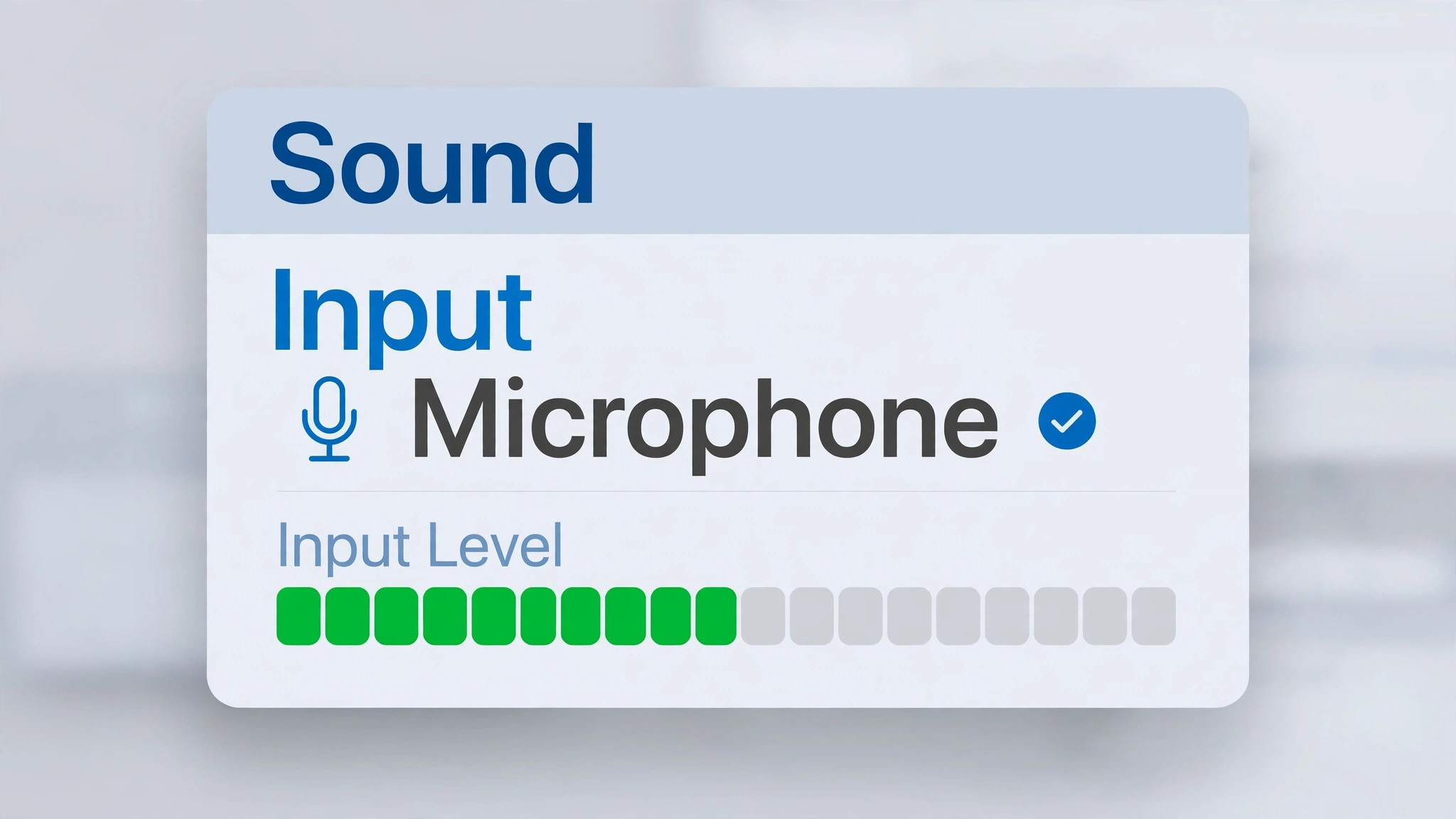
One more diagnostic step settles most arguments about hardware. Open system sound settings and watch the input meter while you speak. On Windows, that is Settings, then System, then Sound, then Input. On a Mac, that is System Settings, then Sound, then Input. If the meter moves there but not in Teams, Teams is the layer to fix. If it moves nowhere, test the hardware, with a different port, cable, or mic.
How to Fix Teams Microphone Not Working in the Right Order
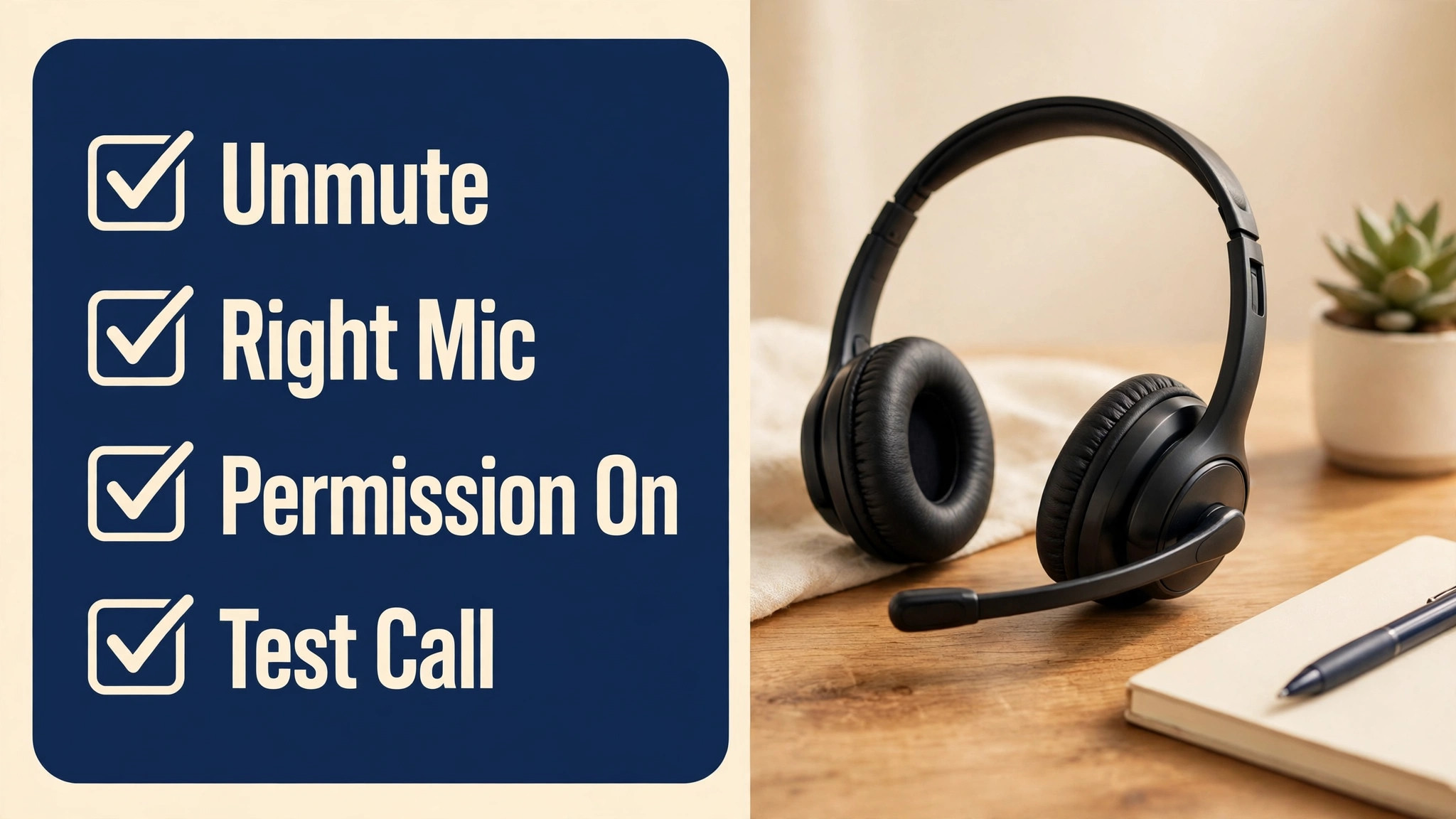
This checklist is the overview-proof core of the guide, because the order matters as much as the steps. Each step rules out one layer before you move to the next, so you do not undo a good fix while chasing a later one. Work from the top, stop as soon as your voice comes back, and note which step fixed it, so the same fault takes seconds next time.
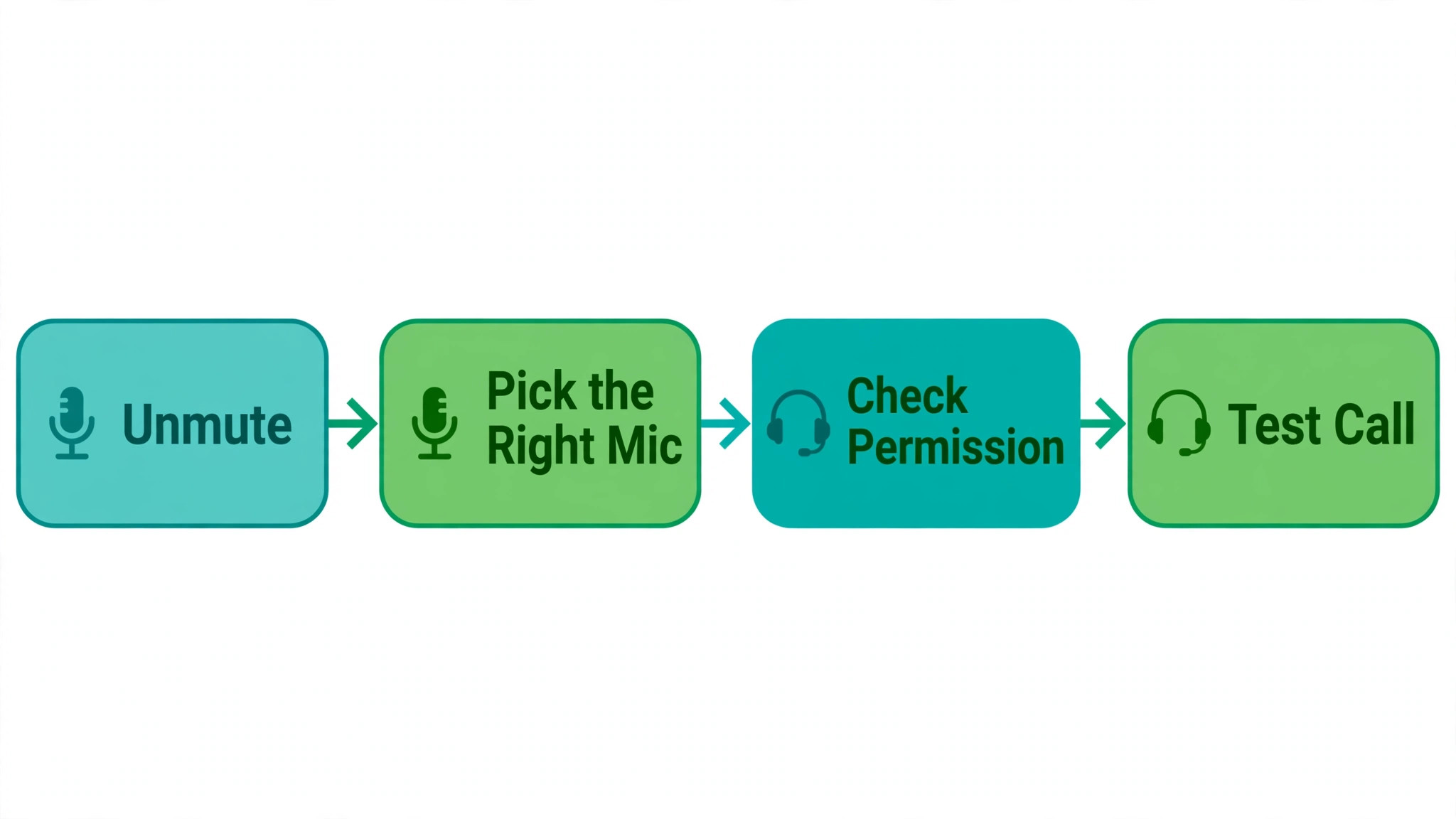
- Unmute in Teams and on the headset, then speak a test sentence in the live meeting.
- Open the mic menu and pick the exact mic you are speaking into, then check the level meter.
- Run the Make a test call option in Teams settings and listen to the playback.
- Close other calling and recording apps that may hold the mic, such as Zoom, a recorder, or a second browser tab with a meeting open.
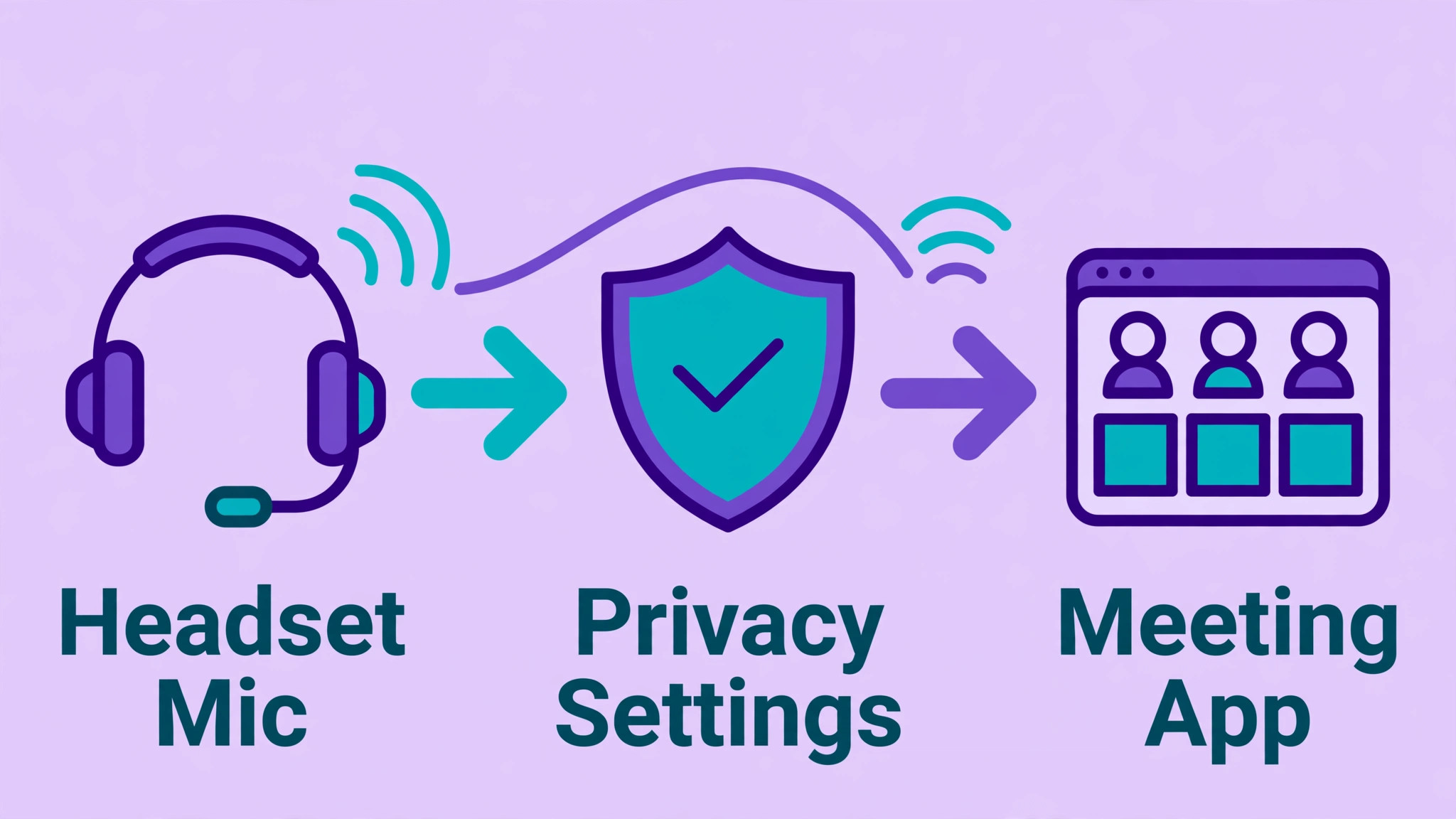
- Check system privacy settings and confirm Teams is allowed to use the microphone.
- Check system sound input, confirm the right mic is set as the input, and raise the input level.
- Unplug and replug a wired mic, or unpair and repair a Bluetooth mic, and test a different port.
- Restart Teams fully, then restart the computer if the fault survives the restart.
- Update Teams and update audio drivers from the device maker or the system update tool.
- Clear the Teams cache, then reinstall Teams only if the cache clear changes nothing.
- Test with a different mic, and if that mic works, replace or repair the first one.
- Contact the meeting host or IT with the diagnosis sentence from the table above.
Microsoft documents the test call and device steps in its own support guide, which is worth keeping open while you work. The guide covers the Make a test call option and the device menu in detail, and it matches the order used here. You can read it at Microsoft support for a mic that is not working in Teams. A second Microsoft page covers device settings, noise suppression, and voice isolation, which matter when the mic works but sounds poor. That page is at Microsoft support for Teams device settings.
The checklist also protects you from changing three settings at once and never learning which one mattered, so change one layer, test, and move on.
Host Fixes. When the Room Cannot Hear Anyone
A host problem looks different from a guest problem. One silent guest is a device fault. Every guest silent is a meeting control fault until proven otherwise. A host who joins from a room system and a laptop, or a phone as well as a laptop, can create a second audio path, and Teams may treat the duplicate session as the speaker.
Check the Host Mute Controls First
When you host, the steps to fix Teams microphone not working start with the controls only the host and organisers can touch. Open the participant list and look for muted icons or a guest still waiting in the lobby. A guest in the lobby cannot speak at all, and the fix is admission, not a headset swap. If you muted all attendees at the start, unmute the person who needs to speak and confirm with a quick spoken check.
Check your own meeting audio device separately. Hosts often join with a room mic selected, then speak into a laptop mic Teams is ignoring. Open the mic menu, pick the room mic or your headset deliberately, and ask one guest to confirm they hear you. In a hybrid room, speak into the room mic, not toward the laptop, because a laptop across the table picks up echo and can sound silent to remote guests even when the meter moves.
Check Meeting Options and Lobby Settings
Meeting options can block audio before a guest ever reaches the mic menu. If guests report they can hear but cannot unmute, open meeting options and check who is allowed to present, who bypasses the lobby, and whether attendee mics stay muted on entry. That setting suits a town hall, but it looks like a mic fault in a small discussion if nobody tells guests how to request to speak. Change it for discussion meetings and tell guests the new rule in chat.
Fix Room and Second Device Problems
Room systems fail in their own way. A room mic muted on its own control panel will stay silent even when Teams shows it as active, so check the physical panel and remote as well as the Teams controls. A room that joins twice, once from the room system and once from a laptop in the same room, will produce echo and can favour the wrong audio path. Leave one session as the audio source and close or fully mute the other, then test again.
If you host from a phone while your laptop runs the slides, pick one device for audio. Join audio on the phone and mute the laptop, or join audio on the laptop and keep the phone out of the meeting. Two live audio paths confuse Teams and listeners alike.
Guest Fixes. When Only You Cannot Be Heard
As a guest, your route to fix Teams microphone not working is shorter, because you cannot change meeting options. Your job is to prove your mic works, pick the right device, and clear the one block that stops Teams from hearing you. Most guest faults clear in the first five checklist steps.
Start With the Guest Test Call
Before the meeting starts, open Teams settings, then Devices, and use Make a test call. Record the message, listen to the playback, and read the summary. If the playback sounds clear, your mic, permission, and device choice are all fine, and the fault is probably a live meeting mute or option, which the host must change. If the playback is silent, work through the device and permission sections below.
Fix the Dismissed Permission Prompt
Guests joining in a browser face one fault desktop guests rarely meet. The first time a browser asks to allow microphone access for the Teams site, a single click on Block or a dismissed prompt can silence every later meeting on that site, even though the headset works elsewhere. Open browser site settings for the Teams site, set microphone permission to Allow, reload the page, and rejoin. In Chrome and Edge, that setting sits in the site information panel beside the address bar, then Site settings, then Microphone.
Desktop guests meet the same fault at system level. On Windows, a permission reset after a major update can leave Teams without mic access while older apps keep theirs. On a Mac, a permission granted to an older Teams version can leave the new app silent. Both are fixed in system settings, covered in the Windows and Mac sections below, not by reinstalling Teams.
Fix Bluetooth and Headset Pairing Faults
Bluetooth headsets cause a specific guest fault. A headset paired to both a phone and a laptop may connect its audio to the phone while Teams on the laptop shows it as available, or it may drop to a low quality hands-free profile that sounds muffled or silent to others. Disconnect the headset from the phone for the meeting, or turn the phone Bluetooth off for the call, and let the laptop hold the only connection. Check the battery as well, since a low battery can cause dropouts that look like a Teams fault but follow the headset to every app.
Wired headsets fail more simply. A plug that is not fully seated, a splitter that mixes mic and headphone channels wrongly, or a USB hub that loses power can all silence a mic that worked yesterday. Plug directly into the laptop, bypass the hub, and test again. If a direct connection works, the hub or splitter was the fault.
Windows Fixes. Permissions, Drivers, and Exclusive Mode
On Windows, the most common way to fix Teams microphone not working is to check permission first and drivers second. Open Settings, then Privacy and security, then Microphone, and confirm microphone access, app access, and Teams are all allowed. Desktop apps need the desktop app access toggle as well, since Teams runs as a desktop app and a missing toggle there can block it while store apps keep working. Toggle the permission off and on again if it already looks correct, then restart Teams.
Next, open Settings, then System, then Sound, and look at Input. Pick the mic you intend to use, speak, and watch the input meter. If the meter stays flat, the system is not receiving audio at all, and Teams settings cannot help yet. Try a different port, check the mic mute switch, and test in the built-in voice recorder. If the recorder hears you but Teams does not, return to the permission check and the Teams device menu.
Driver faults follow a pattern. A mic that vanished from the input list, or shows as an unknown device, usually needs a driver update. Open Device Manager, expand the audio inputs and sound controllers, right-click the device, and update the driver. If the update finds nothing, download the driver from the laptop or headset maker and install it directly, then restart, since audio drivers often need a restart before Teams sees the device cleanly.
Two Windows settings deserve a check when the mic works but sounds wrong. In the classic sound settings, the Recording tab, then mic Properties, then Advanced, holds an exclusive mode option that lets one app take full control of the mic. Turning it off can free a mic another app has locked. In the same window, the Levels tab controls input volume, and a very low level will make a working mic sound silent.
Mac Fixes. Permission, Input Choice, and Cache
On a Mac, the path to fix Teams microphone not working usually runs through one permission screen. Open System Settings, then Privacy and Security, then Microphone, and confirm Microsoft Teams is switched on. If Teams is missing, it has never asked for permission, so join a test meeting and answer Allow when prompted. If Teams is listed but switched off, switch it on, quit Teams fully, and reopen it.
Next, open System Settings, then Sound, then Input, and pick the mic you are speaking into. Speak and watch the input level. If the level moves here but not in Teams, the fault is Teams permission or the Teams device menu, so return to those two screens. If the level does not move here either, test a different port or a different mic, and check the headset battery and pairing, since a Mac will keep listing a Bluetooth mic that has actually disconnected.
Mac users should also check for a second Teams session and for other apps holding the mic. Close a browser meeting tab, a recorder, or a dictation tool, quit Teams fully, and reopen it. If the fault survives a restart, clear the Teams cache following Microsoft guidance for your Teams version, since a stale cache can hold a dead device choice across restarts.
Browser and Mobile Fixes. The Prompt Is the Problem
In a browser, the way to fix Teams microphone not working is almost always a site permission, not a driver. Open the Teams site, open site settings from the address bar panel, set the microphone to Allow, and reload the meeting page. If the browser still shows no mic, check the browser own microphone setting as well, since some browsers add a global mic block above the site setting. Test in a second browser, such as Edge if you normally use Chrome, to prove whether the fault follows the browser or the device. If the second browser works, the first browser profile holds the block, and a fresh profile or a permission reset in the first browser is the fix.
Teams on the web lacks the desktop test call, so join a short test meeting with one colleague and ask for confirmation in chat. Keep the browser tab in focus, since some browsers reduce mic access for background tabs.
On a phone or tablet, check the app permission first. On iPhone, that is Settings, then the Teams app entry, then Microphone. On Android, that is Settings, then Apps, then Teams, then Permissions, then Microphone. Check the phone mute and headset connection as well, since a phone routed to a car system or a watch will show Teams as unmuted while nobody hears you.
When the Mic Works Everywhere Except Teams
This is the most frustrating pattern, and it is also the most useful, because it narrows the fault to a small set of causes. If a voice recorder hears you, a video call in another app hears you, and Teams does not, the mic, the cable, and the system driver are all proven good. The remaining suspects are the Teams device choice, the Teams permission, a second Teams session, the Teams cache, or an admin policy that blocks mic access for Teams on a managed device.
Work that short list in order. Pick the device again in the Teams device menu and watch the level meter there. Check the system permission again, with a toggle off and on and a full Teams restart. Close every other Teams window, including a second meeting tab and a session on a second device. Clear the Teams cache and test again before you reinstall. If all of that fails on a work laptop, contact IT with the sentence that the mic works in the recorder and another calling app but shows no level in Teams, and ask whether a device policy blocks mic access.
A mic that works in Teams calls but not in one specific meeting points at meeting options, a lobby hold, or a host mute, not at your device. Ask the host whether attendee mics are muted on entry and whether you are still waiting for admission. If the host unmutes you and you still cannot speak, leave and rejoin that meeting.
What It Costs to Replace Gear or Upgrade Teams
Most mic faults cost nothing, since they are mute buttons, device choices, or permissions. Spending should come only after the diagnosis table points at hardware or after a plan limit blocks a feature you need, such as recording or webinar hosting. The table below uses publicly listed Microsoft figures from mid 2026 reporting, with annual billing, and you should check the official Microsoft pricing page and checkout before paying, since Microsoft raised Business Basic and Business Standard prices in July 2026.
| Plan | Publicly listed price, annual billing | What it gives a meeting user |
|---|---|---|
| Microsoft Teams free | No charge | Chat and meetings up to 60 minutes, limited storage |
| Microsoft Teams Essentials | About 4 dollars per user a month | Longer meetings, more participants, Teams only |
| Microsoft 365 Business Basic | About 7 dollars per user a month | Teams plus web Office apps, business email, larger storage |
| Microsoft 365 Business Standard | About 14 dollars per user a month | Desktop Office apps plus webinar and meeting extras |
An upgrade will not fix a muted headset, a blocked permission, or a faulty driver, so do not buy a higher plan as a mic fix. Buy a higher plan only when you need what it adds, such as recording or desktop apps, and only after the mic works on the plan you have. Headset prices vary widely by brand and design, so check the maker store and checkout before buying, and keep the receipt until a test call proves the new device works.
Mistakes That Waste a Whole Meeting
The first mistake is reinstalling Teams before checking mute, device, and permission. A reinstall takes time, forces a fresh sign in, and leaves the real fault untouched when the fault is a headset button or a blocked prompt. The second mistake is changing three settings at once. Change one layer, test, and move on, so you learn which step fixed it.
The third mistake is testing in silence. A level meter that moves is useful, but a human confirmation is better, so ask a colleague whether they hear you clearly, not just whether they hear something. The fourth mistake is ignoring the second device. A phone in a pocket or a second laptop tab can hold the mic or create echo, and closing the duplicate session often fixes a fault no setting change touches.
The fifth mistake is blaming the network for a mic fault, or the mic for a network fault. A mic fault means others hear nothing while video stays smooth. A network fault means frozen video, robotic audio, and dropouts for everyone. If video freezes and audio breaks up together, check the connection or switch to a wired connection before you swap headsets.
How to Choose Your Next Step
If the mic works in the system meter but not in Teams, your next step is the Teams device menu and the system permission, in that order. If the mic works nowhere, your next step is hardware, a different port or mic, then drivers. If the mic works only in a browser and not in the desktop app, your next step is the desktop cache and a reinstall. If the mic fails only in one meeting, your next step is the host, not your hardware. If it fails on a managed work laptop after every user step, your next step is IT, with the diagnosis sentence ready.
Write down the step that fixed it. A one line note, such as headset paired to phone, turns a twenty minute fault into a thirty second fix next time, since updates reset devices and browsers ask permission again.
For related reading, Slack vs Microsoft Teams compares Teams with its main chat rival, Zoom vs Microsoft Teams covers meeting differences that matter when a mic fault pushes you to a second app, best AI meeting assistants looks at tools that record and summarise meetings once audio works, and best team communication software puts Teams in the wider team chat field.
Frequently Asked Questions
Why can I hear everyone in Teams but nobody can hear me?
That pattern usually means your speaker path works while your mic path fails. Check the Teams mic mute first, then the mic menu device choice, then the system permission. If the system meter moves but Teams shows no level, the fault sits in Teams device choice or permission. If the system meter does not move either, test a different mic or port.
Why does my mic work in other apps but stay silent in Teams?
Teams uses its own device choice and permission, so a mic can work elsewhere while Teams points at a different input or lacks permission. Open Teams settings, then Devices, pick the exact mic, and run Make a test call. Then confirm Teams is allowed in system privacy settings, with a full Teams restart after any change.
How do I test my mic in Teams before a meeting starts?
Open Teams settings, then Devices, and use Make a test call. Record the message, listen to the playback, and read the summary. On the web version, where the test call is not available, join a short test meeting with a colleague and ask for confirmation in chat. Test with the exact headset you plan to use.
Why does my Bluetooth headset keep failing in Teams?
Bluetooth headsets often pair to two devices at once, and Teams on the laptop can lose the audio path to a phone or a watch. Disconnect the headset from other devices for the meeting, check the battery, and confirm Teams lists it as both speaker and mic. If dropouts continue, test a wired headset. A wired pass proves the fault follows the wireless link, not Teams.
Can a meeting host mute me without me knowing?
A host can mute attendees, set attendees to join muted, and hold guests in the lobby, and each state can look like a mic fault from the guest side. Check for a muted icon, check whether you are still waiting for admission, and ask the host whether attendee mics are muted on entry. A host unmute, or a fresh rejoin after admission, clears a policy mute no device change will fix.
Should I reinstall Teams or buy a new headset first?
Neither, in most cases. Reinstall only after mute, device, permission, restart, driver, and cache steps have all failed, since a reinstall will not fix a mute button, a wrong device, or a blocked permission. Buy a new headset only after a different mic works in the same meeting on the same computer, since that test proves the first mic is at fault. If no mic works on that computer, the fault is software or policy, not the headset.
The Quiet Fix That Gets You Heard Again
That order is the whole method to fix Teams microphone not working without wasting a meeting on random changes. Start with mute and device, prove the mic in the system meter, clear the permission block, and only then touch drivers, cache, or a reinstall. Hosts should check meeting controls and lobby state before touching hardware, and guests should prove the mic with a test call before blaming the meeting.
Keep the diagnosis sentence ready for the next fault, and keep a note of the step that fixed this one. Next time your voice vanishes, you will start from the layer that failed last time, test it in seconds, and get back to the meeting while others are still swapping headsets.