

Apple gives every account only 5GB of free iCloud storage, while Google gives 15GB shared across Gmail, Drive and Photos. That gap explains why so many phones warn about full storage long before the photo library itself is the main problem. The warning usually arrives at the worst moment, during an update, a video recording or a ticket download, and the usual advice to delete photos feels like a punishment for keeping memories. The good news is that you can fix phone storage full without deleting photos in most cases, because the biggest space hogs are often cached files, forgotten downloads, chat videos, duplicate files and apps you have not opened in months.
This guide gives you a practical order of work. You will diagnose what is actually filling the phone, protect your photos with a backup you have checked, run a 30 minute cleanup that targets safe items first, and only then decide whether photos, cloud storage or an external copy is needed. It covers iPhone and Android separately, because the menus and the safe moves differ, and it includes current cloud prices so you can judge whether paying a few dollars a month beats a long manual cleanup. Prices change often, so check the official pricing page and checkout before paying for any plan mentioned here.
Start With a Diagnosis, Not a Delete Spree
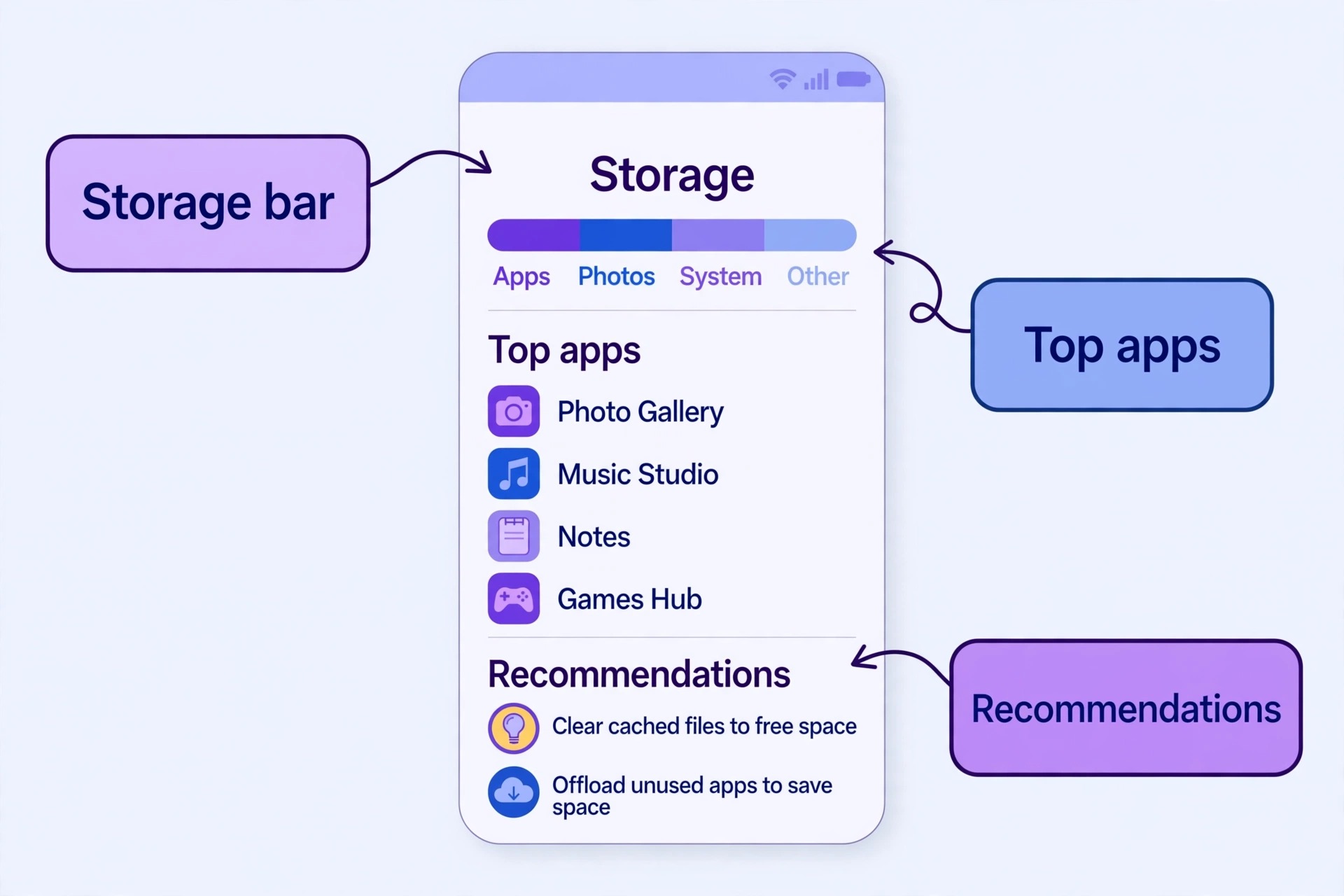
Deleting at random is the fastest way to lose something you wanted and still stay full. A two minute check changes the whole job, because it tells you whether the problem is apps, system files, photos, videos, messages or downloads. On an iPhone, open Settings, then General, then iPhone Storage, and wait for the coloured bar and the app list to load. On most Android phones, open Settings, then Storage, and look for the breakdown by category and by app. Screenshot the top five items or write them down, because you will need that list to judge which steps below are worth your time.
Look first for a surprise. Many people expect photos to be number one, then find that a social app holds several gigabytes of cache, that a messaging app holds years of forwarded video, or that downloaded shows and podcasts hold more than the whole camera roll. If you want to fix phone storage full without deleting photos, that surprise is useful. It means you can recover space from items you can download again, while your photos stay untouched. If photos really are number one by a wide margin, skip ahead to the backup section before you touch anything else, because a photo heavy phone needs a verified copy before any local cleanup.
Set a target before you start. A phone needs breathing room to update, to record video and to run apps without stalling. Aim for at least 5GB free, and 10GB free if you record a lot of video or if an operating system update is pending. Updates can need several gigabytes of temporary room even when the final install is smaller, and a phone with less than 1GB free will often refuse an update, fail a backup or stop saving new photos. A target also stops the cleanup from turning into an endless purge. Once you hit the target, stop, use the phone for a day, and see whether the warning stays away.
How to Fix Phone Storage Full Without Deleting Photos in 30 Minutes
This is the overview proof part of the guide, a cleanup plan you can follow in order, plus a safe to delete table you can check before you tap anything. Work through the steps in order and stop when you reach your target. The order matters, because the early steps are safe and reversible, while the later steps need a backup first. This plan to fix phone storage full without deleting photos is built for a single focused session, not for a weekend project.

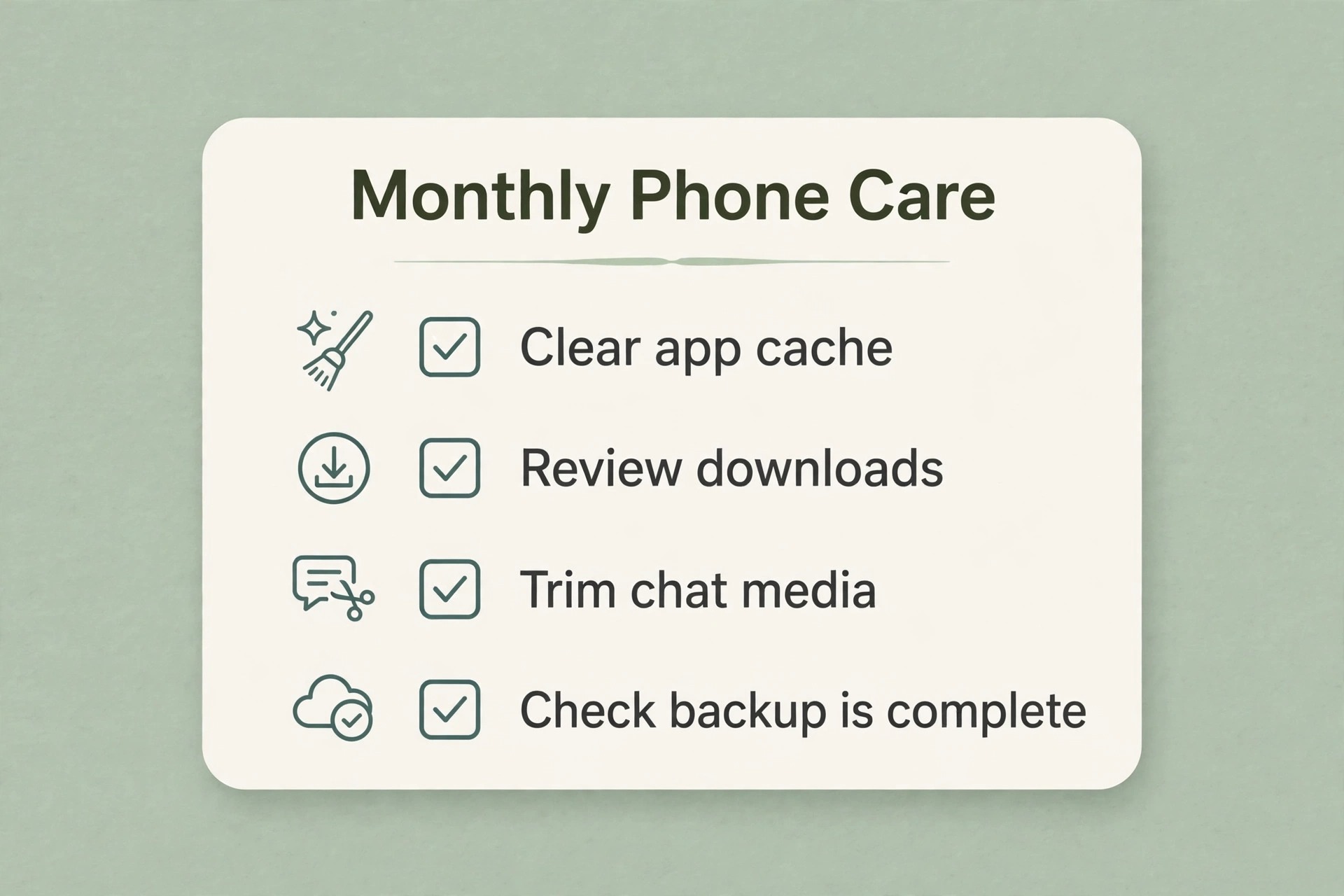
Step one takes five minutes. Open the storage screen, note the top five space users, empty the trash and recently deleted folders, and delete downloads you no longer need. Step two takes ten minutes. Clear cache for your five largest social, browser and streaming apps, review offline downloads in music, video and podcast apps, and remove shows or episodes you have already watched or heard. Step three takes ten minutes. Open your messaging apps, sort chats by size, and remove large forwarded videos and old voice notes you do not need, keeping the photos and messages that matter. Step four takes five minutes.
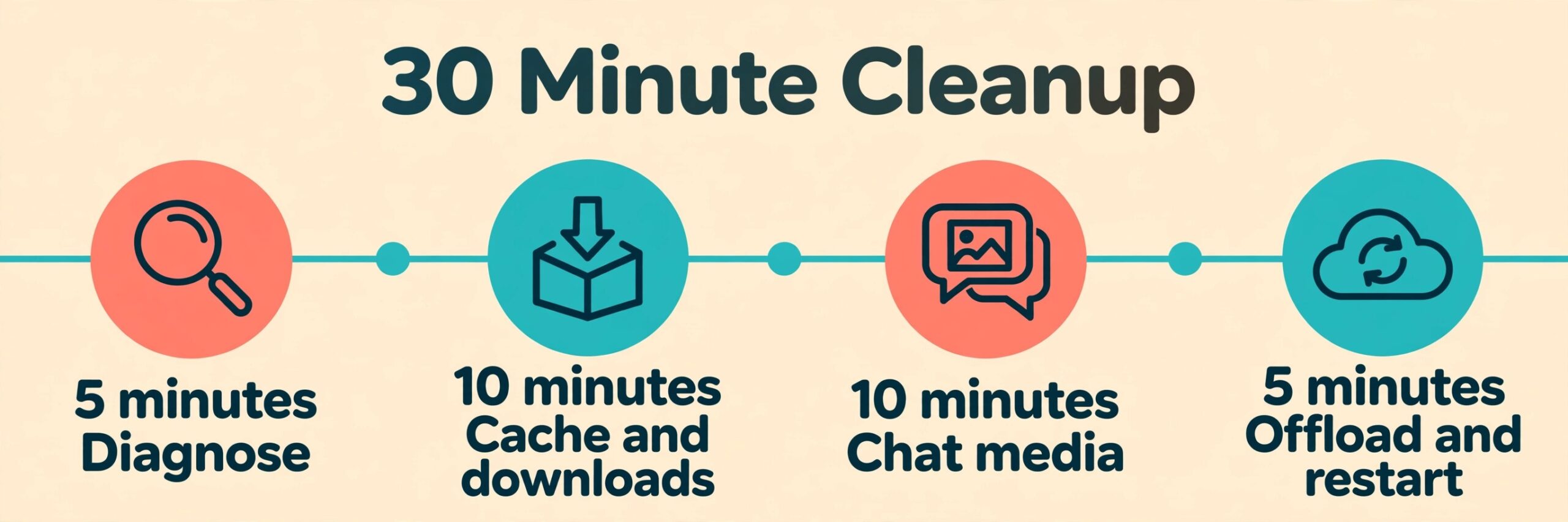
Offload or remove apps you have not opened in 90 days, restart the phone, and check the storage screen again.
Use the table below as your safety check. If an item is in the safe column, you can remove it without losing a photo. If it is in the check first column, pause and confirm a backup or a second copy before you proceed. If it is in the do not delete column, leave it alone unless you have a specific reason and a backup.
| Item | Safe to remove | Check first | Do not delete blindly |
|---|---|---|---|
| App cache | Yes, it rebuilds as you use the app | No backup needed | Do not confuse cache with app data |
| Old downloads and installers | Yes, if you can download them again | Check for a file you created yourself | Tax, contract and work files |
| Watched shows and heard podcasts | Yes, streaming copies remain | Check offline trips first | A show you saved for a flight |
| Forwarded chat videos | Yes, if you have the original or do not need it | Check family and work chats | The only copy of a family video |
| Duplicate screenshots | Yes, after a quick review | Check screenshots with codes or receipts | Screenshots of tickets and passwords |
| Unused apps | Yes, offload on iPhone or uninstall on Android | Check for data stored only in the app | An app holding notes with no export |
| Original photos and videos | No, not in this plan | Back up and verify first | Never delete the only copy |
| System files and other storage | No, do not force clear these | Update the system first | Deleting system files can break updates |
Protect Photos First With a Backup You Have Checked
A backup you have never opened is a hope, not a backup. Before you use any photo freeing feature, confirm that the backup is complete and that you can see the photos from another device or a web browser. On an iPhone, check iCloud Photos status and open a few older photos on another device or at the web gallery. On Android, open Google Photos, check that backup is on and complete, and open a few older photos on a computer. If the backup is still running, wait for it to finish on Wi-Fi and power before you remove local copies.
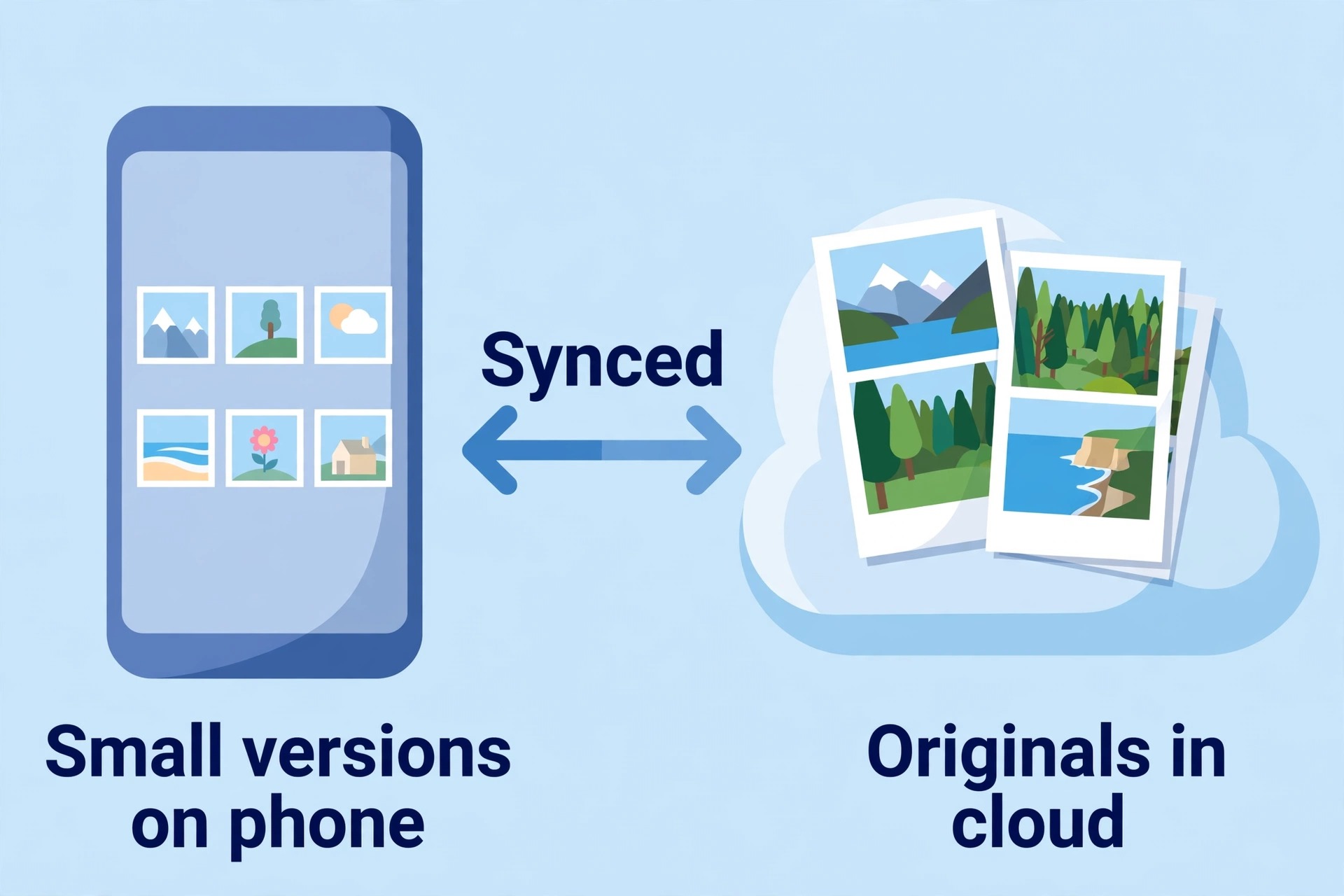
Understand the difference between a sync service and a separate copy. iCloud Photos and Google Photos both keep your library in the cloud, but deleting a photo from a synced library can delete it everywhere. That is why the optimise settings matter more than manual deletion. On an iPhone, Optimise iPhone Storage keeps smaller versions on the phone and full resolution originals in iCloud, and the phone swaps versions as space is needed. On Android, Google Photos can remove backed up copies from the device while keeping them in the cloud library. Both approaches keep your photos, but they work in different ways, and both need enough cloud room to hold the library.
If your cloud account is also full, do not start deleting photos to make room. First check what else is using that cloud account. A Google account shares its 15GB across Gmail, Drive and Photos, so a large Gmail attachment history or old Drive files can block photo backup. An iCloud account shares its space across backups, Photos, Drive and Mail, so an old device backup can block new photos. Cleaning the cloud account first, by removing large mail attachments and old device backups you no longer need, often frees more photo room than deleting memories.
iPhone Fixes That Free Gigabytes
To fix phone storage full without deleting photos on an iPhone, start with the built in recommendations on the iPhone Storage screen. The phone may suggest offloading unused apps, reviewing large attachments, or turning on photo optimisation. Offloading an app removes the app itself but keeps its documents and data, so reinstalling later brings you back to where you left off. That is different from deleting an app, which can remove its data too. Offload the large games and apps you have not opened in months first, because games often hold several gigabytes and are easy to download again.
Next, review messages. Open Settings, then General, then iPhone Storage, then Messages, and look at large attachments, videos and shared photos. Years of group chat video can quietly grow to several gigabytes, and most of it is forwarded content you will never watch again. Delete the large videos from busy chats, keep the photos that matter, and consider setting messages to keep for one year instead of forever if your chats are very old. That setting change will not delete your current messages at once in every case, so check the prompt carefully before you confirm.
Photo settings come next, and they need care. Turn on iCloud Photos and choose Optimise iPhone Storage if you have enough iCloud room, as described in the backup section. Apple support explains that full resolution originals stay in iCloud while smaller versions stay on the device, which is the safest iPhone route to free photo space without manual deletion. If you do not have enough iCloud room, do not turn the setting on and hope for the best. Either clean the iCloud account, upgrade the plan, or copy photos to a computer first.
The official Apple support page for managing photo and video storage is a good check before you change these settings, and the link is listed in the sources note at the end of this section in the published version notes.
Android Fixes That Free Gigabytes
To fix phone storage full without deleting photos on Android, start with its more direct controls, and that makes the cleanup faster if you use them in the right order. Start with Files by Google if it is on your phone, or install it from the Play Store if it is not. Open the Clean tab and work through the cards for junk files, duplicate files, large files and unused apps. Each card shows what will be removed before you confirm, so review the list instead of tapping through blindly. Duplicate screenshots and meme images are common wins here, and they do not touch your camera photos.
Next, clear cache app by app, starting with the largest. Open Settings, then Apps, choose an app such as a browser, a social app or a streaming app, then Storage and cache, then Clear cache. Do not tap Clear data or Clear storage unless you mean to sign out and reset that app, because that button removes accounts, settings and offline content. Clearing cache is safe and reversible, while clearing data is a reset. Work through five large apps first, then restart the phone and check the storage screen again, because the reading often updates after a restart.
Samsung phones add a useful tool in Device care. Open Settings, then Battery and device care, then Storage, and review categories such as images, videos, audio, documents and unused apps. Samsung support describes how Device care can clear cached and residual files without removing user files such as photos, videos and messages, which makes it a safer first step than a third party cleaner that promises more than it can do. If your phone is from another maker, look for a similar storage cleaner in Settings, but avoid cleaner apps that ask for broad permissions, show heavy ads or claim to speed up the phone by deleting system files.
Then review offline content. Streaming apps, map apps and podcast apps can each hold gigabytes of downloads you forgot. Open each app, check its download or offline section, and remove shows, maps and episodes for trips that are over. Google Maps offline areas are a frequent surprise, because a downloaded region for a holiday can stay on the phone for years. Spotify, YouTube and Netflix downloads are easy wins too, because you can stream or download them again when you need them, and removing them does not affect your account or your playlists.
Google Photos on Android has a specific free up space tool that is worth using only after backup is complete. Open Google Photos, tap your profile, then Free up space on this device, and read the amount it will remove before you confirm. Google support notes that this removes device copies of backed up photos and videos, while the backed up copies remain visible in Google Photos and on the web. Recent photos less than 30 days old may stay on the device even after you run the tool, which is normal.
If you use the built in gallery instead of Google Photos, or if you are offline, you will not see the freed photos until you open Google Photos again, so plan for that difference.
Some of the largest space users do not look like storage problems at all. They look like normal apps doing normal things, until you open their internal storage screens. WhatsApp is the classic example. Open WhatsApp, then Settings, then Storage and data, then Manage storage, and sort by size. You will often find a few chats holding hundreds of megabytes of video, plus a long tail of forwarded stickers, voice notes and images. Delete the large videos from chats you do not need to keep in full, and use the review step to keep photos that matter. Telegram, Signal and other chat apps have similar storage screens, and the same rule applies.
Keep the conversation, remove the heavy media you can live without.
Downloads deserve a full review, not a glance. Open the Files app, then Downloads, and sort by size. You will likely find installers, PDFs, ZIP files, video clips and documents you saved for a single task. Move work and tax documents to cloud storage or a computer, delete installers you can download again, and keep only the files you still need on the phone. Check the file manager trash folder after you finish, because deleted files can sit there for weeks and still count against storage.
Offline media is the next hidden hoard. Music apps, video apps, podcast apps, audiobook apps and map apps all let you download for offline use, and each download is a file on the phone. A single season of a show, a set of offline maps for a whole country, or a year of podcast episodes can each take several gigabytes. Remove the downloads for finished trips and finished series, and switch future downloads to Wi-Fi only so the phone does not quietly refill itself on mobile data. If you travel often, keep only the current trip offline and delete the last trip as soon as you are home.
What to Do When Photos Really Are the Problem
Sometimes the diagnosis is honest. Photos and videos really are the largest category, and cache cleanup alone will not reach your target. That does not mean you must delete memories. It means you need a plan for the library itself, and the first decision is quality versus originals. Original quality keeps every pixel, but it uses the most cloud room. Storage saver quality on Google Photos compresses photos and video slightly, which saves a large amount of cloud room for most people, while keeping prints and phone viewing looking good. On iPhone, the choice is more about optimised local copies versus full originals on the device, with iCloud holding the originals.
A second decision is which videos to handle separately. Video uses far more space than photos, and a small number of long clips can outweigh thousands of photos. Sort your library by video and by size, and look for long clips, duplicate takes, slow motion clips and screen recordings. You can move the largest videos to a computer or an external drive, keep a shorter edited version on the phone, and leave the photos alone. That single move often frees more space than deleting hundreds of photos, and it keeps the moments that matter in a safer place.
A third option is to change future capture settings so the problem grows more slowly. On iPhone, check Camera formats and choose High Efficiency if your phone supports it, which stores photos in a smaller format without a visible loss for most viewing. On Android, check camera settings for photo size, video resolution and HDR options, and consider recording everyday video at 1080p instead of 4K unless you need 4K for editing or a large screen. You do not need to change settings for a special trip or a paid shoot. The point is to stop everyday clips from filling the phone at the highest possible quality by default.
Cloud Storage Prices and How to Choose
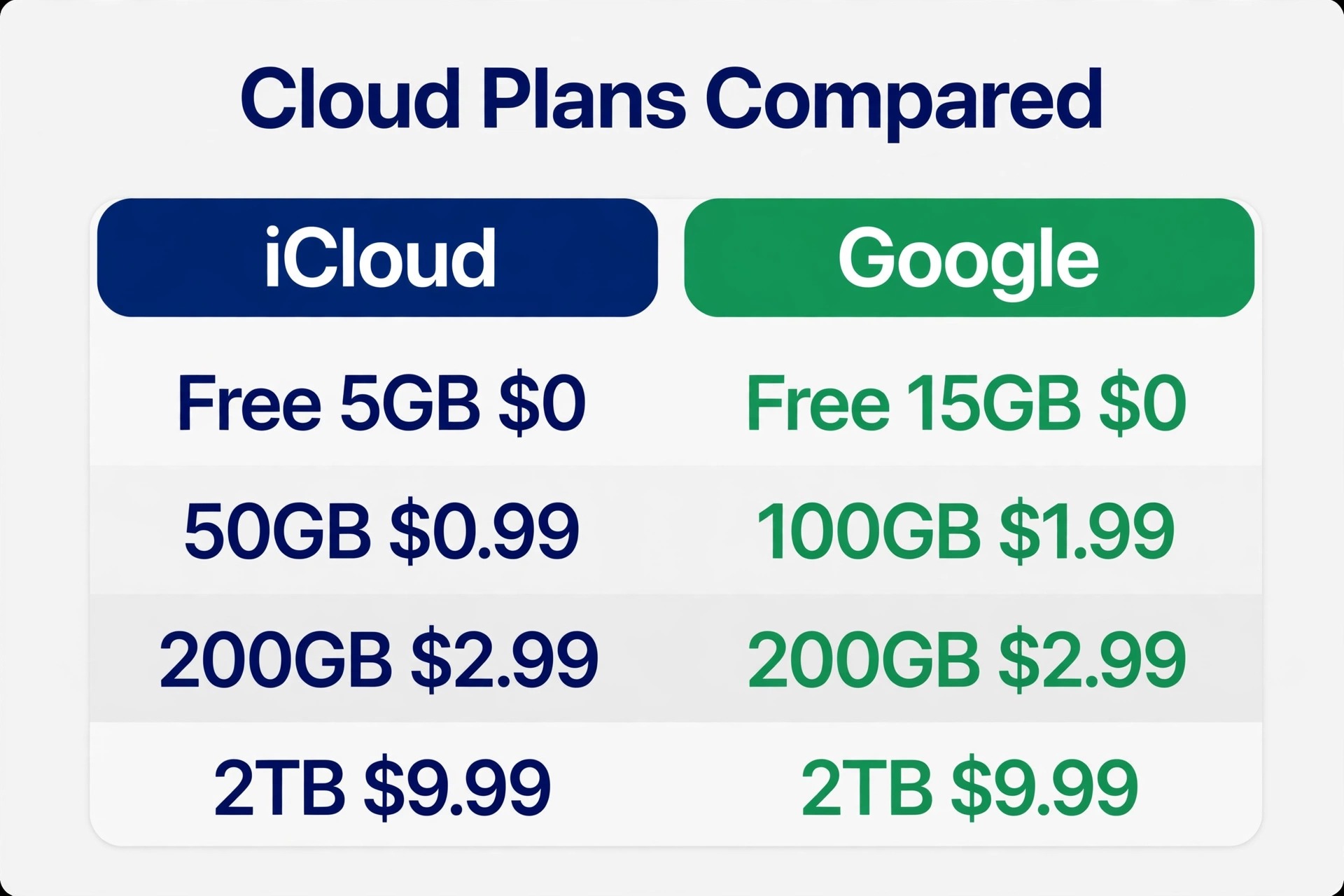
Cloud storage is often the cheapest fix, but only if you buy the right size. Buying too little leaves you full again in a month, while buying far too much wastes money every month. The table below uses widely listed United States monthly prices from vendor and pricing coverage checked in October 2026. Check the official pricing page and checkout before you pay, because prices vary by country, tax and promotion, and Google has moved some storage into AI bundles in recent years.
| Plan | Monthly price in the United States | Best for |
|---|---|---|
| iCloud free | 0 dollars for 5GB | A single light user with a small library |
| iCloud plus 50GB | 0.99 dollars | One iPhone with a modest photo library |
| iCloud plus 200GB | 2.99 dollars | A small family or a keen photo taker |
| iCloud plus 2TB | 9.99 dollars | A large family or a heavy video shooter |
| Google free | 0 dollars for 15GB shared | A light Android user with small Gmail and Drive use |
| Google One 100GB | 1.99 dollars | A phone library that has outgrown the free tier |
| Google One 200GB | 2.99 dollars | Most photo libraries with room for Drive and Gmail |
| Google One 2TB storage plan | 9.99 dollars for the storage tier | A large library plus Drive and Gmail headroom |
To fix phone storage full without deleting photos for a large library, choose by library size, not by phone size. If your photo library is 60GB, a 50GB plan will not hold it, no matter how cheap it looks. If your library is 120GB and growing by 2GB a month, a 200GB plan gives you headroom for years, while a 100GB plan will fill again soon. Check the actual library size in Photos or Google Photos before you buy, and add at least 20 percent headroom for growth, backups and other cloud files. Family sharing changes the maths too, because a shared plan pools storage across accounts, so a family should add every member library together before choosing a tier.
Mistakes That Cost Photos or Time
When you try to fix phone storage full without deleting photos, the most common mistake is clearing app data instead of app cache. Cache is temporary and rebuilds. Data is the app itself, including accounts, settings and offline content. On Android, the two buttons sit close together, and a tired tap can sign you out of everything and delete offline work. On iPhone, deleting and reinstalling an app to clear cache has the same risk for apps that store data only on the device. Always check whether an app stores its content in the cloud before you reset it, and never use a reset as a first step.
The second mistake is deleting photos from a synced library to free phone space. On iPhone, deleting from iCloud Photos removes the photo from every device using that library. On Android, deleting from Google Photos can remove the backed up copy too, depending on where you delete from. Use the optimise setting on iPhone, or the free up space tool on Android after backup, instead of manual deletion. Those tools are designed to keep the cloud copy while removing the local copy, which is exactly the result most people want.
The third mistake is trusting a third party cleaner that overpromises. Cleaner apps that claim to free huge amounts, speed up the phone or remove system junk often ask for broad permissions, show ads, or delete files you wanted. The built in tools from Apple, Google and Samsung are safer and usually enough, because they show what will be removed before you confirm. If a cleaner app cannot show you a clear list, do not let it delete anything. A manual review of the top five space users will beat a vague cleaner every time.
How to Choose the Right Fix for Your Phone
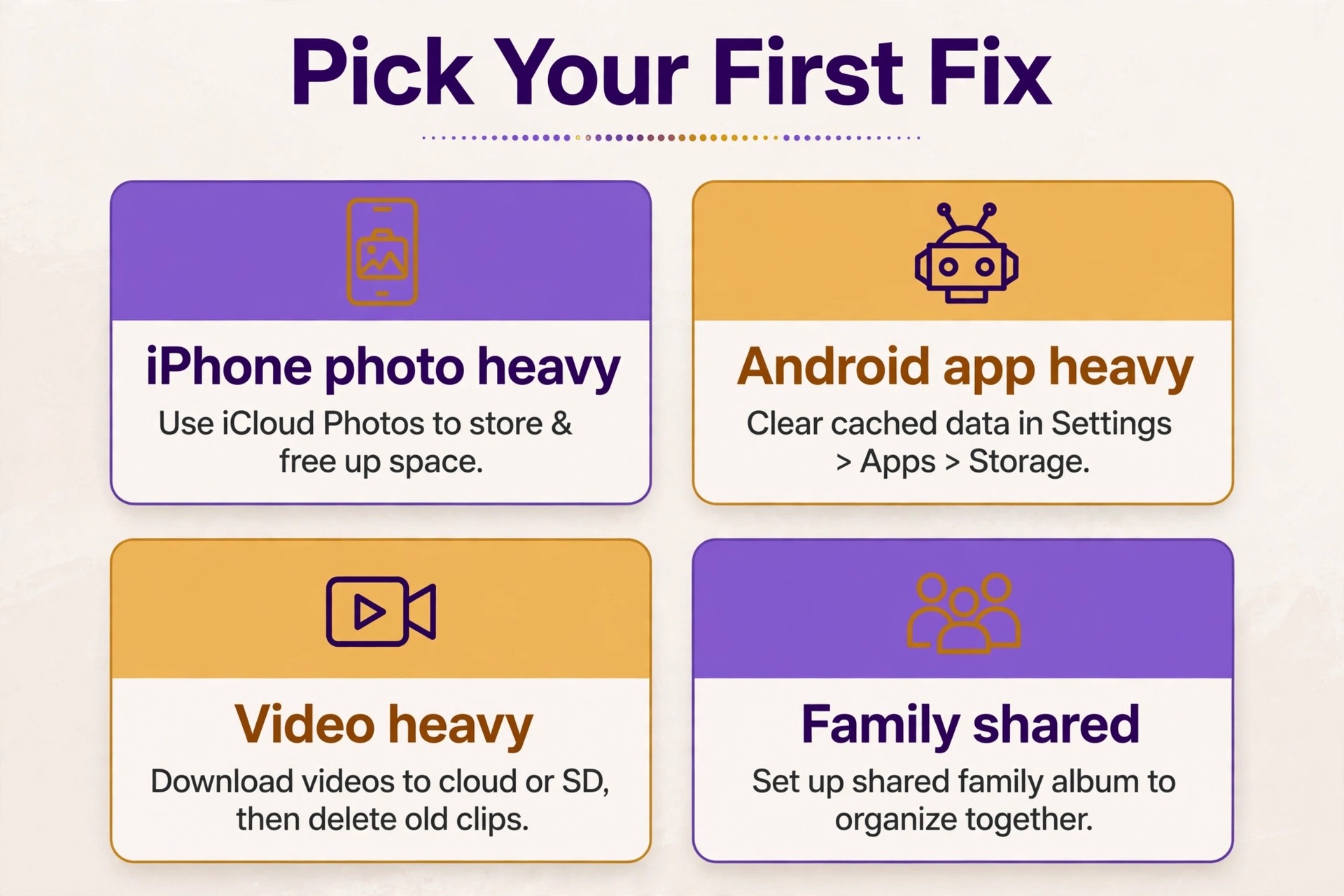
Different phones need different first moves, and a quick decision guide saves time. If your phone is an iPhone and photos are the main category, start with iCloud optimisation after checking iCloud room, then offload unused apps and clear message attachments. If your phone is an Android and apps are the main category, start with cache and Files by Google, then check chat media and offline downloads. If your phone is a Samsung, add Device care to the Android steps, because it gives a clear category view in one place.
If you have almost no free space left, less than 1GB, work in small steps and restart often. Delete a few large downloads, empty trash, clear cache for one large app, then restart and check again. A phone with almost no room can fail to complete a large operation, and a restart helps the system reclaim space and update the reading. Do not start a large photo backup or a system update until you have at least a few gigabytes free, because those operations need room to work.
Frequently Asked Questions
Will clearing cache delete my photos or log me out?
No. To fix phone storage full without deleting photos, clearing cache is a safe first step. It does not delete your photos and does not log you out of most apps. Cache is temporary data that apps store to load images and video faster, and apps rebuild it as you use them again. Clearing app data is different, because that can sign you out and remove settings and offline content, so check the button name carefully on Android before you tap.
Why does my phone still say storage full after I deleted files?
Deleted files often sit in Recently Deleted or Trash for up to 30 days, and they still use space until that folder is emptied. The storage reading can also lag until you restart the phone, and some apps hold their own cache that does not update at once. Empty trash folders, restart the phone, then check the storage screen again before you delete more.
Can I free space without deleting photos if my cloud account is also full?
Yes, but you need to clean the cloud account or add room first. Check what is using the cloud account, such as old device backups, large mail attachments or old Drive files, and remove items you no longer need. Once the cloud account has room, photo backup can finish, and only then should you use photo optimisation or a free up space tool to remove local copies.
Is it safe to offload apps on iPhone?
Offloading an app removes the app itself but keeps its documents and data, so you can reinstall later and pick up where you left off. It is safer than deleting an app, which can remove data too. Offload large games and apps you have not used in months first, and check any app that stores data only on the device before you offload or delete it.
How much free space should I keep on my phone?
Aim for at least 5GB free for daily use, and 10GB free if you record video often or if a system update is pending. Updates need temporary room, backups need room to work, and a phone with less than 1GB free will often refuse updates, fail backups or stop saving new media. Hitting the target once is not enough, because cache and downloads return, so a monthly check helps keep the buffer.
Does deleting a photo from my phone delete it from the cloud too?
It can, if the photo library is synced. Deleting from iCloud Photos removes the photo from every device using that library, and deleting from Google Photos can remove the backed up copy depending on where you delete from. Use Optimise iPhone Storage on iPhone, or the Free up space tool in Google Photos on Android after backup is complete, instead of manual deletion when your goal is to keep the cloud copy.
Your Phone, Lighter, With Every Photo Still Yours
The best cleanup is not the biggest one. It is the one that frees enough space, protects every photo, and leaves you with a habit you can repeat. Start with diagnosis, empty trash, clear cache, remove downloads and offline media you no longer need, and offload apps you have forgotten. Then, and only then, use photo optimisation or a verified backup to handle a photo heavy library. That order is how you fix phone storage full without deleting photos, and it works on iPhone and Android alike, because it targets what you can get back first and protects what you cannot replace.
If you still need more room after the 30 minute plan, the next step is a decision, not another round of random deletion. Check your library size, compare it with the cloud prices in this guide, and choose a plan with headroom, a local copy for video, or both. A small monthly plan that keeps backup running is often cheaper than the time and stress of repeated emergency cleanups, and it keeps your photos available on every device. Whatever you choose, verify the backup, keep a local copy of the most important folders, and set a monthly reminder to check storage before the warning returns.
For related reading, if you want to improve the photos you keep, best AI photo enhancers covers tools that can clean up older shots, best AI tools for photographers looks at the wider photo workflow, and best AI tools for content creators helps if video and social content are filling your phone. Those guides pair well with a lighter phone, because they help you make more of the library you just protected.