
Start with a full power cycle, then clear the crashing app cache, then update the app and the TV software. That order fixes most cases, and it does so without deleting your logins or wiping the TV. If you want to fix Smart TV apps crashing tonight, do not start with a factory reset. A factory reset erases accounts, picture settings, Wi-Fi details and every installed app, and it often takes an hour to rebuild. The sequence in this guide protects your setup while it isolates the real cause, which is usually a corrupt cache file, a stalled update, low storage, a weak network connection, or an app version that no longer matches the TV software.
This guide works brand by brand and app by app, because the right menu path matters. Samsung, LG, Sony, Roku, Fire TV and Vizio do not hide the same fix in the same place. Some brands let you clear one app cache in seconds. Others force a restart or a reinstall to get the same result. You will learn how to tell a one-app problem from a whole-TV problem, how to test your network without guessing, when storage is the culprit, and when a cheap streaming stick is better than another evening in settings menus. Prices quoted here reflect public listings found in October 2026, and they move often, so check the retailer checkout before you buy.
The Verdict in 60 Seconds
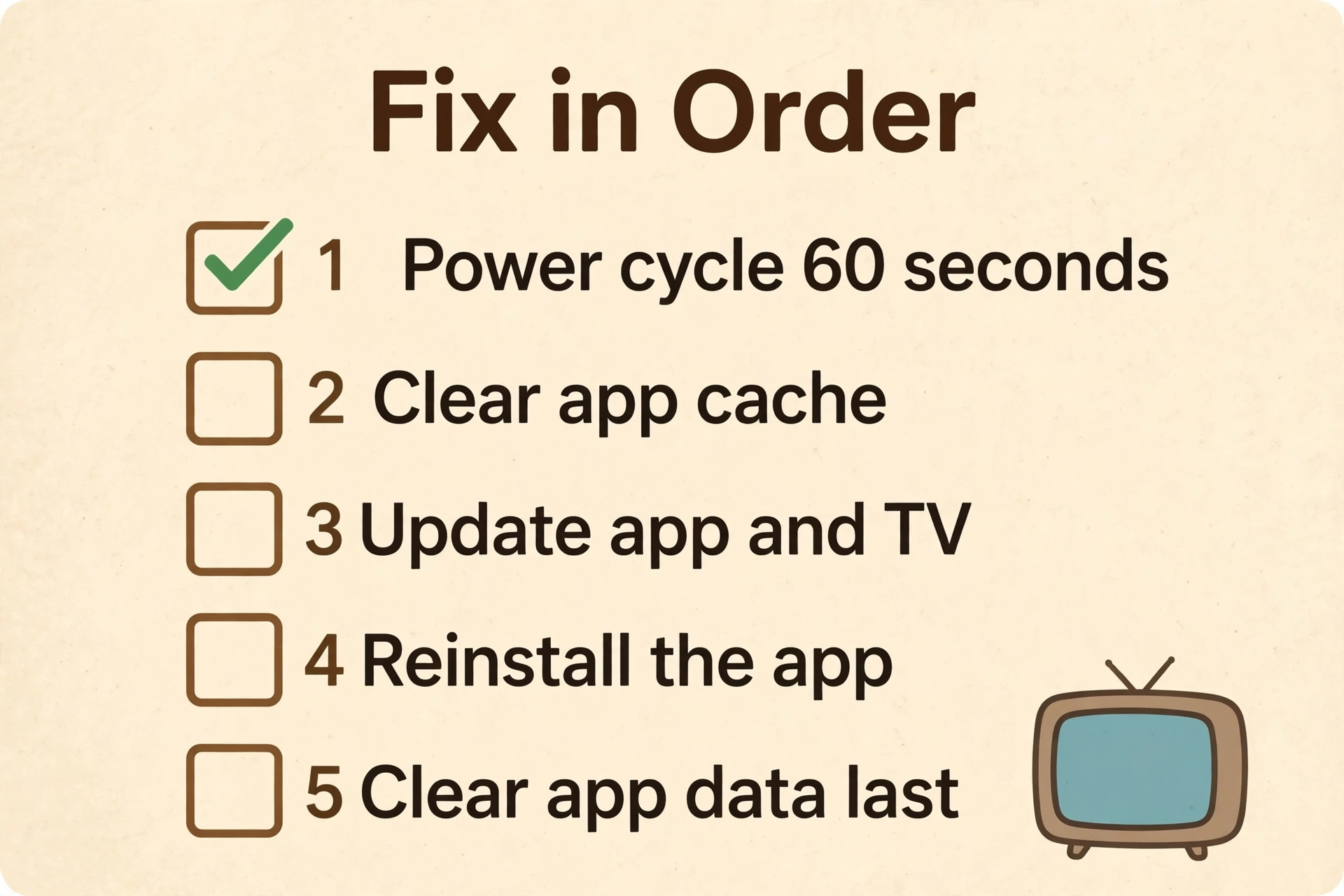
For most people, the best fix is a proper power cycle followed by a cache clear for the one crashing app. Unplug the TV for 60 seconds, plug it back in, open the app again, and see if the crash repeats. If it does, clear that app cache. If the app still crashes, update the app and the TV, then reinstall only that app. Only move to a factory reset if every app crashes, if the TV restarts on its own, or if the same app crashes after a clean reinstall on a strong network.
That order matters because each step tests a different cause. A power cycle clears temporary memory and ends stuck background tasks. A cache clear removes damaged temporary files without signing you out. An update replaces code that may be incompatible with a newer service. A reinstall replaces the whole app package. To fix Smart TV apps crashing reliably, work that ladder in order and stop as soon as the app works. If you jump straight to a reset, you lose the chance to learn which step actually worked.
Diagnose in Two Minutes Before You Change Anything
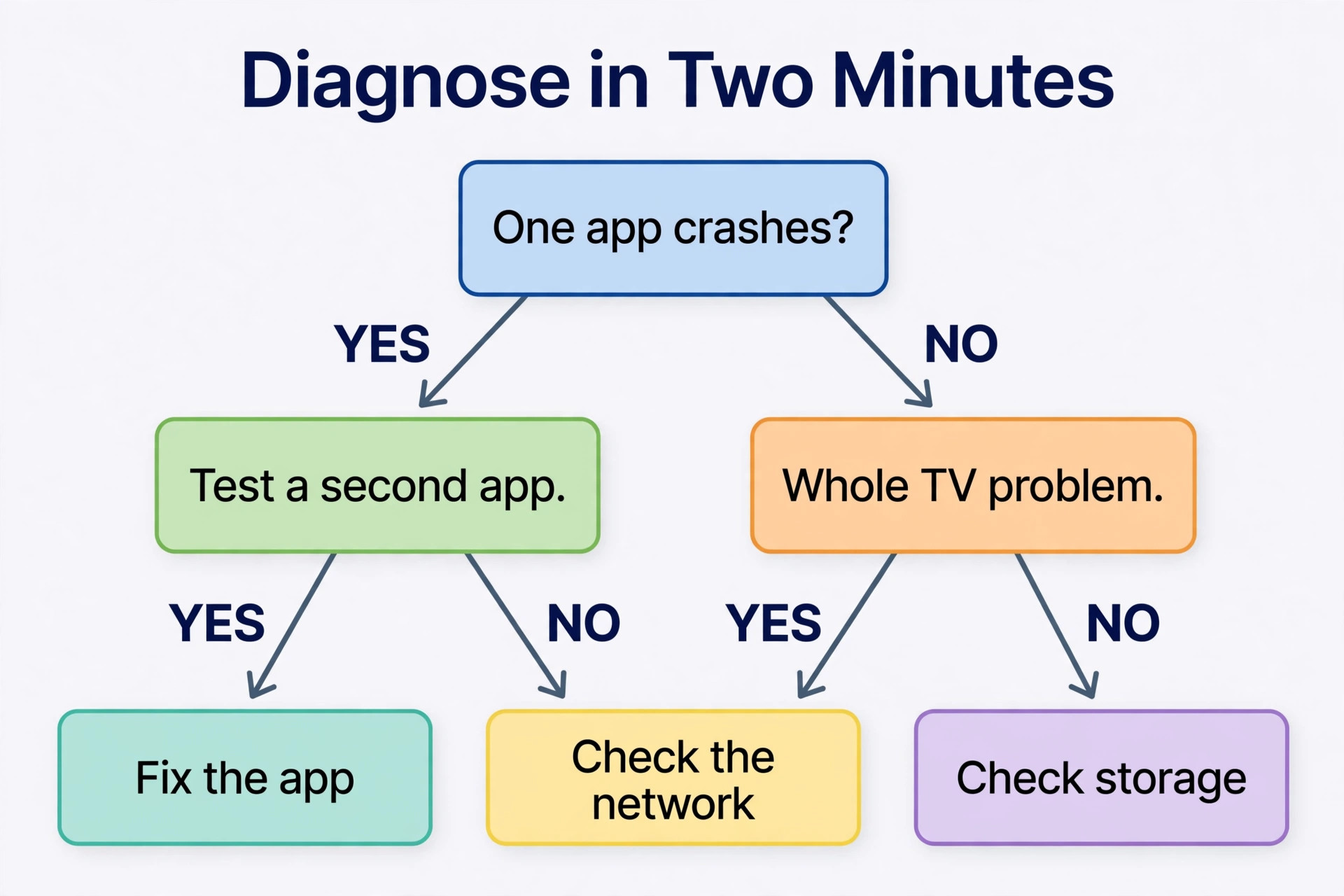
Two minutes of diagnosis saves twenty minutes of random fixes. Ask three questions first. Does only one app crash, or do all apps crash. Does the crash happen at launch, during playback, or when you switch profiles or open a live channel. Did the problem start after an update, after a new router, after a power cut, or after you added a new app.
Run a quick split test. Open a second streaming app and play video for two minutes. If the second app plays fine, focus on the first app. If the second app also stutters or closes, focus on the TV, the network, or storage. Next, if you can, play the same service on a phone or laptop on the same Wi-Fi network. To fix Smart TV apps crashing with confidence, use that comparison. If the service plays fine on the phone, the TV app or TV connection is the weak link. If it fails there too, the service or your home network is the weak link.
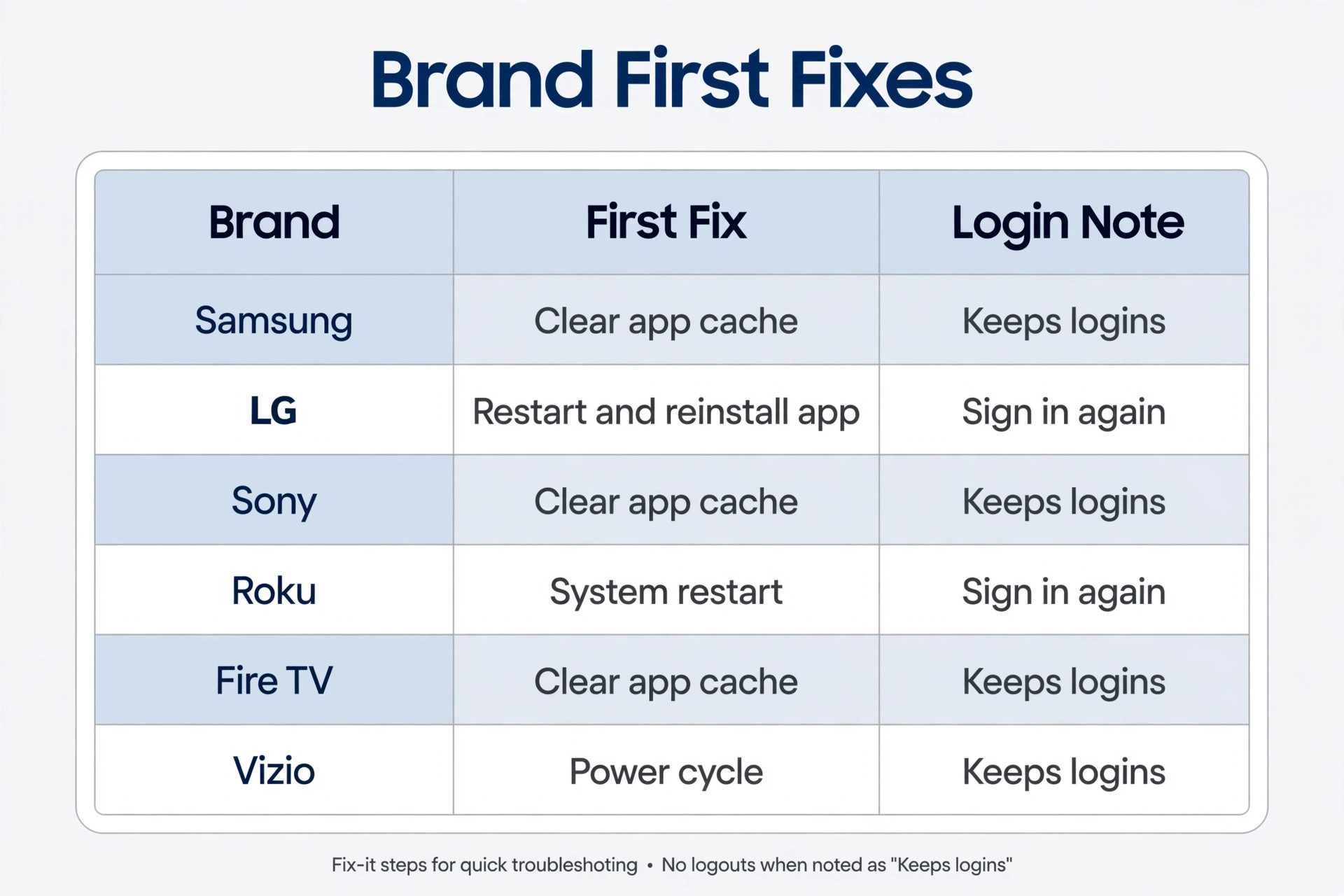
Brand Fix Table. Find Your TV and Start There
| Brand | First fix to try | If no cache button exists | Step people often miss |
|---|---|---|---|
| Samsung Tizen | Clear app cache in Device Care | Power cycle for 60 seconds, then reinstall the app | Update TV software after the cache clear |
| LG webOS | Restart the TV and free memory | Delete unused apps, then reinstall the problem app | Turn Quick Start off before a power cycle |
| Sony Google TV and Android TV | Clear app cache in Apps settings | Clear app data only after cache fails | Check storage before reinstalling |
| Roku TV and Roku players | System restart, then remove and re-add the app | Use the remote restart sequence when menus freeze | Check for app updates with the star button |
| Fire TV | Clear app cache, then force stop | Clear app data, then reinstall | Check storage and power supply for the stick |
| Vizio SmartCast | Power cycle and check for updates | Reinstall the app from the app row | Test Ethernet if Wi-Fi drops during playback |
| Hisense and TCL Android or Google TV | Clear app cache in Apps settings | Clear app data, then reinstall | Disable unused background apps where the menu allows it |
Use the table to pick your section below. Each brand section gives the exact path, the warning about what gets deleted, and the test to run after the fix. Do not run every brand section. Run yours, test, and only then move to the network and storage sections if the crash survives. That focused approach will fix Smart TV apps crashing faster than trying every tip in this guide at once.
How to Fix Smart TV Apps Crashing Without a Factory Reset
Start with a true power cycle. Turn the TV off with the remote, unplug the power cord from the wall, wait a full 60 seconds, plug it back in, and turn it on again. A remote power button alone often leaves the TV in a low power standby state, especially on LG sets with Quick Start enabled. The unplug step is what clears temporary memory. It does not delete apps, logins, or picture settings, which is why it is safe to try first on any brand.
Next, clear the cache for the crashing app only. Clearing cache removes temporary files such as artwork, thumbnails, and playback fragments. It usually keeps you signed in, and it usually keeps your watch history and preferences, because those live in your streaming account rather than in the local cache. Do not confuse cache with data. Clearing data resets the app to a fresh install state on most TVs, and it signs you out. That is a useful later step, but it is not a free first step.
Then update in the right order. Update the crashing app first if the store offers an update, then update the TV software. After each update, restart the TV once, then open the app and test for at least two minutes. A five second open test is not enough, because some crashes only happen when playback starts or when an advert break loads. If the app still crashes, reinstall it. Delete the app, restart the TV, install it again from the official store, and sign in fresh. Keep your login details ready before you delete the app.
Clear data is the step before a factory reset. On Android TV and Google TV, on Fire TV, and on Samsung, you can clear data for one app without wiping the whole TV. Use it when cache, updates, and a reinstall have all failed. Expect to sign in again and to reset in-app preferences such as subtitles and playback quality. A factory reset is different in scale. It deletes Wi-Fi details, accounts, installed apps, and picture and sound settings across the whole TV. Before a reset, take phone photos of your picture settings and list the apps you use.
Samsung. Tizen Cache, Device Care, and Storage
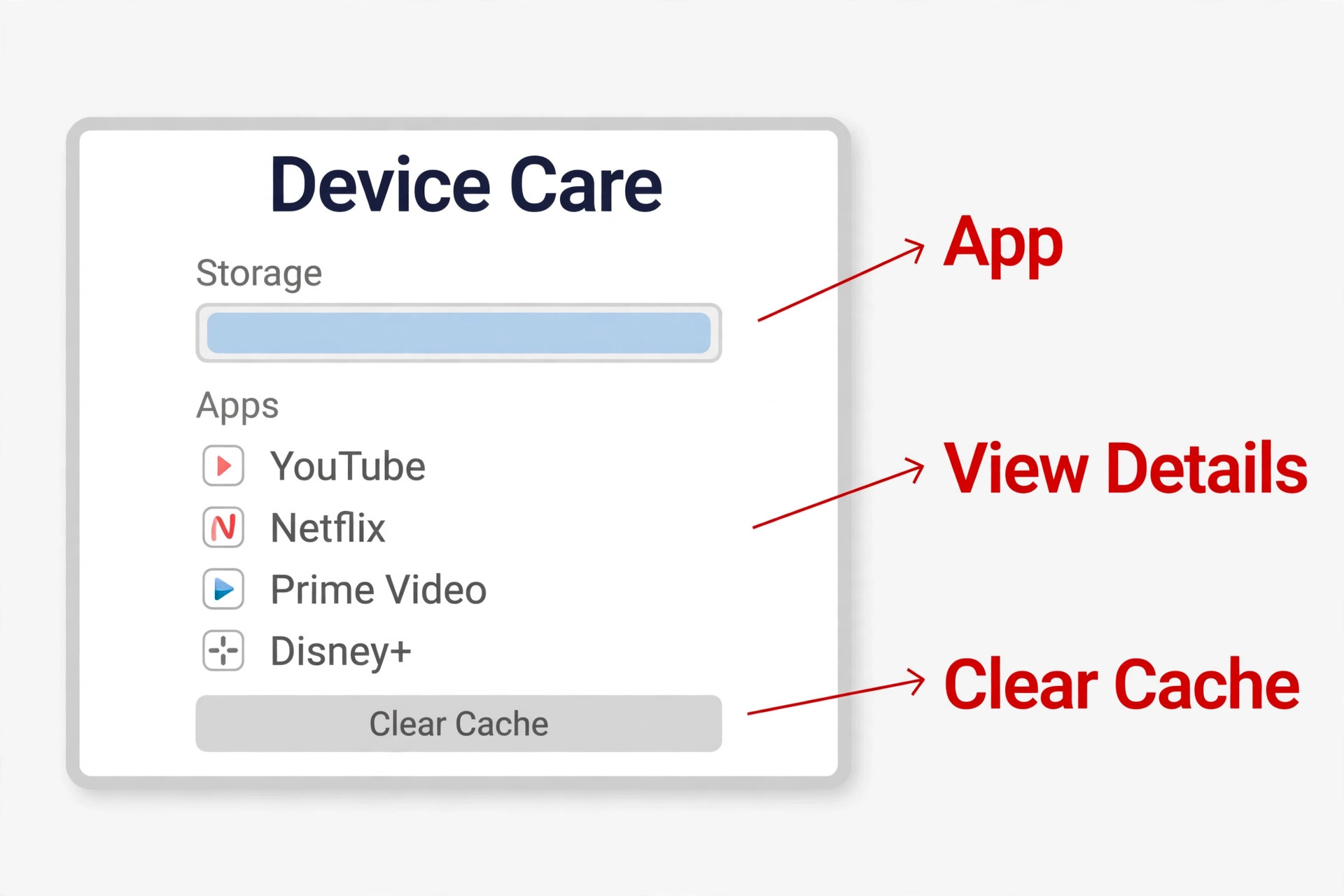
Work through Samsung in this order. Power cycle the TV by unplugging it for 60 seconds. Open Device Care and let it finish its scan. Open Manage Storage and check how much free space remains. Clear the cache for the crashing app. Open the app and test playback. If the crash repeats, return to Manage Storage, clear data for that app, and sign in again. If that still fails, delete the app from the Apps screen, restart the TV, and install it again from the Samsung app store.
Watch for two Samsung specific traps. The first is storage. Samsung TVs often ship with limited internal storage, and a set that is nearly full will close apps to protect system functions. Delete apps you no longer use, and clear cache for heavy apps that store large amounts of artwork. The second trap is an update that has downloaded but not installed. Open Settings, then Support, then Software Update, and choose Update Now. Samsung owners who need to fix Smart TV apps crashing should check that update step, because a pending update can leave an app in a half compatible state.
Samsung support also warns that menu sequences vary by model and region, and that apps can be removed from the store when support ends for older sets. If an app no longer appears in search at all, that is often a support end signal, not a cache problem. In that case, a streaming stick is a better fix than repeated resets. The official Samsung cache guidance is at Samsung clear app cache and data guidance.
LG. webOS Memory, Quick Start, and App Reinstalls
Start LG with Quick Start off. On newer webOS sets, open Settings, then All Settings, then General, then System, then Additional Settings, and turn Quick Start off. On older sets, the path may run through General, then Devices, then TV Management. Once Quick Start is off, unplug the TV for at least 60 seconds. LG own guidance for memory errors suggests a longer unplug period in some cases, up to 10 minutes, so if a 60 second cycle does not help, try a longer unplug before you move on.
Next, free memory by deleting apps you do not use. From the Home screen, open Edit App List, select an unused app, and delete it. Repeat for two or three apps, not just one, because a single deletion may not free enough memory on a set that is close to its limit. Then restart the TV and test the problem app. If it still crashes, delete that app, restart the TV, and install it again from the LG Content Store. That reinstall is the LG equivalent of a deep cache clear.
Check for software updates after the reinstall. Open Settings, then All Settings, then Support, then Software Update, and check for updates. If you see a message that says the app will restart for more efficient memory use, treat it as a memory warning, not as a random bug. Free space, close background apps where possible, and keep the number of installed apps lean on older webOS sets. Official LG guidance is at LG memory shortage and app support and at LG low memory troubleshooting.
Sony, TCL, and Hisense. Google TV and Android TV Fixes
Sony, TCL, Hisense, and many other brands now run Google TV or Android TV, which gives you the most control over app storage. The standard path is Settings, then Apps, then See all apps, then the problem app, then Clear cache. If that path looks different on your set, look under Device Preferences, then Apps, or under Storage, then Apps. The principle is the same. You are opening the system record for one app and removing its temporary files without removing the app itself.
Work the Google TV ladder in order. Power cycle the TV by unplugging it for 60 seconds. Clear the cache for the crashing app. Force stop the app if the menu offers that option, then open it again. Update the app from the Google Play Store on the TV, then check for a system update under Settings, then System, then About, then System update. If the crash survives, clear data for the app, sign in again, and test with default settings. If it still survives, uninstall the app, restart the TV, and install it again.
Storage deserves extra attention on Google TV sets, because these TVs often run more background services than a simpler smart platform. Open Settings, then Storage, and check free space. If free space is under about 1 GB, delete unused apps and clear cache for large apps before you reinstall anything. A reinstall on a full drive can fail halfway and leave a worse app than the one you started with. Also check for apps you installed once and forgot, such as games or duplicate streaming apps.
Roku. System Restart, Channel Updates, and Reinstalls
Start on the Roku Home screen. Highlight the problem app, press the star button on the remote, and choose Check for updates. Then go to Settings, then System, then System update, and choose Check now. If an update is available, let it finish and let the device restart. Next, restart the Roku device properly. On a Roku TV, go to Settings, then System, then Power, then System restart. On a Roku player, go to Settings, then System, then System restart. A remote power off alone is not the same as a system restart on Roku.
If the app still crashes, remove it and add it again. Highlight the app, press the star button, choose Remove channel, and confirm. Restart the Roku device again, then add the app back from the Roku Streaming Store and sign in. That second restart matters. It clears leftover state from the removed app before the fresh install runs. Do not skip it and go straight to reinstalling, because you may carry the same broken state into the new install.
When menus freeze and you cannot reach Settings, use the remote restart sequence that many Roku guides describe. Press Home five times, Up once, Rewind twice, and Fast Forward twice. The screen should go dark and the device should restart. Use this sequence only when normal navigation fails, because it forces a restart without a confirmation prompt. Roku owners who need to fix Smart TV apps crashing on a looping TV should stop at this point and use Roku recovery guidance or contact Roku support, because a logo loop is deeper than a single app crash.
Roku official troubleshooting is at Roku streaming app troubleshooting, and Roku system restart guidance is at Roku system restart guidance.
Fire TV and Vizio. Sticks, SmartCast, and Power
Fire TV sticks and Fire TV sets behave like Android devices in a stick form, which means cache, force stop, and storage all matter, and power matters more than owners expect. A stick powered from a weak TV USB port can restart or close apps under load, even when the software is fine. If your Fire TV app crashes mainly during 4K playback or after long sessions, check the power source before you blame the app. Use the wall adapter that came with the stick, and test again.
For a Fire TV app crash, open Settings, then Applications, then Manage Installed Applications, then the problem app. Choose Clear cache first, then Force stop, then open the app again. If it still crashes, return to the same screen, choose Clear data, and sign in again. If that fails, uninstall the app, restart the Fire TV device, and install it again from the Appstore. After each step, test playback for two minutes, not just the home screen, because playback is where power and network problems show up.
Vizio SmartCast works differently. SmartCast apps are largely cloud delivered, so the fix ladder leans on power cycle, network, and updates rather than per-app cache buttons. Unplug the Vizio TV for 60 seconds, plug it back in, and check for updates under Settings, then System, then Check for Updates. If one SmartCast app still fails while others work, remove that app from the app row where the menu allows it, restart the TV, and add it back. If every SmartCast app fails, test the network section below before you reset the TV.
By App. Netflix, YouTube, Disney Plus, and Prime Video
Brand fixes solve many crashes, but some apps have their own failure patterns. Use this section after the brand section, not instead of it. If Netflix crashes only when you open a specific profile, sign out of Netflix on the TV, restart the TV, and sign in again. If Netflix crashes during playback with an error code, note the code before you clear anything, because Netflix support pages map codes to causes such as network, account, or device software.
YouTube crashes often trace to storage, an outdated app, or a playback setting. Clear the YouTube app cache on Samsung, Google TV, or Fire TV. On Roku, remove and re-add YouTube after a system restart. Test with a standard video before you test a live stream or a 4K video, because live and 4K streams stress the network and decoder more. If YouTube works in standard quality but crashes in 4K, the network or decoder path is the suspect, not the account.
Disney Plus crashes often appear at launch after an update, or during advert breaks and profile switches. Clear cache, update the app, and test with a different profile if you have one. If Disney Plus crashes only on one profile, sign out, restart, and sign in again on that profile. Prime Video crashes on Fire TV deserve a power check first, because a weak power supply can close the app during playback. On other brands, clear cache, update, and reinstall in the usual order, and test with a standard quality title before a 4K HDR title.
For any app, check the service status page before a long troubleshooting session. A service outage can look like a TV problem, and it affects every device at once. If friends or family on different TVs report the same app failing at the same time, wait and test again later before you reset your TV. That patience saves a factory reset that would not have fixed a server problem.
Network Fixes. Wi-Fi, Ethernet, DNS, and Bandwidth
Many app crashes are network failures wearing an app disguise. An app that closes during playback, buffers in a loop, or shows a blank screen after loading may have lost its connection and then given up. Start with a simple network test. Open the TV network settings and check signal strength and whether the TV is on the correct Wi-Fi network. A TV that joined a guest network or a 2.4 GHz band with heavy interference will behave very differently from a TV on your main 5 GHz network or Ethernet.
Ethernet is the best diagnostic tool you have, even if you cannot keep the cable permanently. Run a temporary Ethernet cable from the router to the TV, and test the crashing app. If Ethernet fixes the crash, your Wi-Fi link is the cause. From there, you can move the router, add a mesh node near the TV, switch the TV to the 5 GHz band, or keep Ethernet as the permanent fix. If Ethernet does not fix the crash, you have ruled out Wi-Fi and can focus on the app, storage, or firmware.
Check bandwidth in real terms. A single 4K stream needs a stable 25 Mbps in practice, and that figure rises when other devices stream, game, or back up photos at the same time. Run a speed test on a phone next to the TV, then run the same test when the crash usually happens, such as in the evening. If speed drops sharply in the evening, congestion or a weak router is likely. Lower the app playback quality to 1080p temporarily as a test. To fix Smart TV apps crashing on a congested network, that 1080p test is decisive. If 1080p plays without crashes while 4K crashes, you have a bandwidth answer, not a broken app.
When a Stick Beats Fixing Built In Apps
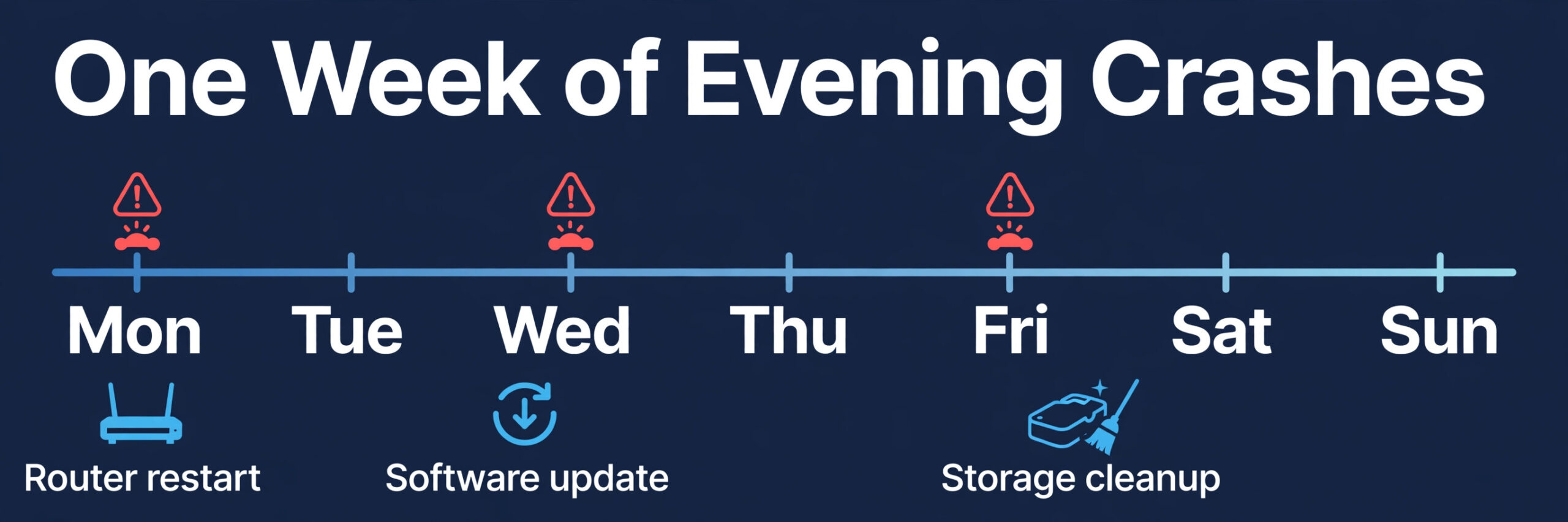
Prices in October 2026 illustrate the trade off, but check checkout before you buy, because streaming hardware prices moved sharply during 2026. Reports in October 2026 listed the Roku Streaming Stick at a $39.99 list price with a $19.99 special offer in the Roku store, and the Roku Streaming Stick 4K at a $79.99 list price with a $44.99 special offer. The new Amazon Fire TV Stick 4K was listed at $59.99, with a $29.99 promotional price during Prime Big Deal Days, while the Fire TV Stick 4K Max was listed at $84.99. Those special prices may not last, and retailer stock can differ, so treat them as a snapshot, not as a guaranteed price.
Choose a stick by ecosystem and need, not by headline price alone. Roku suits viewers who want a simple home screen. Fire TV suits Alexa households and Prime Video heavy viewers, with a warning that the newest Fire TV Stick 4K runs Vega OS, which does not allow the same sideloading as older Fire OS sticks. Google TV suits Android and Google Home households, and Apple TV suits Apple households that want tight phone integration. Check that the stick supports the video and audio formats your TV and soundbar use, such as Dolby Vision or Dolby Atmos, before you buy.
A stick also helps diagnosis. If built in apps crash but the same service plays perfectly through a stick on the same TV, same HDMI port, and same network, the built in platform is the problem. If the service crashes through the stick too, the network, the service, or the HDMI chain is the problem. That test alone can save a factory reset. Keep the stick on a separate HDMI input for a week after you buy it, so you can compare built in apps and stick apps under the same evening network conditions.
Choose Your Next Step. A Simple Decision Path
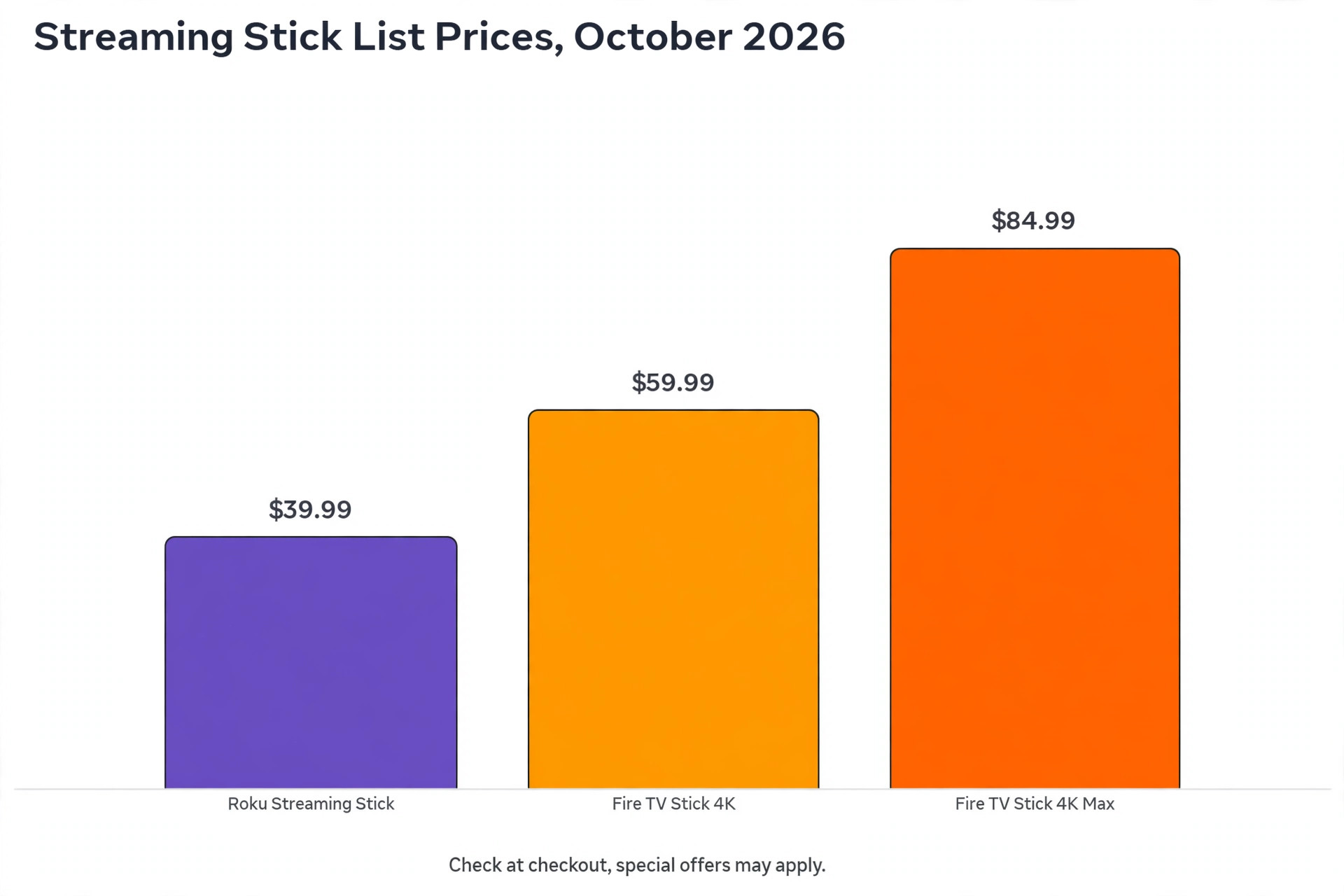
If only one app crashes, and other apps play fine, stay in the app path. Power cycle, clear cache, update the app, reinstall the app, then clear data for that app. If every app crashes, move to the TV path. Power cycle, free storage, update TV software, check the network with Ethernet if you can, then consider a factory reset only after those steps. If apps crash only during playback, move to the network path. Test Ethernet, test 1080p instead of 4K, restart the router and modem, and check evening congestion.
Time also matters in this decision. If you have already spent an hour on one app, and a stick costs less than the value of another hour of troubleshooting, buy the stick and test it. That is not giving up. It is choosing the fix with the best return on time. For viewers who also stream their own content, related reading includes best smart home devices 2026 for living room hardware choices, and best AI tools for streamers for creator side streaming tools that pair with a stable TV setup.
Frequently Asked Questions
Why do Smart TV apps crash only in the evening?
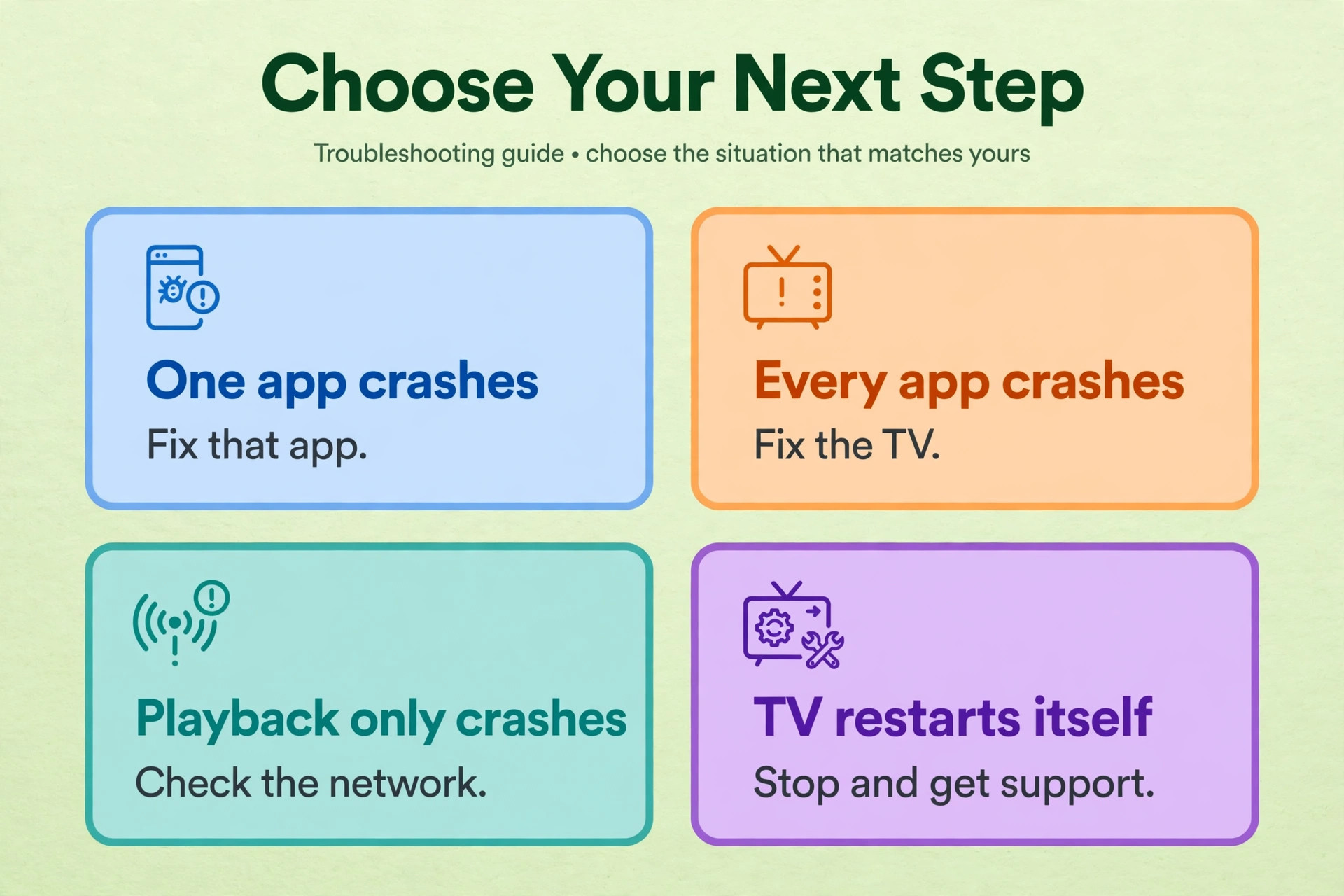
Evening crashes often point to network congestion, a router under load, or a TV that has been running all day without a restart. Several devices streaming at once can push a weak Wi-Fi link past its limit, and 4K streams fail first. Test with Ethernet, test at 1080p, restart the router and modem, and restart the TV. If evening only crashes disappear on Ethernet, the Wi-Fi link or router is the cause, not the app itself.
Will clearing cache delete my logins or watch history?
Clearing cache usually keeps you signed in, because cache holds temporary files such as artwork and playback fragments, while account and watch history live with the streaming service. Clearing data is different, and it usually signs you out and resets in-app preferences. Choose cache first on Samsung, Google TV, and Fire TV. On LG and Roku, where a direct cache button may not exist, a restart and reinstall achieve a similar result, but a reinstall will require you to sign in again.
How do I stop apps crashing after an update?
Start with a power cycle by unplugging the TV for 60 seconds, then clear the crashing app cache, then check for a further app update and a TV software update. Updates can arrive in stages, and an app update that lands before its matching TV update can crash until the TV update installs. To fix Smart TV apps crashing after an update, reinstall the app after a restart if the crash survives both updates, then clear data for that app and test with default settings.
Should I factory reset my TV if one app keeps crashing?
No, not as a first or second step. A factory reset erases Wi-Fi details, accounts, installed apps, and picture settings across the whole TV, and it should be reserved for cases where every app fails, the TV loops or restarts, or support asks for it after other steps. For one app, work through power cycle, cache clear, update, reinstall, and clear data for that app. If only that app still fails after those steps, check service status and consider a streaming stick before you wipe the TV.
Why does an app work on my phone but crash on my TV?
That split usually means the TV app version, TV storage, TV memory, or TV network link is the weak point, while the service itself is fine. Phones have faster processors, more memory, and often a stronger Wi-Fi radio than older TVs. Test the TV app after a power cycle and cache clear, test the TV on Ethernet, and check free storage. If the phone works on the same Wi-Fi network and the TV fails on Ethernet too, the TV app or firmware is the likely cause, and a reinstall or a stick is the next test.
When is it time to replace the TV instead of fixing the apps?
Replace the TV when the panel, backlight, or sound has failed, when the TV cannot stay powered on, or when repair costs approach the price of a comparable new set. Do not replace a TV just because built in apps crash, because a streaming stick can give a good panel several more years of current apps for a fraction of a new TV price. Replace the TV when the display itself disappoints you every day, when HDMI ports fail, or when the maker no longer offers security and firmware updates for a set you rely on for daily viewing.
Back on the Sofa, Not Stuck in Settings
If one app still crashes after that ladder, use the decision path above. Check service status, test Ethernet, test 1080p, free storage, and try a stick before you wipe the TV. Keep a short note of what worked, because the next crash will be easier when you know whether your TV responds to a cache clear, a restart, or a network fix. To fix Smart TV apps crashing for good, fix the one cause in front of you, note what worked, and leave the settings menu alone until you actually need it again.