
If your notes live mostly in Notion and you want files you own, offline access and faster search, you should switch Notion to Obsidian. That is the short answer for solo note takers, writers, researchers and students whose work is mainly their own. Stay in Notion if a team edits the same databases every day. The move is worth it for personal knowledge work. It is a poor trade for real time team collaboration.
This guide covers the move in the order that protects your notes. Audit what you have, freeze edits, back up, export in the format the official importer handles best, rebuild databases as folders, fix links, choose a sync method, and test before you cancel anything. Prices change often, so check the official pricing page before paying.
Who Should Move, and Who Should Stay
The best reason to move is ownership. Obsidian stores notes as plain Markdown files in a folder on your own device, called a vault. Notion stores your work in its cloud workspace. That difference matters most when you write for years or work offline.
Speed is the second reason. A large Notion workspace can feel slow when you open a page full of linked databases. A local vault opens fast because the files are already on the disk. With thousands of pages, that gap can change how often you open your notes.
Privacy needs a precise statement. Local files mean your notes are not sitting in a vendor cloud by default. That is not the same as encryption. Obsidian does not encrypt a vault on your own device, so full disk encryption still matters. Paid Obsidian Sync does encrypt the copy that travels between devices.
Stay in Notion when the work is shared. Notion handles comments, mentions, permissions, guest access and live database views in one place. Obsidian shared vaults let people work in the same folder of files, but simultaneous live editing is not native in the way Notion users expect. A middle path suits many people. Keep team tracking in Notion, move personal notes to Obsidian, and decide which tool owns tasks before you start.
What Actually Survives the Move, and What Does Not
Text survives well. Headings, paragraphs, lists, checklists, tables and most images come across in a careful import. Internal page links mostly survive if you import the whole workspace at once, because the importer can reconcile links across the full set of pages. Import one page at a time and you break that reconciliation.
Attachments need attention rather than trust. Files uploaded to Notion travel inside the export archive. Externally linked images and embeds are a different case. An image hosted elsewhere keeps working only while that host keeps the link alive, and an embedded widget does not become a local file. Before you export, open your ten most important pages and list every embed that is not a plain upload.
Databases are where most people lose work without realising it. A Notion database is a structured table with properties, filtered views, relations, rollups and formulas. None of that structure survives as live structure in a file import. What survives is content. Each row becomes a note, and its properties become frontmatter fields at the top of the note. Views must be rebuilt with folders, tags, properties and, if you want queries, Bases or Dataview.
| Notion feature | What happens on import | What you must rebuild by hand |
|---|---|---|
| Page text and headings | Carries over as Markdown | Little, check long pages |
| Internal page links | Mostly carries over on a full import | Broken links from partial imports |
| Uploaded images and files | Travel in the export archive | Attachment layout, large files over sync limits |
| External embeds | Link only, no local copy | Downloads or accepted web only links |
| Database rows | Become individual notes | Nothing, if properties map cleanly |
| Database properties | Become note properties in frontmatter | Property types with no direct match |
| Database views and filters | Do not carry over | Folders, Bases or Dataview queries |
| Relations and rollups | Flatten to plain text values | Links between notes, manual calculations |
| Formulas | Export as computed values, not formulas | Formula logic in Bases or Dataview |
| Linked database views | Arrive disconnected from the source | One canonical folder per database |
| Synced blocks | Arrive as static copies | A template note you link to |
| Comments and history | Do not carry over | A note recording decisions worth keeping |
| Permissions and sharing | Do not carry over | Sync sharing or a separate team tool |
Formulas deserve a separate warning because the loss is silent. A formula that calculated days until a deadline arrives as the number it showed on export day. It will not keep updating. Rebuild it in Bases or Dataview, or move deadline tracking to a calendar. The same applies to rollups. Comments and version history also do not travel, so copy any decision held in a comment thread into the page body first.
How to Switch Notion to Obsidian in Seven Stages
When you switch Notion to Obsidian, the order matters more than the tool. People who lose notes usually skip the audit, export the wrong format, or import into their live vault before testing. Work through these seven stages in order.

Stage 1. Audit the workspace and freeze edits
Count what you have before you touch an export button. Note the number of top level pages, the number of databases, and the five databases you open most. Open each of those five and write down its properties, its views, and any relation or rollup it uses. This short list becomes your rebuild list and tells you the size of the job. Two hundred pages and one simple task database is a weekend job. Five thousand pages and twelve linked databases should be staged database by database after the main import.
Freeze edits during the export window. Tell collaborators the workspace is read only for the migration day, and stop adding pages yourself. An export is a snapshot. Anything added after it starts may not be in the archive.

Stage 2. Make a backup you can restore
Exporting for migration is not the same as backing up. Do both, and keep them separate. Run a full Notion workspace export and store the archive outside the vault, on an external drive or a separate cloud folder, with the date in the file name. Keep the Notion workspace itself untouched until the ninety day check passes. If the import goes wrong, the original workspace is the fastest recovery.
After the import succeeds, back up the new vault the same day by copying the whole vault folder to an external drive or a backup service you already use. Also write a migration note listing the workspace name, export date, databases rebuilt, and views dropped on purpose.
Stage 3. Export in HTML, not Markdown, for the official importer
A Markdown and CSV export feels natural for a Markdown app, but the official Obsidian help page for Notion import states that the HTML export preserves more data and that the Markdown export omits important data. For the official Importer plugin, HTML is the recommended input. If you want a Markdown copy for reference, run a second export and store it with your backup.
The export path is Settings at the top of the Notion sidebar, then Workspace, then General, then Export all workspace content. Choose HTML, choose Include everything, and enable Create folders for subpages. You need admin access to export all content. Large workspaces can take a long time to process, and the download link expires after seven days, so download it the same day.
Stage 4. Import into a staging folder with the official Importer
Install Obsidian from the official site and create a new, empty vault for the import. Do not import into a vault that already holds notes you care about, because the import creates hundreds of files at once and you want to clean them before they mix with live work. Turn on community plugins and enable the official Importer plugin.
Open the Importer from the command palette or the ribbon icon. Under File format, select Notion (.zip). Choose the HTML export archive. Set the output folder to a staging folder, for example a folder named Notion import, so every imported file lands in one place you can inspect. Enable Save parent pages in subfolders to keep the Notion page structure, then run the import.
When it finishes, verify before you celebrate. Count files in the staging folder and compare roughly with your audit. A large gap means pages were missed, possibly through access limits. Open five pages at random and five from your most important database, and check headings, images and links by eye. If two are broken in the same way, stop and fix the pattern first.
Stage 5. Map every database before you move a single folder
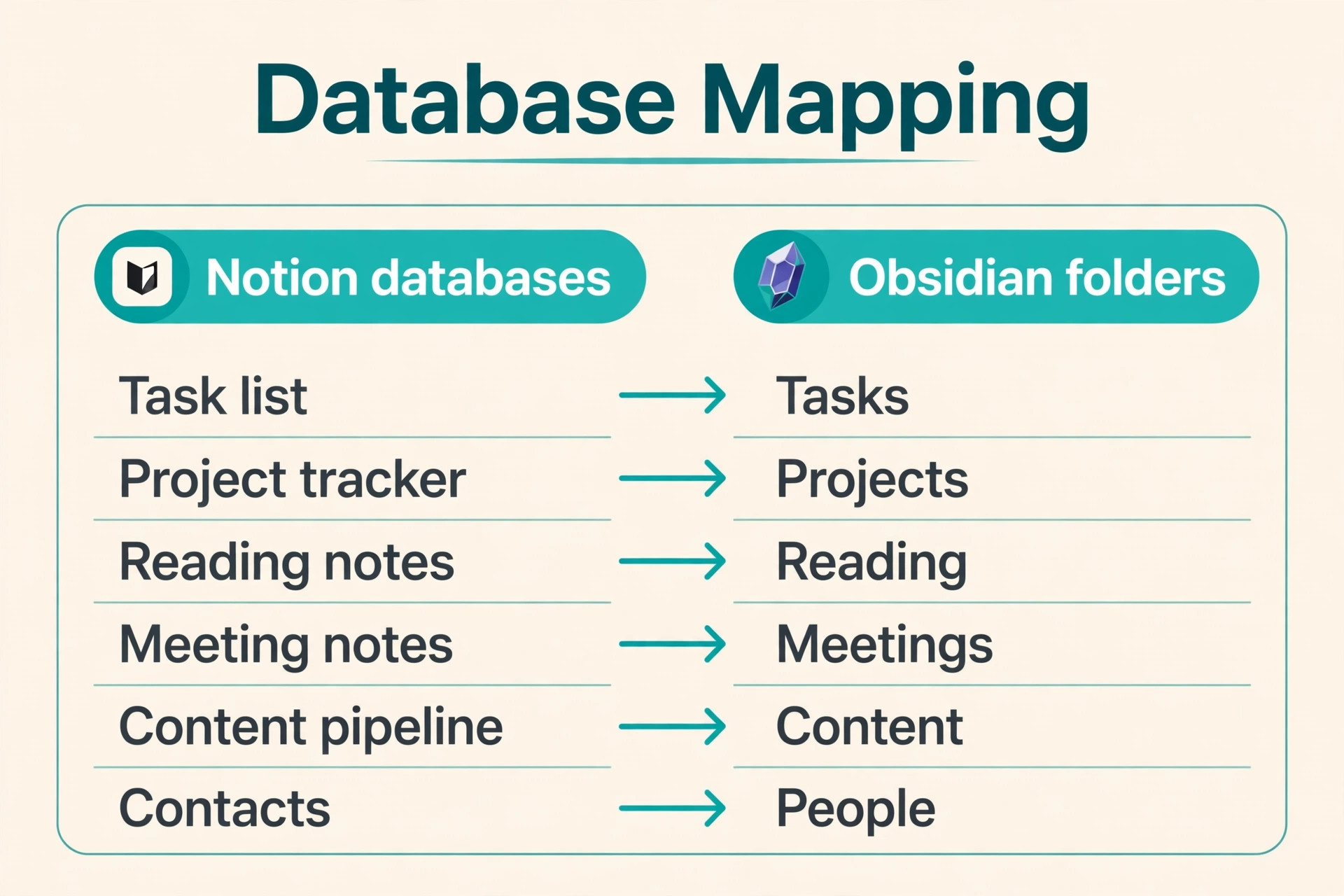
When you switch Notion to Obsidian, this stage is where the migration succeeds or quietly fails. A database becomes a folder, a set of properties, and a query view because you decided that mapping in advance. The table below gives a starting mapping for the database types most people actually have. Adapt it to your audit list before you reorganise anything.
| Notion database | Obsidian folder | Properties to keep | View to rebuild |
|---|---|---|---|
| Simple task list | Tasks folder, one note per task | Status, due date, priority, project | Bases table filtered by status |
| Project tracker | Projects folder, one note per project | Status, owner, deadline, stage | Bases board grouped by status |
| Reading notes | Reading folder, one note per source | Author, source type, rating, tags | Bases table sorted by rating |
| Meeting notes | Meetings folder, one note per meeting | Date, attendees, project, decisions | Bases table sorted by date |
| Content pipeline | Content folder, one note per piece | Stage, publish date, channel, topic | Bases board grouped by stage |
| Contacts | People folder, one note per person | Role, company, last contact, project | Bases table sorted by last contact |
| Habit tracker | Journal folder, one note per day | Date, habit fields, score | Daily note template, same fields |
| Reference wiki | Wiki folder, one note per topic | Topic tags, related links | Backlinks panel, topic index notes |
The rule is simple. One Notion database becomes one Obsidian folder, and one row becomes one note in that folder. Views do not move, so each view becomes a saved query or board you build once and reuse. Relations become links in the note body or in a property. Rollups become a query that counts the linked notes.
Tags need a decision too. Notion multi select values often arrive as a list. Convert your five most used multi select values into tags, and keep the rest as plain properties. Turning every old select value into a tag creates a list nobody can navigate.
Stage 6. Rebuild views, formulas and daily habits
Start with the view you open every morning, usually tasks due this week or the current project board. Build that one view first, as a Bases table or board, and use it for three days before rebuilding the rest. If the morning view works, the migration works.
Bases turns a folder of notes into a filterable table or board from their properties. It suits people who want a Notion style table without a community plugin. Dataview is the long standing community plugin for queries, and it handles more complex filtering and calculations. Pick Bases for straightforward queries. Pick Dataview if you need grouped calculations, such as counting open tasks per project.
Formulas need triage. Sort every formula you relied on into three piles. Rebuild now, rebuild later, or drop. Rebuild now covers deadline math and status counts you check weekly. Daily habits need a template, not a database view. A daily note template with the same headings and fields does the job, and the Daily Notes core plugin can create it each morning.
Stage 7. Pilot, verify, then go live
Move one project end to end before you move everything. Pick a real project with notes, tasks, files and links, and use only the Obsidian version for three working days. Open it on every device you use. Edit a note on your phone, then confirm the edit on your laptop. Add a task, change a status, and check that your morning view reflects the change. If conflicts or broken links appear, fix them in the pilot before they multiply.
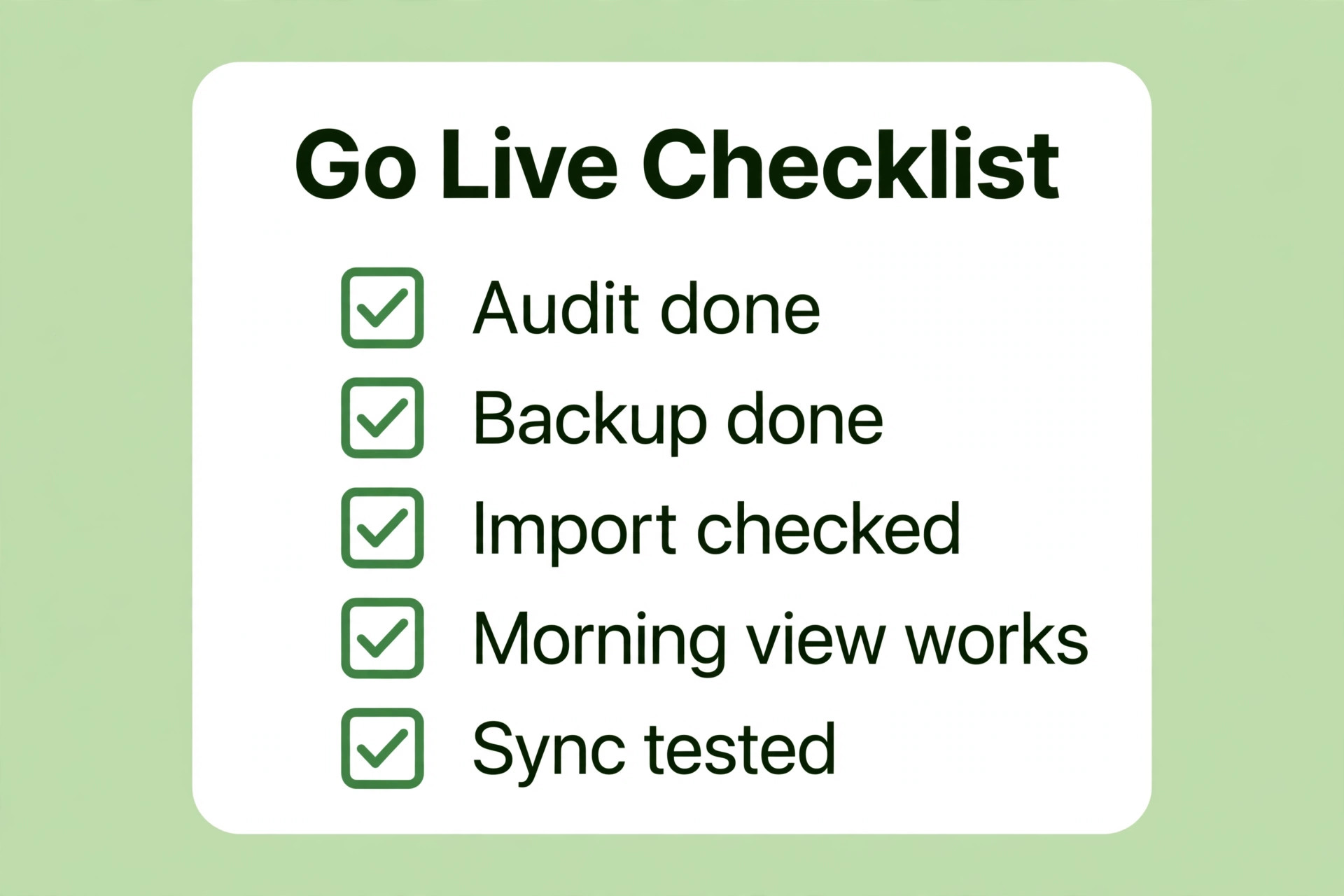
The go live check is short, and every item must pass. Files counted against the audit, or the gap explained. The five most important databases rebuilt with working views. Attachments opened from the vault. Pilot links followed to the right notes. Sync tested on every device. Migration note written. Only then tell collaborators the new system is live.
What Sync Costs, and What Free Sync Really Means
Obsidian itself is free for personal use, with no note limit and no account required for the core app. Your vault lives on one device until you choose how it reaches your other devices. When you switch Notion to Obsidian, that choice is the main ongoing cost of the move, and the main source of sync conflicts.
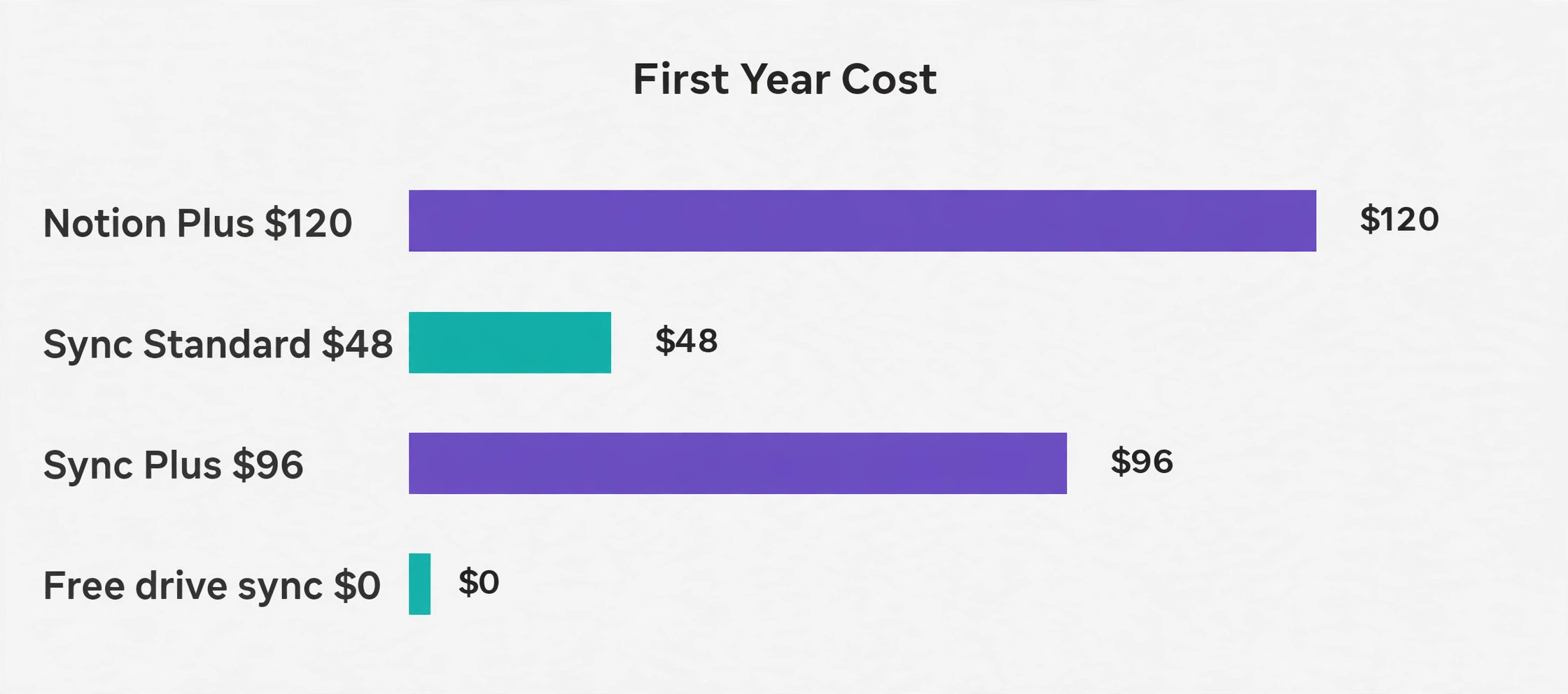
Obsidian Sync is the official option. It is end to end encrypted, keeps version history, supports shared vaults, and handles conflicts at note level. Sync Standard costs 5 dollars per user per month billed monthly, or 4 dollars billed annually, for one synced vault, 1 GB of storage, a 5 MB maximum file size, and one month of version history. Sync Plus costs 10 dollars billed monthly, or 8 dollars billed annually, for up to ten synced vaults, 10 GB of storage, a 200 MB maximum file size, and twelve months of version history.
Students, faculty and nonprofit staff receive 40 percent off Sync and Publish. Publish is separate, at 10 dollars per site per month billed monthly, or 8 dollars billed annually. A commercial licence costs 50 dollars per user per year. Catalyst is a one time contribution from 25 dollars. Check the official pricing page before paying, because tiers change.
| Sync option | Monthly cost, billed annually | Storage and file limit | Version history | Best for |
|---|---|---|---|---|
| Obsidian Sync Standard | 4 dollars per user | 1 GB total, 5 MB per file, 1 vault | 1 month | Text heavy vault |
| Obsidian Sync Plus | 8 dollars per user | 10 GB total, 200 MB per file, 10 vaults | 12 months | Large attachments, many vaults |
| Drive folder sync | Cost of the drive plan you already pay for | Set by the drive plan | Set by the drive service | Desktop first users |
| Private Git repository | Free apart from paid hosting | Set by the host | Full commit history | Technical users |
| Manual USB or backup copy | Free | Set by the drive size | Only copies you make | A second backup only |
The free drive folder route works well on desktop and suits many solo users. It fails most often on mobile, where background sync is less reliable, and it has no note level conflict handling. A drive service sees files, not notes, so when the same file changes on two devices it may keep both versions with a conflict name attached. Git gives full history and suits people who already commit code daily.
Compare the first year honestly against Notion. Notion is free for a solo user, with a 5 MB per file upload limit, seven days of page history, and ten guests. Notion Plus costs 10 dollars per member per month billed annually, or 12 dollars billed monthly, with unlimited file uploads, thirty days of history and unlimited guests. Notion Business costs 20 dollars billed annually, or 24 dollars billed monthly, with ninety days of history and private teamspaces. A solo user on Sync Standard pays 48 dollars for the year and owns the files. A solo user syncing through a drive they already pay for pays nothing extra. Cost alone does not settle the team case.
Attachment size decides the Sync tier more often than note count. One 12 MB research PDF already breaks the Standard 5 MB per file limit, even if total storage is well under 1 GB. Before you buy, check the size of your ten largest attachments. If several are over 5 MB, start with Plus.
Sync Conflict Fixes That Actually Work
A conflict is almost never data disappearing. It is two versions of the same file that a sync service could not merge, so it kept both. Your job is to pick the right version, merge the good parts by hand, and remove the duplicate.
| Conflict pattern | What you will see | Fix, in order |
|---|---|---|
| Same note edited on two devices before sync finished | Two copies, one with a conflict name | Copy new lines from the older copy into the newer one, save, delete the duplicate, force a sync |
| Note edited on mobile while the laptop was offline | Laptop version overwrites the mobile edit, or a duplicate appears | Check version history or the conflict copy first, restore missing lines by hand |
| Attachment changed on two devices at once | A conflict copy beside the original | Keep the newer complete file, rename it to the original name, delete the extra file |
| Folder renamed on one device, edited on another | Note appears in two folders, or links point at the old path | Pick one folder name, move all notes there, fix stale links, sync and recheck |
| Plugin settings file conflicting | Settings revert or a plugin disables itself | Turn off settings sync for that plugin, set it up once per device |
| Deleted note reappearing after sync | A deleted note returns from a device that had not synced | Delete again after every device has synced, then check file recovery once |
Three habits prevent most conflicts. First, let sync finish before you switch devices. On mobile, wait for the sync indicator to clear before you lock the phone. Second, edit a note on one device at a time. Typing in the same daily note on a laptop and a phone is the fastest way to create a conflict. Third, keep the vault out of two sync systems at once.
When a conflict does happen, recover from version history before you rewrite anything. Obsidian Sync keeps file versions for the length of your plan history, and the file recovery core plugin can restore deleted files. If a phone edit has not reached your laptop an hour later, open Obsidian on the phone, wait for sync to finish in the foreground, then check the laptop.

Links, Images and Attachments After Import
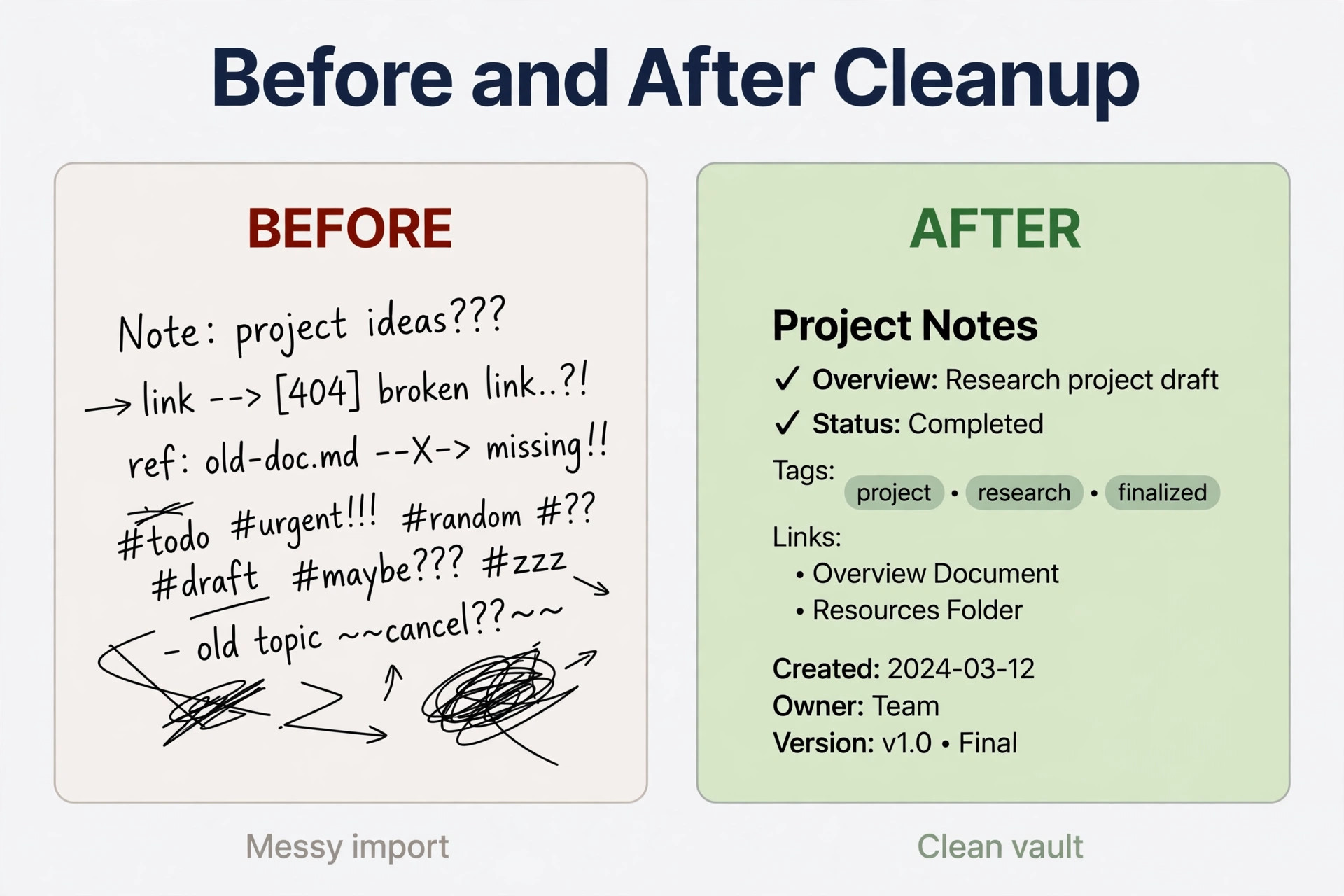
Link repair is a search job, not a reading job. After import, search for the phrases that mark broken links, such as a page title followed by a long string of characters from the old Notion identifier. The official import usually strips those identifiers, but a large workspace will still hold a few. Fix them in batches by pattern.
Images need a folder decision. Notion exports place attachments near the pages that use them, which can scatter hundreds of images across the vault. Obsidian lets you set a default attachment folder in settings, so new images land in one place. For imported images, leave them where the importer put them and rely on links, which is fast and safe. Or gather them into one attachments folder with a plugin that moves files and updates links automatically, which is tidier but must be done before you edit heavily.
Finally, open three notes from each mapped database and check that the properties you planned actually arrived, that dates look like dates, and that status values match one set. A status field with twelve spellings of done will break every filter you build. Also check total vault size. A vault full of PDFs and photos can pass several gigabytes quickly.
How to Choose Your Setup
When you switch Notion to Obsidian, three decisions shape everything else. The first is vault shape. One vault for everything suits most people, because search and backlinks work across the whole collection. Separate vaults suit people who must keep client work strictly apart, or who share one vault while keeping another private.
The second decision is sync, covered above. Sync Standard suits a text heavy vault on two or three devices, Sync Plus suits large attachments or many vaults, a drive folder suits a desktop first user who already pays for that drive, and Git suits a technical user who wants full history.
The third decision is plugins, and restraint is the right strategy. Install the Importer for the migration, then add only plugins that solve a problem you hit in the pilot week. A Bases or Dataview plugin solves the database view problem. A calendar plugin solves the daily note problem if you want a visual calendar. Every extra plugin adds update work and a learning cost.
Mistakes That Cost People Their Notes
When you switch Notion to Obsidian, the most expensive mistake is deleting Notion on migration day. It feels tidy and removes the safety net at the exact moment you most need it. Keep Notion read only for ninety days, downgrade only after the go live check passes, and delete only after you have a tested vault backup and a tested Notion export archive.
The second mistake is importing into a live vault. An import creates hundreds of files at once, and cleaning them inside a vault you already use mixes test files with real notes. Import into a staging folder in a fresh vault, clean there, and move only verified folders into your working vault. The third mistake is exporting Markdown for the official Importer out of habit, when the official help page recommends HTML.
The fourth mistake is rebuilding every database view in week one. Rebuild the morning view, use it for three days, then rebuild the next most used view. The fifth mistake is putting the vault inside two sync systems, which generates conflicts that look like data loss. The sixth mistake is ignoring attachment size until sync fails. Check the largest files before you buy a Sync tier.
A Realistic Timeline and Checklist
If you switch Notion to Obsidian with a small workspace, under five hundred pages and one or two simple databases, the move fits a weekend. Saturday is audit, backup and export. Sunday is import, mapping, the morning view and a pilot project. The following week is daily use with Notion still read only. A medium workspace, up to three thousand pages and five databases, fits two weekends with a working week of pilot use between them. A large workspace, over three thousand pages or more than ten linked databases, fits a month of staged moves, database by database.
Use this checklist as the go live gate. Audit written, with the five most used databases named. Edits frozen for the export window. Backup archive stored outside the vault. HTML export downloaded before the seven day link expiry. Import run into a staging folder, not a live vault. Ten sample pages checked by eye. Every database mapped to a folder and a rebuilt view. Morning view working for three days. Sync tested on every device. Attachment sizes checked against the Sync tier. Migration note written. Notion kept read only for ninety days. When every item is ticked, the migration is done.
For a direct comparison, see Notion vs Obsidian. For other options if Obsidian does not fit, see Notion alternatives. For a broader look at note apps, see best note-taking apps.
Frequently Asked Questions
Will I lose my Notion databases if I move to Obsidian?
You will not lose the content, but you will lose the live structure. Each row becomes a note, and its properties become fields on that note. Views, filters, relations, rollups and formulas do not carry over as live features. Rebuild each database as one folder with a Bases table or board, or a Dataview query.
Should I export as Markdown or HTML for the official importer?
Export as HTML for the official Importer plugin. The official Obsidian help page recommends HTML because it preserves more data, and states that the Markdown export omits important data. Run a Markdown and CSV export as well if you want a reference copy for your backup, but feed the HTML archive to the Importer.
How long does a full migration take?
A small workspace fits a weekend, a medium workspace fits two weekends with a pilot week between them, and a large workspace with linked databases fits about a month of staged work. The import itself is the fastest part. Auditing, mapping, rebuilding views, fixing links and testing sync take the rest of the time.
Can I keep using Notion for team work and Obsidian for personal notes?
Yes, and for many people that split is the best outcome. Keep shared delivery tracking, company wikis and anything with live permissions in Notion, and move personal notes and drafts to Obsidian. Give each type of information one home. Decide which tool owns tasks before you start.
What happens to my files if Obsidian stops working or I stop paying for Sync?
Your notes remain as Markdown files in a folder on your device, readable in any text editor, even if you stop paying for Sync or stop using the app. Sync moves copies between devices. It is not the storage for your notes. The local files are the storage. Stop paying and you lose the sync service, not the notes.
Is Obsidian really free, and what will I actually pay?
The core app is free for personal use, with no note limit and no account required. Most solo users pay nothing extra if they sync through a drive folder they already use, or pay 4 dollars per user per month billed annually for Sync Standard. Users with large attachments usually need Sync Plus at 8 dollars per user per month billed annually. Publish is separate, and the commercial licence is optional. Check the official pricing page before paying, and budget for the Sync tier that fits your largest files.
Your Notes, in Files You Can Open in Ten Years
The reason to switch Notion to Obsidian is not that one app is fashionable and the other is not. It is that your notes stop being rows in someone else’s cloud database and start being files in a folder you control, files a text editor can still open in ten years. That is worth a careful weekend, a mapping table, and a pilot project. It is not worth a rushed deletion, a thin import, or a vault inside two sync systems. Audit first, export in HTML, import into staging, map every database, rebuild the morning view, test sync on every device, and keep Notion read only for ninety days.