
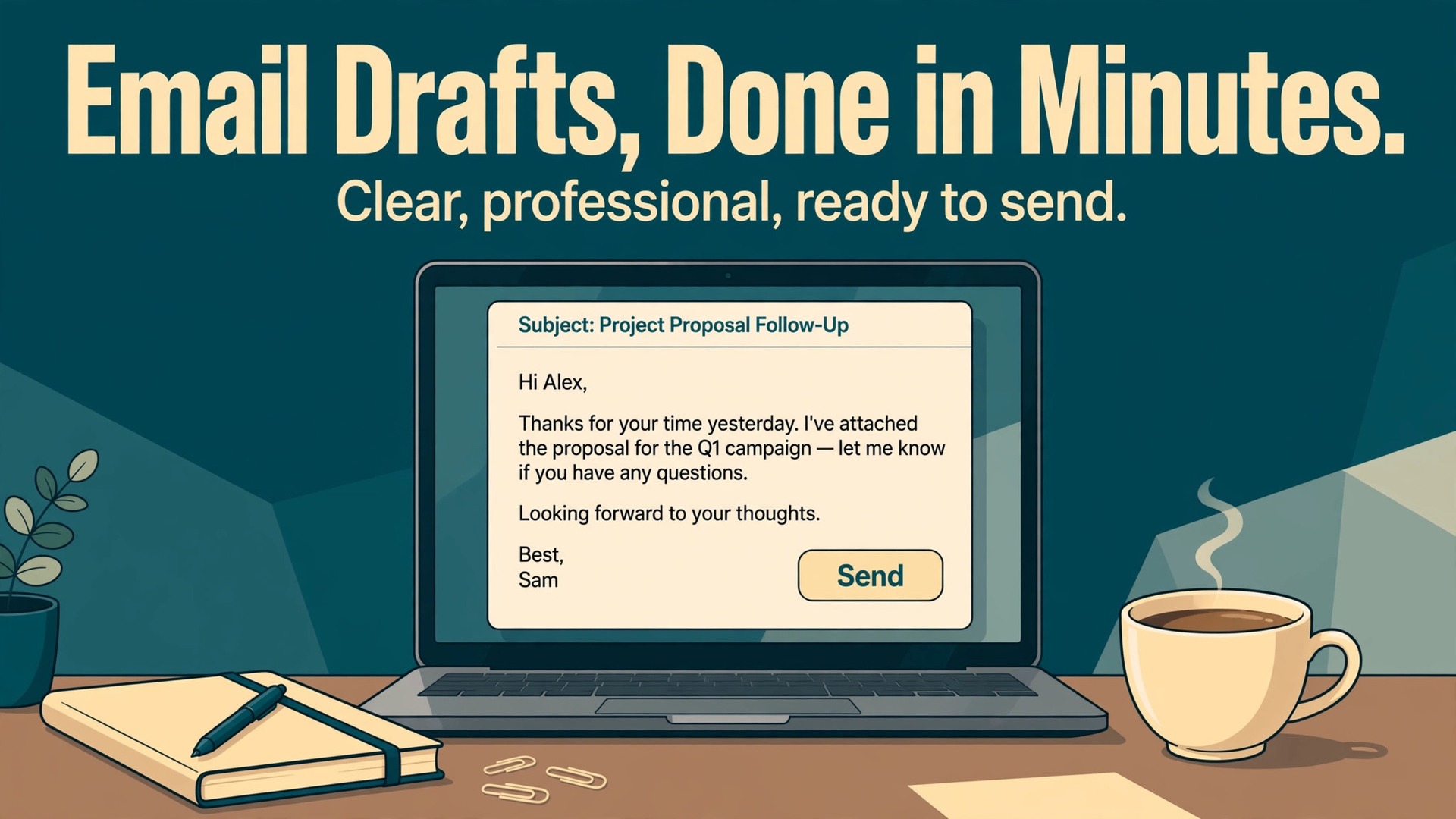
When you use ChatGPT for email drafts professionals actually respect, the tool works best as a first-draft assistant, not as a substitute for your judgment. It helps most when the message is routine, the facts are already clear in your head, and the risk of a wrong word is low. It hurts credibility when the message carries bad news, a sensitive negotiation, or a decision only you can own, and the draft sounds polished while saying nothing real.
That distinction matters because senior readers do not judge an email by how smooth it sounds. They judge it by whether the ask is clear in the first few lines, whether the reasoning holds up, and whether the writer sounds like a person who understands the stakes. A generic draft that buries the ask, hedges every sentence, and closes with empty enthusiasm fails all three tests, even if the grammar is perfect.
This guide shows how to get the useful part of AI drafting without that cost, with prompt patterns for the five email types professionals send most, a tone method for senior readers, a structure busy people can scan, a clear line on confidential data, a reusable template set, and a proofing pass to run before you send.
When You Should Use ChatGPT for Email Drafts Professionals Trust
Start with a simple rule. Use AI drafting when you know what you want to say and need help saying it cleanly. Do not use it when you do not yet know what you think. If you paste a vague brief into ChatGPT and accept whatever comes back, the email will read as vague too, because the model cannot supply your decision, your priorities, or your relationship with the reader. The best drafts come from briefs that already contain the decision, the deadline, and the one action you need.
Good fits for AI drafting include a meeting request with a clear purpose, a polite follow-up on an overdue reply, a short project update, a thank-you note after a call, an introduction between two people who have agreed to meet, and a routine request for information or approval. In each case the facts are settled and the main work is wording, order, and tone. A draft that starts from your own bullet points will usually need only light editing, and that is where the time saving is real.
Poor fits include performance feedback, disciplinary messages, redundancy or layoff news, legal disputes, pricing negotiations where a single phrase can change the deal, apologies for a serious failure that only you can explain, and any message where the reader needs to hear your personal accountability. In those cases an AI draft can flatten the emotion, invent reassuring language you do not mean, or soften a hard truth until it sounds evasive. Write those yourself, and if you want help, ask ChatGPT to tighten a draft you already wrote rather than asking it to invent one from scratch.
A second rule helps with volume. If you send the same type of email often, build one good prompt pattern and one good template, then reuse them. If an email type is rare and high stakes, slow down and draft it yourself. Speed is a benefit only when the result still sounds like you and still says what you meant.
| Email situation | AI draft first | Write it yourself first |
|---|---|---|
| Meeting request with a set agenda | Yes | No |
| Polite follow-up on a late reply | Yes | No |
| Routine project update | Yes | No |
| Introduction between willing contacts | Yes | No |
| Request for documents or approval | Yes | No |
| Performance feedback | No | Yes |
| Serious apology or bad news | No | Yes |
| Salary, pricing, or contract negotiation | No | Yes |
| Complaint about a colleague | No | Yes |
| Resignation or role change | No | Yes |
Five Prompt Patterns for the Emails Professionals Send Most
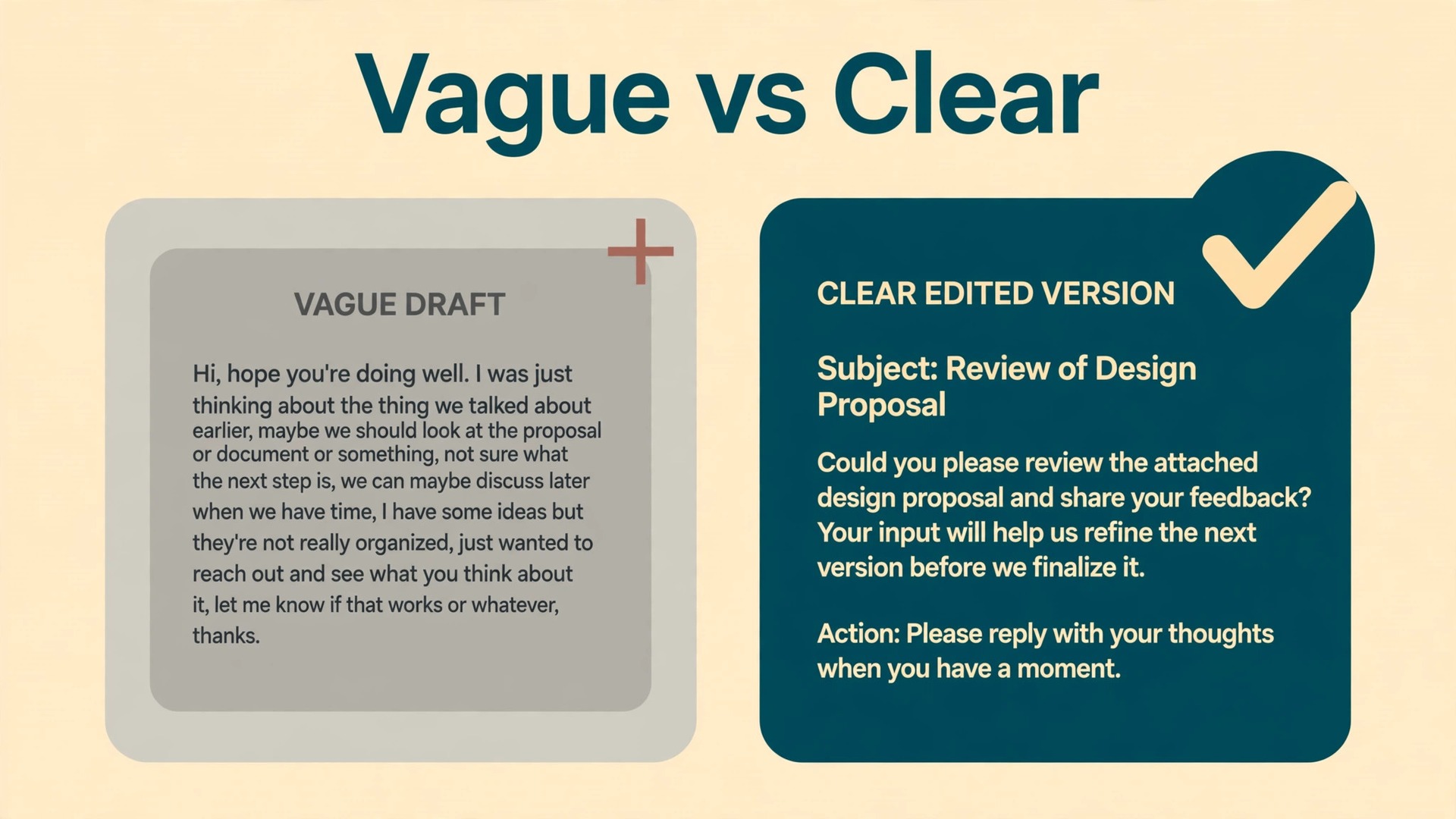
Most weak AI drafts fail at the prompt, not at the model. A prompt that says only “write a professional email” gives the model no reader, no purpose, no constraint, and no facts, so it fills the gaps with generic phrasing. A strong prompt gives six things every time. These are the reader and their seniority, the purpose in one sentence, the facts that must appear, the action you need, the tone you want, and the length or structure limit. Put the facts in your own words first, then let the model shape them.
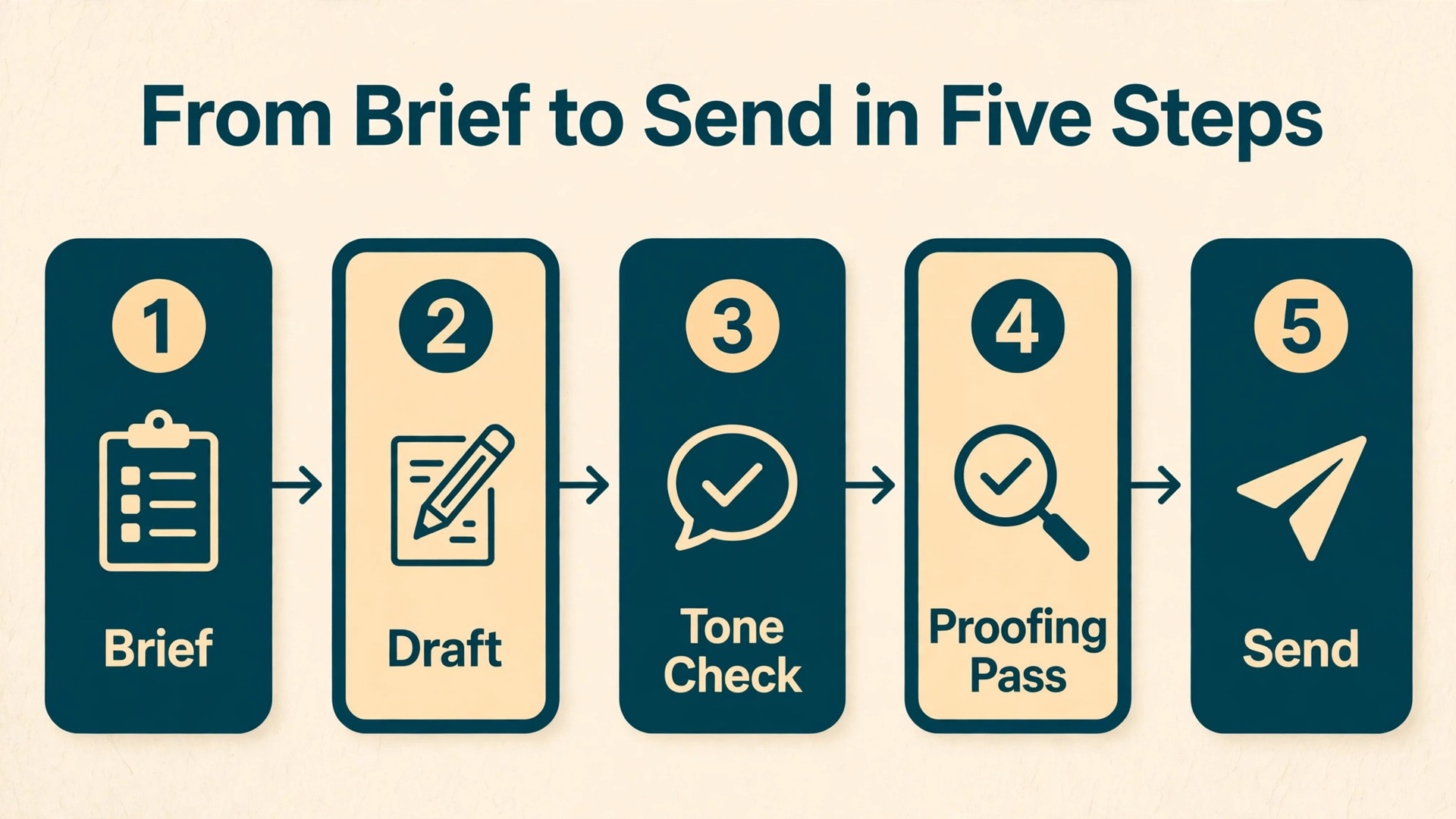
1. The request email
A request email succeeds when the reader can say yes without replying to ask for missing details. Your prompt should therefore name the decision you need, the deadline, the background in one line, and what happens if the answer is no or late. Ask ChatGPT for a short opening that states the request, one short paragraph of context, and a closing that names the exact next step.
Try a prompt built like this. “Draft a request email to a department head I have met twice. I need approval for a two-day training course costing 480 dollars, before Friday, so I can book before early registration closes. Keep it under 150 words, direct but respectful, and end with one clear question asking for approval or a short call.”
2. The follow-up email
Follow-ups fail when they sound like nagging or, at the other extreme, when they apologise for existing. The right tone is calm, helpful, and specific. Your prompt should restate the original ask, the date you first sent it, and the new deadline, and it should offer the reader an easy way out, such as a short reply, a forwarded thread, or a two-minute call.
A strong prompt looks like this. “Draft a second follow-up to a client who has not replied in nine days about approving a project scope. Remind them of the original scope in one sentence, note that approval by Thursday keeps the start date, and offer a 15-minute call as an alternative to a written reply. Keep the tone warm and professional, not pushy, and keep it under 120 words.”
3. The decline email
Declines are where AI drafting most often goes wrong, because models tend to over-apologise, over-explain, and pad the message with praise that sounds insincere. A good decline is short, grateful, clear, and final, with one honest reason and no door left half open unless you genuinely mean to leave it open. Your prompt should state the reason plainly, so the model does not invent a softer one.
Use a prompt like this. “Draft a polite decline to a speaking invitation on 12 November. I cannot attend because of a prior client commitment that week. Thank the organiser briefly, decline clearly in the second sentence, and offer to suggest one alternative speaker. Keep it under 110 words and avoid excessive apology.”
4. The apology email
Apologies split into two kinds, and the prompt must match the kind. A small apology, for a late reply or a missed attachment, can be short and practical. A serious apology, for a missed deadline that affected someone else, needs ownership, a plain account of what happened, and a concrete fix. Do not ask ChatGPT to write the serious kind from scratch, because only you know what went wrong and what you will change.
For a small apology, a prompt like this works well. “Draft a short apology for replying four days late to a supplier about a delivery date. Own the delay in one sentence, give the corrected delivery date, and ask them to confirm it works. Keep it under 100 words and do not over-apologise.”
For a serious apology, write your own account first, then ask ChatGPT to tighten it. A useful instruction is “Tighten this draft without softening the accountability, removing the excuse, or adding praise. Keep my account of what happened, keep the fix I propose, and cut any sentence that does not add information.” That instruction keeps the model in an editing role, which is the right role for a message where your credibility is on the line.
5. The introduction email
Introductions fail when they flatter both people, hide the reason for the meeting, or leave nobody sure who should reply first. A good introduction names both people, states the shared purpose in one sentence, gives one line of relevant context for each person, and names who will follow up. Your prompt must include permission, because you should only introduce people who have agreed to be introduced.
A prompt built for this looks like this. “Draft an introduction email between a marketing manager and a freelance designer. Both have agreed to discuss a product brochure. Give one line of context for each person, state the brochure project as the reason, and say the designer will follow up within two days to suggest a call. Keep it under 130 words.”
Tone Calibration for Senior Readers
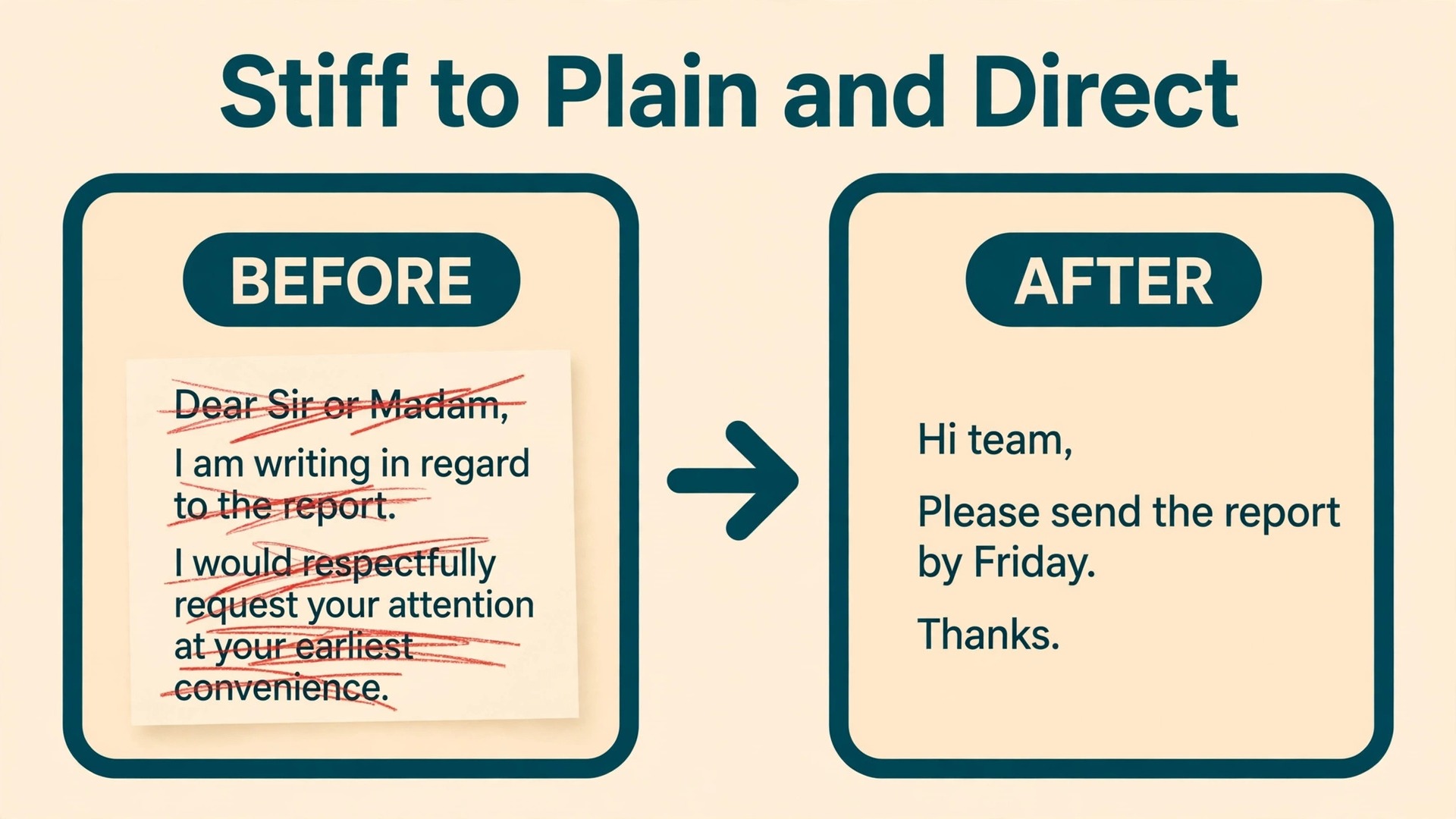
Senior readers read differently from peers. They skim for the decision, they notice hedging, and they have little patience for language that sounds like it is trying to impress them. The most common tone mistake in AI drafts is over-formality, which shows up as long sentences, passive constructions, and phrases that no one would say in a real meeting. The second most common mistake is false warmth, which shows up as enthusiasm about a routine request. Both mistakes come from the same cause, which is a prompt that asked for “professional” without defining what professional means for this reader.
A practical method is to name the tone in plain language in the prompt, then give one example of what to avoid. For instance, ask for “direct and respectful, like a short briefing note, not a formal letter” and add “avoid phrases like I hope this email finds you well and please do not hesitate to contact me.” That second instruction matters, because it removes the stock phrases that make AI drafts easy to spot. If the draft still comes back stiff, ask for a plainer version with shorter sentences and fewer adjectives, rather than asking for a warmer version, which usually adds more filler.
Structure Busy Professionals Actually Scan
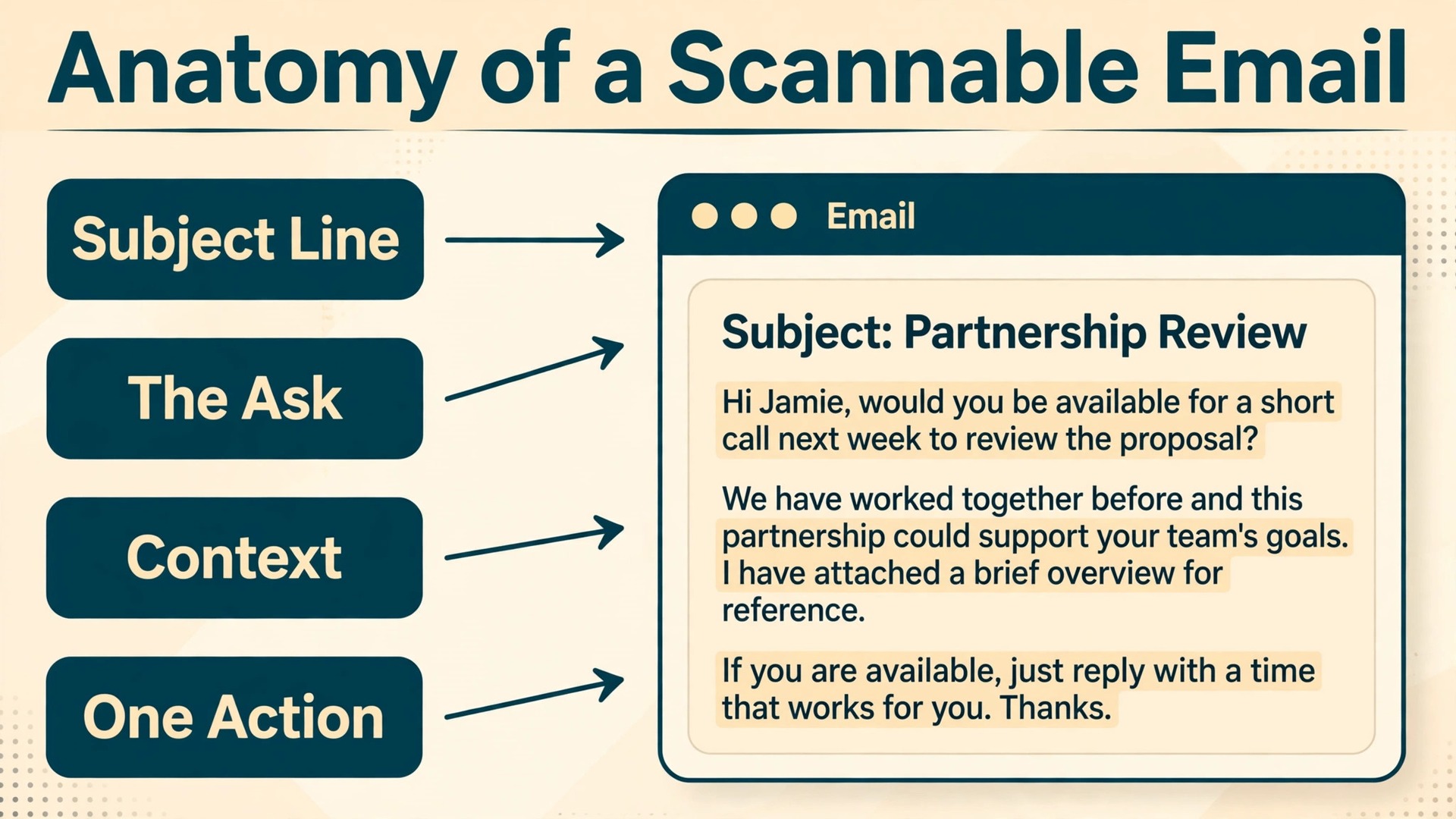
Busy professionals rarely read an email from top to bottom on the first pass. They scan the subject line, the first two sentences, the headings or bold lines if any, and the closing action. If the ask is not visible in that scan, the email goes into the “read later” pile, which often means never. The structure below is built for that reality, and it works for almost every routine professional email.
Start with a subject line that carries the topic and the action. “Approval needed by Thursday for training course” beats “Quick question” because the reader can prioritise it without opening it. Follow with an opening of one or two sentences that states the purpose and, where relevant, the deadline. Put context after the purpose, not before it, so a reader who stops after two sentences still knows what you need.
End with one action, one owner, and one date. “Please approve by Thursday, or let me know if a short call on Wednesday works better” gives the reader a clear path. “Let me know your thoughts at your convenience” gives the reader no path, no owner, and no date, and it invites delay. If you need two actions, number them and keep each to one line. If you need more than two actions, the message probably belongs in a meeting or a document, not in an email.
Length follows from this structure. Most routine professional emails should land between 80 and 180 words. Shorter is better for requests and follow-ups. Longer is justified only when the reader cannot decide without the detail, and even then the decision should appear at the top. When you use ChatGPT for email drafts professionals send daily, ask for a word limit in the prompt and check the count in the result, because the model will otherwise drift toward 250 words and three paragraphs of background before the point.
What Never to Paste Into a Prompt
This section is the most important one in the guide, because it protects you, your employer, and your clients. ChatGPT is a cloud service, and what you paste into a prompt leaves your device. Do not paste passwords, access codes, private keys, or login details. Do not paste full contracts, unreleased financial figures, salary details, employee personal data, health information, customer lists with contact details, or internal strategy documents. Do not paste a whole email thread that contains other people’s private information, and do not paste screenshots that show account numbers or internal systems.
The safe method is to replace real details with placeholders before you prompt, then put the real details back into the final draft yourself. Write “Client A” instead of the client name, “the March budget figure” instead of the number, and “the internal system” instead of the system name. Ask ChatGPT to draft around the placeholders, then fill them in after you have checked the draft. That extra minute removes the main privacy risk of AI drafting, and it also forces you to check the draft properly, because you cannot send it without filling in the blanks.
Check your employer’s policy before you use any AI tool for work email. Some organisations allow general drafting help but forbid client data. Some allow it only on a business plan with stronger data controls. Some forbid it entirely for certain teams. The plan you use matters here, because consumer plans and business plans differ in how they handle data, admin controls, and training settings, and a personal account is not the same as a work workspace. If you are unsure, ask your manager or your IT team, and keep the answer in writing. A fast draft is never worth a policy breach.

The Template Set You Can Reuse Every Week
This template set is the reusable core of the guide. Each template gives the structure and the key sentences, with placeholders in square brackets for the details you fill in yourself. Copy a template, replace the placeholders, adjust the tone for the reader, and run the proofing pass at the end of this guide. Do not send a template unchanged, because an unchanged template reads as a template, and the reader deserves a message written for them.
Template 1. The request
Subject line. Approval needed by [date] for [item or course]
Opening. I am writing to ask for approval for [item or course], which costs [amount] and needs a decision by [date] so that [reason for the deadline].
Context. This supports [project or goal] by [one concrete benefit]. I have checked [relevant detail, such as availability or policy] and the next step after approval is [next step].
Closing. Please let me know if you approve, or if a short call on [day] would help. Thank you for considering this.
Template 2. The follow-up
Subject line. Following up on [topic] and decision needed by [date]
Opening. I wanted to follow up on my email of [date] about [topic], as a decision by [date] keeps [project or date] on track.
Context. In short, I need [one-sentence summary of the ask]. If a written reply is difficult this week, a short call works just as well.
Closing. Please let me know which option suits you, or reply with a yes if the summary above is correct.
Template 3. The decline
Subject line. Thank you for the invitation to [event or opportunity]
Opening. Thank you for inviting me to [event or opportunity] on [date].
Decision. I will not be able to attend, because of [one honest reason]. I wanted to let you know early so you can plan accordingly.
Closing. Thank you again for thinking of me. I can suggest [alternative person] if that would help, and I wish you a successful event.
Template 4. The apology for a small delay
Subject line. Apology for the late reply on [topic]
Opening. I apologise for replying late on [topic]. The delay was mine, and I appreciate your patience.
Fix. The corrected position is [fact, date, or figure]. I have [action already taken, such as re-sent the file or confirmed the date].
Closing. Please confirm that the corrected position works for you, or let me know if anything else is outstanding.
Template 5. The introduction
Subject line. Introduction and [shared project or topic]
Opening. I am introducing [Name A], who [one line of relevant context], and [Name B], who [one line of relevant context].
Reason. You are both working on [project or topic], and a short conversation would help with [specific purpose].
Closing. [Name of follow-up owner] will follow up within [time frame] to suggest a call. Thank you both for making time for this.
The Tone Checklist Before You Send
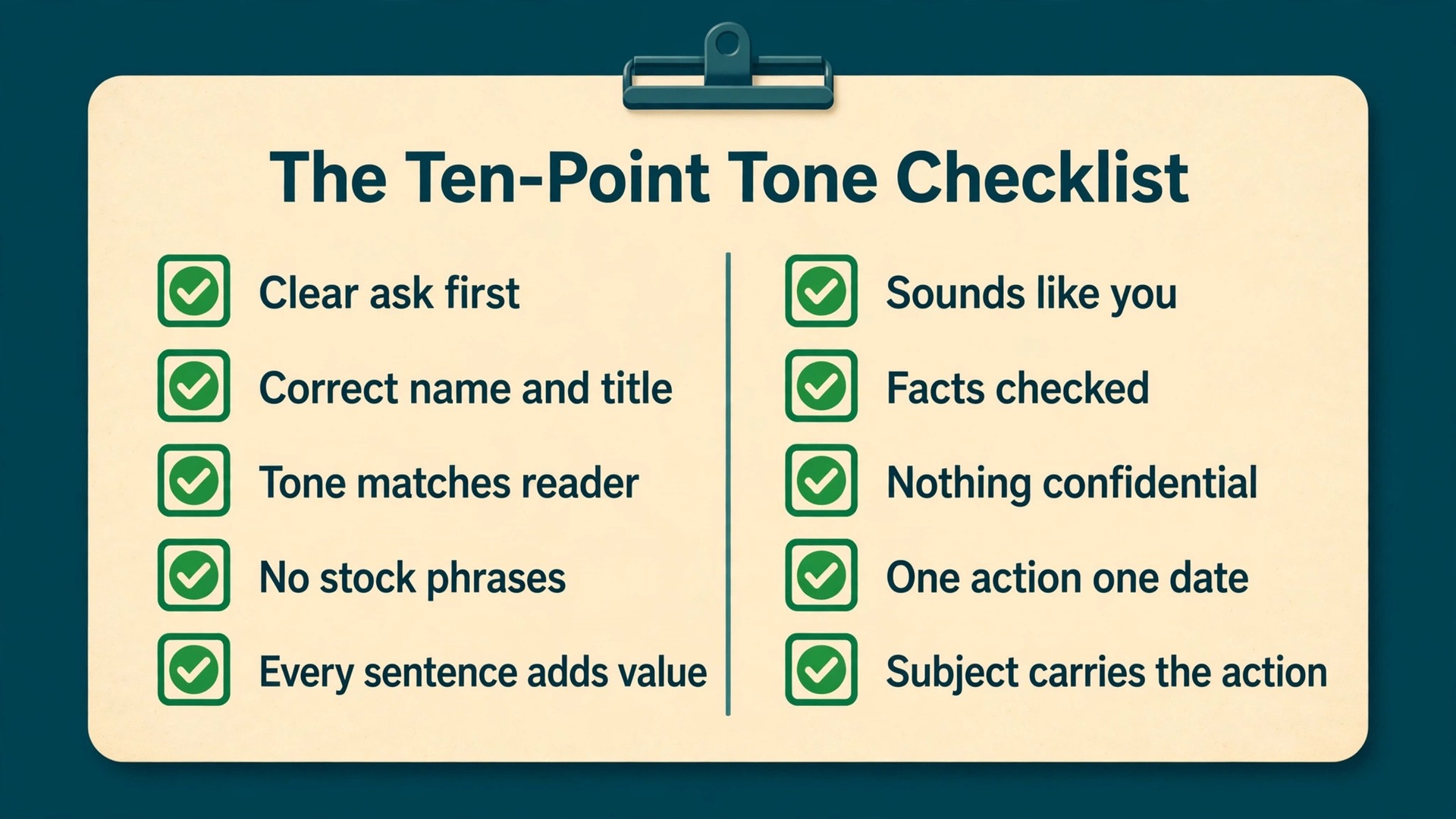
Use this checklist on every AI-assisted draft, and use it in order, because the early checks catch the problems that matter most. Read the draft once for meaning, once for tone, and once for facts, rather than trying to catch everything in a single pass. The three passes take about two minutes, and they prevent most of the embarrassment that comes from sending an unchecked draft.
- The ask is visible in the first two sentences, with a date where a date exists.
- The reader is named correctly, with the right title, spelling, and organisation.
- The tone matches the relationship, direct for a senior reader, warmer for a close colleague.
- No stock phrase survives, including overused greetings, empty enthusiasm, and vague closings.
- Every sentence adds information, a decision, or a next step, and no sentence exists only to sound professional.
- The draft sounds like you speaking to this person, not like a generic letter.
- No claim, figure, date, or name was invented by the model, and every fact matches your notes.
- No confidential detail, password, personal data, or internal figure appears in the prompt history or the draft.
- The closing asks for one action from one person by one date.
- The subject line carries the topic and the action, so the reader can prioritise it without opening it.
The Before-Send Proofing Pass
The tone checklist catches meaning and tone. The proofing pass catches the small errors that make an otherwise good email look careless. Run it after the checklist, on the final version, not on an earlier draft, because edits made after proofing can introduce new errors.
First, check names, titles, dates, amounts, and links, character by character. These are the details readers notice first and forgive least. A wrong name in the greeting undermines the whole message, and a wrong date can create a missed deadline. Second, check that attachments mentioned in the body are actually attached, and that links open to the right page. Third, check the reply chain, because replying to the wrong thread or copying the wrong person is a common and avoidable mistake.
Which ChatGPT Plan Fits Email Drafting
Most professionals do not need the most expensive plan to draft good email. They need a plan that matches how often they draft, whether they work alone or in a team, and what data controls their employer requires. The figures below are the US list prices reported from OpenAI’s pricing pages in October 2026. Prices vary by market and can change, so check the official pricing page and the checkout total before you pay.
The Free plan costs nothing and suits occasional drafting, such as a few routine emails a week. Its limits are tighter, so a heavy user will hit them quickly. The Go plan costs 8 dollars a month and adds more messages and uploads than Free, which suits a light daily user who does not need team controls. The Plus plan costs 20 dollars a month and suits a professional who drafts daily, wants higher limits, and wants features such as projects and custom GPTs for reusable prompt patterns.
The Pro plans cost 100 dollars, 200 dollars, or 500 dollars a month at different usage tiers, and they suit only very heavy individual users, because email drafting alone rarely uses that allowance.
Teams should look at Business rather than buying several individual plans. Business costs 20 dollars per user per month when billed annually, or 25 dollars per user per month when billed monthly, with a two-seat minimum, and it adds a shared workspace, admin controls, and business data excluded from training by default. That last point matters for work email, because it answers the data question that a personal plan leaves open. Enterprise pricing is a custom quote and suits large organisations that need contracts and stronger controls.
When you use ChatGPT for email drafts professionals rely on every day, the plan decision should follow the data decision, not the other way around. If your employer requires a business workspace, use one, even if a personal plan looks cheaper. If you draft alone, handle no sensitive client data, and keep placeholders in your prompts, Plus is the sensible middle ground for most daily users. If you draft only a few emails a week, start on Free and upgrade only when you can name the limit you keep hitting. Paying for a higher tier before you hit a limit is not an investment. It is a subscription looking for a use.
Related reading on this site can help with the wider email picture. The guide to AI tools for Gmail power users covers tools that help with triage and inbox organisation, the roundup of best AI email management tools compares inbox tools for heavier mail loads, and the guide on how to use AI to write better emails helps with the sending side in more depth. Use those guides after this one when you want to improve the whole workflow, from inbox to sent folder, rather than only the draft itself. When you use ChatGPT for email drafts professionals send in high volume, pairing a good drafting habit with a tidy inbox habit saves more time than either habit alone.
Frequently Asked Questions
Can ChatGPT write a professional email that sounds like me
Yes, if you give it your own facts, your own decision, and a clear tone instruction, and then edit the result in your own voice. It sounds generic when the prompt is generic, when the facts are missing, and when the draft is sent without editing. The fastest way to keep your voice is to paste your own rough bullets into the prompt, ask for a reshaped version, and then read the result aloud and replace any sentence you would never say.
Is it safe to paste work emails into ChatGPT
It depends on the content and on your employer’s policy. Never paste passwords, personal data, salary details, unreleased figures, full contracts, or customer lists. Replace real names and figures with placeholders, draft around them, and fill in the real details yourself afterwards. If your employer allows AI drafting only on a business workspace, use that workspace, and if you are unsure about the policy, ask your manager or IT team before you paste anything work-related.
How long should a professional email drafted with AI be
Most routine emails should land between 80 and 180 words, with the ask in the first two sentences and one action in the closing. Requests and follow-ups should sit at the short end of that range. Longer emails are justified only when the reader cannot decide without the detail, and even then the decision should appear at the top and the detail should follow as short points or an attachment.
What should I do when ChatGPT gives me a draft that sounds too formal
Ask for a plainer version with shorter sentences and fewer adjectives, and name the phrases to remove, such as overused greetings and vague closings. Then edit the result yourself, because tone is personal and no prompt can fully capture your relationship with the reader. If the draft still sounds stiff after one revision, rewrite the opening and closing in your own words, since those two parts carry most of the tone the reader feels.
Can I use ChatGPT for email drafts professionals send to senior executives
Yes, for routine requests, follow-ups, updates, and introductions, provided the facts are yours, the ask is clear, and you run the tone checklist and the proofing pass before sending. For sensitive matters, such as performance feedback, serious apologies, or negotiations, write the draft yourself first and use ChatGPT only to tighten it, without softening the accountability or inventing reassurance you do not mean.
Should I tell the reader that AI helped draft the email
There is no general rule that requires a note on a routine email you wrote, briefed, checked, and edited yourself, because you remain responsible for every word you send. The important duty is accuracy and honesty in the content itself, not a label on the process. If your employer has a disclosure policy for AI-assisted work, follow that policy, and if a message contains a claim you cannot verify, remove the claim rather than worrying about how the draft was produced.
Send Fewer Emails That Need a Second Email
The goal of good AI drafting is not to send more email. It is to send fewer emails that need a second email to explain the first one. A clear ask, a short context block, and one action with a date will do more for your reputation than any amount of polished language, and it will do more for your week than any tool that only helps you write faster. When you use ChatGPT for email drafts professionals trust, keep the decision yours, keep the facts yours, and keep the final edit yours, and let the tool do what it does best, which is turning a clear brief into a clean first draft.
Build your own version of the template set this week, starting with the one email type you send most. Edit it until it sounds like you, add it to your prompt library, and use the tone checklist on the next ten drafts you send. After ten drafts, you will know which template needs work, which prompt pattern saves the most time, and which kind of email you should still write yourself. That small, honest review is what turns a useful tool into a reliable habit, and it is what keeps your email sounding like a professional, not like a template. When you use ChatGPT for email drafts professionals remember, the reader is not impressed by speed.
The reader is impressed by clarity, and clarity is a habit you build one sent email at a time.