
Verdict first. If your business has under about 50 people, takes in money from a handful of sources, and pays a manageable list of suppliers, staff, and subscriptions, Excel is still the best place to run the monthly budget. It is cheap, it is fully under your control, and it forces you to see every number instead of trusting a dashboard that hides the detail. When you use Excel for small business budget planning in the way this guide sets out, with one template, a fixed set of categories, and a monthly close checklist, you get a budget that survives contact with real invoices, late payments, and seasonal dips.
You do not need a new app to learn, a new subscription to justify, or a consultant to explain your own numbers back to you.
That verdict comes with a clear limit, and naming it early is part of why the system works. Excel is the right tool while one person, or a very small team, owns the budget and updates it on a fixed day each month. It stops being the right tool when five people edit the same file at once, when inventory or project costs need live tracking across departments, or when you need bank feeds, payroll, and tax filing in one place. This guide shows the full system for the first case, explains exactly where the boundary sits, and tells you what to move to when you cross it.
Why Excel Still Wins for a Small Monthly Budget
Most small businesses do not fail at budgeting because they lack software. They fail because the budget lives in three places at once, in a bank app, in an accountant’s file, and in the owner’s head, and none of those places agree. When you use Excel for small business budget control, a single workbook fixes that problem by giving every pound or dollar one home. Income goes on one sheet, spending goes on the same sheet in matching categories, and the difference between plan and actual is visible in one glance. There is no sync delay, no import error to chase, and no feature you pay for but never open.
For a business that needs control more than automation, that simplicity is a feature, not a gap.
None of this means Excel is free in the true sense, and a data led guide should say so plainly. Most owners already pay for Microsoft 365 or for a standalone Office licence, so the extra cost of budgeting in Excel is often zero. If you do not already have it, check the current price before you buy. Microsoft’s official business plan page lists Business Basic from 7 dollars per user per month on annual billing, with web and mobile versions of Excel, while the desktop version comes with higher plans.
At the time of writing, third party price lists put the standard desktop plan without the Copilot bundle at about 14 dollars per user per month on annual billing, and the Copilot bundled version is listed by Microsoft at 23.50 dollars per user per month. Those figures move, and your renewal price may differ from the new customer price, so treat the numbers here as a guide and confirm the total at checkout. A one person business that only needs Excel can also look at the Apps for business plan, which third party lists put at about 10 dollars per user per month, but it has no business mailbox, so it suits an owner whose email already lives elsewhere.
The point is not to pick the cheapest licence. It is to avoid paying for a separate budgeting app on top of a suite you already own.
How to use Excel for small business budget planning
The method in this guide has four parts, and the order matters. First, you set a small number of categories that match how money actually leaves the business. Second, you build one template and reuse it every month instead of starting fresh. Third, you enter actual figures from bank statements and invoices, not from memory. Fourth, you close the month with a fixed checklist that checks totals, chases missing invoices, and carries the right numbers forward. Skip any one of those parts and the budget weakens. Skip the categories and every month becomes a new guessing game. Skip the template and you rebuild the same sheet twelve times a year.
Skip the actual figures and you have a forecast dressed up as a budget. Skip the close and small errors pile up until nobody trusts the file.
Start with the shape of a normal month before you touch a formula. List every way money comes in, usually no more than five or six lines for a small business. Product sales, service fees, retainers, and one off project income will cover most cases. Then list spending in groups that a manager can act on. Rent and premises, payroll and contractors, stock or materials, marketing, software and subscriptions, transport, professional fees, and tax set aside will cover most small firms, with a final line for everything else that is genuinely irregular. Keep the list short on purpose.
A budget with 60 categories looks thorough and behaves badly, because nobody maintains it, small lines get misclassified, and the report at month end is too long to read. A budget with 12 to 18 lines gets used, and a line that grows large enough to matter can be split later with evidence behind the split.
Build the Budget Template
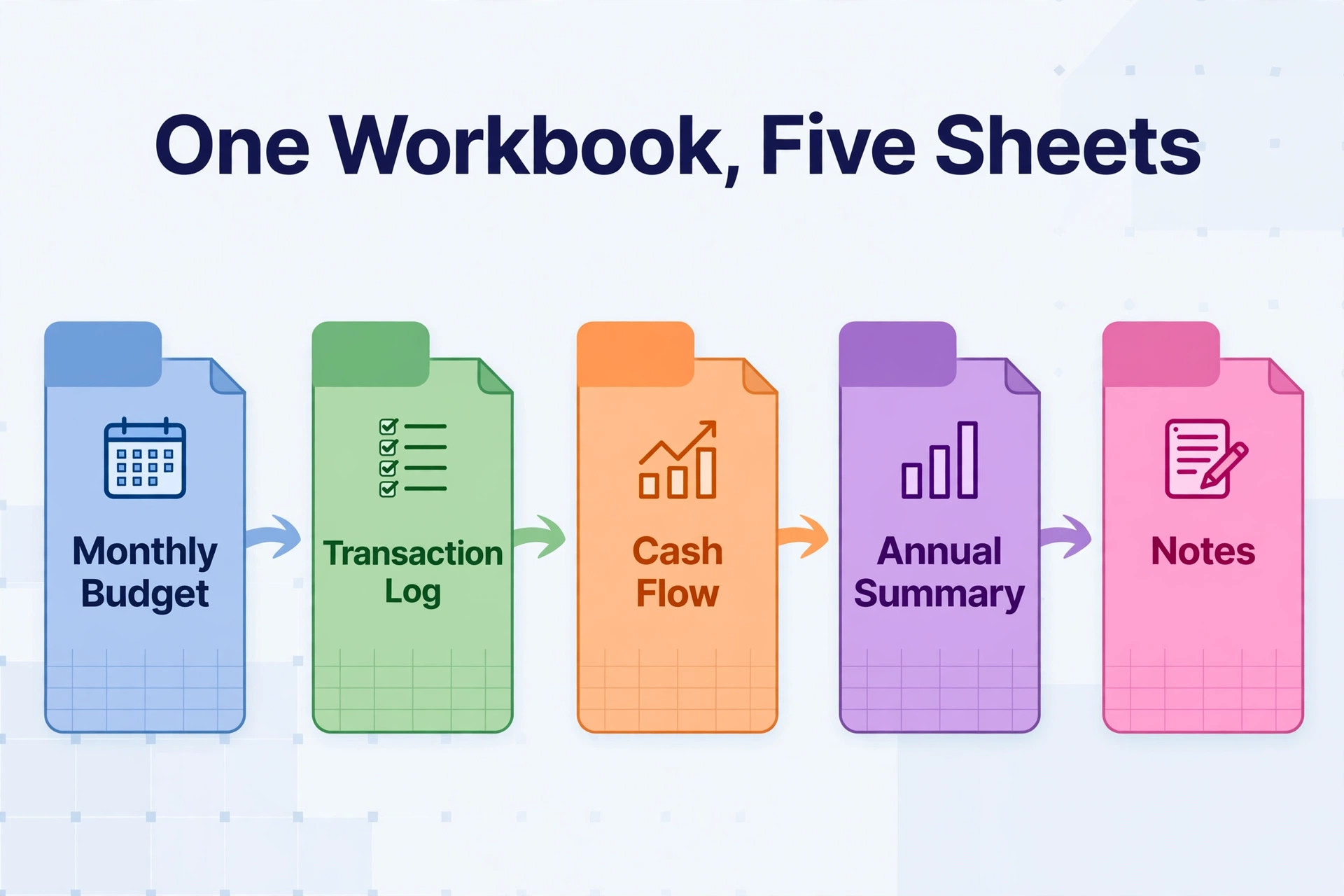
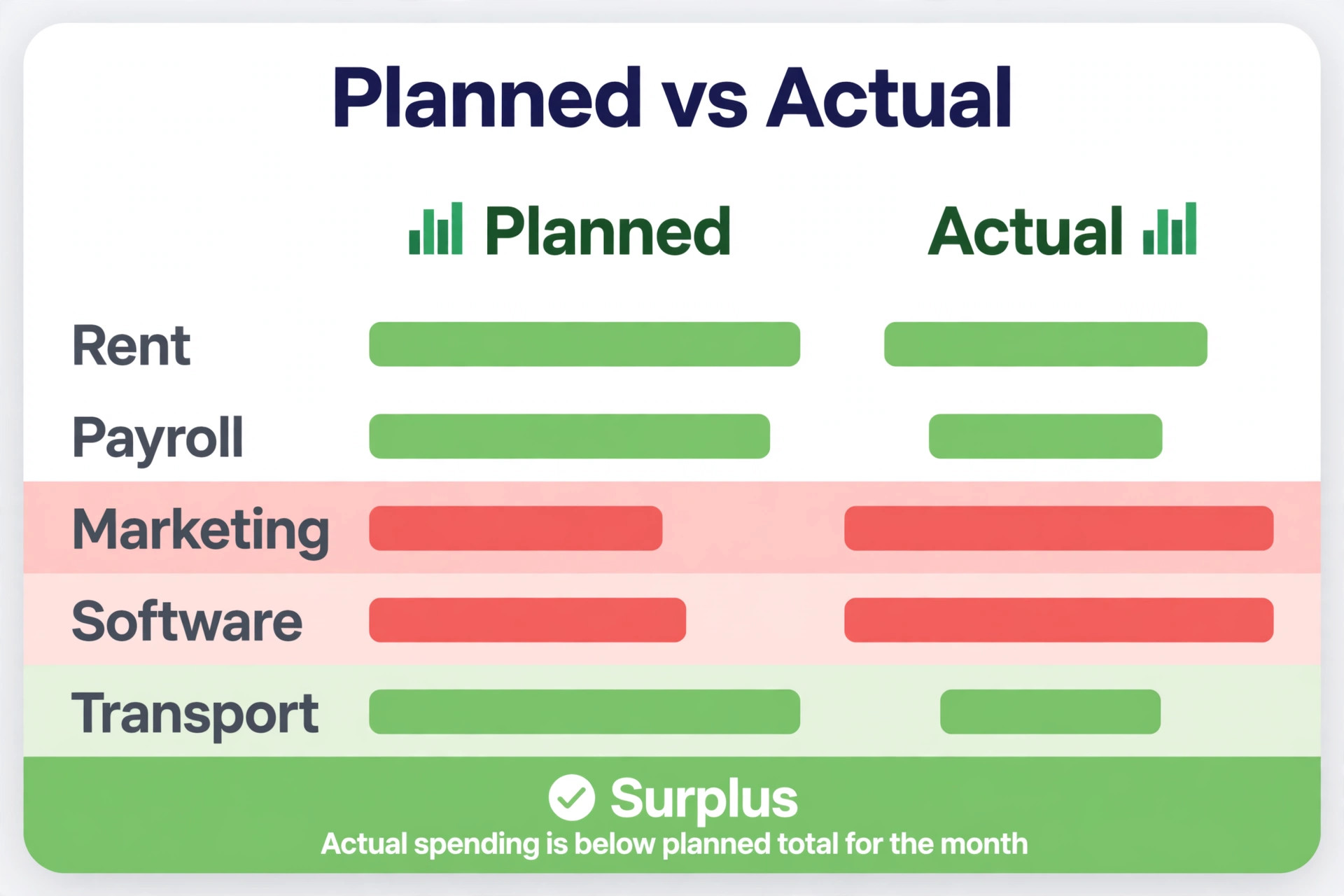
A good template has five sheets and no more. The first sheet is the monthly budget itself, with columns for category, planned amount, actual amount, difference in money, and difference as a percentage. The second sheet is the transaction log, where every income and spending item gets a date, a payee, a category, and an amount, so the monthly totals can be traced back to real payments. The third sheet is the cash flow view, which shows opening bank balance, money in, money out, and closing balance by week or by month, because a business can be profitable on paper and still run out of cash in week three.
The fourth sheet is the annual summary, which pulls each month’s totals into one row per month so you can see the year trend without opening twelve files. The fifth sheet is a notes sheet, for one off items, tax deadlines, and decisions such as why marketing was raised in June or why a supplier changed in September. Five sheets are enough. More sheets usually mean the template is trying to do accounting, and that is a job for accounting software, not for a budget file.
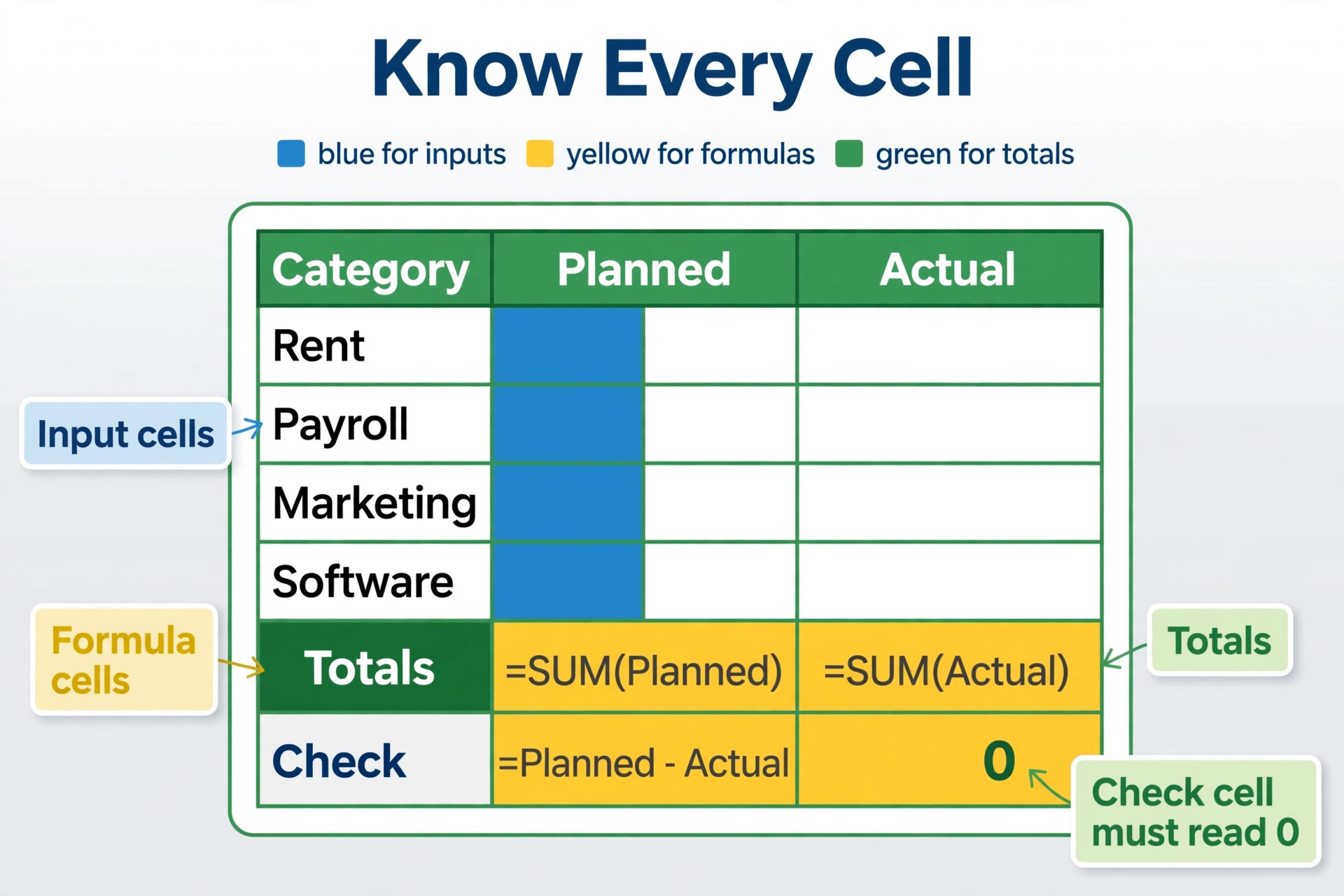
To use Excel for small business budget tracking well, build the monthly sheet with the income section at the top, the spending sections below it, and three totals that must always agree. Total income, total spending, and the surplus or shortfall sit in bold at the bottom of the sheet, and a small check cell shows whether the transaction log total matches the monthly sheet total. If that check cell does not read zero, something is missing or double counted, and you find it before you trust any other number. Colour helps here, but only if the colours mean something fixed.
Use one colour for inputs you type, one colour for formulas you never type over, and one colour for totals. Write that key at the top of the sheet. Anyone who opens the file, including a future you in six months, should be able to tell at a glance which cells are safe to type in and which cells will break if touched.
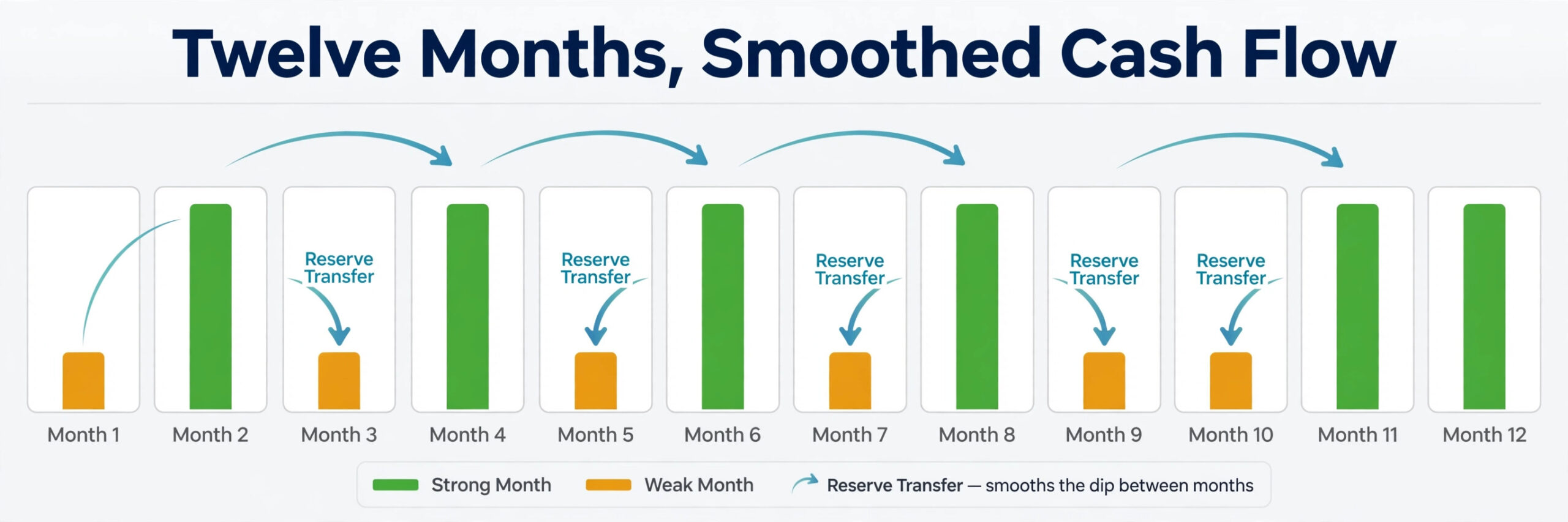
Add two lines that many templates miss, and both of them protect cash. The first is a tax set aside line, calculated as a percentage of income and moved mentally, or ideally into a separate account, each month. The exact percentage depends on your tax position and your country, so ask your accountant for a figure and write it on the notes sheet rather than guessing a round number from the internet. The second is a reserve line for irregular costs such as equipment repair, annual insurance, or a slow season. Putting a small amount aside every month for costs that arrive once or twice a year stops those bills from feeling like emergencies. They are not emergencies.
They are predictable costs with lumpy timing, and a monthly budget is the right place to smooth them out.
Enter Real Numbers, Not Hopeful Ones
If you use Excel for small business budget records, the budget only helps if the actual column comes from statements, not from memory. Memory rounds down spending and rounds up income, and it does so in the direction that flatters the owner. The fix is boring and effective. On the update day, open the bank statement and the card statement, work down the transaction log line by line, and match every payment to a category. If a payment does not fit a category, do not force it. Put it in the closest line, add a note with the payee, and review the category list at quarter end.
If a payment is missing from the log, the monthly total will not match the statement, and that mismatch is useful information, not a nuisance. It tells you where the record is incomplete.
Handle cash and card payments with the same care, because cash is where small budgets leak most. A business that pays for fuel, parking, or small supplies in cash and never logs those payments will always believe it spent less than it did, and the gap will show up as a bank balance that is lower than the budget predicts. Keep a simple rule for cash. No cash payment goes unlogged for more than two working days, and every cash receipt gets photographed or filed on the day. That rule sounds strict for small amounts, and small amounts are exactly the point.
Twenty small unlogged payments in a month can equal a rent payment, and a budget that misses a rent sized amount is not a budget at all.
Formulas That Do the Checking for You
You do not need advanced skills to use Excel for small business budget work, and you should resist, and you should resist the temptation to build a complex model before the simple version works for three months. Five formula types carry almost the whole budget. A SUM total for each section, a subtraction for the difference between planned and actual, a division for the percentage difference, a SUMIF or a simple link that pulls the transaction log total into the monthly sheet, and a conditional format that highlights any line more than 10 percent over plan. Those five cover totals, variance, tracing, and attention.
Everything else, including pivot tables and charts, is useful later, but it is not needed to make the first version trustworthy.
Build the formulas in this order, and test each one with a small set of known numbers before you enter real data. First, total the planned column and the actual column for income and for spending. Second, subtract actual from planned for spending lines, so a positive number means under plan and a negative number means over plan, and reverse the sign logic for income so the meaning stays clear, then label the column plainly so nobody has to guess which direction is good. Third, divide the difference by the planned amount to get the percentage, and guard against division by zero for lines with no planned amount by leaving the percentage blank when the plan is zero.
Fourth, link the transaction log to the monthly sheet, either by a SUMIF on the category column or by a direct total that you check against the log, so a change in the log flows through without retyping. Fifth, add conditional formatting that turns an over plan line a noticeable colour, but set the threshold at 10 percent or a fixed money amount, whichever is larger, so tiny lines do not trigger constant warnings that everyone learns to ignore.
The Monthly Close Checklist
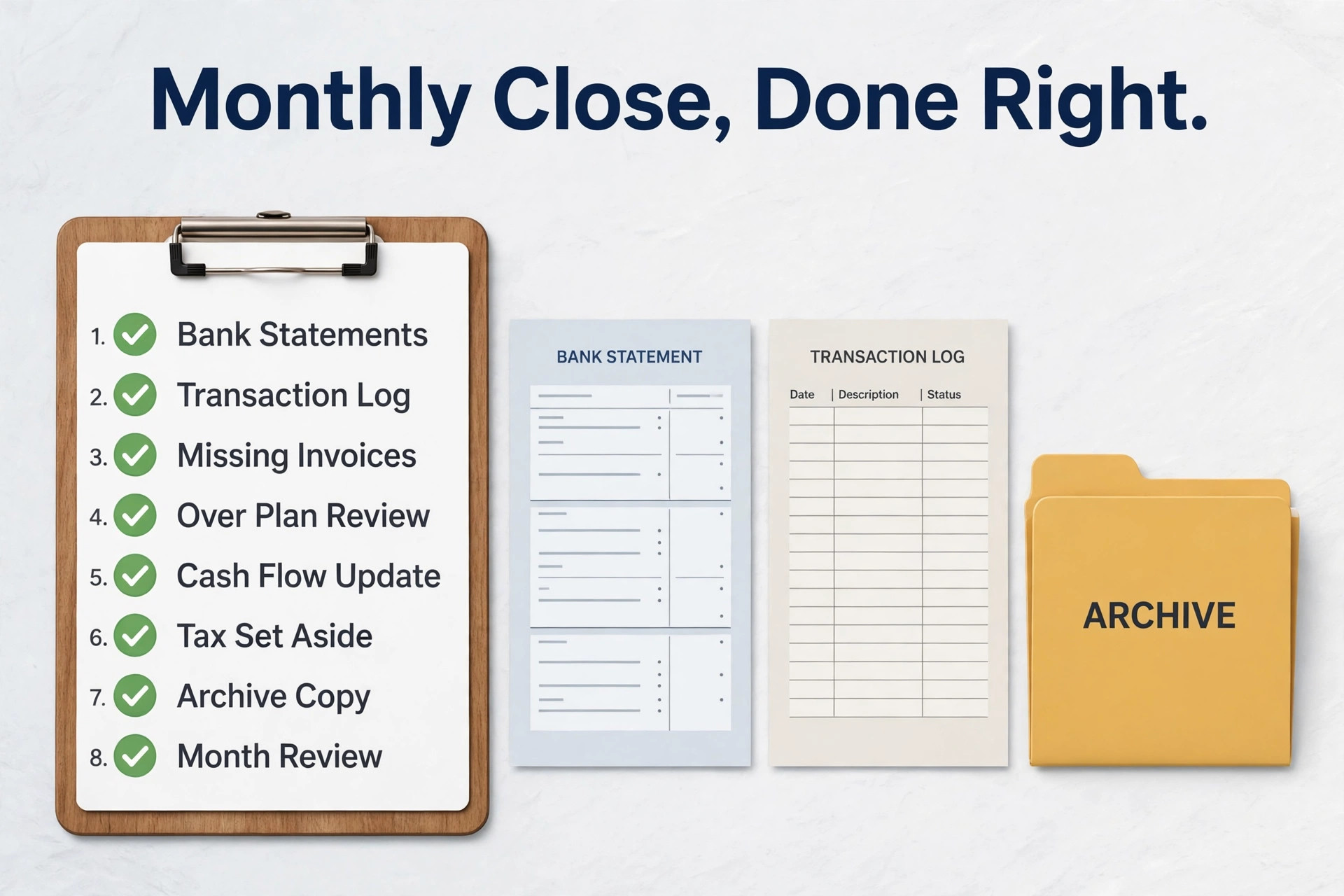
This checklist is the part of the system that most online guides skip, and it is the reason this system holds when others drift. A budget without a close is a forecast that never gets checked. A budget with a close becomes a record, and a record is what lets you make decisions with confidence. Run the close on the same day each month, ideally within five working days of month end, and keep it under an hour once the routine is familiar. Put the checklist on the notes sheet, print it if that helps, and tick each step in order. The order matters because later steps depend on earlier ones being true.
Step 1. Download or open the bank and card statements for the month just ended, and confirm the opening balance matches last month’s closing balance. If it does not, stop and find the gap before you go further, because every later total will inherit that error.
Step 2. Complete the transaction log for the month, including cash payments, and check that the log total for each category matches the monthly sheet. Investigate any difference, however small, rather than forcing the totals to agree with a plug figure.
Step 3. Chase missing invoices and receipts. List every expected supplier invoice that has not arrived, every client payment that is overdue, and every subscription charge that looks different from last month. A budget close that ignores missing paperwork is just a tidy guess.
Step 4. Review every line that is more than 10 percent over plan or more than a fixed amount you set, such as 200 dollars or pounds, over plan. For each one, write one sentence on the notes sheet that explains why. Price rise, one off repair, extra stock, or a misclassified payment are all valid reasons, but an unexplained overrun is not.
Step 5. Update the cash flow sheet with the true closing bank balance, and check the next month’s expected cash position. If the next month shows a shortfall, decide now whether to delay a discretionary cost, chase an overdue invoice, or arrange a short term buffer, rather than discovering the shortfall when a payment bounces.
Step 6. Move the tax set aside amount for the month, and check the reserve balance for irregular costs. If tax was not set aside, record that fact plainly instead of quietly skipping it, because a skipped month compounds into a year end problem.
Step 7. Copy the month’s totals into the annual summary, save a dated copy of the workbook in the archive folder, and set the planned figures for the next month. Carry forward any known changes, such as a rent rise or a finished contract, and leave unchanged lines as they are unless you have evidence to change them.
Step 8. Write three short lines at the top of the notes sheet for the month just closed. What went better than planned, what went worse, and what one change you will make next month. That short review is the whole point of budgeting. Without it, you have a record. With it, you have learning, and learning is what improves the next budget without any new software.
When you follow this routine, you can use Excel for small business budget work with confidence, because the numbers have been checked, the gaps have been chased, and the next month starts from a verified position rather than from a hopeful carry forward. Owners who skip the close often say Excel does not work for them. In most cases, Excel worked fine. The close was missing, and without it, no tool would have worked either.
Cash Flow, Tax and the Months That Break Budgets
A monthly budget that only tracks profit will mislead a seasonal business, a project business, or any business where clients pay late. Profit asks whether income exceeded spending over a period. Cash flow asks whether money was in the bank on the day each bill fell due. Those are different questions, and a business can answer yes to the first and no to the second in the same month. That is why the cash flow sheet sits alongside the budget sheet, not inside it as an afterthought.
Each week, or at minimum each month, it shows opening balance, money in, money out, and closing balance, and it forces you to notice the timing gap between invoicing a client and receiving payment.
Tax timing breaks more budgets than tax rates do. Annual tax, quarterly payments, and sales tax or VAT deadlines arrive on dates that have little to do with a good sales month, and a business that has not set money aside will treat each deadline as a crisis. The tax set aside line in the template exists to prevent that cycle. Each month, move the set aside percentage of income into a separate account or at least into a clearly labelled reserve, and record the running total on the notes sheet. When the deadline arrives, the money is already there, and the payment becomes a transfer rather than a scramble.
If you are unsure of the right percentage, ask your accountant before you set it, and review it after your first full year, when you have real figures to replace the estimate. A guessed percentage that is reviewed beats a precise looking figure that was never checked.
What Excel Costs and When a Paid Tool Beats It
If you use Excel for small business budget planning, the honest cost is not the licence fee. It is the hour or so a month for the update and the close, plus the discipline to keep the file current. For a one person business or a small team with one budget owner, that hour is cheaper than a budgeting app subscription and far cheaper than the time spent learning a new tool, migrating data, and fixing import errors. For a business with several budget holders, that hour multiplies, version control becomes a real job, and the total cost picture changes.
Price the system by total time, not by subscription alone, and Excel usually wins while the team is small and loses when the team grows past the point where one owner can hold the whole picture.
Mistakes That Quietly Break an Excel Budget
The first mistake when you use Excel for small business budget planning is building from a template downloaded from the internet without changing the categories to match the business. A generic template looks complete, and that completeness is the trap. It contains lines you will never use, misses lines you use every week, and teaches you to ignore half the sheet. Within two months, the ignored lines become noise, the missing lines get forced into the wrong categories, and the totals lose meaning. The fix takes twenty minutes. Delete every category that does not apply, rename every category that is close but not right, and add the two or three lines that are unique to your business.
A template is a starting point, not a finished budget, and a budget that does not reflect the business will not be used by the business.
The third mistake is treating the budget as a once a year document. An annual budget set in January and never revisited is a historical document by March, because prices, suppliers, staff, and sales all move. The monthly system in this guide avoids that trap by design, because the close updates the next month’s plan with known changes and the quarterly review updates categories and averages. If you only have time for one habit beyond the monthly close, make it a quarterly review of 30 minutes. Check which categories have grown, which have shrunk, whether the tax percentage still fits, and whether the reserve is on track for the irregular costs ahead. A budget that is reviewed quarterly stays alive.
A budget that is set annually and filed away does not.
How to Choose Your Setup
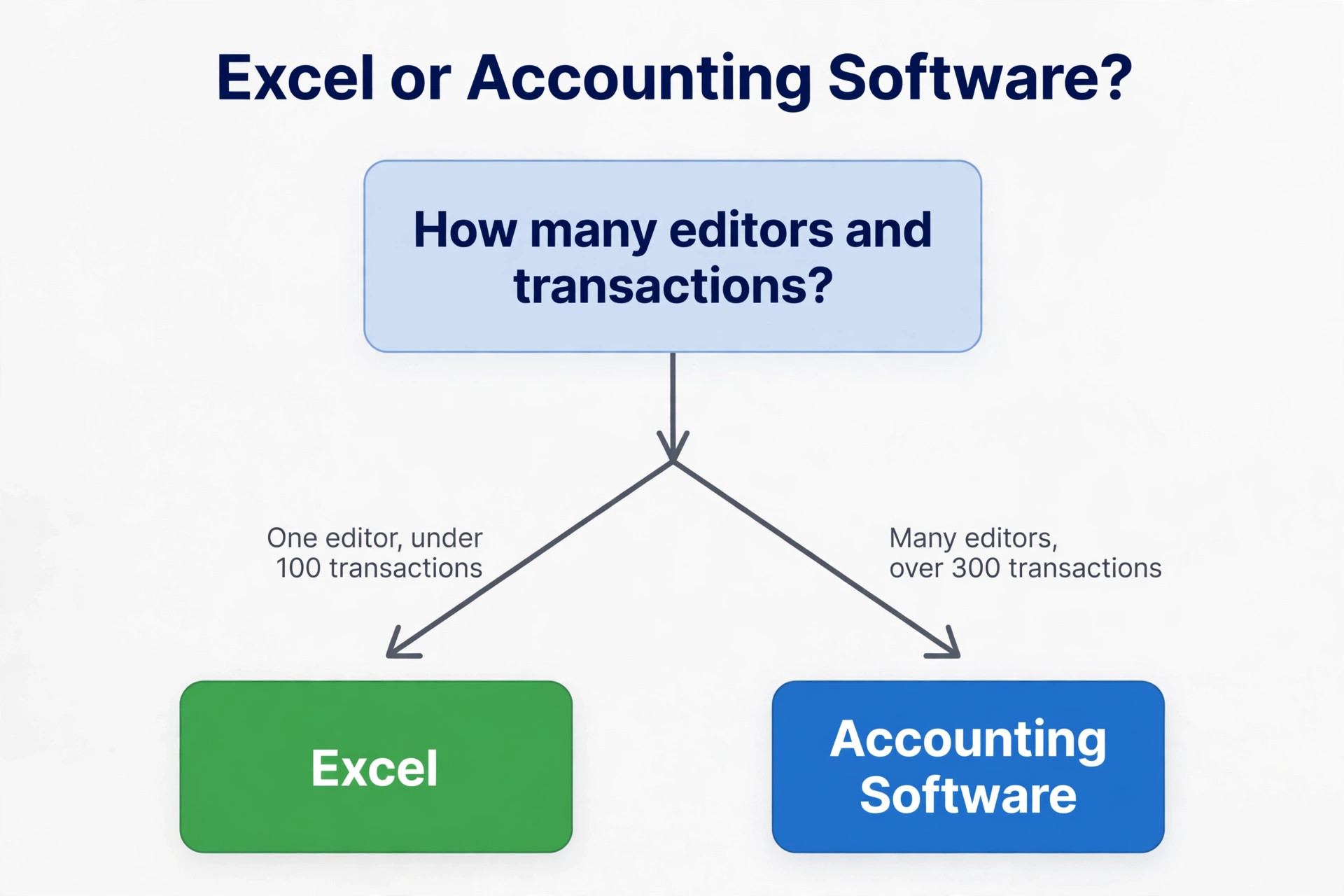
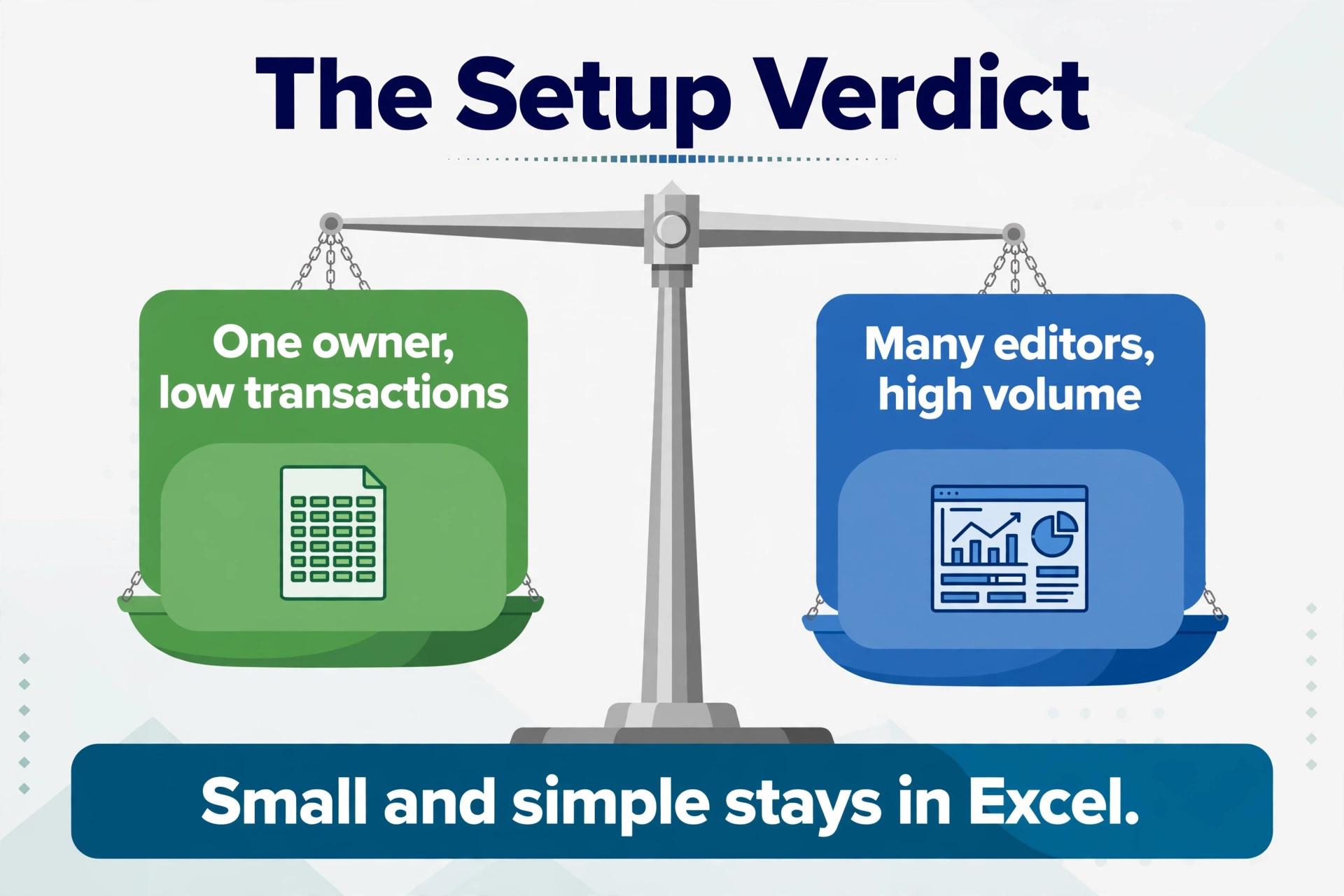
Choose your setup by answering four questions in order, and do not buy software until you have answered them. First, how many people need to edit the budget, and how often. One editor on a fixed day points to Excel. Three or more editors working at the same time points toward accounting software or a shared budgeting tool with proper permissions. Second, how many transactions pass through the business each month. Under about 100 transactions, manual entry in Excel is fast and accurate. Over about 300, bank feeds start to pay for themselves in saved time and fewer missed items. Third, what reports do you actually need.
A monthly plan against actual, a cash flow view, and an annual summary cover most small businesses, and Excel does all three well. If lenders or investors need formal reports, or if you need department level budgets that roll up automatically, accounting software earns its place. Fourth, who will review the numbers with you. If your accountant already works in a particular system, matching that system can save fees and arguments, even if Excel alone would work. If your accountant is happy to receive a clean Excel file twice a year, there is no reason to change.
For readers who want to compare the wider field before deciding, related reading includes best accounting software for small business for the point where accounting software becomes the better buy, best spreadsheet software for small business for alternatives to Excel, best AI budgeting tools for automated options, automate small business with AI for the broader automation picture, best AI tools for Excel and Google Sheets for add ons that extend a spreadsheet, and software for small business for the general software choice. Use those guides to price the alternatives, then come back to the four questions above and let your transaction count and editor count decide, not the feature list.
Frequently Asked Questions
Is Excel good enough for a small business budget?
Yes, for most businesses with one budget owner and a manageable transaction count, Excel is more than good enough. It gives full control over categories, formulas, and reports, it costs nothing extra if you already pay for Microsoft 365, and it produces a file your accountant can read. It stops being enough when several people must edit at once, when manual entry takes too long, or when you need bank feeds and formal reports, and at that point accounting software is the better buy.
How long does the monthly Excel budget take to maintain?
Setting up the template takes two to four hours the first time, including choosing categories and testing formulas. After that, the monthly update and close usually take 45 minutes to an hour for a business with under about 100 transactions, and a little longer in a busy or seasonal month. If the close regularly takes more than half a day, that is evidence that transaction volume or complexity has outgrown manual entry, and it is time to test accounting software alongside Excel for a month.
Should I use an Excel template or build my own?
Start from a simple template, then change it to match your business before you enter real numbers. Delete categories that do not apply, rename the ones that are close, and add the lines that are unique to your costs. A template saves setup time, but an unchanged generic template is one of the most common reasons budgets fail, because it never reflects how money actually moves in your business.
How do I handle irregular income in Excel?
Plan income on the lowest recent month, or on a three month average if income is stable, and treat anything above the plan as a surplus to assign at month end. Record income in the month you expect to receive it, not the month you invoice it, so late payments do not flatter the budget. In strong months, move the surplus to the reserve, to tax set aside, or to a planned investment, rather than raising everyday spending to match a good month.
What is the difference between a budget and a cash flow forecast in Excel?
A budget compares planned income and spending against actual figures for a month, and shows whether you spent more or less than planned. A cash flow forecast shows whether money will be in the bank on the day each bill falls due, week by week or month by month. A business needs both, because it can be profitable over a month and still run short in a particular week if clients pay late. This guide’s template includes both views for that reason.
When should a small business move from Excel to accounting software?
Move when one of four triggers fires. More than three people need to edit the budget at the same time, manual entry takes more than half a day a month, inventory or project costs must stay in sync without manual copying, or lenders or auditors need formal reports. Until then, Excel plus a twice yearly accountant review is usually the better value. When you do move, run both systems for one month and switch at a month boundary.
A Budget You Can Defend at Month End
A budget that holds is not the one with the prettiest formatting or the most features. It is the one whose numbers you can defend when a supplier asks why payment is late, when a partner asks where the money went, or when an accountant asks why a line moved. That defence comes from a small set of habits, repeated every month. One template, one owner, one update day, actual figures from statements, a close checklist that is actually run, and a one sentence explanation for every material variance. Do those things, and Excel stops being just a spreadsheet.
It becomes the record of how the business is really doing, and a basis for decisions that do not depend on optimism.
Start this month, not next quarter. Copy the template structure in this guide, set your categories from the last three bank statements, enter a cautious income plan, and run the first close within five working days of month end. The first close will take longer than an hour, because you will find missing receipts and misclassified payments, and finding them is the point. The second close will be faster, the third will feel routine, and by the fourth you will have something most small businesses never build, which is a year taking shape one verified month at a time.
That is what it means to use Excel for small business budget work properly, not as a file you open when worried, but as a system you trust because it has been checked, month after month, against the bank.