
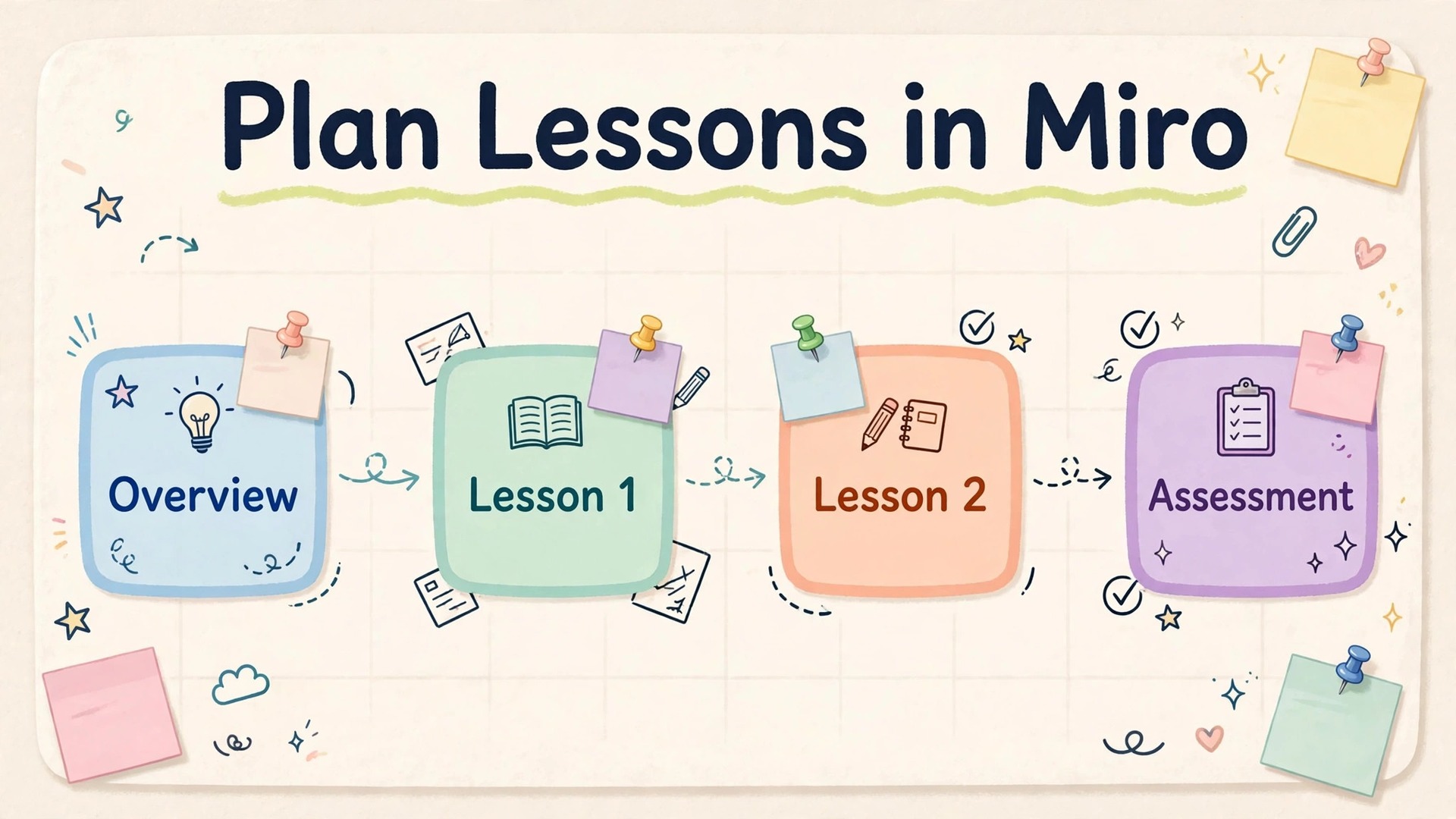
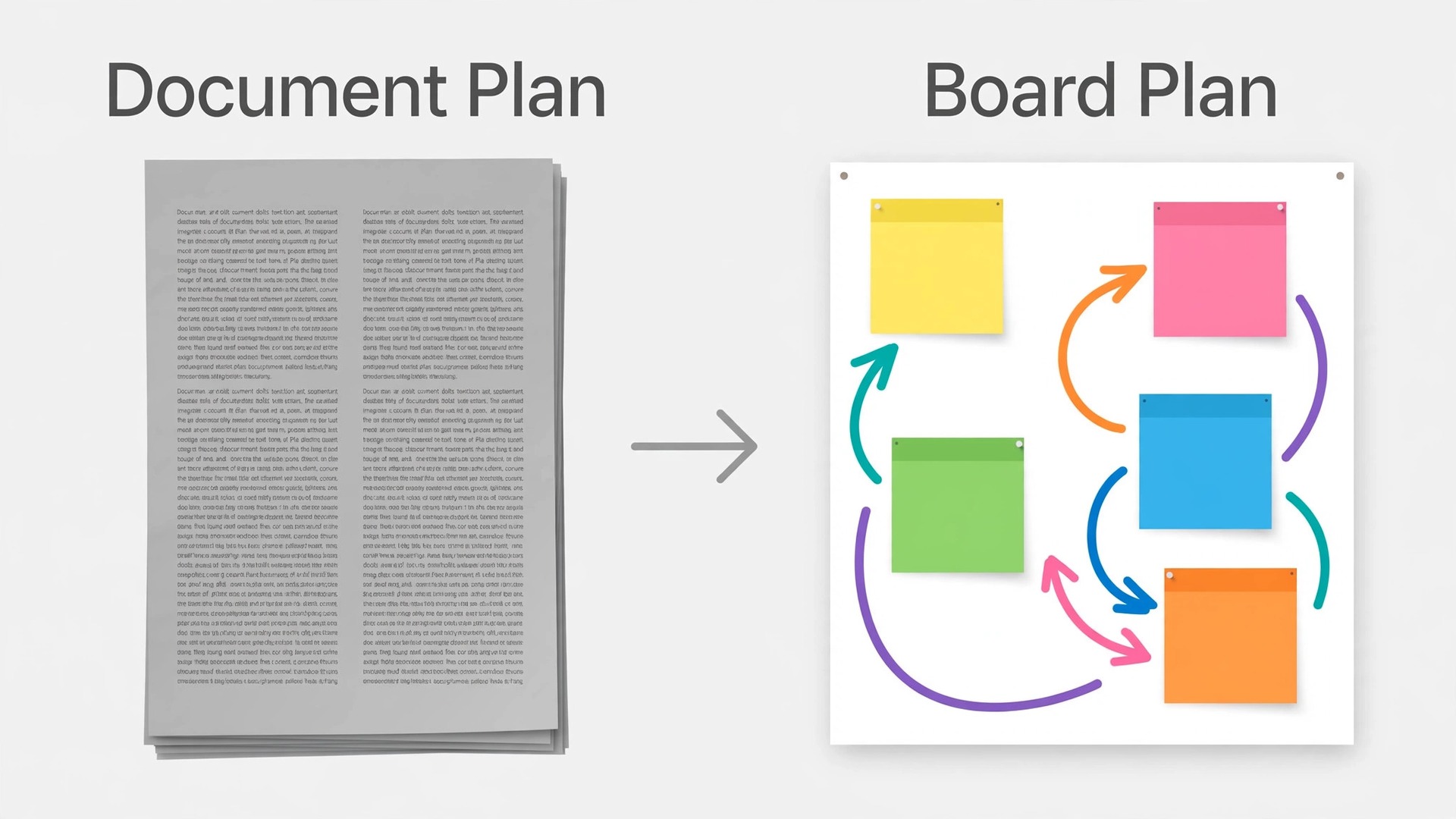
A lesson plan written as a document hides the shape of a unit. You scroll through pages of objectives, activities, and resources, and you cannot see at a glance which week carries the heavy thinking, where the assessment sits, or which group of pupils has nothing to stretch them. A board changes that view. When you use Miro for lesson planning teachers can see the whole unit on one canvas, with objectives on the left, lessons in the middle, and assessment on the right, so a gap becomes visible before a pupil ever meets it.
This guide builds that board step by step. You will get a board structure for a full unit, a workflow for sequencing activities, differentiation and grouping zones, assessment checkpoints inside the unit, a sharing routine for co-teachers, and a reuse routine so next term starts from a working board. It also covers Miro costs for teachers, including the free education plan.
Why a Board Beats a Document for Unit Planning
A document is written in order, and that order is also its trap. Lesson one sits above lesson two, so the plan reads like a list even when the learning is not linear. Some lessons need to loop back to an earlier idea. Some pupils need a different route through the same material. A linear document can describe those moves, but it cannot show them.
A board shows the structure instead of describing it. Put the unit question at the top, the end goal on the right, and the lessons between them as a chain of frames. A lesson that depends on earlier work can sit under it, with a connector drawn between them. A stretch task can sit in a clearly marked zone at the edge of a lesson frame, so a teacher glancing at the board during a lesson can find it in seconds. To use Miro for lesson planning teachers need no special training, only a clear board layout and short notes.
The second gain is editing speed. In a document, moving a lesson from week three to week two means cutting and pasting text and renumbering everything after it. On a board, you drag a frame, and the resources, links, and notes attached to that lesson move with it. When a department meeting changes the order of a unit, the board reflects the change in minutes.
The third gain is collaboration. Co-teachers can stand around the same board, in the room or on a call, and move sticky notes together. One teacher can draft the reading activities while another builds the practical tasks, and both can see where their parts meet. Comments stay attached to the exact activity they refer to, which beats a comment in an email thread that says “the second activity in week four” and leaves the reader guessing which activity that is. For a department that shares planning, that precision saves real time every week.
How to Use Miro for Lesson Planning Teachers Can Repeat Every Term
A repeatable workflow matters more than a beautiful first board. A board you build once and never reuse is a display piece. A board built from a stable routine becomes a department tool. The workflow below starts with three moves, and it works for a two week topic as well as a six week unit, with differentiation, assessment, and sharing routines added in later sections.
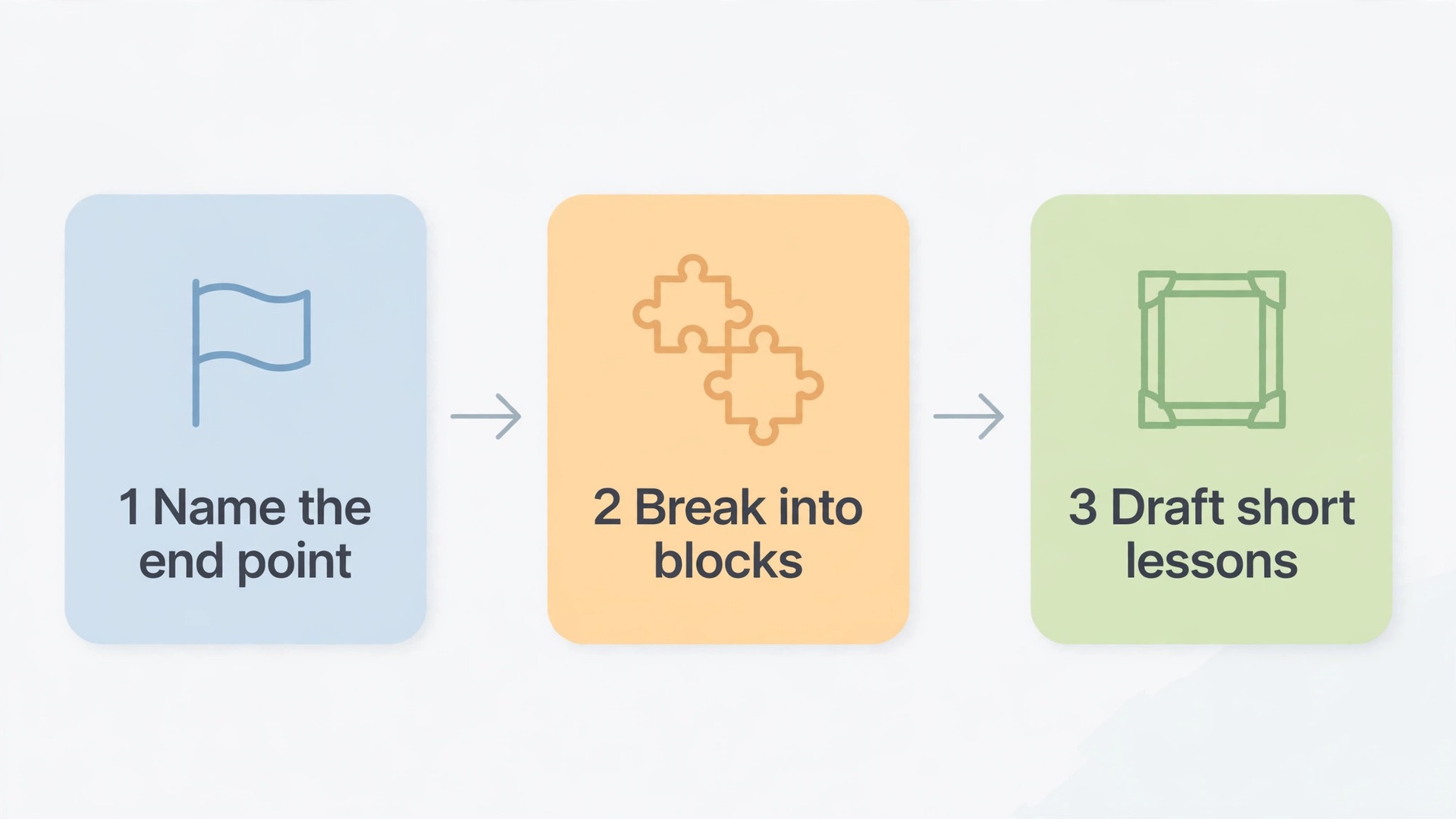
Start by naming the end point. Before you draw anything, write the final assessment task in one frame on the right side of the board, with the success criteria beneath it in plain pupil friendly language. Starting with the end point stops a common failure, a unit that teaches interesting material and then discovers, in week five, that the assessment asks for something never practised. When the end point is visible from the start, every lesson can be checked against it with one question. Does this lesson build a skill or piece of knowledge the final task needs.
Next, break the end point into three or four building blocks. A history unit on causation might break into evidence, explanation, and argument. A science unit on forces might break into measurement, patterns, and prediction. Each block becomes a run of lesson frames on the board, in the order pupils need them. A block that needs more time can visibly take up more frames, and a block that is really revision can sit as a single short frame.
Then draft the lessons as short frames, one per lesson, with only four elements inside each frame. The lesson question, the main activity, the check for understanding, and the resource link. Short frames let you see the whole unit, move lessons around, and spot a run of three passive lessons in a row before you have invested hours in detailed planning. Once the sequence reads well at a glance, add detail one lesson at a time, starting with the lessons that carry the heaviest new learning.
Build the Board Structure for One Unit
A unit board needs a fixed layout, so that every unit a department builds looks familiar. When every board uses the same zones, a teacher covering a colleague’s class can open an unfamiliar board and find the lesson, the resources, and the assessment check without a tour. When you use Miro for lesson planning teachers in a department benefit from the same layout on every board.
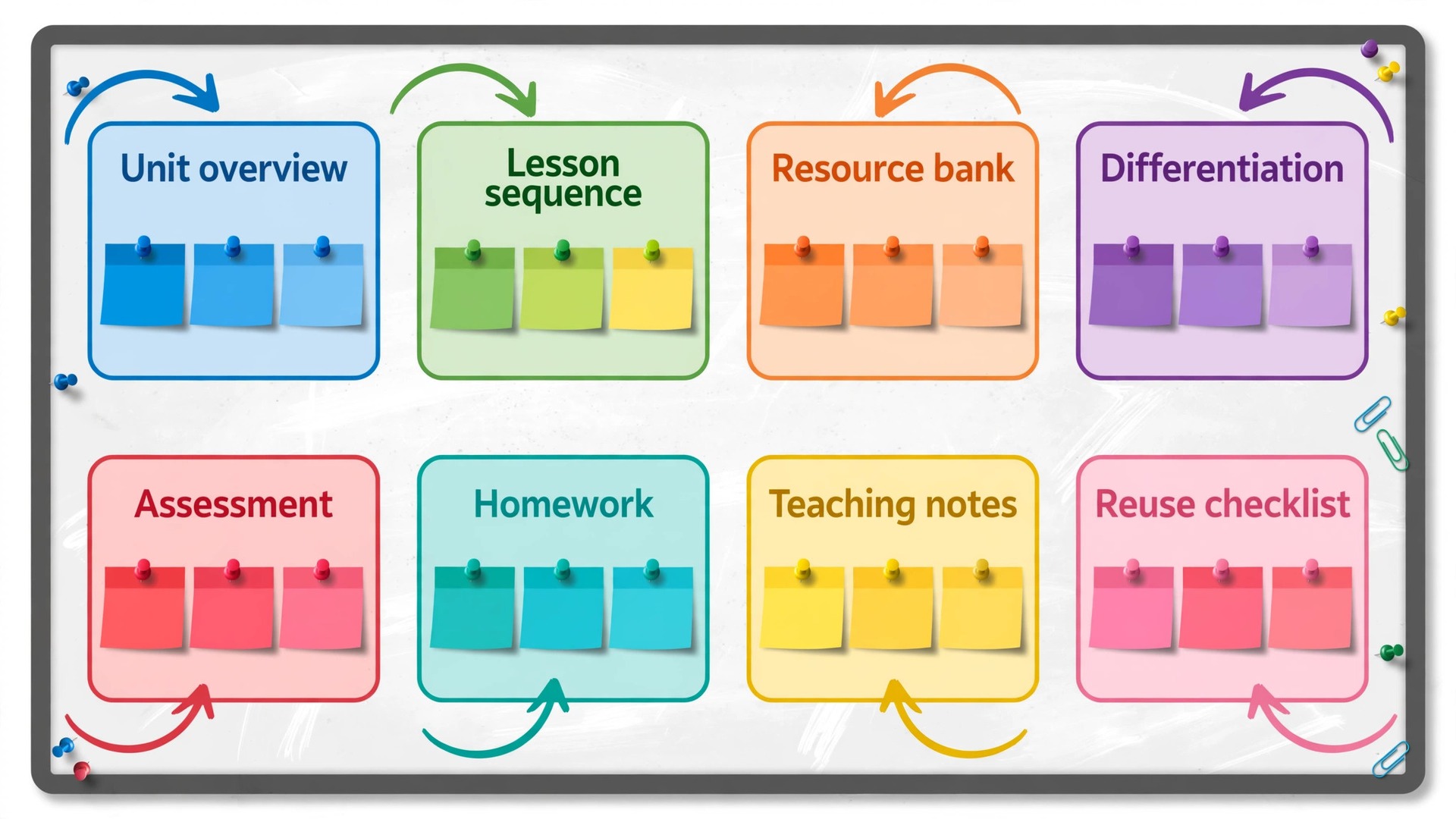
The first zone holds the unit overview, with the unit question, the final assessment task, the success criteria, the key vocabulary list, and the date range. Put key vocabulary on sticky notes, one term per note, for reuse later in a lesson. The second zone holds the lesson sequence. Each lesson gets its own frame, labelled with the lesson number, the date, and the lesson question, and inside each frame the same four elements appear in the same order.
The third zone holds resources. Keep a resource bank at the top or bottom of the board with labelled links to slides, videos, worksheets, and readings, and link from each lesson frame to the resource it needs. This avoids duplicate uploads and a board filled with the same worksheet three times. The fourth zone holds differentiation, with one area per lesson or week for support, core, and stretch tasks. The fifth zone holds assessment checkpoints, each linked back to the lesson it follows. The sixth zone holds homework, the seventh holds notes from teaching, and the eighth holds the reuse checklist.
Frame names do the work of a contents page. Name frames with the lesson number and a short question, such as Lesson 4 on why a river flooded, rather than Lesson 4 alone. Use Miro frames for lessons, because presentation mode lets you step through a unit frame by frame in a meeting or in class. Lock the overview frame, the zone headings, and the template instructions, so dragging a sticky note during planning does not accidentally move the whole structure.
A template turns this layout into a department standard. Build one board with the eight zones, empty lesson frames, and locked headings, then save it as a custom template in your Miro team. Every new unit starts as a copy of that template, with the overview zone filled in first. A department template matches its own language for assessment and homework, which is what makes teachers actually use it. The table below gives each zone so a department can build it in one sitting.
| Zone | Contents | Updated by |
|---|---|---|
| Unit overview | Question, final task, criteria, vocabulary, dates | Lead teacher, before the unit |
| Lesson sequence | One frame per lesson, with question, activity, check, link | Lesson teacher, during planning |
| Resource bank | Links to slides, videos, worksheets, readings | Any teacher, as found |
| Differentiation | Support, core, and stretch tasks | Lesson teacher, with support staff |
| Assessment | Checkpoints, final task, feedback plan | Lead teacher, with the department |
| Homework | Planned tasks, due dates, links | Lesson teacher, week by week |
| Teaching notes | What worked, what ran long, what to change | Lesson teacher, after each lesson |
| Reuse checklist | Decisions to carry forward, links to fix | Lead teacher, at the end of the unit |
Sequence Activities Across the Unit
A unit that reads well as a list can still fail as a sequence. Too much new content can arrive before pupils have practised the last piece. Too many lessons can use the same activity type, so attention drops even though the content is new. Or the assessment can arrive as a surprise, because nothing asked pupils to practise the exact thinking it rewards.
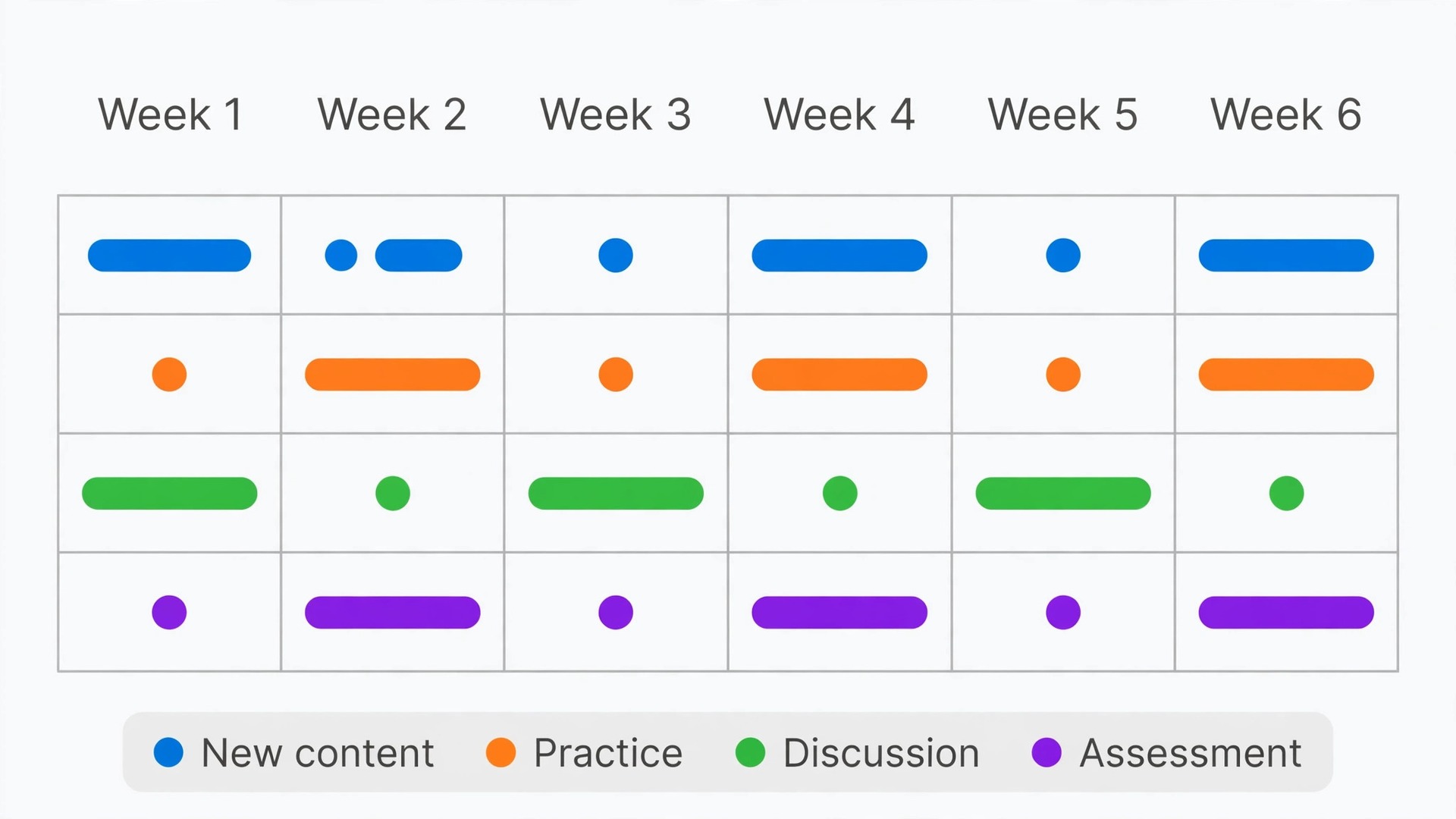
First, colour code the activity type in each lesson frame. Use one sticky note colour for new content, one for practice, one for discussion or group work, and one for assessment or feedback. Four colours can be read at a glance from the zoomed out board view, so zoom out and read the unit as a colour pattern. A healthy unit alternates, with new content followed by practice, and practice followed by feedback. A run of four new content lessons in a row is a warning sign, even if each lesson looks strong on its own. When you use Miro for lesson planning teachers can read the colour pattern of a whole unit at a glance.
Second, check the cognitive load of each week, not just each lesson. A week with a new concept on Monday, a practical on Tuesday, a test on Wednesday, and homework that introduces another new idea on Thursday is too much, and the board shows it because the week looks dense. Spread the load by moving the homework to consolidation, or by turning the Wednesday test into a low stakes check that feeds back into Thursday teaching. Coverage without practice is not learning, and a board that shows the density honestly makes that conversation easier in a department meeting.
Third, build the ramp to the final assessment in stages, and mark each stage on the board. If the final task asks pupils to write an argument, the unit needs an early lesson where pupils judge two arguments, a middle lesson where they plan one in a group, and a later lesson where they draft one with feedback before the final version. Each stage should appear as a labelled note inside its lesson frame. When a teacher falls behind by a lesson, the board shows which ramp stage can be shortened and which one must be protected.
Fourth, plan the transitions between lessons. The last five minutes of a lesson and the first five minutes of the next one are where units either connect or fragment. Add a short bridge note at the end of each lesson frame, stating what pupils should carry forward and what question the next lesson opens with. A bridge note takes thirty seconds to write and saves the familiar Monday problem, where pupils have forgotten Friday’s lesson and the teacher spends twenty minutes rebuilding it.
Plan Differentiation and Grouping on the Same Board
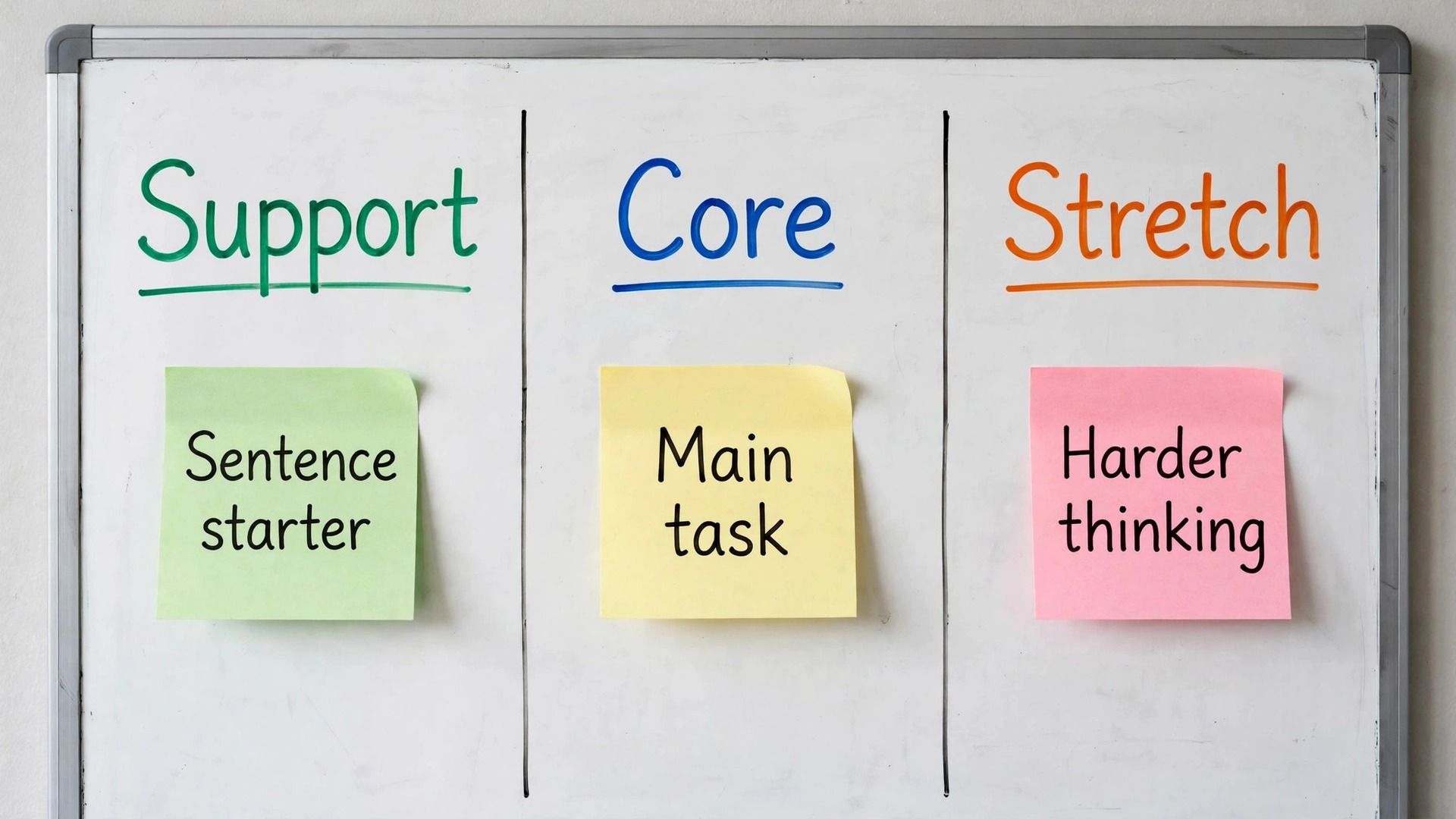
Differentiation fails most often not because teachers do not care about it, but because it lives in a separate document that nobody opens during a lesson. Put it on the board, inside the lesson frame, and it becomes part of teaching instead of an afterthought. For each lesson that introduces new material, add three small zones inside or beside the frame. The support zone holds the scaffold, such as a sentence starter, a worked example, or a partially completed diagram. The core zone holds the main task as most pupils will meet it. The stretch zone holds the extension, which should be harder thinking, not just more of the same task.
To use Miro for lesson planning teachers should put support and stretch zones inside the lesson frame, not in a separate file.
Grouping works the same way. Create a grouping frame for the unit, with one area per group, and move pupil name notes between groups as the unit progresses. Colour code the groups, and use the same colours on the activity notes, so a teacher can see at a glance which group is doing which task. For mixed ability work, name roles inside the group area, such as facilitator, recorder, and challenger, and rotate them across the unit. For ability based work, keep the groups flexible and review them at each assessment checkpoint, because a group fixed in week one will be wrong by week four for at least some pupils.
Support staff benefit directly from this layout. A teaching assistant opening the board before a lesson can find the support zone, see which pupils need which scaffold, and prepare the right materials without a separate briefing. That only works if the support zone is updated when the lesson changes, so make that part of the planning routine. One practical rule helps. If a lesson frame has no support note and no stretch note, it is not finished, however good the core task looks.
Put Assessment Checkpoints Inside the Unit, Not at the End
The most expensive assessment mistake is also the most common. A unit teaches for five weeks, tests in week six, and discovers gaps that can no longer be fixed within the unit. Checkpoints fix that by placing small, low stakes checks at planned points, with a clear action attached to each one. Without the action, a checkpoint is just extra marking. With it, the checkpoint steers the rest of the unit.
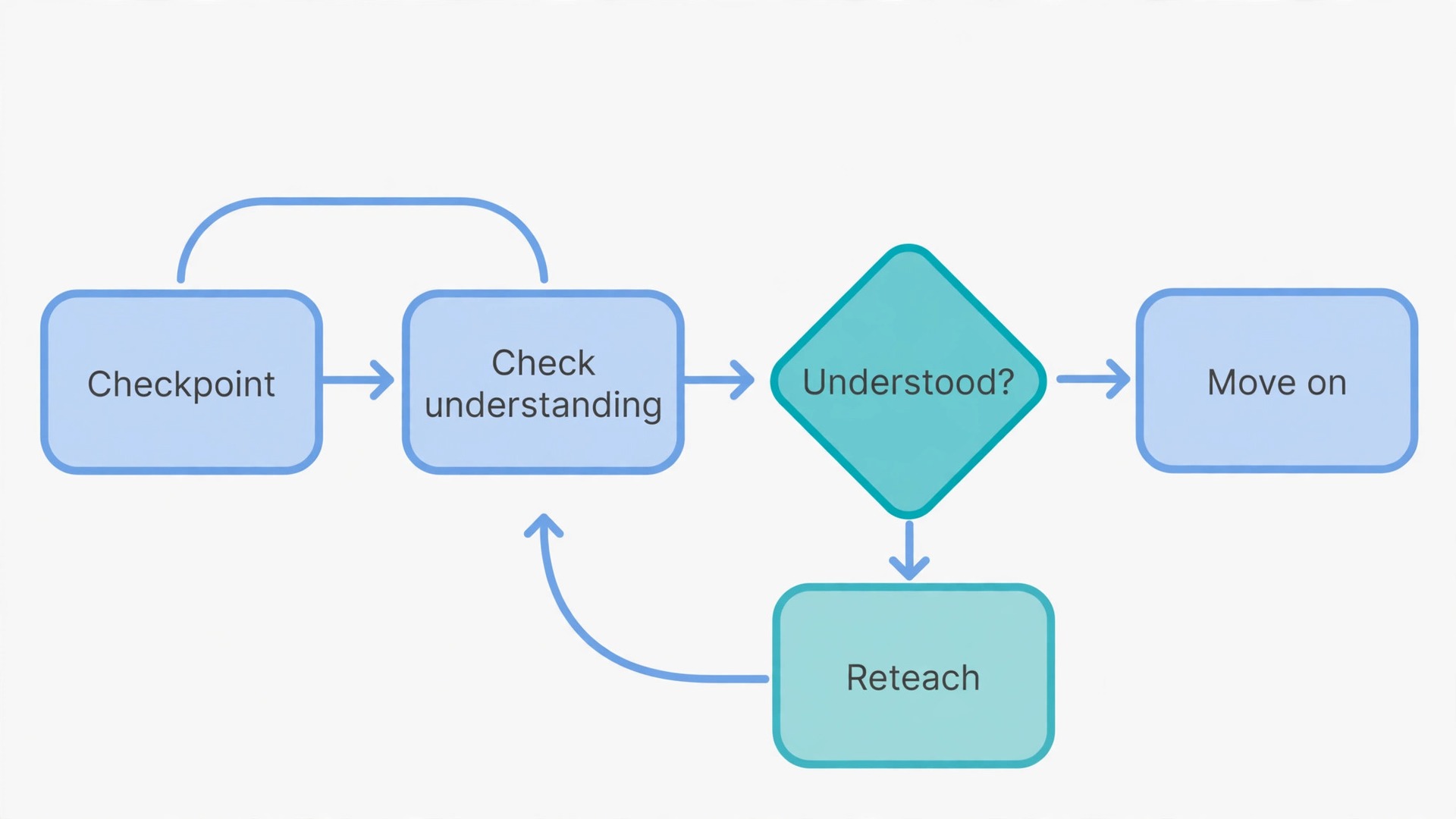
Place three checkpoints in a typical six week unit, after the first building block, halfway through, and one week before the final task. Mark each checkpoint as its own frame, linked to the lesson it follows, and write three things inside it. The question or task, the success criteria in pupil friendly language, and the action rule. An action rule is simply a sentence such as the one that says that if fewer than half the class can explain the key idea, the teacher reteaches it in the next lesson before moving on. Writing the rule in advance matters, because in the rush of a teaching week it is tempting to note a poor result and carry on regardless.
When you use Miro for lesson planning teachers gain a steering mechanism for the rest of the unit.
Use different checkpoint types across the unit, so pupils are not measured the same way three times. An exit ticket after the first block can be three short questions, and the board can hold a summary of the common errors rather than every pupil answer. A mid unit checkpoint can be a piece of extended work, marked against the same success criteria as the final task, so pupils get a practice run with feedback they can act on. A late checkpoint can be peer or self assessment, where pupils judge sample answers against the criteria before producing their own final version.
Feedback belongs on the board as a plan, not just as a hope. For each checkpoint, note how feedback will be given, whether as whole class feedback on common errors or individual comments for pupils who need them, and note when pupils will act on it. A feedback slot in the next lesson, where pupils redraft one paragraph, is worth more than a page of comments never revisited. Record the common errors from each checkpoint in the teaching notes zone, so the next time the unit is taught, the teacher starts with knowledge of where pupils usually struggle.
Sharing is where a good board can become a messy one, so set the rules before you invite people. Miro boards have editors, commenters, and viewers. Editors can add and move content, which is right for co-teachers who share planning. Commenters can react without rearranging the board, which is right for a head of department who wants to review. Viewers can watch but cannot contribute. Choose the narrowest role that lets each person do their job, and widen it later if needed. To use Miro for lesson planning teachers must agree roles before inviting editors.
For co-teachers who share planning, agree three working rules in the first meeting. First, each teacher owns specific lesson frames, and only the owner moves or rewrites those frames, while anyone can add a comment or a resource link. Second, use comments for suggestions and sticky notes for content, so a suggestion does not accidentally become part of the lesson. Third, set a weekly review moment, even ten minutes, where the team looks at the next week’s frames together and confirms who is teaching what.
Sharing with pupils needs a different board, or at least a different view. Do not share the full planning board with a class. It contains differentiation notes, assessment plans, and teaching notes that pupils do not need, and a class of pupils editing a planning board will rearrange it. Instead, duplicate the pupil facing parts into a class board, or share selected frames in presentation mode, so pupils see the question, the activity, and the resources, but not the planning layers behind them. For group work, give each group its own frame on the class board, and lock everything else.
Permissions also matter for safeguarding and workload. Check what your school allows before you invite pupils or parents to any board, and keep pupil names only on boards that the school has approved for that use. If your school uses Google Classroom or Microsoft Teams, link the class board from that platform rather than sending links by email. Miro integrates with Google Drive and Microsoft 365, so slides and documents stored in those systems can be linked on the board without duplicating files.
Reuse Boards Across Terms and Fix Them as You Go
A board that is only used once is an expensive way to plan. The reuse routine below takes about thirty minutes at the end of a unit and saves hours next term, because it turns the board from a record of what was planned into a record of what actually happened. Do it while the unit is still fresh, not in the next holiday when the details have faded.
Start by duplicating the board and renaming the copy for the next term, with the term and year in the title, and archive the original with a label such as taught and the term it ran in. Never overwrite the taught board. Overwriting it destroys the teaching notes that make the next version better. Next, work through the teaching notes zone and turn each note into a change on the copy. A note that says a lesson ran long becomes a split frame or a trimmed activity. A note that says a video link broke becomes a replaced link. When you use Miro for lesson planning teachers save hours by starting next term from a tested board.
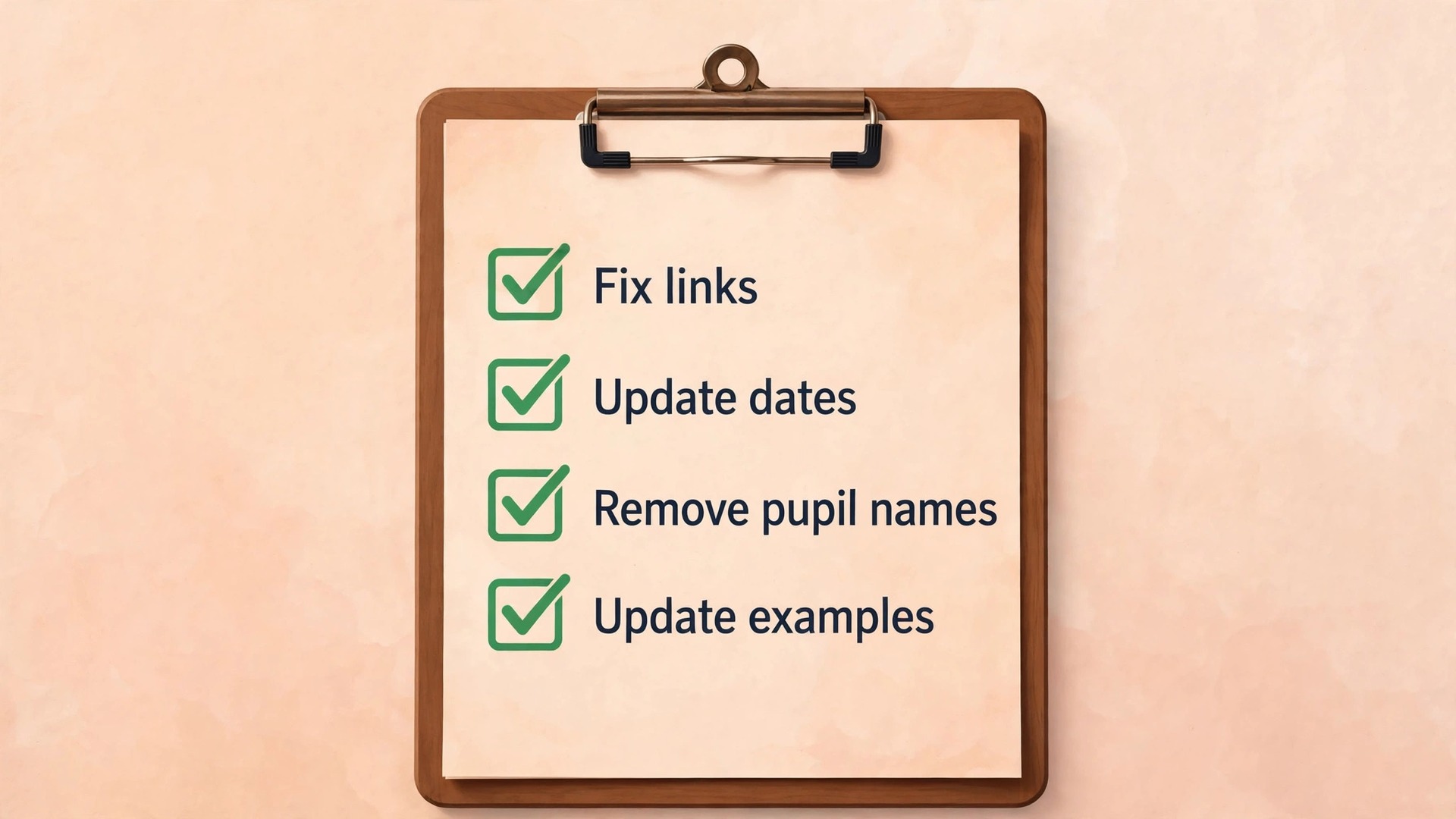
Then check every link on the copy, because links to videos and external sites break more often than teachers expect, and a board full of dead links is a board teachers stop trusting. Replace anything broken, and delete resources nobody used. Then update the dates, the group names, and the assessment dates, and remove pupil names from the previous class unless your school policy allows them to stay. Finally, run the reuse checklist in the eighth zone, which should ask which lessons need new examples, which resources need replacing, which checkpoint needs a new question, and which scaffold is newly needed for the incoming class.
What Miro Costs for Teachers and Which Plan Fits
Price is often the first question, and for teachers the answer is better than most expect, because Miro runs a free education plan for staff and students at accredited educational institutions. Educators can apply for a free plan that supports up to 100 team members, with unlimited boards, private boards, custom templates, and facilitation tools including voting and a timer. Students can apply for a free plan that supports up to 10 team members for two years, also with unlimited boards. Institutions that need organisation wide administration can ask about an institution plan, which third party summaries describe as starting at around 50 percent off the regular price.
Check the education application page for current eligibility, because approval is not automatic for every setting.
Teachers who do not qualify for the education plan fall back to the standard plans. The free standard plan costs nothing but limits a workspace to three editable boards, which is enough to try the workflow in this guide for one unit, but not enough to run a department. The Starter plan is listed at 8 dollars per member per month when billed yearly, or 10 dollars when billed monthly, and it removes the board limit and adds private boards, custom templates, and high resolution exports. The Business plan is listed at 20 dollars per member per month when billed yearly, and it adds single sign on, unlimited guests, and advanced diagramming.
Enterprise pricing is custom and starts from 30 members. Prices change, so confirm the live figures on Miro’s pricing page before you commit a department budget. To use Miro for lesson planning teachers without an education account can still trial the workflow on the free plan.
Choose by board count and by guest rules, not by feature lists. If the education plan is available to you, start there, because it removes the cost question entirely. On a standard plan, count how many boards your department will run at once. A single teacher can trial on the free plan, but a department running several units in parallel needs Starter at minimum, because the three board limit will be hit in the first week. Check guest editing rules before you invite anyone from outside your school, because guest editing is a paid plan feature and the exact rules differ by tier.
Mistakes That Turn a Lesson Board Into Clutter
Six mistakes recur on lesson boards. The first is writing too much text on the board, which shrinks to unreadable size when the board is zoomed out, so keep board text to short notes, questions, and links, and keep long text in linked documents. The second is building one giant board for a whole year, which becomes painful to navigate, so use one board per unit and link the unit boards from a department overview board if you want a year view. The third is never locking anything, so headings drift every time someone drags a note carelessly, so lock headings, instructions, and the overview frame.
The fourth is sharing the planning board with pupils, which mixes planning notes with pupil work, so keep a separate class board. The fifth is skipping the reuse routine, so broken links and old pupil names accumulate until the next teacher starts again from scratch. The sixth is planning activities without checks, so a unit feels successful in the classroom and fails at assessment, so give every building block a checkpoint with an action rule.
Related reading. If you want to see how the same board habits work outside the classroom, read our guide on running remote brainstorming sessions in Miro, which covers voting and turning ideas into action items. Teachers choosing classroom hardware may also find our classroom projector guide useful, at best projector for a small classroom, and our comparison of AI tools for teachers. For hybrid teaching, see our guide to video conferencing for hybrid classes.
Frequently Asked Questions
Is Miro free for teachers?
Yes, in many cases. Miro offers a free education plan for educators at accredited institutions, supporting up to 100 team members, with unlimited boards, private boards, and custom templates. Students can apply for a free plan supporting up to 10 team members for two years. Eligibility depends on your institution, so confirm approval before building a department system around it.
How many boards do I need for a full school year?
Plan one board per unit, not one board per lesson and not one board per year. A department teaching six units in a year needs six boards per class group, plus one department overview board that links to them. That size keeps each board fast to open, easy to navigate, and simple to reuse.
Can co-teachers edit the same board at the same time?
Yes. Multiple editors can work on a Miro board simultaneously, and each person’s cursor is visible, which helps in a live planning meeting. Agree ownership of lesson frames before you start, so two teachers do not rewrite the same frame in different directions. Use comments for suggestions and sticky notes for lesson content, and hold a short weekly review of the coming week’s frames. That routine keeps simultaneous editing productive instead of chaotic.
Should pupils see the full planning board?
No. Keep the planning board for teachers, and share a separate class board, or selected frames in presentation mode, with pupils. The planning board contains differentiation notes, assessment plans, and teaching notes that pupils do not need, and a class editing it will rearrange it. A class board should hold the lesson question, the activity instructions, the resources, and one frame per group for group work, with everything else locked.
How do I reuse a Miro board next term without carrying over old pupil data?
Duplicate the board, rename the copy for the new term, and archive the original. Then remove pupil names from the copy, update the dates and assessment dates, check every resource link, and turn the teaching notes into changes on the copy. Never overwrite the taught board, because its teaching notes are the evidence that makes the next version better.
What if my school does not allow Miro or pupil names on boards?
Follow your school policy first, and adapt the workflow rather than abandoning it. Use the board for teacher planning only, with no pupil names on it, and use group numbers or codes instead of names in the grouping frame. Share pupil facing material through your school approved platform, and link the class view from there. If Miro itself is not approved, the same board structure works as a planning checklist in any approved tool, even though you lose the visual canvas that makes Miro fast.
A Board That Proves Itself
A department does not need to convert a whole year of planning to Miro in one weekend. It needs one good unit board, taught well, and reused once. Pick the unit you know best, build it with the eight zones in this guide, teach it with the checkpoints in place, and spend thirty minutes at the end turning your teaching notes into changes on the copy. When the next term starts, you will open a board that already knows where pupils struggled and which links broke. Build the first board this week, share it with one co-teacher for review, and let the second unit be easier than the first.