

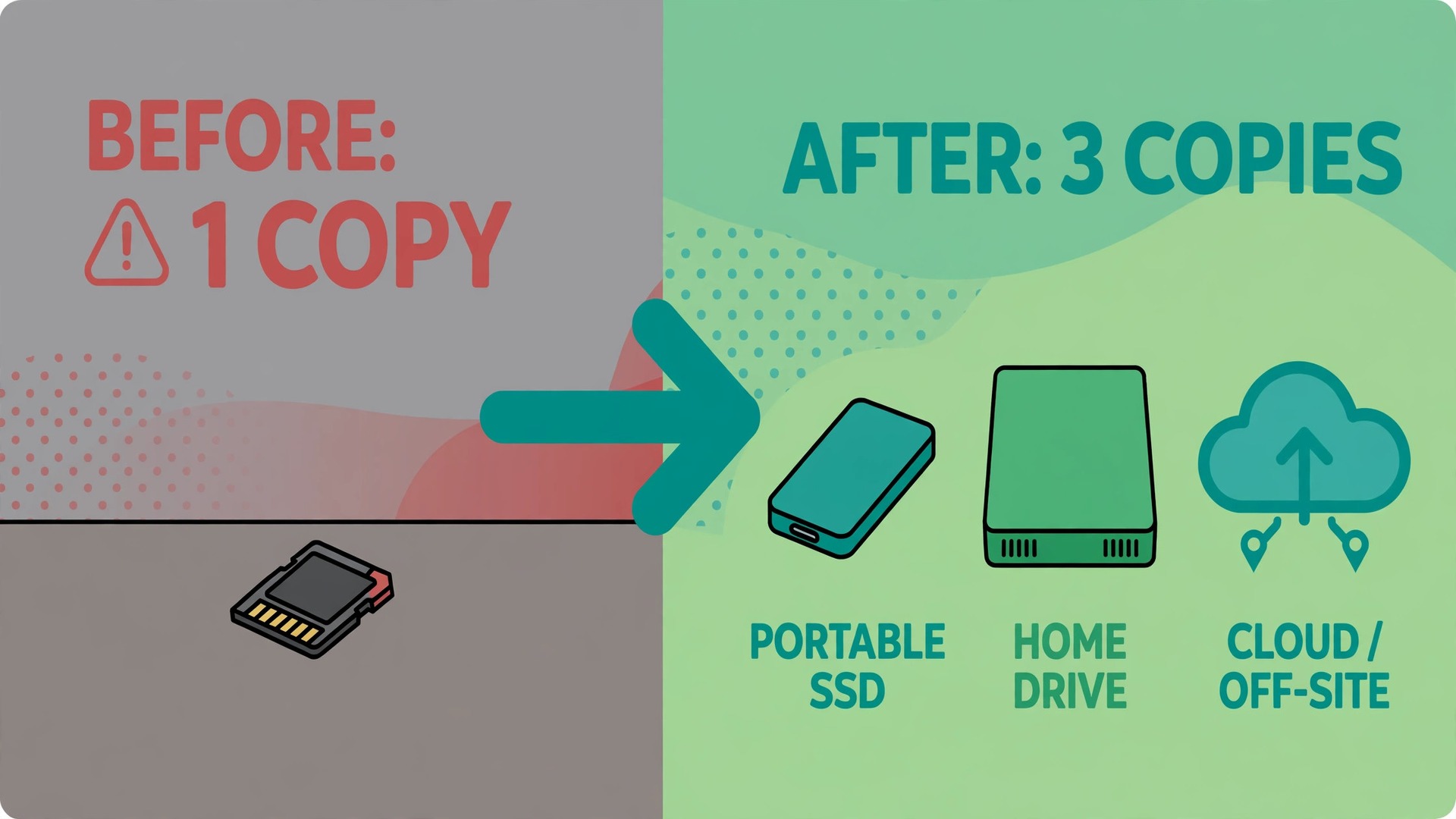
One memory card is not a backup. It is a single point of failure sitting in a camera bag, a pocket or a card wallet, and a lost card, a corrupted card or a stolen bag can erase a shoot that cannot be repeated. When you use portable SSD for photography backup, you turn that fragile single copy into a system with copies in more than one place, checked before you format anything. The goal is simple. By the time you clear a card, two other copies of the shoot already exist, and at least one of them lives somewhere else.
This guide builds that system step by step. You will learn a copy routine you can run on location without a laptop if needed, how to pick a drive format and a capacity that fits the way you actually shoot, how to verify a home copy instead of trusting a progress bar, how to keep an off-site copy current without paying for storage you never use, and how to test a restore while the shoot is still recoverable. Prices and speeds quoted here come from maker pages checked at draft time, so confirm the checkout price before you buy, because drive prices move with stock and promotions.
One Card Is Not a Backup
Ask any working photographer about their worst day and the story usually starts the same way. A card failed, a bag went missing, or a laptop was stolen on the way home. The shoot itself was fine. The problem was that only one copy of it existed at the moment something went wrong. Cards are small, easy to lose and easy to damage, and they are designed to be reused, which means every format is a decision to trust that the copy you made earlier was complete.
A portable SSD changes the risk in three ways. First, it gives you a second copy within minutes of the shoot ending, while you are still on location and the cards are still in your hands. Second, it holds far more than a card, so a whole weekend of shooting can sit on one drive instead of spread across five cards in five pockets. Third, it is fast enough that copying does not feel like a chore you postpone. A drive rated at around 1,000 MB/s can move tens of gigabytes while you pack up lights and lenses, and that speed is what turns backup from a good intention into a habit.
How to Use Portable SSD for Photography Backup on Every Shoot
The workflow has four stages, and the order matters more than the gear. Copy on location, verify the copy, make the home copy, then move one copy off-site. Do not format a card until the first two stages are done, and do not call a shoot backed up until the third stage is done. The fourth stage can lag by a day for personal work, but for paid work it should happen the same week, before the next shoot adds new files to the pile.
Start with a folder structure you never change. A simple pattern works for years. Use one folder per shoot, named by date and job, with subfolders for originals, selects and exports. An example pattern is 2026-10-25-wedding-smith, with RAW originals inside it, and nothing else mixed in. When every shoot follows the same pattern, a missing folder is obvious, a restore is obvious, and a second person can find a file without asking you where you put it. Keep the same structure on every drive, so a copy is a mirror, not a puzzle.
On location, copy the whole card, not just the files you like. Keep the card folder structure intact, including any sidecar files, and copy to a folder named for the card and the shoot. If you shot two cards, copy both, and label the folders card A and card B. Do not edit, rename or cull on the portable SSD during the copy. Culling comes later, on the home copy, after verification. The on-location copy is a safety copy, and its job is to be complete, not tidy.

The On-Shoot Copy Routine
The best time to copy is before you leave the location. That is when the cards are still with you, the shoot is still fresh in your mind, and a problem can still be fixed by reshooting a frame or two. Waiting until you get home adds a journey during which a card can be lost, and it adds a delay during which you may be tempted to format a card for the next shoot before the copy is checked.
If you carry a laptop, the routine is straightforward. Connect the portable SSD, insert the card, and copy the entire card folder to the shoot folder on the SSD. Use the operating system copy or a dedicated ingest tool, and do not use the card reader and the drive on a loose cable that can be knocked out mid-copy. A cable that disconnects halfway through a copy can leave partial files that look complete until you try to open them, so set the laptop and drive on a stable surface and leave them alone until the copy finishes.
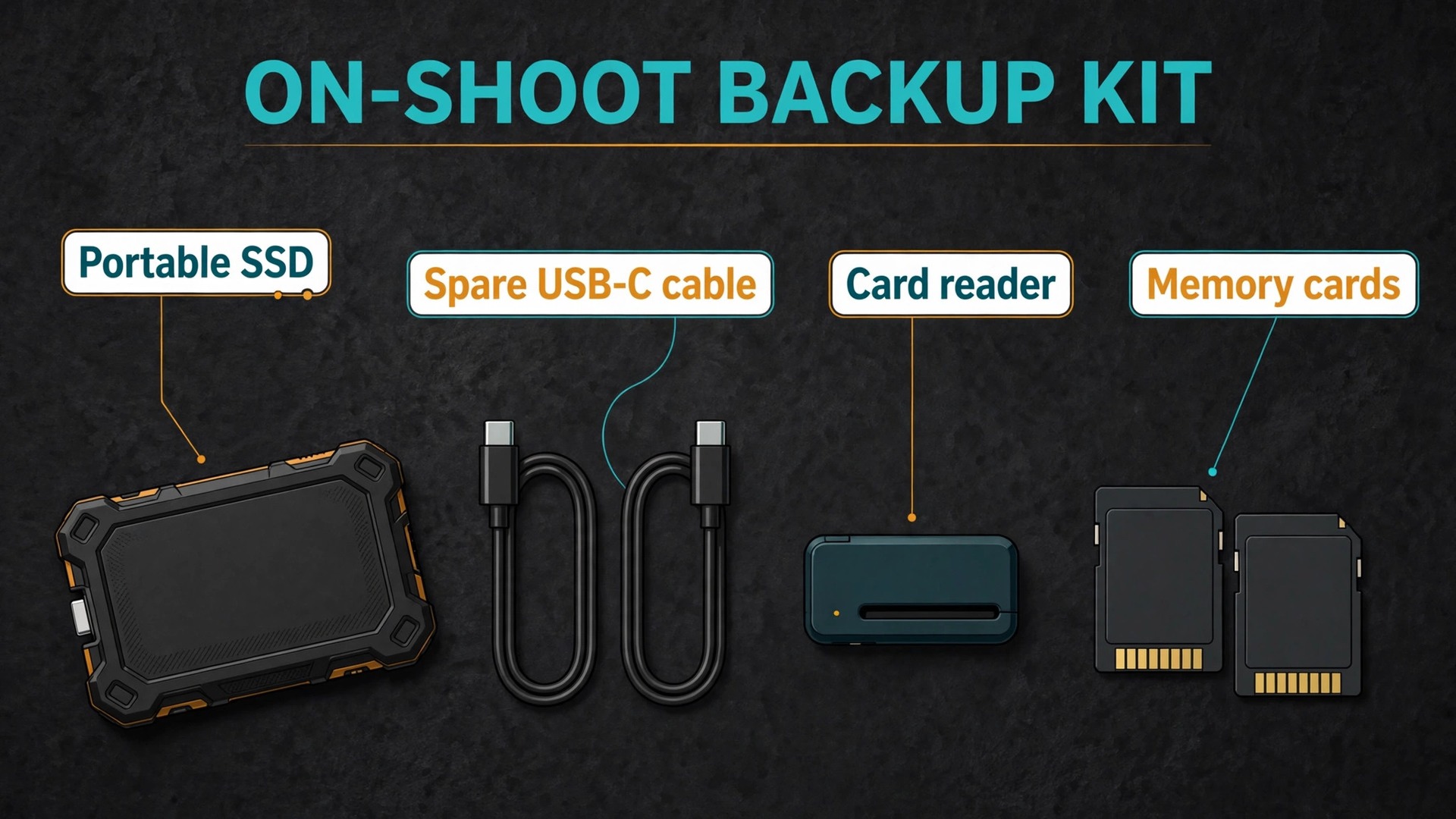
Build a small on-shoot kit and keep it packed. It needs a portable SSD, a short USB-C cable plus a spare, a card reader that matches your cards, and a second card for overflow. The spare cable matters more than it sounds. Cables fail, cables get left in hotel rooms, and a backup routine that depends on one cable will fail on the day that cable is missing. Put a label on the SSD with your name and phone number, because a small black drive left on a table looks like every other small black drive left on a table.
Run the copy in this order every time.
- Finish shooting and switch the camera off before removing a card, so no write is interrupted.
- Insert the card and create the shoot folder on the portable SSD before copying anything.
- Copy the full card, including all folders on it, and wait for the copy to finish completely.
- Compare the file count and total size on the card with the file count and total size on the SSD.
- Open a handful of files from the start, middle and end of the shoot and confirm they display correctly.
- Repeat for every card from the shoot, and keep the cards unformatted until the home copy is verified.
- Eject the SSD properly, pack it separately from the cards, and note the shoot as copied in your job list.
Format, Capacity and Drive Choice
Format the drive before the first shoot, not during one. A new portable SSD often arrives formatted for one operating system, and the wrong format can block you on location. The choice comes down to which computers the drive must work with, and the table below summarises the practical difference.
| Format | Works on Mac | Works on Windows | Best for |
|---|---|---|---|
| APFS | Yes | No native support | Mac only editing and backup |
| exFAT | Yes | Yes | A drive shared between Mac and Windows |
| NTFS | Read only natively | Yes | Windows only use |
For a photographer who edits on a Mac and never touches Windows, APFS is the natural choice, with encryption available for client work. For a photographer who moves between Mac and Windows, or who hands a drive to a client or a second shooter on a different system, exFAT is the practical choice, because both systems can read and write it without extra software. What exFAT lacks is the snapshot and encryption behaviour of APFS, so if you choose exFAT for compatibility, add encryption through the drive maker software or an encrypted disk image for sensitive shoots, and keep a separate record of the password.
Formatting erases the drive, so format before you store anything on it, and never format a drive that holds the only copy of a shoot.
Capacity choice starts with your file sizes, not with a round number that sounds generous. A 24 megapixel camera typically produces RAW files around 25 to 35 MB each, while a 45 megapixel camera produces RAW files around 25 to 55 MB in compressed form and larger uncompressed, with some 45 megapixel bodies producing files up to 60 MB or more. A wedding photographer who delivers 2,000 frames from a 45 megapixel body can therefore generate 100 GB or more from a single day, before edits, exports and video clips. A portrait photographer who shoots 300 frames on a 24 megapixel body may generate under 10 GB.
The same drive size is generous for one photographer and tight for another, so count your own shoots before you buy.
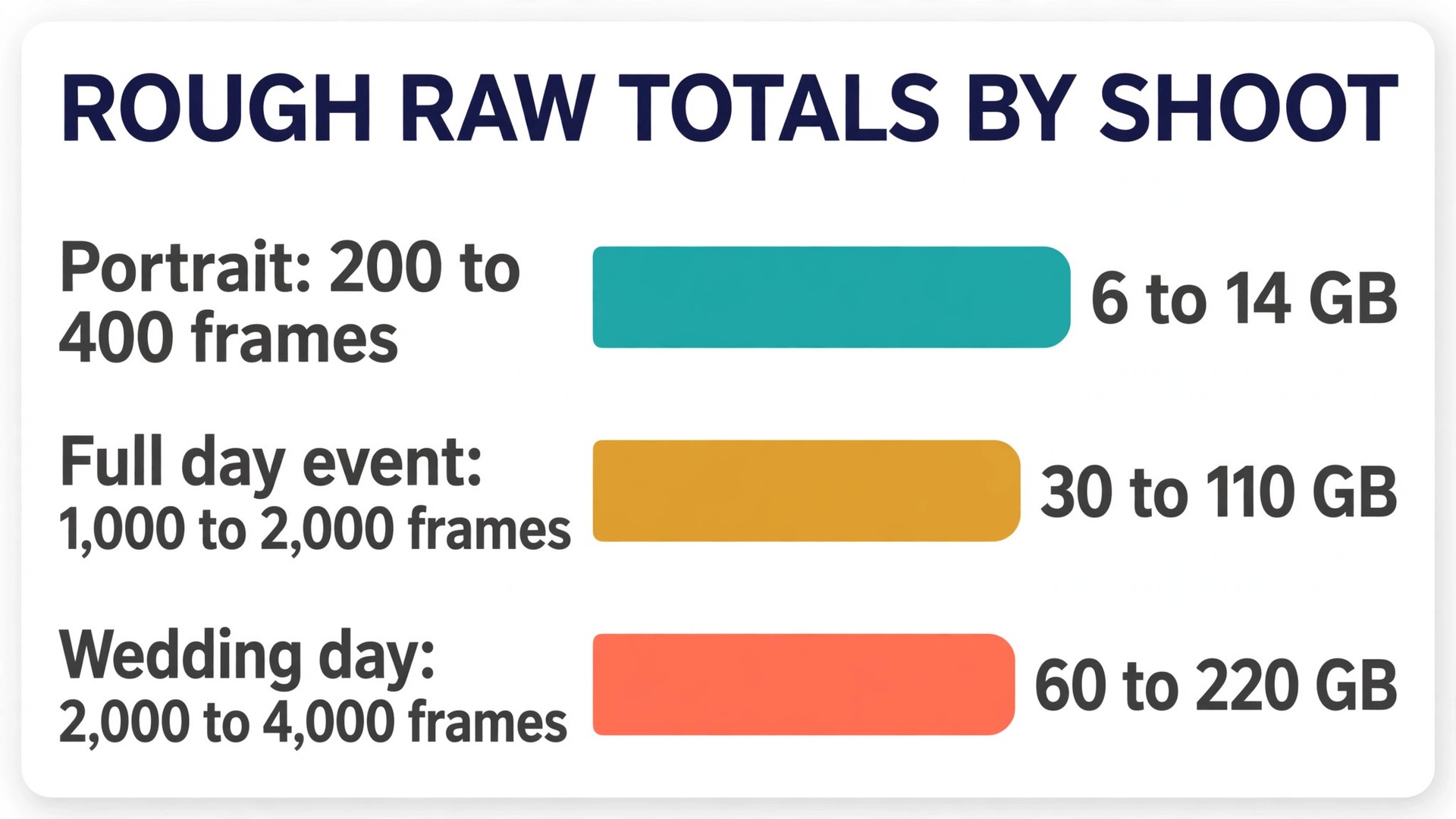
Use this planning table as a starting point, then adjust it with your own averages from your last five shoots.
| Shoot type | Typical frame count | Rough RAW total |
|---|---|---|
| Short portrait session | 200 to 400 frames | 6 to 14 GB |
| Full day event | 1,000 to 2,000 frames | 30 to 110 GB |
| Wedding day | 2,000 to 4,000 frames | 60 to 220 GB |
| Multi day trip | 3,000 to 6,000 frames | 90 to 330 GB |
A useful rule is to buy a drive at least four times the size of your largest single shoot, so one drive can hold the current shoot plus recent work without constant clearing. For many photographers that points to 2 TB as the sweet spot, with 1 TB enough for lighter portrait and travel work and 4 TB worth the extra cost for wedding, wildlife and video-heavy shooters. Remember that a drive is not a permanent archive. When it fills up, move finished shoots to a larger home drive or an archive drive, and keep the portable SSD as a working and travelling copy, not a museum of every shoot you have ever done.
When you compare drives, read the maker specifications rather than the headline speed alone. The Samsung T7 Shield, for example, is rated by Samsung at up to 1,050 MB/s read and up to 1,000 MB/s write, with IP65 water and dust resistance and drop resistance up to 3 metres, and Samsung lists the 1 TB model at 287.99 dollars on its own store at draft time. The SanDisk Extreme Portable SSD is rated at up to 1,050 MB/s read and up to 1,000 MB/s write in its standard version, also with IP65 resistance and drop protection up to 3 metres, while its newer V3 version is rated at up to 2,000 MB/s read.
Both makers note that real speeds depend on the host port and cable, so a drive rated at 2,000 MB/s will not reach that speed on a 10 Gbps port. Check the port on your own laptop before paying for speed you cannot use, and check whether the drive needs its maker software for encryption, because that software may not be available on every computer you borrow on location.
The Home Copy and How to Verify It
The home copy is where the portable SSD earns its keep a second time. When you get home, copy the shoot folder from the portable SSD to your main working drive, and do it before you start editing, culling or importing into a catalogue. Editing first and copying later creates a window in which your only complete copy is still the portable drive, and any edit, rename or accidental deletion during that window affects the copy you still need. Copy first, verify second, edit third. That order protects the originals from your own workflow as well as from hardware failure.
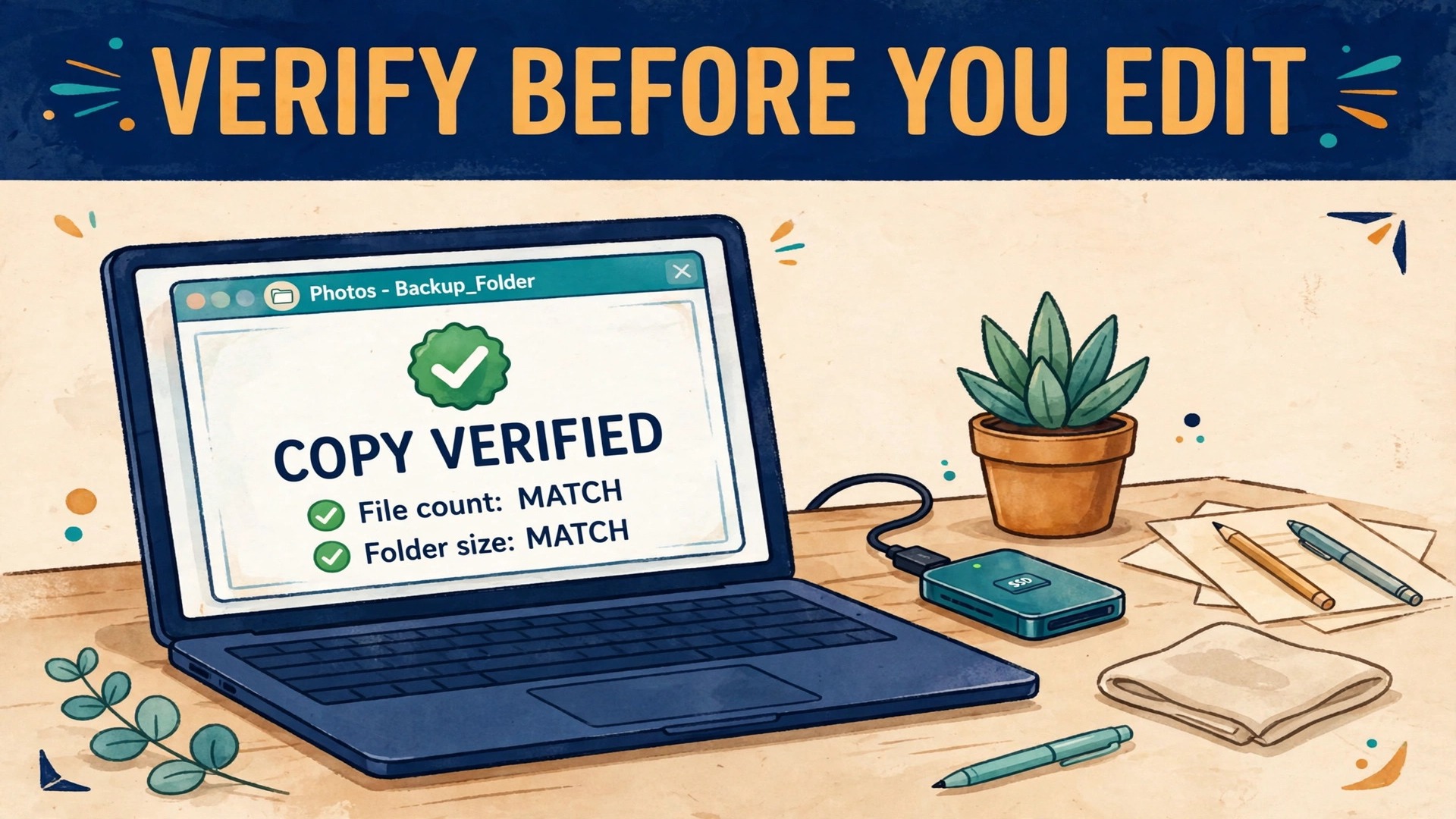
When you use portable SSD for photography backup at home, treat the portable drive as the source and the home drive as the destination, and keep both until verification passes. A simple verification pass has four checks, and none of them takes long once you know them. First, compare the file count and total folder size between source and destination. A mismatch means something did not copy, even if no error appeared. Second, open a sample of files from the beginning, middle and end of the shoot on the destination drive, and open at least one file from each card.
Third, check that the newest files from the shoot are present, because a copy that stops early usually loses the tail end of a shoot. Fourth, confirm that sidecar files, video clips and audio notes copied as well, not just the stills, because a shoot folder often holds more than RAW files.
Catalogue software adds a trap here. Importing into Lightroom or a similar tool can create previews, move files or rename them according to an import preset, and a photographer who imports directly from a card and then deletes the card has mixed up two different jobs. Importing is organising. Copying is backing up. Do the copy with the file system first, verify it, and then import from the verified home copy. If your catalogue later loses track of a file, the verified folder is still there, untouched by catalogue settings. For the same reason, keep the original folder names from the card copy.
A catalogue can show you a virtual collection, but a folder on a drive is what a recovery actually restores.
Once the home copy verifies, you can format the cards, but keep the portable SSD copy in place until the off-site step runs. That gives you three copies at that point, counting the home working copy, the portable SSD copy and the cards you have not yet formatted, and formatting the cards then drops you to two copies, which is still safe. If you format the cards before the home copy verifies, you drop to one copy at the exact moment you are most likely to discover a copy problem. Patience at this step is the whole discipline. The cards can wait a day. The shoot cannot be recreated.
The Off-Site Copy That Survives Theft and Fire
Two copies in one building are not two independent copies. A burglary takes both drives if both sit on the same desk. A fire, a flood or a burst pipe takes both drives if both sit in the same room. The off-site copy exists for exactly those events, and it is the step most photographers skip because it feels like extra work for a disaster that has not happened yet. The disaster does not need to be dramatic.
A laptop bag stolen from a car on the way home from a shoot is an off-site problem solved by a copy that never left the house, and a house burglary is a home problem solved by a copy that never stayed in the house.
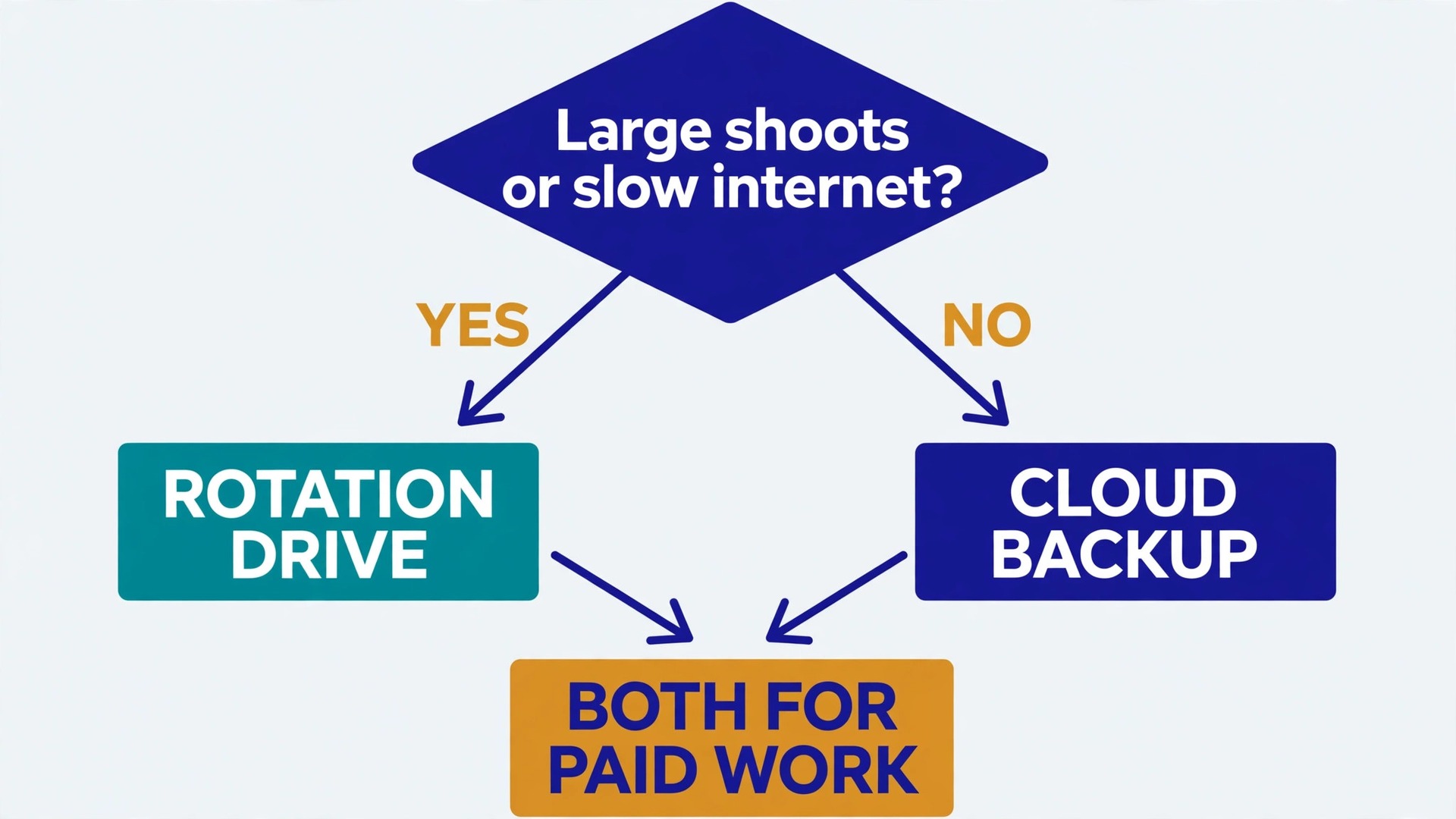
There are three practical ways to keep an off-site copy, and the right one depends on your shoot volume and your internet speed. The first is a second portable SSD on rotation. Keep one drive at home and one drive somewhere else, such as a studio, an office, a family member house or a locked drawer at work, and swap them on a regular schedule. After each swap, the drive you bring home gets updated with the newest shoots, and the drive you take away becomes the current off-site copy.
Rotation works well for large shoots and slow internet, because no upload is involved, but it depends on actually doing the swap, so put it on the same schedule as another routine task, such as invoicing at the end of the week.
The second way is cloud backup. A cloud copy runs in the background, needs no swap, and survives anything that happens to your building. Its limits are upload speed and cost for large libraries. A 100 GB wedding upload on a slow connection can take a day or more, so cloud backup suits photographers who shoot moderate volumes, or who back up only finished selects and RAW originals for paid work while keeping personal shoots on rotation drives. Check whether your cloud plan keeps deleted files for a useful period, because a sync service that mirrors deletions is not the same as a backup service that keeps versions.
A service that deletes the cloud copy when you delete the local copy will not save you from an accidental deletion.
The third way is a mix of both, and for most working photographers it is the strongest answer. Use a rotation drive for the full RAW library, and use cloud backup for finished exports, client galleries and the selects that would be hardest to recreate. That way a total loss still leaves you with deliverable files in the cloud, and a rotation drive still holds the full originals for re-editing. When you use portable SSD for photography backup as part of this mix, the portable drive is the transport step between the shoot and both destinations, not a destination itself, and that distinction keeps the system honest.
Test the Restore Before You Need It
A backup you have never restored is a theory. Drives fail in ways that look fine until you try to open a file, folders copy with missing tails, and encryption passwords get forgotten between shoots. A restore test catches all three while the original is still available, and it takes less time than most photographers fear. Pick one shoot per month, copy a folder from the backup drive to a different location, and open the restored files. If they open, the backup works. If they do not, you still have the originals to fix the problem.
Run three kinds of test across the year, not just one. First, restore a single folder from the home copy and open several files from it, including one video clip if the shoot had video. Second, restore a folder from the off-site copy, whether that means bringing the rotation drive home or downloading from cloud backup, and confirm the files match the home copy in count and size. Third, once a year, pretend a drive has failed completely. Disconnect the home drive, work only from the portable SSD and off-site copies for an afternoon, and note every file you cannot find.
That exercise finds gaps in folder naming, missing sidecar files and shoots that never made it off-site, and it finds them on a quiet afternoon instead of during a client emergency.
When you use portable SSD for photography backup in a restore test, test the drive you actually travel with, not just the comfortable home drive. Connect it to a different computer if you can, open files from the start and end of a shoot, and check that the cable and port combination you use on location works. A drive that only opens on one laptop with one cable is a single point of failure wearing a backup costume. If the test fails, fix the cause before the next shoot, whether that means replacing a cable, reformatting a drive that shows errors, or replacing a drive that reports bad sectors.
The 3-2-1 Checklist for Photographers
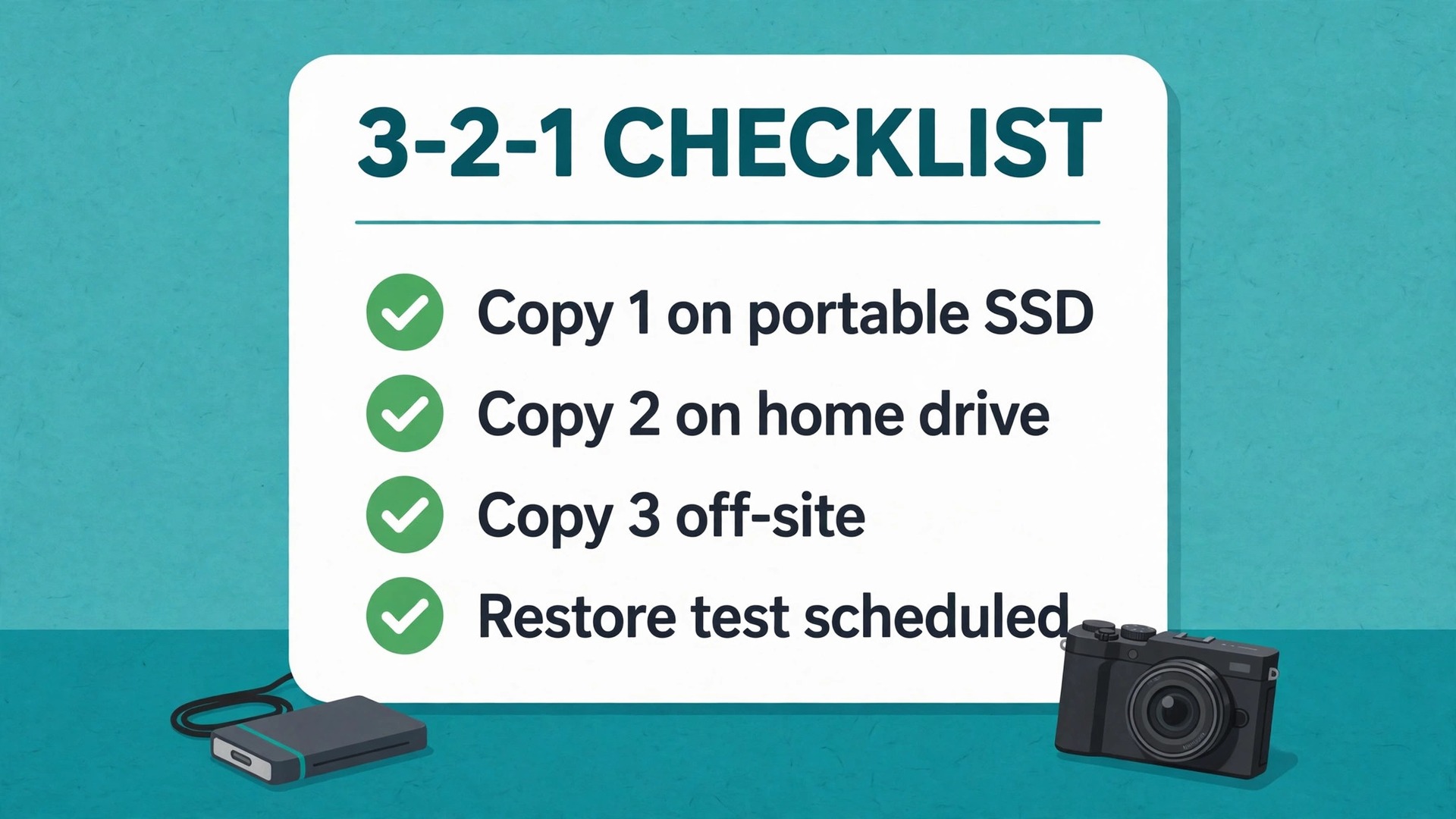
The 3-2-1 rule is the simplest way to check whether your system is complete. Keep three copies of every important file, on two different types of storage, with one copy off-site. The rule comes from photography and media practice, and it is echoed in backup guidance from security agencies, which describe it as three copies, two media types and one copy kept away from the main location. For a photographer, the three copies are usually the working copy, the portable SSD copy and the off-site copy, and the two media types can be a portable SSD plus a home hard drive or cloud storage. The point is not the exact technology.
The point is that no single failure, theft or disaster takes all three copies at once.
Use this checklist after every paid shoot, and once a month for personal work.
- Copy 1 is complete on the portable SSD, with file counts and sizes matching the cards.
- Copy 2 is complete on the home drive, verified by opening files from the start, middle and end.
- Copy 3 is off-site or scheduled for the next rotation or cloud upload within the week.
- Cards stay unformatted until copy 1 and copy 2 have both passed verification.
- Folder names follow the same date and job pattern on every drive.
- The shoot log notes the folder name, file count and off-site date.
- The portable SSD is stored separately from the cards during travel.
- Encryption passwords for off-site drives are stored in a password manager, not on the drive.
- The next restore test is scheduled, not left to chance.
When you use portable SSD for photography backup inside this checklist, the SSD is copy 1 or copy 2 depending on the day, and it is never the only copy. If any item on the checklist is unchecked, the shoot is not finished, even if the editing is done. That discipline is what separates a photographer who has drives from a photographer who has backups.
Related reading on this site can help with the wider workflow around this system. If your phone storage fills up with photos between shoots, the guide to clearing phone storage without deleting photos covers a cleanup plan that pairs well with a portable drive routine. If your cloud storage is full before you even start an off-site copy, the Google Drive cleanup guide helps you make room for the files that matter. And if you edit on the move, the real estate photo editing workflow in Lightroom shows how a catalogue fits around verified folders rather than replacing them.
Read those alongside this guide, and keep the folder structure consistent across all of them, so a file is in the same place no matter which tool you open.
Frequently Asked Questions
How big a portable SSD do I need for photography?
Start from your own shoots, not from a generic recommendation. Check the total size of your last five shoots, take the largest, and multiply by four, so one drive can hold the current shoot plus recent work without constant clearing. For many photographers that points to 2 TB, with 1 TB enough for lighter portrait work and 4 TB worth it for wedding, wildlife and video-heavy shooting. If you shoot video alongside stills, count the video separately, because a few minutes of high bitrate video can outweigh a whole day of stills.
Should I format my portable SSD as exFAT or APFS?
Choose APFS if you edit only on a Mac and want its encryption and snapshot behaviour. Choose exFAT if the drive must move between Mac and Windows, because both systems can read and write exFAT without extra software. Do not use FAT32 for photography, because its per-file size limit blocks large video files. Format before the first shoot, because formatting erases the drive, and never format a drive that holds the only copy of a shoot.
Can I copy cards to a portable SSD without a laptop?
Sometimes, but treat a phone or tablet copy as a bridge copy, not a final copy. Some cameras can copy between card slots, and some hubs let a phone or tablet copy from a card reader to a drive, but verification is harder on a small screen and speeds are often lower. Copy on location if that is your only option, then verify and mirror the copy properly on a computer the same day, and do not format the original card until that verification passes.
How often should I test my photo backups?
Test one restore per month, and run a full pretend failure exercise once a year. A monthly test means copying one shoot folder from a backup drive to a different location and opening files from it. The yearly exercise means disconnecting the home drive and working only from the portable SSD and off-site copies for an afternoon. That combination catches corrupted files, forgotten passwords and shoots that never made it off-site, while the originals are still available to fix the problem.
Is cloud storage alone enough for photography backup?
Cloud storage alone can work for moderate shoot volumes, but it has limits worth knowing. Upload speed can make a large wedding upload take a day or more, and a sync service that mirrors deletions is not the same as a backup service that keeps file versions. For large libraries, a rotation drive plus cloud backup for finished exports and selects is usually stronger than either method alone. When you use portable SSD for photography backup alongside cloud storage, the SSD moves files fast on location and the cloud copy provides the off-site layer.
What should I do if my portable SSD stops showing up?
Stop and do not format it, because formatting destroys the chance of recovery. Try a different cable, a different port and a different computer first, since cables and ports fail more often than drives. If the drive appears on another computer, copy the files off immediately and replace the cable or retire the drive. If it appears nowhere, keep it unformatted and seek professional recovery advice before trying repair tools, especially if the shoot exists nowhere else. After any scare like this, review whether the 3-2-1 checklist would have left you with a second copy, and fix that gap before the next shoot.
Your Next Shoot Deserves Proof, Not Hope
A backup system is not finished when you buy a drive. It is finished when you can point to three copies of a shoot, show that one of them lives somewhere else, and prove that a restore works, all without scrambling. The routine in this guide gives you that proof in about ten minutes per shoot, plus a short monthly test and a weekly off-site update for paid work. That is a small price for the ability to tell a client, honestly, that a lost card or a stolen bag would not lose their photos.
Start with the next shoot, not with a grand reorganisation of your whole archive. Format the portable SSD before you leave, pack a spare cable, copy on location, verify at home, and schedule the off-site update before the week ends. When you use portable SSD for photography backup this way, the drive stops being a gadget in your bag and becomes the middle layer of a system you can trust. Do the first restore test this month, write the result in your log, and let that passing test be the moment the system stops being a plan and starts being a habit.