
Your Calendly bill went up again, or your booking page still looks like every other booking page on the internet, and you are wondering whether the switch is worth the disruption. When you migrate Calendly to Cal.com, the promise is simple. Unlimited event types on a free plan, booking pages you control, and team routing that does not force an enterprise quote. The risk is just as simple. A missed buffer, a round-robin rule rebuilt wrong, or an old link left live in an email signature can cost you a booked call. This guide walks the move in the order that prevents that.
This is a migration guide, not a feature review. You will audit Calendly, map every event type to its Cal.com equivalent, rebuild the integrations and workflows that do not transfer on their own, swap your embed code, and cut over while both tools read the same calendar. Prices quoted here reflect publicly listed October 2026 figures. Check the official pricing page and checkout before you pay.
Before You Touch Anything, Audit Your Calendly Setup
Most failed migrations start with a guess about what is actually live. Open Calendly and write down every event type, including the ones you forgot you created. For each one, note the duration, the location type, the description, the intake questions, the confirmation and reminder settings, and whether it collects a payment.
Next, list your availability rules exactly as they exist. Calendly availability lives in schedules and per event settings, so check both. Note your working hours, the days you never take calls, any date overrides for holidays, the minimum notice you require, and how far ahead someone can book. Then note the buffers. Buffers are the setting most often lost in a rushed move.
Then hunt for the parts of Calendly that are not event types at all. List every round-robin event and who is in the rotation, every collective event that needs several hosts free at once, and every routing form. List your integrations too, starting with your calendar connection, your video tool, your payment provider, and your CRM. Finally, list every place your Calendly link appears, including your website, email signature, social profiles, and proposals.
Keep this audit in a document you can tick off during the move. A team should use a shared sheet with one row per event type and columns for owner, duration, buffers, hosts, video tool, payment, and new Cal.com link. That sheet becomes the verification list at the end.
How to migrate Calendly to Cal.com in the Right Order
The order matters more than the speed. Cal.com advertises a one-click Calendly import on its free plan, and that importer is the fastest path when you migrate Calendly to Cal.com with a straightforward solo setup. It brings your event types across so you do not have to retype every duration and description. But an import is not a verification, and the steps below put the import inside a sequence that catches what it misses.
- Export your Calendly data first. Calendly documents a meetings export as a CSV file on paid plans, with invitee answers included, and a contacts export from the Contacts page on every plan. Download both before you change anything, and save them somewhere safe. They are your record of who booked what, and your fallback if a workflow rebuild goes wrong.
- Create your Cal.com account and connect the same calendar Calendly uses. This is the single most important step in the whole guide. As long as both tools read the same calendar and write new bookings into it, a booking made in either tool blocks the slot in the other.
- Run the Calendly importer for your event types, then stop and compare. Open each imported event type beside its Calendly original and check duration, location, description, intake questions, availability, buffers, and booking limits. Fix anything the importer flattened before you move on.
- Rebuild the pieces the importer does not carry. Round-robin rules, routing forms, payment connections, workflows, and embed code all need deliberate rebuilding, and each has its own section later in this guide.
- Test with a real booking. Book yourself through the new Cal.com link, check that the video link generates, the calendar event lands in the right calendar, and any payment or CRM step fires. Then cancel the test booking and check that the cancellation behaves as expected.
- Swap links in order of traffic. Website first, then email signature, then social profiles, then proposals and documents. Keep Calendly live until the last booking made through an old link has passed, then turn its event types off.
That overlap period is not wasted money. It is insurance. A client who booked three weeks ago through your old link still expects that meeting to happen. Keep both tools running for at least two weeks after the link swap, and longer if you take bookings far in advance.
Event Type and Availability Mapping
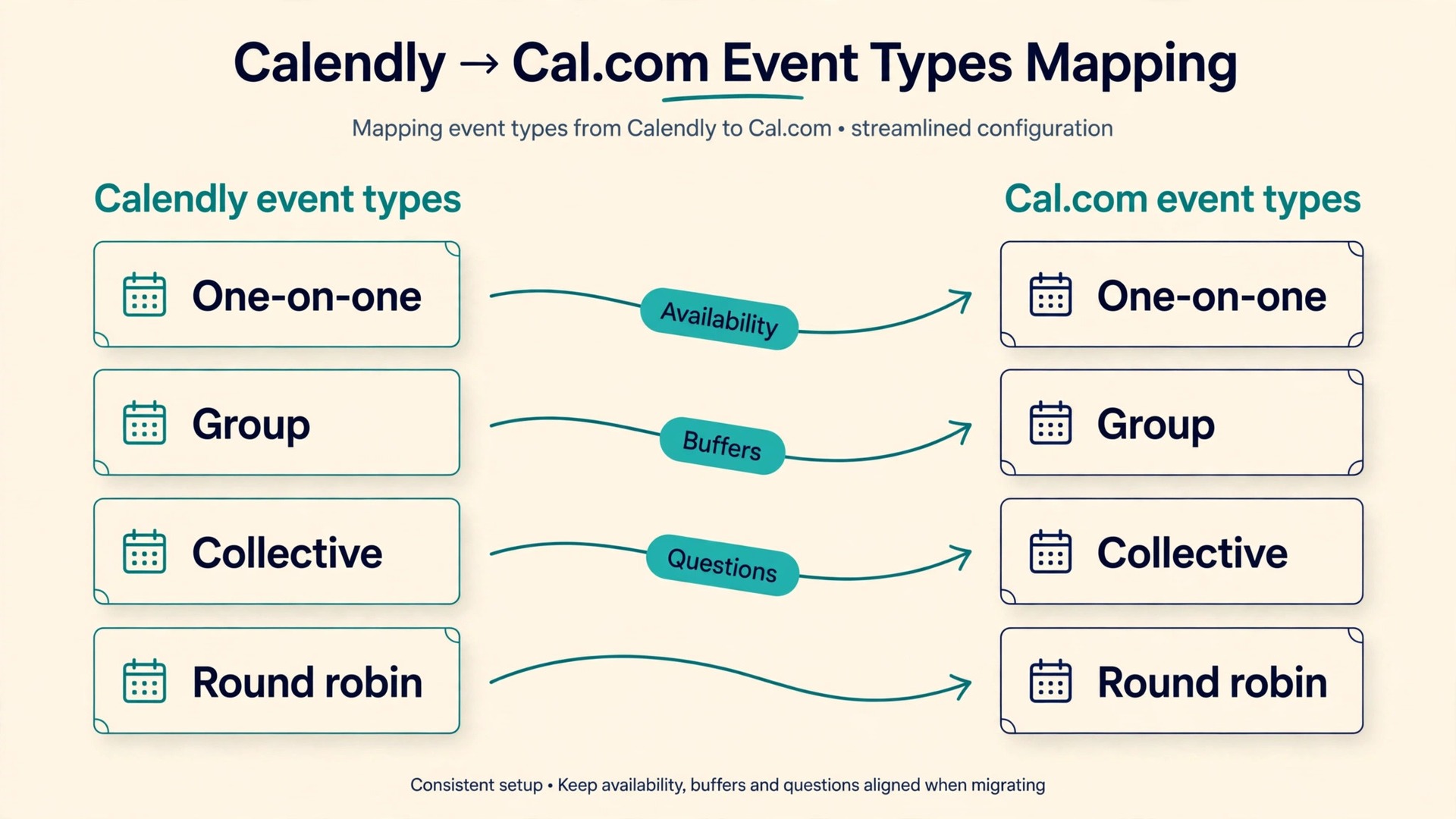
This section is the heart of the guide, because it answers the question every migrator actually asks. What becomes of each thing I built in Calendly once it lands in Cal.com? The table below maps each Calendly element to its Cal.com equivalent, and to the action you should take before or just after import. Read it before you touch the importer.
| Calendly setting | Cal.com equivalent | What to do before or just after import |
|---|---|---|
| Event type | Event type | Check duration, location and description |
| One-on-one event | One-on-one event type | Verify the host calendar matches Calendly |
| Group event | Group event type with a seat limit | Set the maximum attendees per slot by hand |
| Collective event | Collective event type | Confirm every required host is added |
| Round-robin event | Round-robin event type on a team plan | Rebuild the rotation and fixed host rules by hand |
| Availability schedule | Availability schedule | Compare working hours, days off and date overrides line by line |
| Minimum notice and booking horizon | Minimum booking notice and future limit on the event type | Copy both numbers exactly |
| Buffer before and after | Buffer time before and after on the event type | Check buffers on every type |
| Intake questions | Booking questions on the event type | Confirm required questions stayed required |
| Confirmation page and redirect | Confirmation settings and redirect on booking | Re-enter any redirect URL and test it |
| Secret event type | Hidden event type | Confirm hidden types stay hidden |
| Single-use link | Not a direct equivalent | Replace with a hidden event type and turn it off after use |
Availability deserves a closer look than the table gives it. In Calendly, availability is a schedule you attach to event types, with overrides for specific dates. In Cal.com, availability schedules are managed per user and then attached to event types, and team event types combine member schedules according to the event type rules. That difference is harmless for a solo user and decisive for a team. If two hosts share a round-robin event, each host needs the right schedule attached.
Date overrides are the quiet trap here. A holiday override set in Calendly does not always carry across an import, so list your next three months of overrides separately and re-enter them in Cal.com by hand. The same applies to per event tweaks, such as a discovery call offered only on Tuesdays and Thursdays. Those tweaks are easy to miss in a bulk import, and they are exactly what a client notices.
Finally, check time zones before you publish anything. Confirm your own time zone setting is correct in Cal.com and that your working hours were not shifted by an hour in the import. Book a test slot from a device set to a different time zone if your clients are international.
Buffers, Round Robin and Collective Events
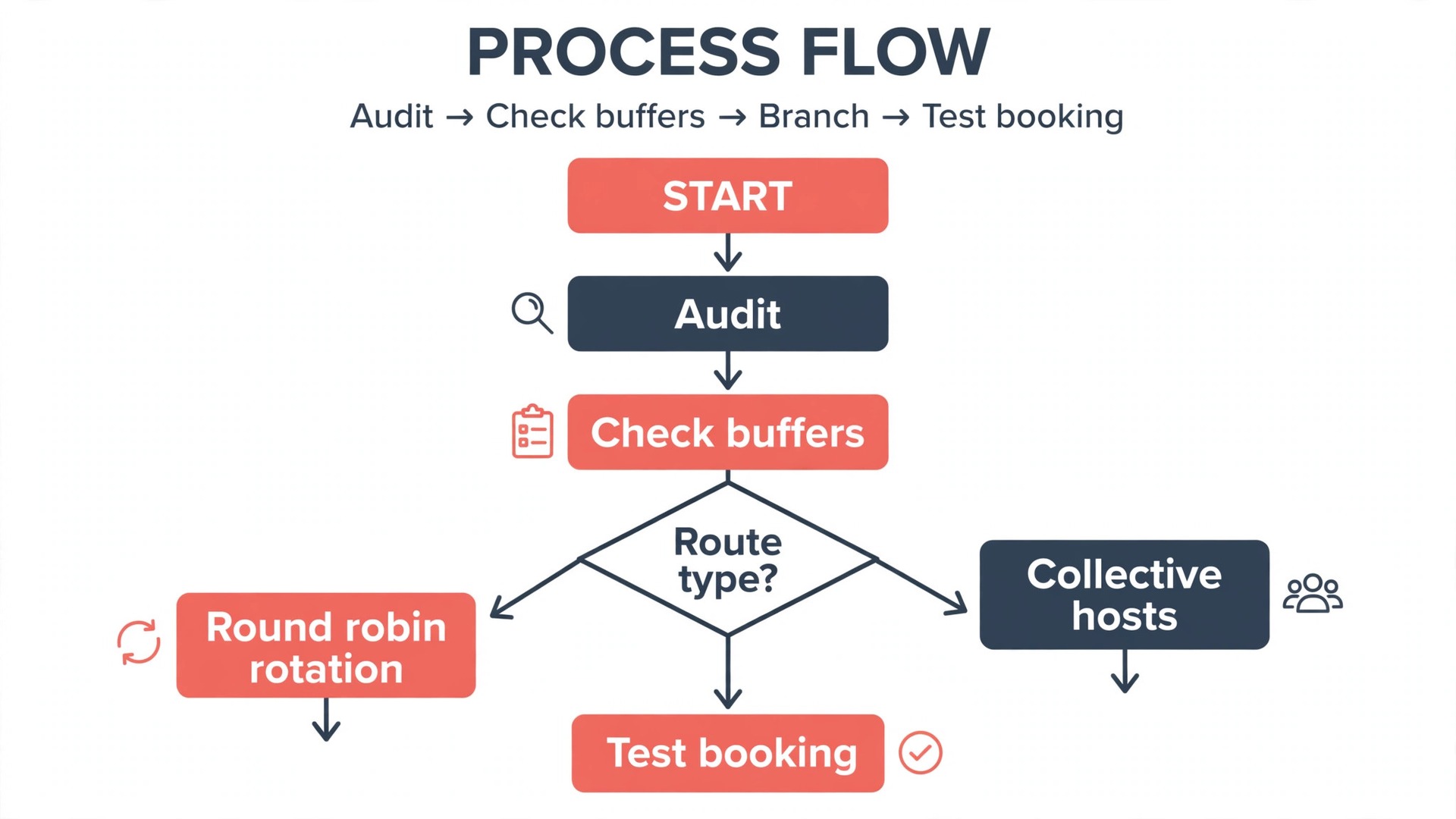
Buffers are where migrations silently break calendars. A buffer is recovery time around a meeting, so a 30 minute call does not land directly against another 30 minute call with no gap to write notes or reset. In Calendly, buffers sit on the event type. In Cal.com, buffer time before and after an event sits on the event type too, so the mapping is direct, but direct does not mean automatic. After import, open every event type and read the buffer numbers against your audit sheet. Pay special attention to event types where the buffer differs by meeting type, such as a 15 minute buffer after a sales demo but no buffer after an internal check in.
If the importer flattened those to a single default, your calendar will look free where you need breathing room.
Round robin needs more care than buffers, because it is a team feature with plan conditions attached. On Calendly, round robin sits on the Teams plan. On Cal.com, round robin sits on the Teams plan as well, at 12 dollars per user a month billed yearly, so a solo user on the free plan cannot simply import a round-robin event and expect the rotation to work. Plan for the upgrade if your team routes inbound calls this way, and rebuild the rotation deliberately. Decide whether hosts rotate evenly, whether certain hosts should receive a fixed share, and what happens when a host is on leave.
Cal.com round robin can use fixed hosts for cases where one person must always attend, such as a team lead joining every demo.
Collective events are the other team shape, and they are often confused with round robin. In a round-robin event, one host from the pool takes the booking. In a collective event, every required host must be free at the same time, so the booking only shows slots where all hosts overlap. That makes collective events much more sensitive to schedule errors. If one host has not connected the right calendar, the collective event shows no availability at all. Test collective events with each host combination before you publish them.
Two more limits deserve explicit checks. Maximum bookings per day caps how many times an event type can be booked in one day. Minimum booking notice stops someone booking a slot ten minutes from now. Both are per event settings in Cal.com. Copy them from your audit sheet, not from memory, and test both edge cases on a test event.
Booking Page Branding and the Booking Page Checklist
A Calendly booking page carries Calendly branding unless you pay to restyle it, and even then the page structure is fixed. Cal.com gives you more control, starting with your public profile page and extending to per event branding. Before you publish, decide what a booker should see in the first five seconds. Your name, a current photo, a one line description of what the meeting is for, and event types with clear durations.
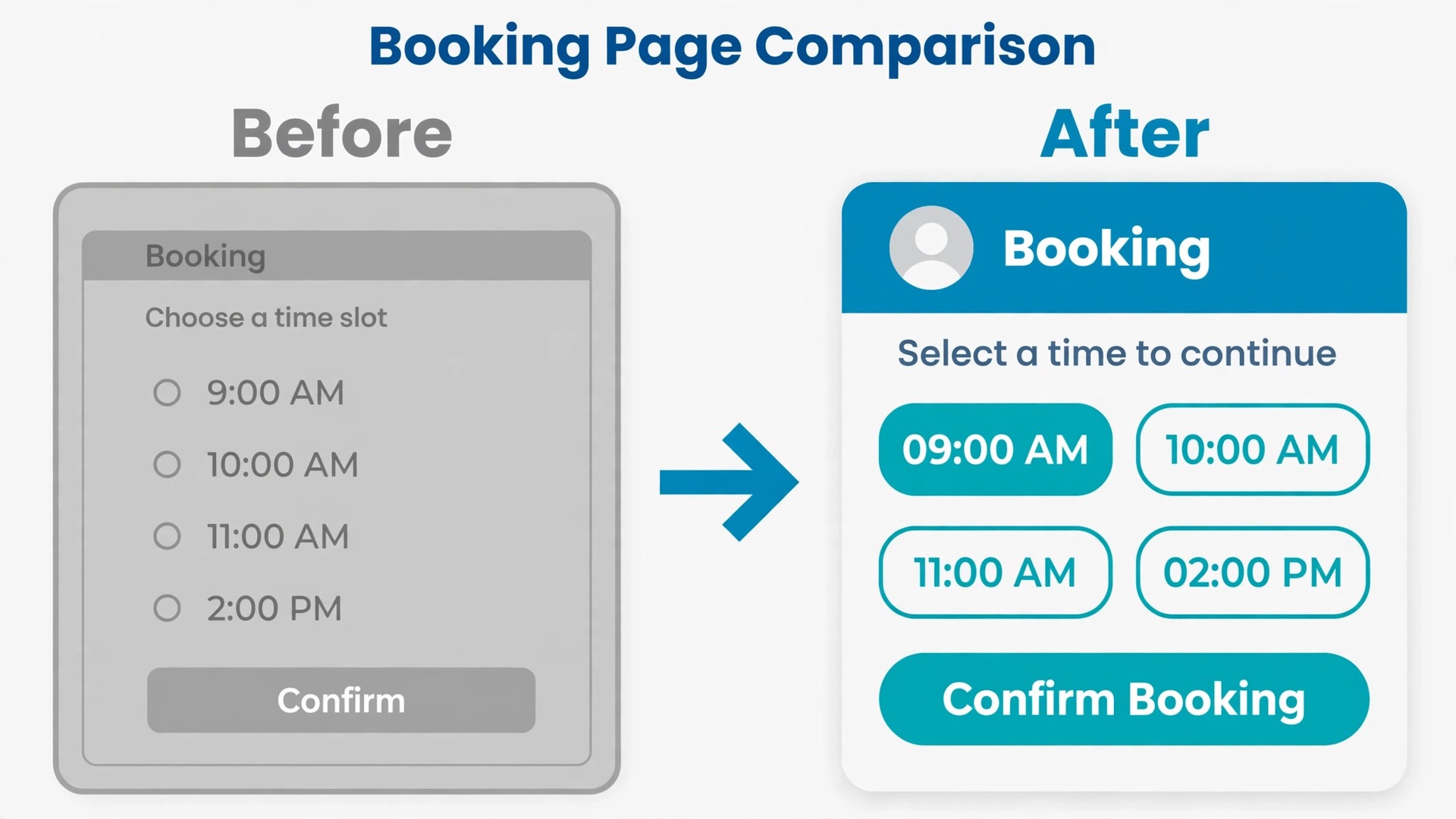
Branding settings to set on purpose include your profile photo, your page description, your brand colour where the plan allows it, and your username. Your username is the part of your link clients will type and remember, so pick a short version of your name and keep it consistent with your other profiles. If your plan includes removing Cal.com branding, decide whether that matters now or can wait.
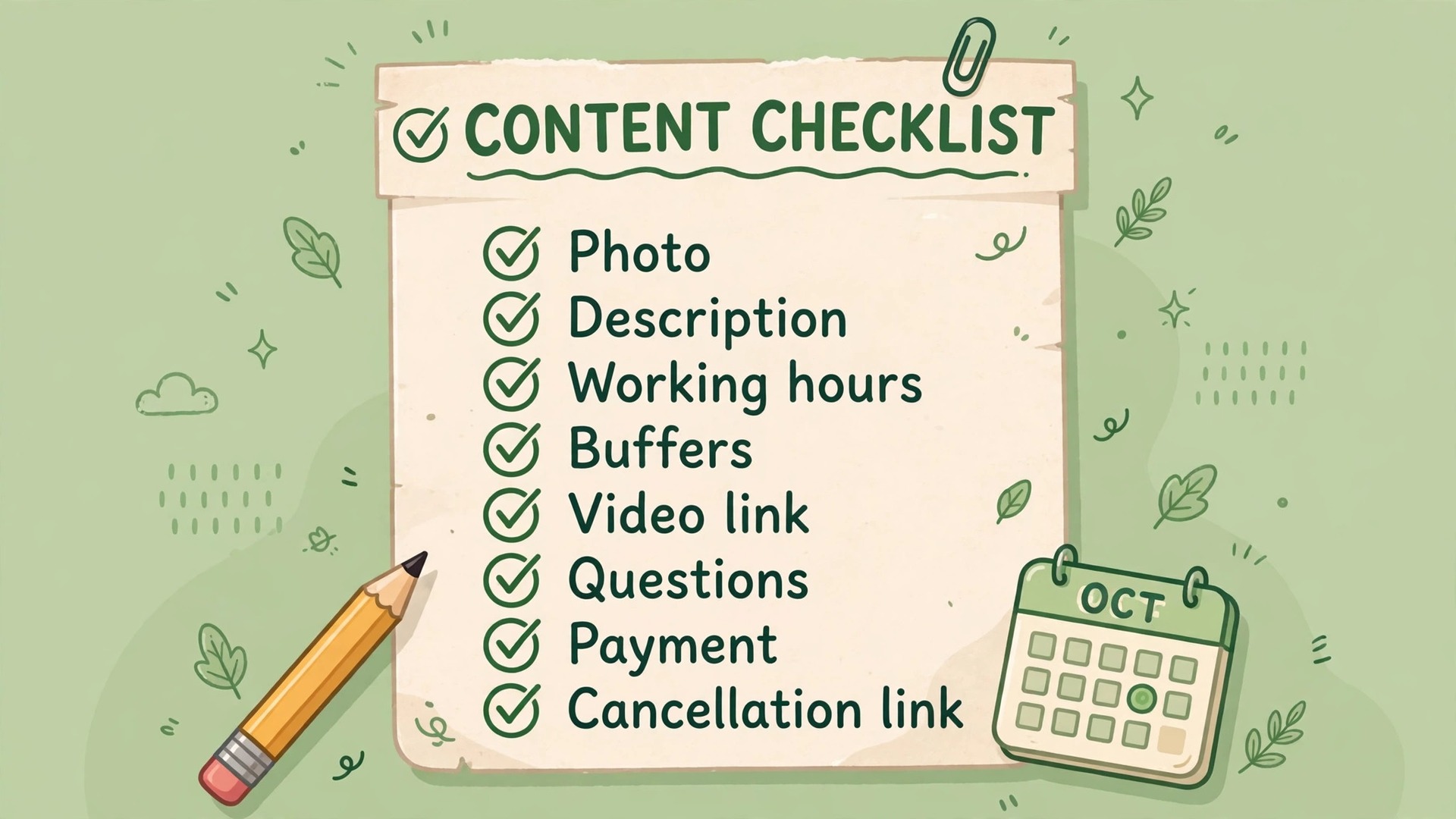
The checklist below is the second overview-proof element in this guide, and it is the list to run through for every booking page before it goes live. Work through it with the page open in a browser, not from memory.
- Name, photo and one line description are correct and current
- Every public event type has a clear title, duration and description
- Hidden event types do not appear on the public profile page
- Working hours, days off and date overrides match your audit sheet
- Buffer time is set on every event type that needs it
- Minimum booking notice and future booking limit match your audit sheet
- The video tool for each event type generates a working link
- Intake questions are present and required questions are marked required
- Confirmation page text is correct and any redirect goes to the right page
- Cancellation and rescheduling links work from a test booking
- Payment is connected and tested on paid event types
- Brand colour, photo and description look right on a phone screen
- Your new link has replaced the old link on your website, email signature and profiles
- A friend has booked a test slot and confirmed the flow felt clear
Run the checklist once for your profile page and once per event type for the items that vary by event. It takes about twenty minutes for a solo setup.
Integrations and Workflows You Must Rebuild
Event types transfer with an import. Integrations mostly do not, and this is where a migration that looked finished on day one starts leaking on day seven. Start with the calendar connection itself. Connect the same Google Calendar, Outlook, or Apple Calendar that Calendly used, and confirm that Cal.com both reads busy times from it and writes new bookings into it. Then check whether Cal.com also checks your other calendars for conflicts.
Video tools come next. Cal.com connects to Zoom, Google Meet, Microsoft Teams, and its own Cal Video, so most Calendly video setups have a direct equivalent. Reconnect the video tool per event type, not just at account level, because the per event setting decides which link a booker receives. Book a test meeting for each video tool you use.
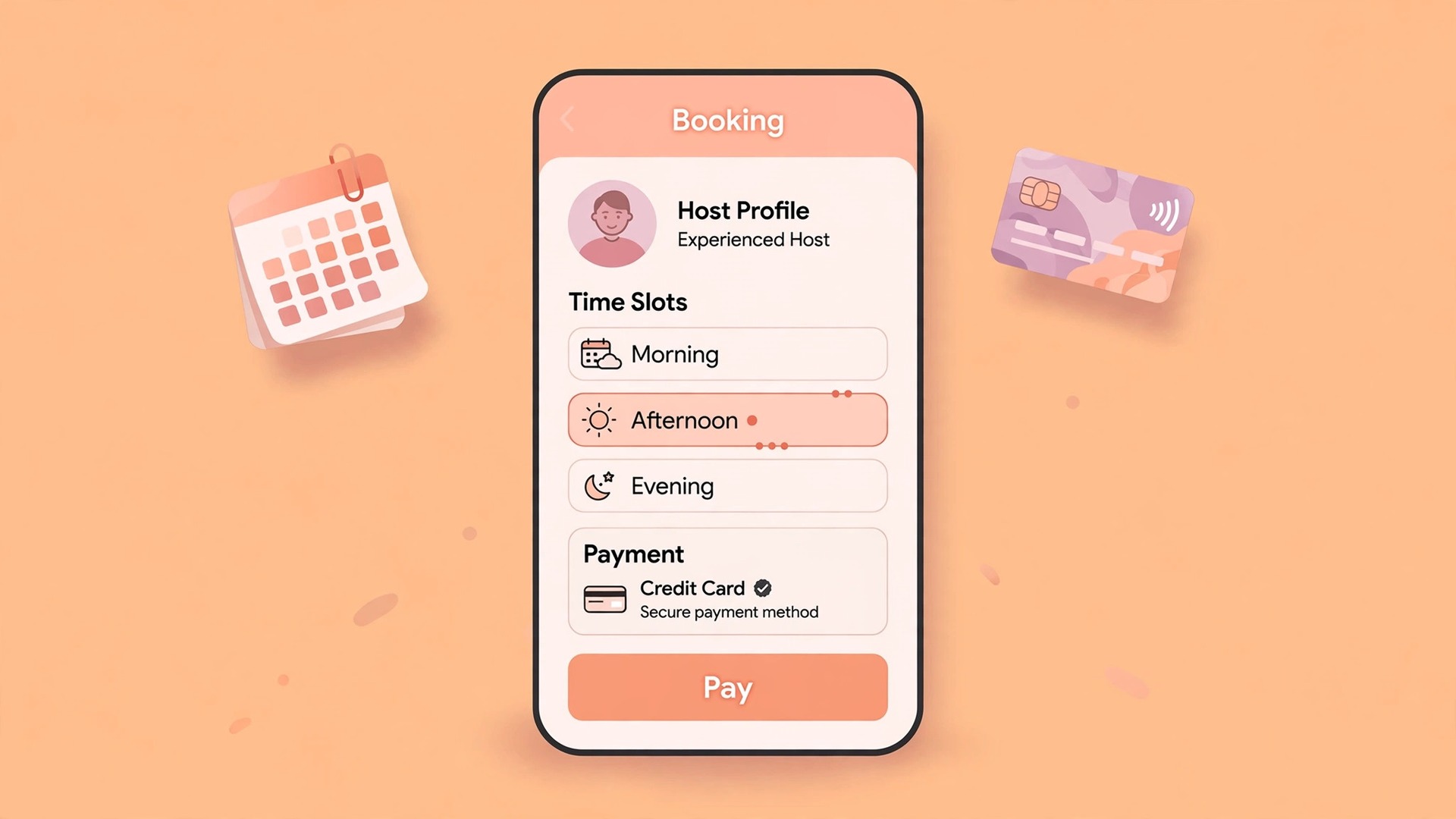
Payments need the same per event care. Cal.com supports Stripe and PayPal payments on event types, which matches the Calendly Standard setup, but the connection itself must be rebuilt and the price re-entered per event. Test with a real small payment if your setup allows it, or at minimum confirm the payment step appears on the booking page and the price matches your offer. Check the refund path too, because a paid booking that gets cancelled needs a clear answer on whether the money returns automatically or by hand.
CRM and automation connections are the longest tail. Calendly users commonly sync bookings to HubSpot or Salesforce, send new bookings to a spreadsheet or Slack channel, or trigger follow up emails through an automation tool. Cal.com covers much of this through its app store, its workflows feature, and its API and webhooks, but each connection must be rebuilt and tested with a live booking. Map every automation to its new trigger, and keep a list of what fires on booking creation, cancellation, and rescheduling. A reminder workflow that fires twice because both tools are still connected is a common overlap bug, so turn off the Calendly side of each workflow as you switch it on in Cal.com.
Workflows inside Cal.com deserve a deliberate design pass rather than a copy of whatever Calendly did. Decide which events need an email reminder, which need an SMS reminder, and how far ahead each reminder goes out. Keep reminders short, with the meeting link, the time in the booker time zone, and a reschedule link. Test the full sequence on yourself, including the cancellation message, before any client sees it.
Embed Code Changes for Your Website
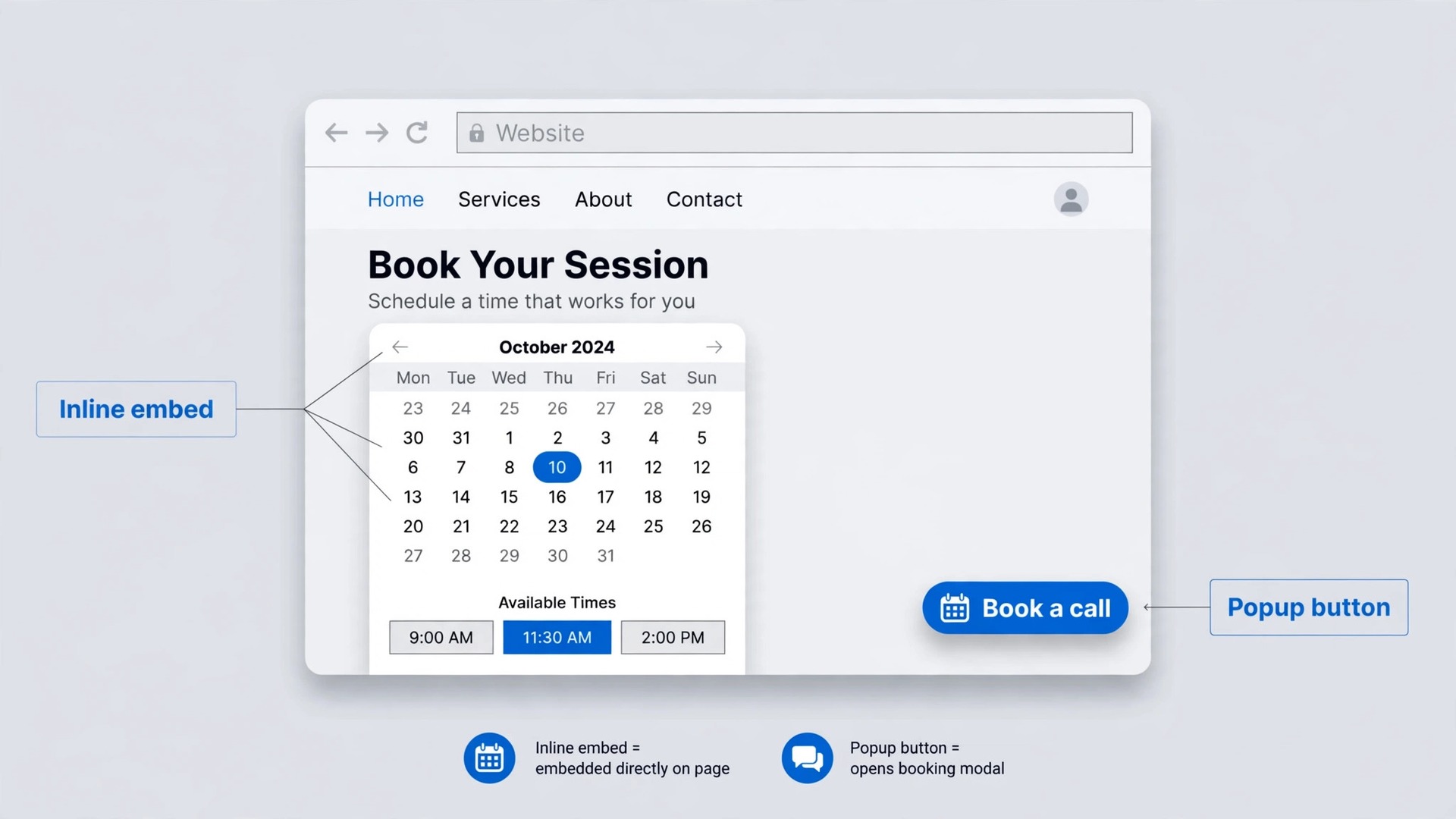
A booking link in an email is easy to swap. A booking embed on your website is where migrations stall, because the old code keeps working until someone removes it, and the new code needs a decision about format. Cal.com offers three embed shapes. An inline embed shows the full booking calendar inside the page itself, which suits a dedicated booking page. A popup button floats on the page and opens the booking flow when clicked, which suits a site where booking is available everywhere but is not the main content. An element-click popup attaches the booking flow to a button or link you already have, such as a hero call to action, so the visitor never leaves the page.
Before you generate new code, search your site for every Calendly embed. Check your booking page, your contact page, your service pages, and any page built with a page builder that stores code in a widget. Make a list of each embed location and which event type it shows.
Then generate the new code per event type in Cal.com. This is the step where people who migrate Calendly to Cal.com lose a day, not because the code is hard but because old code hides in places they forgot. Open the event type, choose the embed option, pick inline, popup button, or element-click, set the size, theme, brand colour, and layout options, and copy the snippet. The inline snippet uses a cal-inline element with your event link, plus the Cal.com embed script, and the popup options use a button carrying your event link with the same script. Paste the snippet into the matching spot on your site, publish, and test on desktop and on a phone.
Two details catch people here. First, a page builder or caching plugin can serve the old page for hours after you publish, so clear the cache and test in a private browser window before declaring the swap done. Second, an embed that worked on a staging page may fail on the live page if a security plugin blocks third party scripts, so test the live URL itself, not just a preview.
The Cutover Plan That Avoids Double Bookings
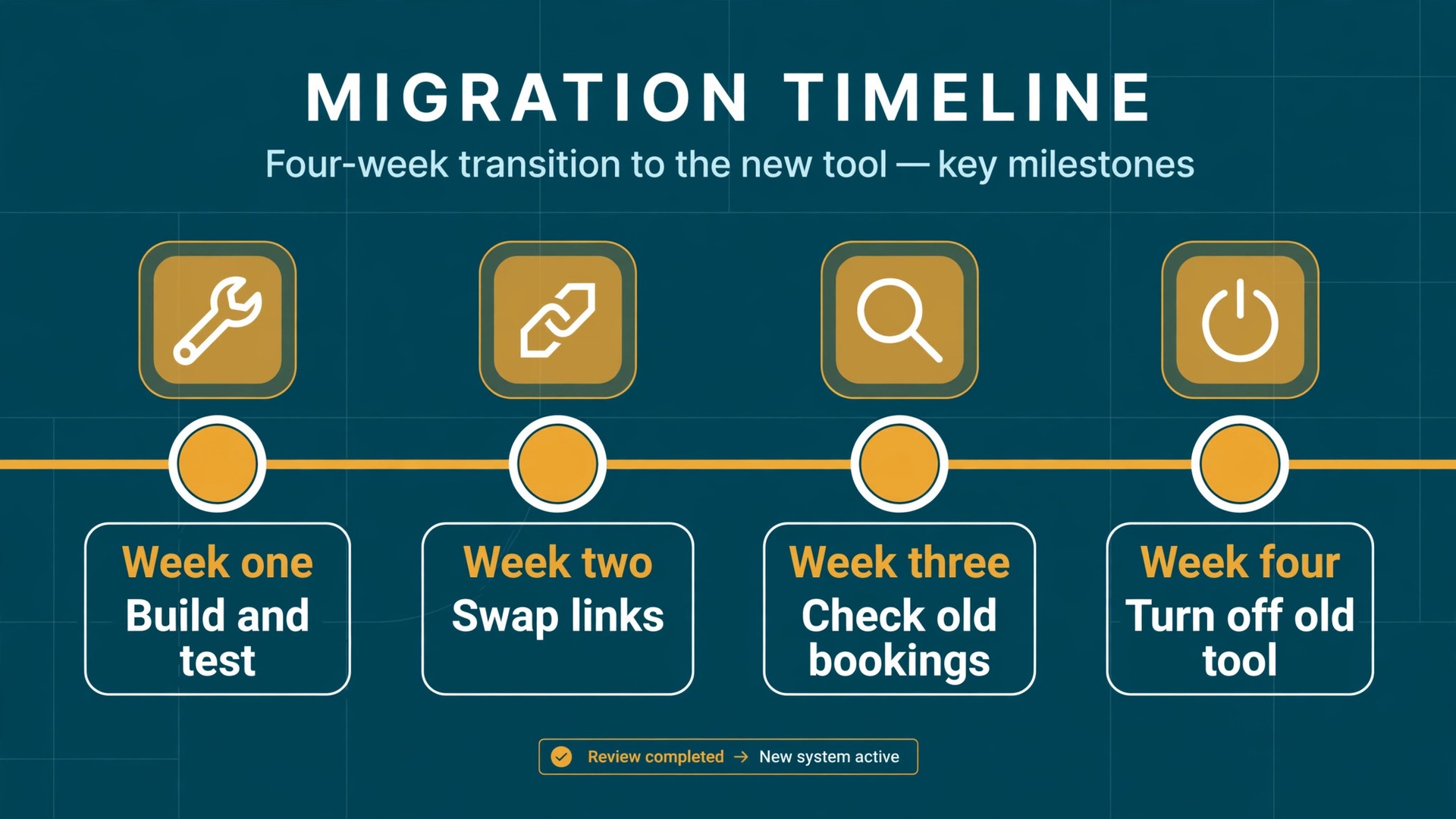
Cutover is a timetable, not a moment, and the safest version runs over two to four weeks depending on how far ahead you take bookings. The plan below assumes you take bookings up to a month ahead. Shorten it if you only book a week out, and lengthen it if clients book quarters ahead.
In week one, build and test everything in Cal.com while Calendly keeps taking live bookings. This is the safe way to migrate Calendly to Cal.com without touching live traffic. Finish the import, rebuild buffers, round robin, branding, integrations, workflows, and embeds, and run test bookings through every event type. Do not swap any public link yet. At the end of week one you should be able to say that every Cal.com event type has passed a test booking, a test cancellation, and a test reschedule.
In week two, swap the links in order of traffic and watch both tools. Website first, then email signature, then social profiles, then proposals and documents. From this point, new bookings arrive through Cal.com, while old bookings made through Calendly still sit in your calendar. Because both tools read the same calendar, a new Cal.com booking cannot land on a slot already taken by an old one. Check daily for any booking that looks wrong.
In week three, confirm the tail is shrinking. Count remaining future bookings that came through Calendly and confirm each one is still valid, with the right video link and attendee. If one needs rescheduling, reschedule it through the calendar event itself and tell the attendee directly.
In week four, turn Calendly event types off one at a time. Turn off the lowest traffic event type first, wait a few days, then turn off the rest. Only cancel or downgrade Calendly after the last old booking has passed and you have exported a final copy of your meetings and contacts.
The double booking scenarios to guard against are specific. A host with two calendars where only one is connected to Cal.com will look free when they are busy. A team member who never connected their calendar will break collective availability. A workflow left running in Calendly can confuse a client who also gets Cal.com reminders. And an old embed left on a low traffic page can take a booking after you thought the swap was complete.
What It Costs After the Move
Price is a real reason for anyone planning to migrate Calendly to Cal.com, but only if you compare the setup you will actually live in. Publicly listed October 2026 figures put Calendly Free at zero with one event type and one calendar connection, Standard at 10 dollars per seat a month billed yearly or 12 dollars billed monthly with unlimited event types, and Teams at 16 dollars billed yearly or 20 dollars billed monthly with round robin and routing. Cal.com Free is zero for one user with unlimited event types and calendars, Teams is 12 dollars per user a month billed yearly, and Organizations is 28 dollars per user a month billed yearly with sub-teams and single sign-on controls.
| Setup | Publicly listed cost | Best fit |
|---|---|---|
| Calendly Free | 0 dollars | One event type and one calendar |
| Calendly Standard, yearly | 10 dollars per seat a month | Solo users needing unlimited event types |
| Calendly Teams, yearly | 16 dollars per seat a month | Teams needing round robin and routing |
| Cal.com Free | 0 dollars | Solo users with several event types |
| Cal.com Teams, yearly | 12 dollars per user a month | Small teams needing round robin and routing |
| Cal.com Organizations, yearly | 28 dollars per user a month | Larger teams needing sub-teams and identity controls |
The honest comparison for a solo user is Cal.com Free against Calendly Standard, because that is the point where unlimited event types stop costing money. A solo user moving from Calendly Standard at 10 dollars a month billed yearly to Cal.com Free saves the whole subscription, as long as the free plan covers their video, payment, and workflow needs. For a team, Cal.com Teams at 12 dollars against Calendly Teams at 16 dollars saves 4 dollars per user a month, or 48 dollars per user over a year. A five person team saves 240 dollars a year on that gap alone.
Also count the cost of the overlap month. Keeping Calendly paid for one extra month while you verify Cal.com is the cheapest insurance in this whole project. Set a calendar reminder to cancel Calendly only after the cutover checks in week four are complete.
Mistakes That Break a Migration
The first mistake is importing everything at once without a test booking. When you migrate Calendly to Cal.com, a bulk import that flattens buffers, drops a video setting, or mislabels an event type leaves you unsure what succeeded, and reimporting creates duplicates. Import once, verify every event type against your audit sheet, and only then proceed to link swaps.
The second mistake is cancelling Calendly on import day. Import is not verification, and an event type count match does not prove buffers survived, video links generate, or payments connect. Keep Calendly live until the last old booking has passed.
The third mistake is forgetting a calendar. A host who connects only a work calendar while keeping a personal calendar separate will get double booked the first time a personal event collides with a client slot. Connect every calendar that holds real commitments as a conflict calendar.
The fourth mistake is leaving old links and embeds live. A swap that covers the website but misses the email signature, a proposal template, or a low traffic landing page will keep sending bookings to the old tool for months. Work through the link inventory line by line, and search your site for old embeds after the swap.
The fifth mistake is rebuilding workflows from memory instead of from a list. A reminder that never fires is a no-show. A reminder that fires twice is a confused client. A CRM sync that silently stops is a lost lead. List every automation before the move, and test each trigger with a live booking, a cancellation, and a reschedule.
The sixth mistake is skipping the phone test. Most bookers arrive on a phone, and a page that looks clean on a desktop can hide its booking button or break its embed on a small screen. Test every event type on a real phone before you publish.
For a wider comparison before you commit, this site’s Calendly vs Cal.com comparison covers the two tools head to head, and Calendly alternatives places Cal.com among the wider field. If you are still deciding what good scheduling looks like in general, best scheduling apps is a useful next read, and consultation bookings with Calendly shows the setup many readers are migrating away from.
Frequently Asked Questions
Will my existing Calendly bookings survive the move?
Yes, in the sense that matters. If you migrate Calendly to Cal.com midweek, bookings already made stay booked, because they live in your calendar as calendar events. What does not transfer is the management of those bookings through Calendly links, so keep Calendly live until the last old booking has passed.
Can I keep my Calendly link address on Cal.com?
No, the link itself cannot move, because the two services use different domains and usernames. You will get a new Cal.com link, usually your username plus the event name, and you must replace the old link everywhere it appears. That is why the link inventory comes before the swap.
Do I need a paid Cal.com plan for round robin?
Yes, for a team setup. Round robin, routing forms, and brand removal sit on the Cal.com Teams plan, publicly listed at 12 dollars per user a month billed yearly. A solo user with one-on-one events does not need it, but a team that routes inbound bookings across several hosts should budget for it before cutover.
What happens to payments I already collected through Calendly?
Payments already collected stay with your Stripe or PayPal account, because Calendly never held the money itself. Reconnect the same account in Cal.com, re-enter prices per event type, and check which already paid bookings are still upcoming so no client is asked to pay twice.
How long does the whole migration take?
A solo setup with a handful of event types often takes an afternoon of active work, plus two weeks of overlap while old bookings pass. A team with round robin, routing forms, CRM sync, and embeds across several pages should plan a week of building and testing, plus a three to four week cutover.
Should I self-host Cal.com instead of using the hosted version?
Self-hosting is a real option, since Cal.com is open source, but it is a separate project from migrating, and it suits teams with developer time. Most readers should migrate to the hosted version first, prove the booking flow works, and only consider self-hosting later.
Your Calendar Should Feel Quieter After This
A good migration is boring in the best sense. When you migrate Calendly to Cal.com, you audit, you export, you import, you verify every buffer and video link, you rebuild the integrations that do not transfer, you swap links in traffic order, and you keep the old tool open until the new one has earned your trust.
Start with the audit this week, even if you do not import anything yet. List your event types, your buffers, your round-robin rules, your integrations, and every place your link appears. Those five lists take an afternoon and remove most of the risk from everything that follows. Then run the import, fix what verification shows you, and cut over in order.